

Gemini Tasks, the task mode inside the Gemini app, is now free, and as of November 17 people in the US, Japan, South Korea, Canada, Australia and India can start using it. Chat is a back-and-forth: you ask, it answers. Tasks works differently. You hand over a job that takes real time, Gemini works through it in the background, pauses to check with you when a step needs a decision, and can repeat the job on a fixed schedule. Under the hood it runs on Google's new Gemini 4 Hydrogen model.
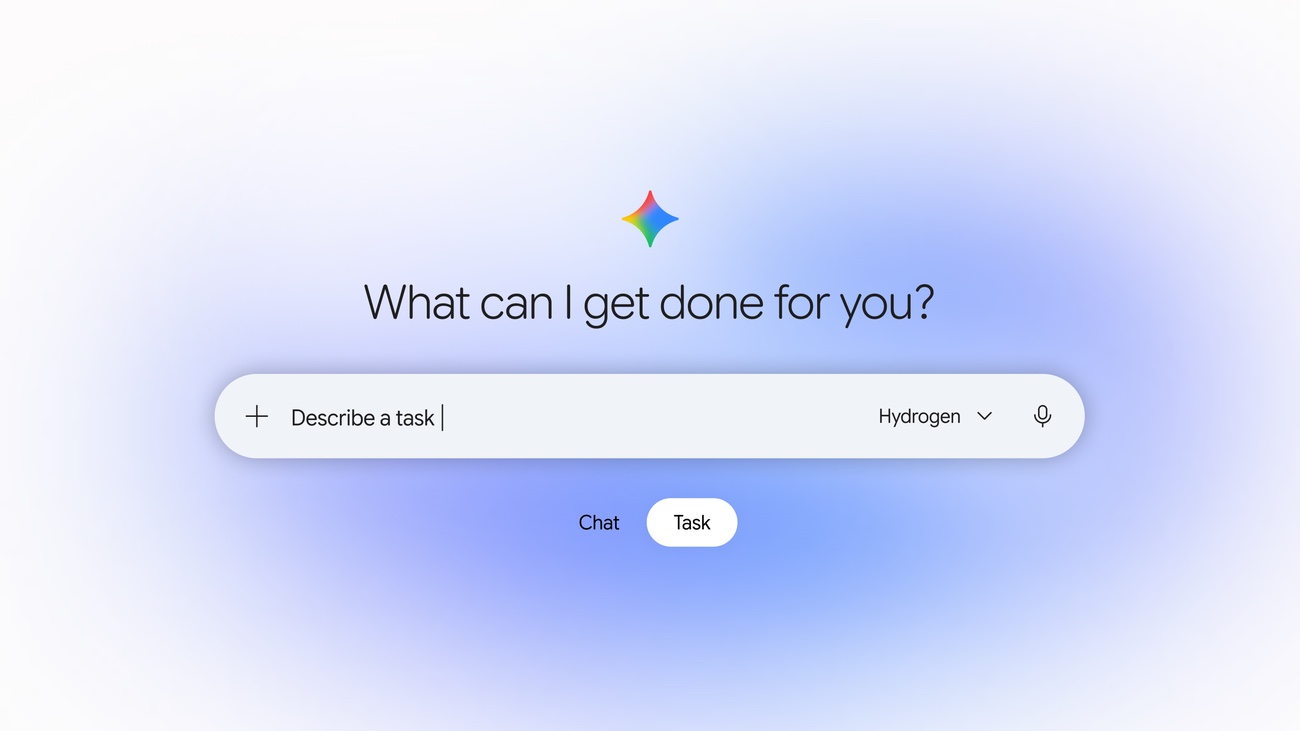
Image from the Google blog: the Chat and Task switches sit under the input box. Switch to Task to hand over a job.
What is Gemini Tasks
Tasks is Gemini's version of an AI agent. You describe the result you want, and Gemini decides what to look up and which tools to use, then returns the finished work. Here is how it differs from chat:
| Chat | Task | |
|---|---|---|
| Best for | Quick questions and rewriting a paragraph | Jobs that take minutes or more, and work you repeat every week |
| How it works | You ask, it answers | Runs in the background, and you can jump in at any point |
| Will it take action? | Mostly suggests, rarely acts | Opens websites, uses Google apps, and calls businesses or buys things within the permissions you give |
| Key steps | Not applicable | Payments and orders pause until you confirm |
Google's own examples: ask it to call two auto shops at once for a Friday morning service and put the booking on your calendar. Have it read past electricity bills in your inbox and work out why your bill jumped. Or have it add every date from a school notice email to your calendar.
What shipped with it
Available in every supported country:
- Direct work in Google apps: inside Gemini you can start a new Google Doc or Sheet and make changes to existing ones, draft and send Gmail, and set several calendar events at once.
Launching in the US first:
- Calling businesses for you: it can call several shops at the same time to compare prices, check stock, or book a time. You can hang up during a call, and afterward the conversation shows a summary and a full transcript. It says it is an AI as soon as it speaks, it won't read out your payment or account details on the call, and businesses can opt out of these calls.
- Paying for you: purchases go through Google Pay and the AP2 payment protocol. You set a spending cap and a list of allowed shops first. It asks before buying, or you can let it decide on its own within the cap. Your credit card's existing rewards and protections still apply, and receipts and shipping updates go to Google Wallet.
- Assigning work by forwarding email: forward an email to gemini@google.com and it replies in a private conversation with just you and Gemini, sharing progress and results. Nothing goes out to the whole thread by mistake.
- Assigning work by text: message Gemini through Google Messages or iMessage to give it a job. A US phone number is required.
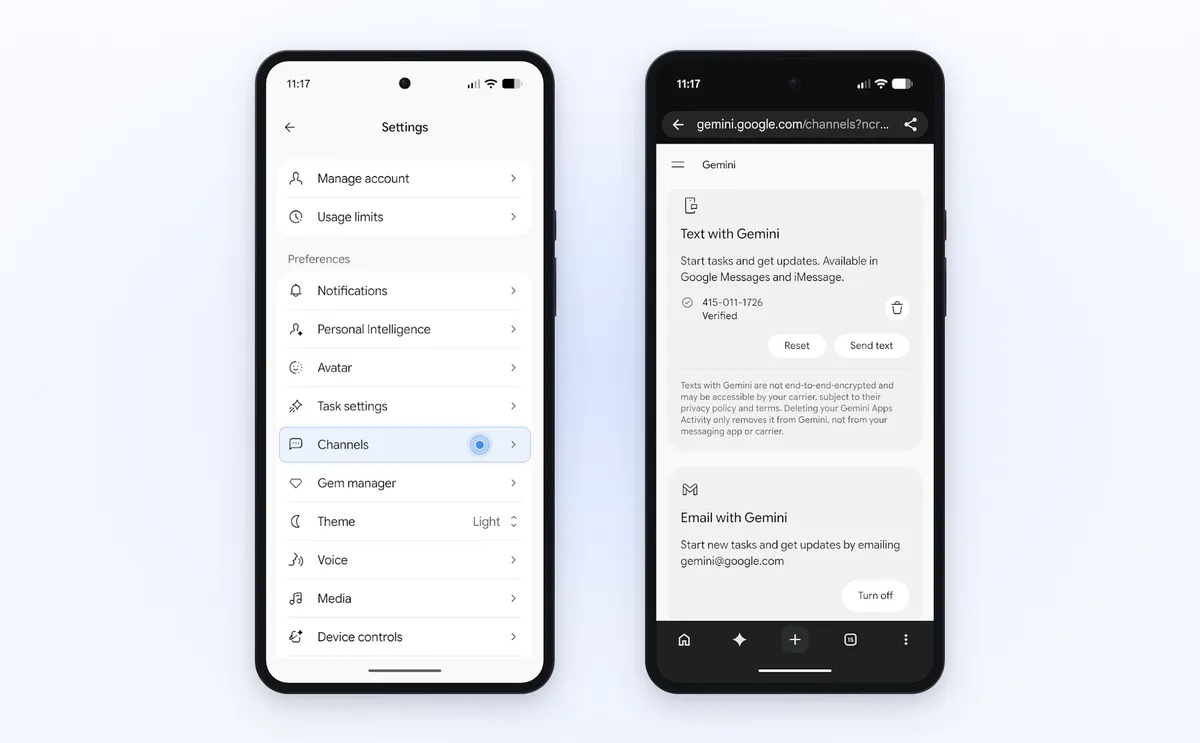
Image from the Google blog: bind a phone number under Settings, then Channels, to assign work by text and email.
How it stays safe
Each task runs in its own virtual machine tied to your account, kept apart from other people's work. Web pages and search results it reads pass through a filter designed to catch prompt injection, and the sites it can open are limited by Google Safe Browsing. By default it asks you before any purchase. Routine, low-risk steps, such as adding an item to a cart, can be set to always allowed. Google also admits that tasks sometimes fail or drift off course. On some sites, when a task reaches the final step, it returns control to you so you press the last button yourself.
How to get started
Open Gemini in the app or on the web, switch the toggle under the input box from Chat to Task, and describe the result you want in one sentence. Include these details up front and it will need fewer back-and-forth questions:
Task: [what to produce, e.g. find a Friday morning dentist follow-up slot next month]
Known details: [location, budget, preferences, e.g. within 5 km of home, covered by my insurance]
Allowed: [e.g. search the web, check my calendar, call businesses]
Not allowed: [e.g. no payments without asking me, don't change existing calendar events]
Deliver: [e.g. two possible times and a call summary, then add my pick to the calendar after I confirm]
If you want an AI agent on your own computer to run recurring work on a schedule, outside Gemini, see Running scheduled jobs through the system scheduler so each run costs zero tokens.
Things to know
- Availability is staged: free Tasks opens first in the six countries listed above. Calling, payments, and assigning work by email and text are US-only for now, and calling is not yet available in some US states.
- The more access you grant, the more it can do: reading your inbox, signing in to bill-pay sites with a password manager, and making payments each need your explicit approval. Disconnect any app you don't need, and you can delete your chat history at any time.
- Check the results yourself: for anything involving money, bookings, or emails it has sent, review the output before you confirm.
Comments (0)
No comments yet. Start the conversation.