

Coding agents like Claude Code and Codex keep multiplying, and one terminal window is no longer enough. The two most-starred "agent consoles" on GitHub are Orca (about 126k stars) and T3 Code (about 62k stars). Synara (about 2,200 stars) is newer, but a few people already use it. All three are open source under the MIT license and free. They drive the agents you have already signed in to, so they use your own subscription limits. None of them sells extra tokens. In short: pick Orca to run several agents in parallel, T3 Code if you want something fast and clean that also lets you approve commands from your phone, and Synara if you want a calm desktop workspace where you can watch the preview while the agent edits.
Side by side
| Orca | T3 Code | Synara | |
|---|---|---|---|
| Focus | Parallel multi-agent workspace, close to an IDE | One interface for many coding agents, built for speed | One task at a time, with chat, changes and preview together |
| Supported agents | Any agent that runs in a terminal, 30+ on the official list | Claude Code, Codex, Cursor, OpenCode, Kiro and more, plus any ACP agent | 9, including Claude Code, Codex, Cursor, Grok, OpenCode and Devin |
| Running several at once | A workspace per task (git worktree). A lead agent can split up work and hand it to worker agents | A workspace per chat. Switch models mid-chat, or hand work from Claude to Codex | A workspace per task. Pass a task and its project context to another agent |
| Phone | iOS and Android. Push alerts, reply from the phone | iOS, Android and web. Approve the next command from the phone | No phone app |
| Remote | This machine, an SSH server, a self-hosted Orca server, or a cloud VM per workspace on your own account | One server, many clients. Local network, Tailscale or T3 Connect | Mainly your local desktop |
| Built-in tools | Line-by-line comments on diffs sent back to the agent, element picking in the browser, task board, scheduled automation | Code diffs, one-click commit and push to open a PR. Small, focused set | Terminal, browser preview, file editing and Git beside each task, split view with iOS simulator, scheduled automation |
| Maturity | Version 1.4, releases almost daily | Version 0.1. Only small fixes accepted, new features need discussion first | Version 1.6. The project says it is early, so interfaces will change |
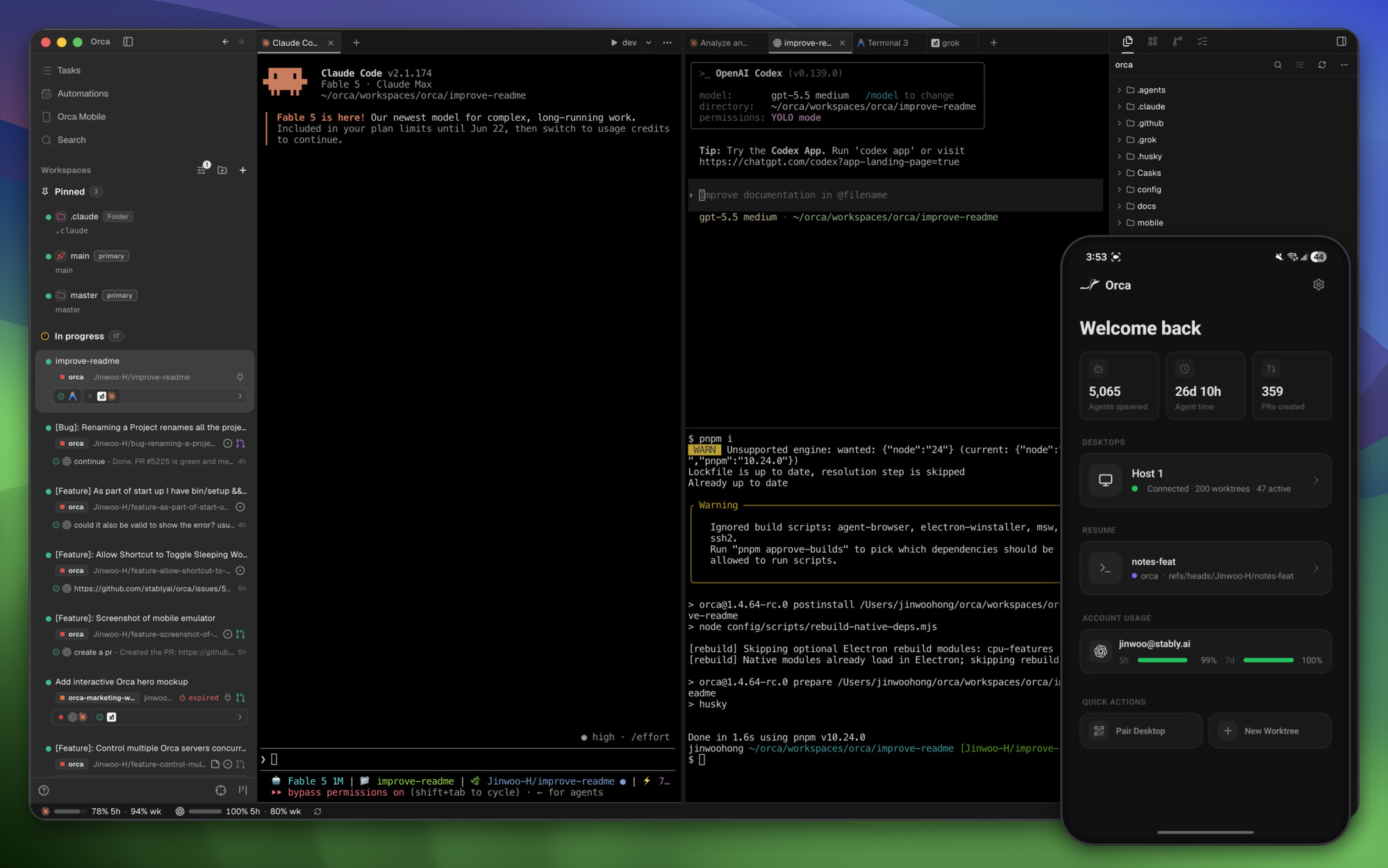
Image from Orca's GitHub repository.
Choose Orca if your work splits up
Your job can be broken into parts. Say you're fixing a bug, writing a new page and running tests all at once. Three or four agents can each take a piece without stepping on each other's code. Orca's workspace isolation, lead-agent task splitting and line-by-line code comments sent back to the agent are all built for this: one person leading a small team.
It also puts a browser, a code editor and a task board in one window. Front-end developers can click a button in the built-in browser and send the styles to the agent. The downside is that there's a lot on screen, so the first launch takes some time to learn.
Choose T3 Code if you watch one or two agents
You mostly follow one or two agents at a time, and you care most about an interface that is fast, never lags and lets you pick up work from anywhere. T3 Code treats performance as a feature. A dropped frame counts as a bug. A chat you start on your desktop shows the same history on your phone when you're away, and you can approve a command with a tap when the agent needs to run one.
It suits a setup where the agent runs on your home computer and you steer it from outside. It has fewer features than Orca, but the diff view and commit flow you need are there.
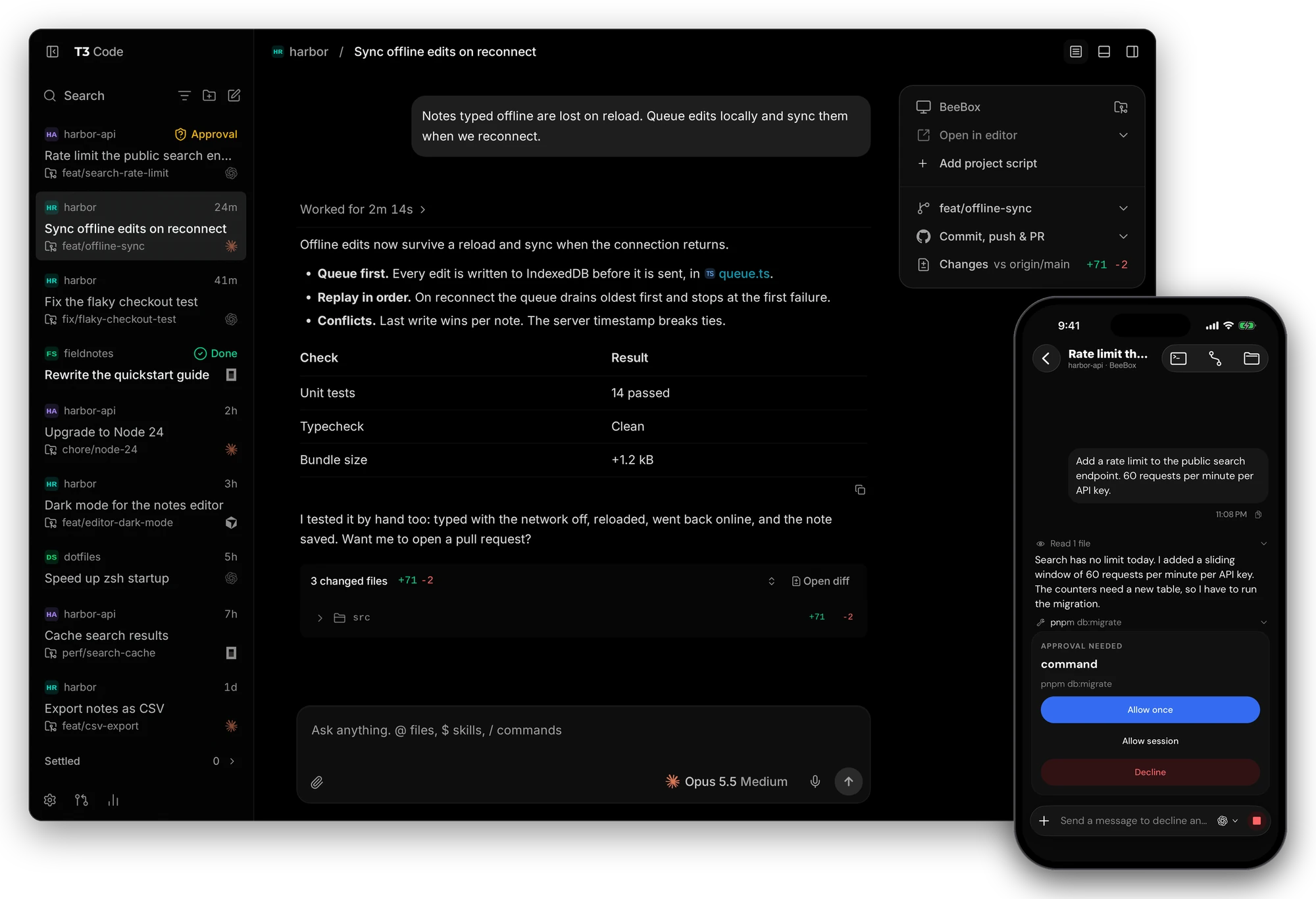
Image from T3 Code's GitHub repository.
Choose Synara if you work at one computer
You sit at your computer and focus on one thing at a time. You want to see what the agent changes and how it looks as it goes. Synara puts chat on the left and changes, terminal and browser preview on the right. If you build web pages or iOS apps, you can watch the simulator while the agent works. When one agent gets stuck, hand the task and its context to another agent so it can carry on without you explaining everything again.
It's much smaller than the other two. Fewer people use it, so you'll find fewer tips online when you get stuck. There is no phone app and no remote option. It suits people who like trying new tools and mostly work on one machine.
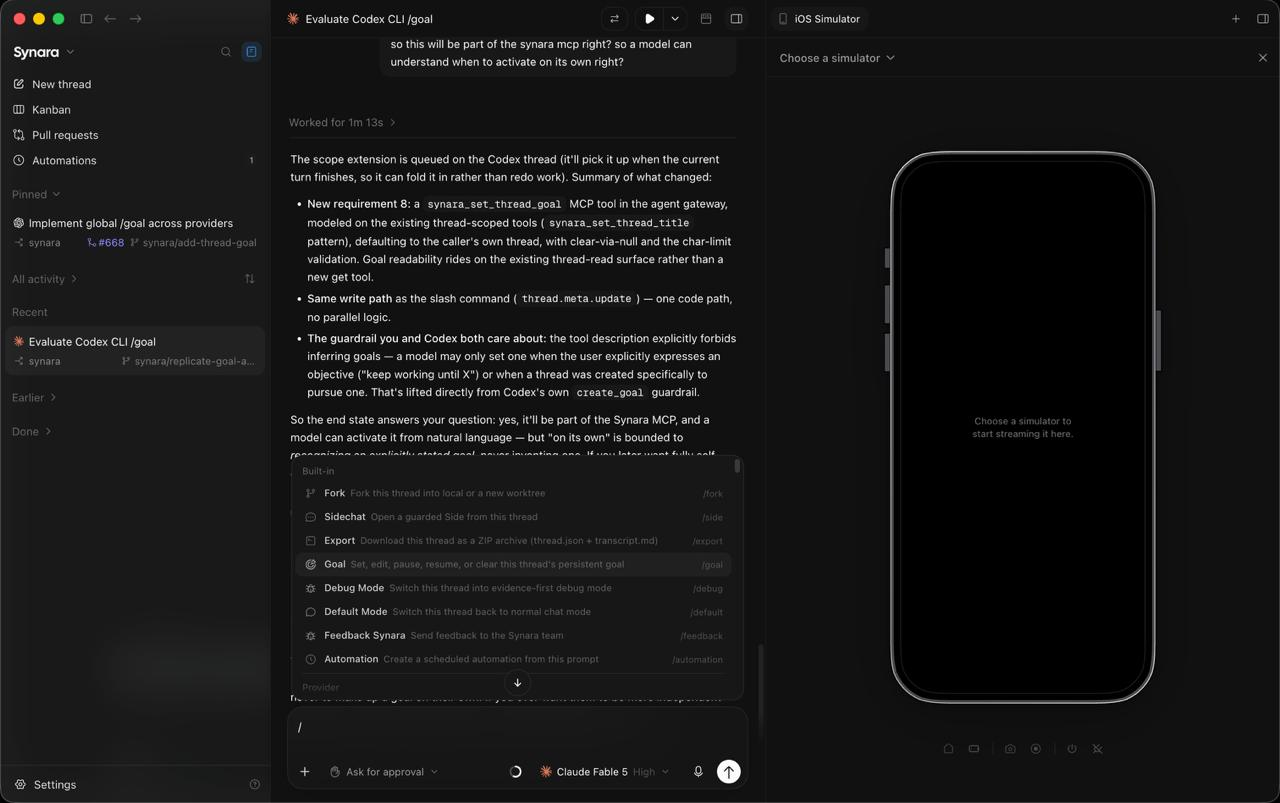
Image from Synara's GitHub repository.
You can skip all of them
If you use one agent, do one thing at a time and don't need to control it from your phone, the terminal or the agent's own desktop app is enough. These tools solve the problem of managing many agents. If you don't have that problem yet, there's no need to install anything.
How to try them
All three are free, so don't overthink it. Pick one using the advice above, then let your AI agent install it with this prompt:
I want to try [Orca / T3 Code / Synara] to manage the coding agents on my computer. Please help me:

1. Read its official GitHub README first and confirm the install method for my computer ([macOS / Windows / Linux]). Before installing, tell me what will be installed and where it comes from, and wait for my approval.
2. Check which coding agents are already installed and signed in on my computer, and list them for me. Do not sign in for me on any agent that isn't signed in. Tell me which login command to run, and I will do it myself.
3. Once it's installed, open a workspace for one of my small projects and run a simple task (for example, "add an install section to the README"). Walk me through where to find the code changes and how to commit them.
4. If I want to connect from my phone, first tell me the connection options and the security risk of each. Set it up only after I choose.
Why the prompt is built this way: you do the sign-in yourself, so your AI agent never handles your account. Phone access comes last, on its own, because it means letting outside devices control your computer.
Notes
- More parallel agents burn through limits faster: Every tool here runs on your own subscription. Three agents at once use up three times the limit. Orca shows usage and reset times, so check them before you start.
- Set up device approval before you go remote: If you can control your computer from your phone, anyone who gets into your account could connect to your computer too. T3 Connect can require approval for new devices. With Orca's remote servers, only connect machines you trust.
- Orca collects anonymous usage data by default: The official docs say what it collects and how to turn it off. If that matters to you, turn it off in settings after installing.
- Try Synara on a low-stakes repo first: Few people use it yet. Run it on a practice project for a few days and make sure it's stable before you use it on real work.
- All three change fast: Interfaces and features shift quickly. If something here doesn't match what you see, follow the official docs.
If you want to get comfortable with one agent before looking at these tools, read What is an AI agent.
Project links: Orca (GitHub) · orca.dev · T3 Code (GitHub) · t3.codes · Synara (GitHub) · trysynara.com
Comments (0)
No comments yet. Start the conversation.