


Not understanding the other party's language in meetings and spending half an hour tidying up notes afterward can both be handled by one free, open-source desktop app: Cicada (知了). It listens in on your own computer and provides bilingual subtitles and structured notes at the same time, and when needed it can translate your words into the other side's language and speak them for you. No extra "note-taking bot" appears in the meeting.
See it in action
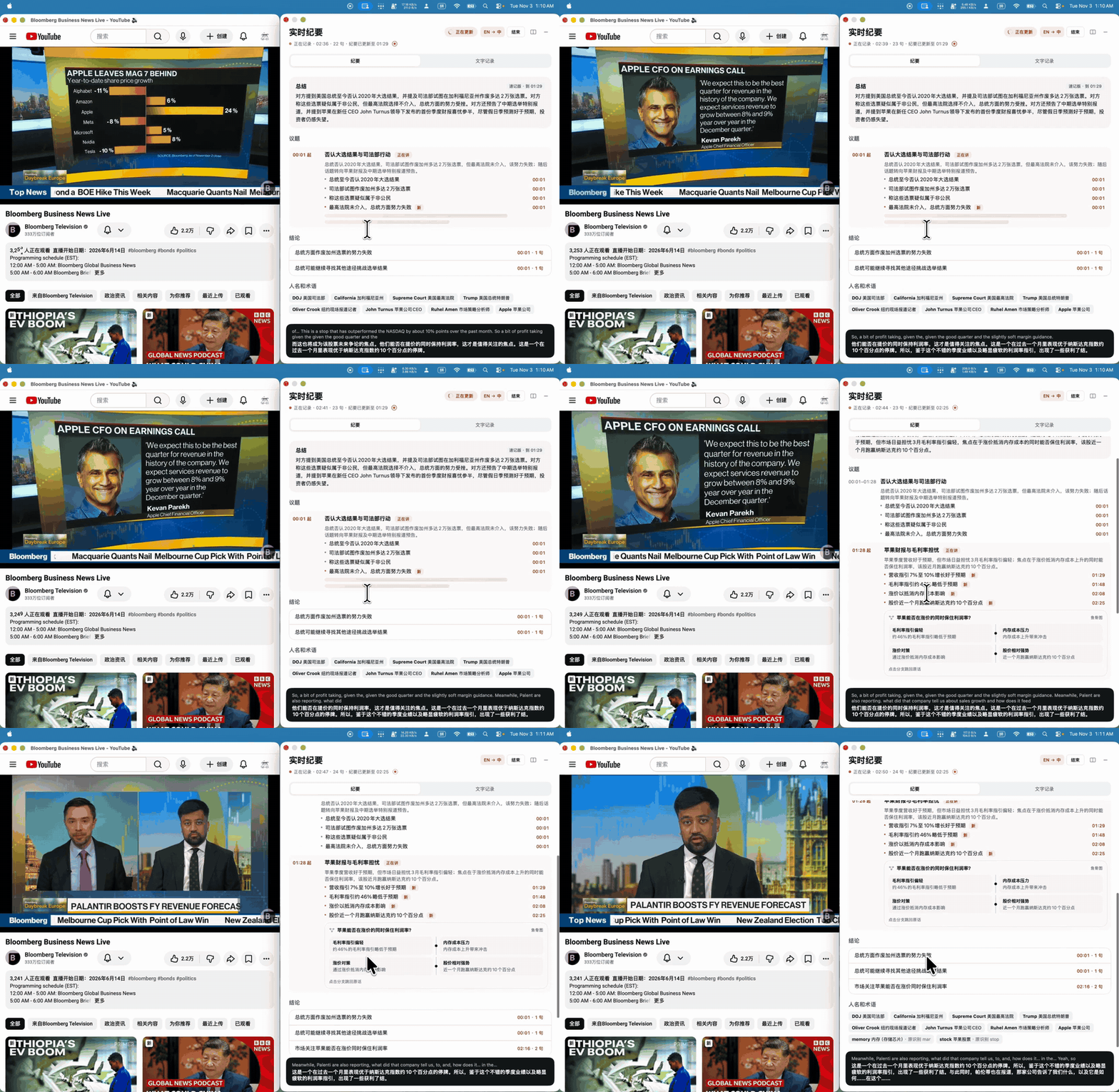
On one side is a playing English livestream; on the other is the Chinese notes Cicada organizes in real time: summary, topics, conclusions, and action items grow column by column, with bilingual subtitles scrolling along the bottom.
After the meeting, every sentence is aligned with the recording; click one to replay from that point, and different speakers are labeled automatically.
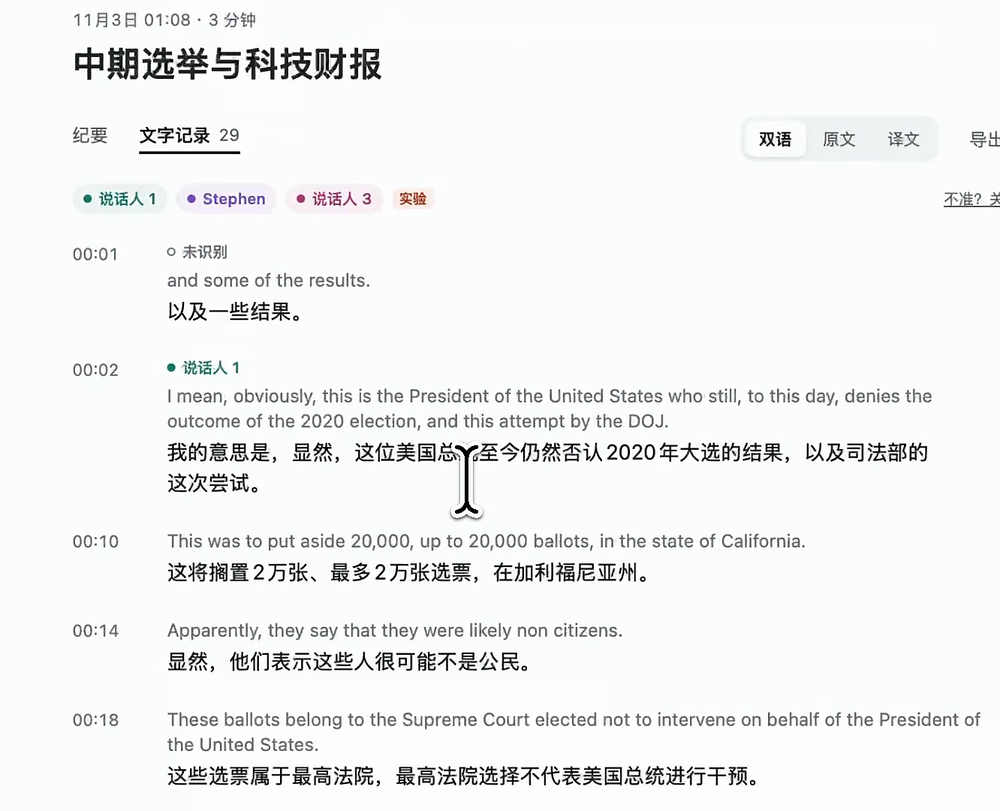
Images come from the project repository; we did not install and run it ourselves.
How is it different from "meeting recording to text"?
Common meeting note tools either require adding a bot account to the meeting or only work by uploading recordings afterward. Cicada takes a different approach: it does not join the meeting; it only listens to the sound your computer itself plays. So:
- No matter what meeting software the other side uses, or even if it's a livestream or online talk, as long as your computer is playing sound, it can listen.
- The other participants can't see that anyone new has joined, and no one needs to agree to install a plugin.
- In-room speech during an in-person meeting can also be merged into the same record as online audio once your microphone is on, labeled separately as "in-room" and "online."
How this case was built
It strings four tasks together in one app: listen, understand, record, speak.
- Listen: read system audio directly; add a desktop microphone when needed.
- Understand: convert speech to text and translate it into your system language, appearing on screen within seconds; speakers are distinguished using a local voiceprint model.
- Record: while listening, the AI sorts content into summary, topics, conclusions, action items, and a fishbone diagram. If names or technical terms are misheard, you can correct them on the spot, and they are added to a glossary so they won't be wrong next time.
- Speak: when it's your turn, hold a key and speak; the translated speech goes straight into the meeting. You can use a natural human-sounding voice, or have it speak in a voice modeled on a short sample of yours.
Choose how to use it based on your situation
The most important point: whether you need to enter an AI service key and whether your voice leaves your computer depends on your device.
Sign in to unlock this key section
New accounts get 10 free credits, plus 1 more for each daily check-in. Spend 1 credit to unlock and it stays open for you.
On any device, meeting records and recordings exist only on your own computer or phone. The project documentation states there is no tracking, no analytics, and no servers of its own. When you're finished, you can export Markdown, Word, or SRT subtitles.
How to get started yourself
- Open the official download page and choose the download for your system to install.
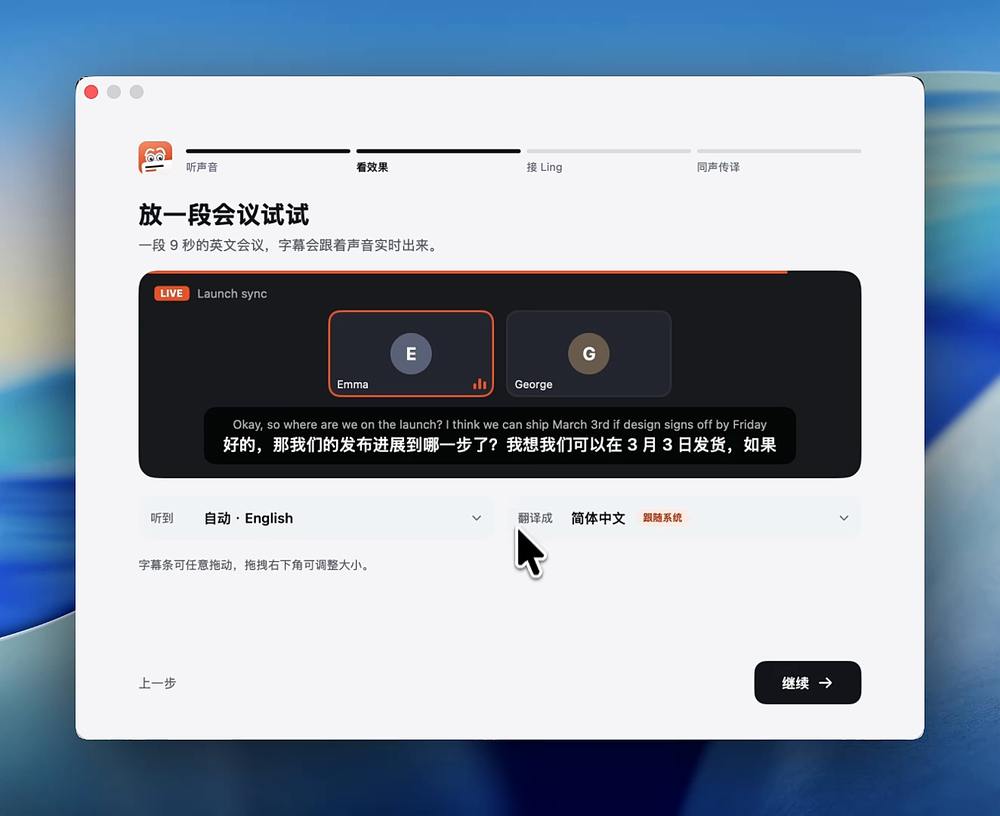
- Follow the first-run guide to grant the permissions it needs; it will play a sample two-person meeting so you can hear how the subtitles look.
- If you want real-time notes or natural-voice interpretation, go to Settings and enter your AI service key.
Pitfalls to watch for
- The Mac version has not yet been notarized by Apple, so the system will block it on first open; you need to manually allow it under "Privacy & Security". Windows may show a SmartScreen prompt.
- Interpretation needs a virtual microphone: on Mac, the app guides you through a one-click install; on Windows, use the free VB-Cable. Without it, the other side cannot hear your translated speech.
- On Linux, the notes window cannot be hidden from screen sharing, so remember to close it before sharing your screen; on Mac, the default screen recording and screenshots do not capture it.
- What you say directly without the key is not recorded for now: only speech made while holding the talk key is saved. The project has listed this on its roadmap.
- Calling apps on phones do not allow internal recording, so use speakerphone plus "face-to-face" mode instead.
Project page: wquguru/cicada (Apache-2.0).
Where it usually breaks
- 01The Mac version is not yet notarized, so the first time you open it you must manually allow it in System Settings.
- 02Without a virtual microphone installed, the other party cannot hear your translated speech.
- 03On Linux, the notes window is visible to screen sharing.
- 04What you say directly without the push-to-talk key is not recorded for now; only content spoken while holding the talk key is saved.
Comments (0)
No comments yet. Start the conversation.