

What You Get
Once Vercel's open-source agent-desktop is installed, your Claude Code or Codex can operate desktop apps on your computer directly, for example opening Notes and writing a paragraph, finding a file in Finder, or flipping a switch in Settings. It reads the "interface list" that each app provides itself, so it doesn't need screenshots to find buttons. That makes it more accurate than guessing coordinates from images, and it doesn't take over your mouse. The article includes 3 copy-ready prompts.
You only need to understand one concept. The agent handles installation and authorization, and it also picks the commands. You tell it what you want done, and you look over its plan before it acts.

Just One Concept to Know: The Interface List
Every properly built desktop app prepares a list for screen-reader software, specifying which buttons, input fields and menus are in the window, what each one is called, and what actions it supports. This was originally designed for visually impaired users and is called the accessibility tree.
agent-desktop reads this list and passes it to the agent, assigning a number (called a ref) to each clickable item. When the agent says "click 8," it clicks. After clicking, it reads the list again to confirm that something actually changed.
Compared with the screenshot approach, the differences are these:
Screenshot approachagent-desktopHow it finds buttonsGuesses positions from imagesReads the names and numbers the app reports itselfWhether it takes over the mouseYes, you can't use the computer while it operatesNo by default, it operates in the backgroundWhen something goes wrongYou don't know if it clicked the wrong spotExpired numbers produce a direct error, and it rereadsWeaknessCan see any interfaceIf an app lacks good accessibility support, the list may be incomplete
Supports macOS 13 and above, Windows 10 (version 1809) and above, and Ubuntu 24.04 and above.
Step 1: Have the Agent Install the Tool and Check Permissions
Open Claude Code or Codex and send it this:
Please install the open-source agent-desktop from vercel-labs (the npm package name is agent-desktop), then run agent-desktop status and tell me the result.
If system permissions are needed, tell me where to open them and which switch to click, and I will click it myself. Do not change any other system settings.
It will install globally with npm (on Mac you can also use Homebrew), then run the status check.
Mac users must grant the permission manually once: the system will ask you to open the terminal you run the agent in (such as Terminal or iTerm) under System Settings → Privacy & Security → Accessibility. The agent can run agent-desktop permissions --guide to walk you through the clicks step by step, but you must flip this switch yourself.
Step 2: Install the Official Skill
The official project wrote a usage guide (a Skill) for the agent, explaining the rules of "read the list first, then act, then confirm" and how to retry after an error. Have it install the Skill (if you don't know what a Skill is, see the Skill handbook):
Run npx skills add https://github.com/vercel-labs/agent-desktop --skill agent-desktop to install the official Skill.
After installing, read its two built-in guides (agent-desktop skills get desktop first, then agent-desktop skills get platform) and tell me in three sentences which rules you must follow when operating desktop apps.
The last line is there to confirm that it understood. It should mention "read the interface once before each action," "if a number has expired, read again," and "only retry when the prompt indicates a retry is safe."
Step 3: Run a Read-Only Trial First
For the first run, don't let it click anything. Only let it look:
Sign in to unlock this key section
New accounts get 10 free credits, plus 1 more for each daily check-in. Spend 1 credit to unlock and it stays open for you.
The third item is the most useful, because it makes the agent state its plan first, so you can judge whether it identified the buttons correctly. If it's right, reply "go ahead" and check whether it actually opened the Downloads folder.
Step 4: Hand It Real Work
Once you're comfortable, let it do things you normally click through across several apps, for example:
-
Create a new note in Notes and organize today's to-do items into it.
-
Open System Settings and tell you whether a certain option is on or off.
-
In an old program with no command line and no API, fill in a form by following a fixed sequence of steps.
Below is the official demo: the agent opens a text editor, writes a formatted note, and saves it.
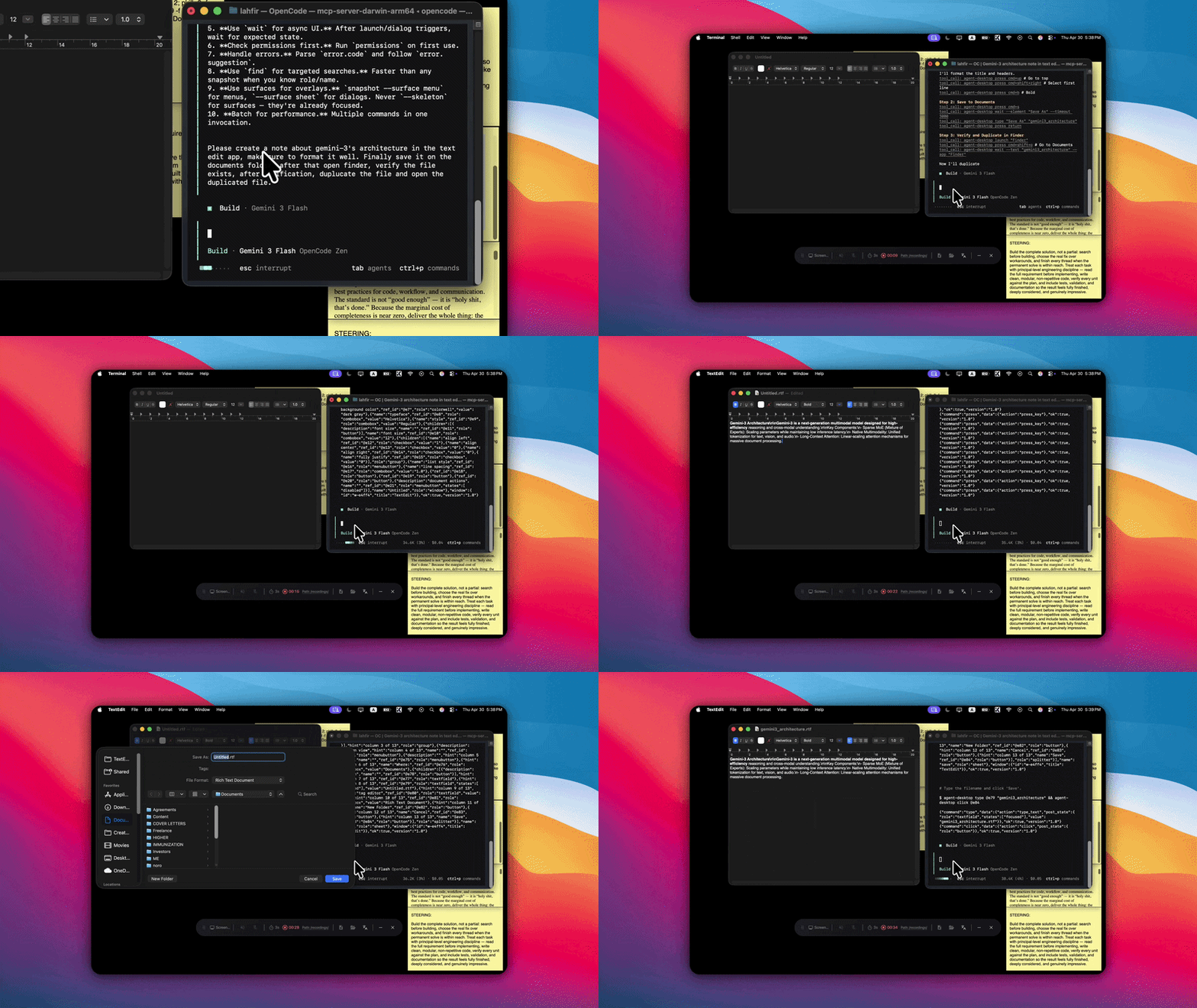
(The animated GIF comes from the agent-desktop repository.)
Every time, have it finish and then read the interface again, reporting the result to you in plain language, and then check with your own eyes whether the app actually changed.
Notes
-
Everything it reads is what's on your screen. The interface list and the clipboard may contain chat logs, passwords and bills, and so do screenshots. Don't let it paste these to public places, and don't casually upload logs.
-
For actions like sending messages, paying, or deleting, have it stop and ask you first. You can add a fixed line at the end of your prompt: "Ask me before any send, delete, or payment action."
-
Some apps have incomplete lists. Apps that draw their own interface, some games and old software may have buttons that can't be read. In that case it will say it can't find them, rather than clicking randomly.
-
When using PowerShell on Windows, wrap the numbers in quotes, or they will be interpreted as other syntax. The agent will know this after reading the Skill, and a single reminder is enough if an error occurs.
Comments (0)
No comments yet. Start the conversation.