

What you get
Recording a talking-head video is the easy part. The slow part comes after: scrubbing the timeline, cutting out "um" and "uh," removing the half sentence where you started over, adding subtitles and effects, and blurring any URL that shows up in a screen recording. The open-source project chaojifeng-video-content-creator packages all of this as a Skill. A Skill is a set of instructions written for an AI. Once it is installed in your AI agent, you only need to give the agent the path to your video file. Three copy-ready prompts are included below.
Here is the split: the AI agent does the tedious editing. You listen to the cuts, watch the final video, and decide whether to publish. A wrong cut that removes the wrong sentence costs more than one leftover "um," so do not skip the final check.

Here is the full process. First, have your AI agent install the Skill and check what your computer is missing. Then give it the recorded video and say how far you want it to go. It cleans up the talking-head footage, checks each cut point, adds effects and subtitles, and blurs any URLs on screen. At the end, you check the result against a checklist.
Why this is more reliable than "ask AI to edit it"
If you delete words based only on the transcript, the cut often slices into the middle of a syllable, and the audio sounds choppy. This Skill fixes the order of steps and the checks:
-
Clean first, then add effects: effect timing is based on the cleaned subtitles, so an effect never shows up after the line it was meant to match.
-
Cuts go through a quality check: every cut is tested for whether it clips into speech. Suspicious cuts are listed so you can listen to them. The final video is only exported after the check passes.
-
URLs are blurred where they actually appear: the check looks for links that flash for a moment, such as a link hint in the lower-left corner. After blurring, it checks again for missed spots and for anything blurred by mistake.
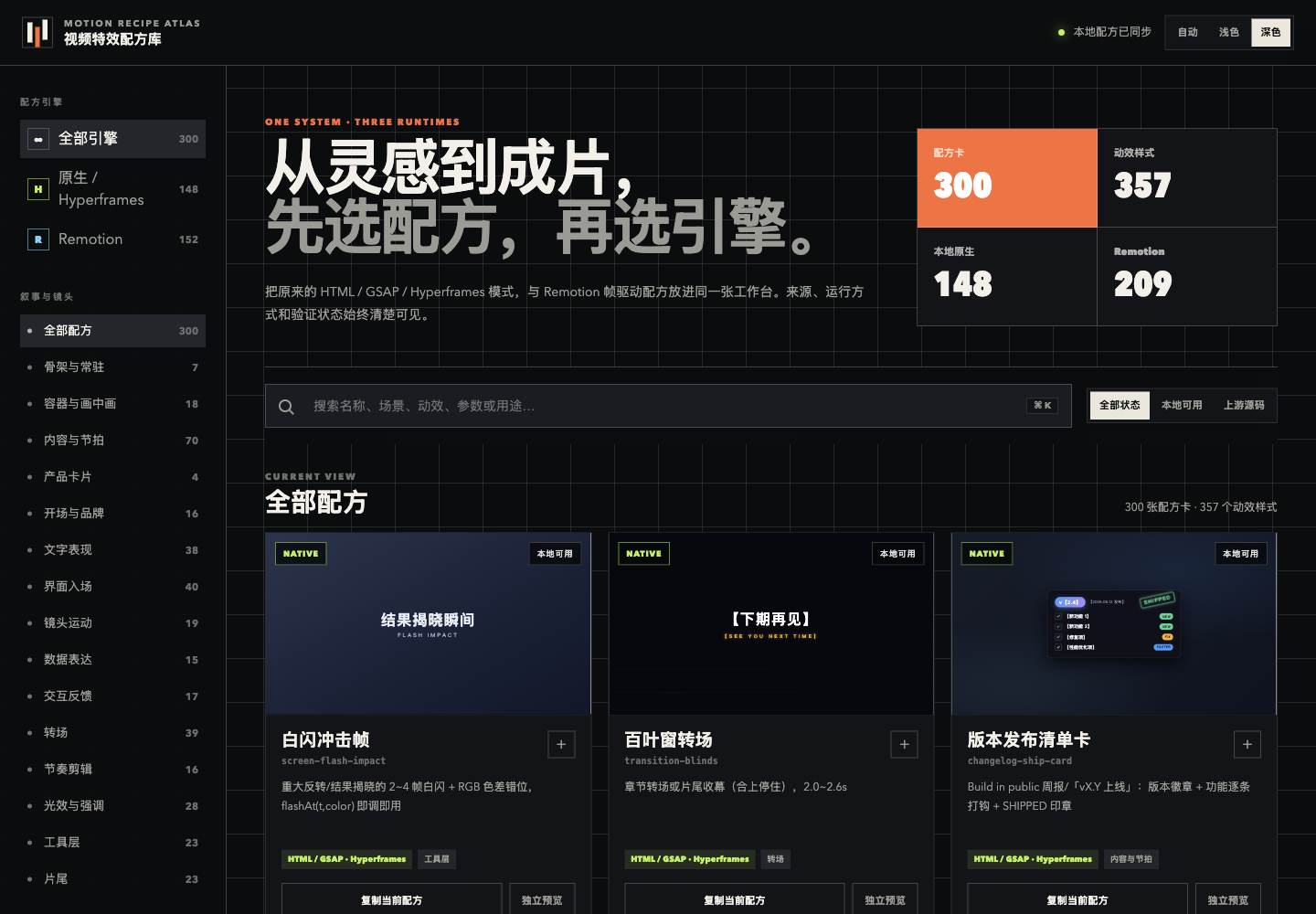
The image comes from the project's README. It shows the effects library picker that ships with the project. According to the project, it includes 148 local effects you can use right away, from transitions to end screens. We have not tried each one.
Step 1: Have your AI agent install the Skill
Send this to your AI agent:
Please install this video editing Skill for me: https://github.com/mileson/chaojifeng-video-content-creator
1. Install it only from this official repository. Put it in the folder where you read Skills, and keep the folder name chaojifeng-video-content-creator.
2. Check whether Python 3 and FFmpeg are on my computer. Adding effects also needs Node.js 22 or newer and Hyperframes. Tell me what is missing first, and ask for my approval before you install anything.
3. Speech-to-text can run locally, or use Volcano Engine's cloud service. If we use the cloud, tell me where the API key will be stored and how to make it readable only by me. I will enter the key myself. Do not ask me to paste it into the chat.
4. When the install is done, tell me in three plain sentences: what this Skill can do for me, what it does not do, and which files it gives me.
Why it is written this way: steps 2 and 3 make the agent ask before it installs anything, and the API key never passes through the chat. The last line is a check that the agent understood the Skill. It should mention "clean first, then add effects," "cuts go through a quality check," and "it does not publish to platforms automatically."
Step 2: Hand over the recorded video
The simplest option is automatic mode. It takes you from the edited subtitles all the way to the cover and the publishing materials.
Sign in to unlock this key section
New accounts get 10 free credits, plus 1 more for each daily check-in. Spend 1 credit to unlock and it stays open for you.
Why it is written this way: requirement 1 sets how aggressive the cuts are. The standard level suits most talking-head videos. If you want tighter cuts, change it to "aggressive," but the agent will then leave more sentences for you to confirm. Requirements 2 and 3 make the two checks mandatory. Requirement 5 narrows the scope. Without it, the agent may prepare materials for six platforms and three aspect ratios.
You do not need a finished recording to use this. If you only have an idea, ask the agent to start from topic selection, the script, and the shot plan. If you already have a script, start from the shot plan. If you already have a rough cut, only do the subtitles and the publishing materials. Just say "I have [what you have], start from this step."
Step 3: Review the video, and point out what is wrong

The final video is saved next to an SRT transcript with the same name. Go through the checklist above. It takes about ten minutes. If you find a problem, reply like this:
The final video needs a few fixes:
- [01:23] Don't cut the line "if that's the case." It is a conditional, so put it back as it was.
- [02:10] A link shows in the lower-left corner and is not blurred.
- [03:05] An effect covers the button I click. Move it to the upper right.
Only redo the parts that are affected. After the fixes, run the cut quality check and the blur check again.
Why it is written this way: timestamps and reasons let the agent find each problem directly. "Only redo the parts that are affected" stops it from re-cutting the whole video. Changing the cover does not re-cut the video, and changing the tags does not redo the cover.
Notes
-
The cleanup rules are tuned for Chinese: for an English video, have your AI agent adapt the filler list to English (um, uh, you know, like) before it starts cutting.
-
It does not publish for you: automatic mode only prepares the publishing materials. You decide whether, and where, to publish. Whether the cover and titles can be generated depends on whether your AI agent can make images. If it cannot, it will say what is missing.
-
Effects previews need internet access: the effects library preview page loads its animation library from the web, so it will not open offline.
-
Cloud transcription costs money: Volcano Engine charges for speech recognition at its own rates. If you do not want to pay, ask the agent to use local transcription.
References
-
chaojifeng-video-content-creator repository (MIT license)
-
New to Skills? Start with the Skill handbook
Comments (0)
No comments yet. Start the conversation.