


What You Get
People who often write industry analysis or consulting reports, or who write client proposals and project reviews, can hand their reports, spreadsheets, and data to Codex. With the CyberPPT skill, Codex builds a PPT in the style of a consulting firm. Each slide is dense with information. The conclusion is in the title. Charts, numbers, and text can all be edited in PowerPoint. The article includes 3 prompts you can copy directly.
Set your expectations first. AI can do about 90% of the work. You will need to handle the last 10% yourself. Line breaks, font sizes, and a few icons are small issues. Fixing them yourself in PowerPoint takes less time than asking AI to redo them, and it also uses less of your usage quota.

What the Output Looks Like
Below is a sample slide that comes with the skill. The title states the conclusion. The left side shows a market size chart. The right side shows the price band structure. A row along the bottom covers what it means for businesses.
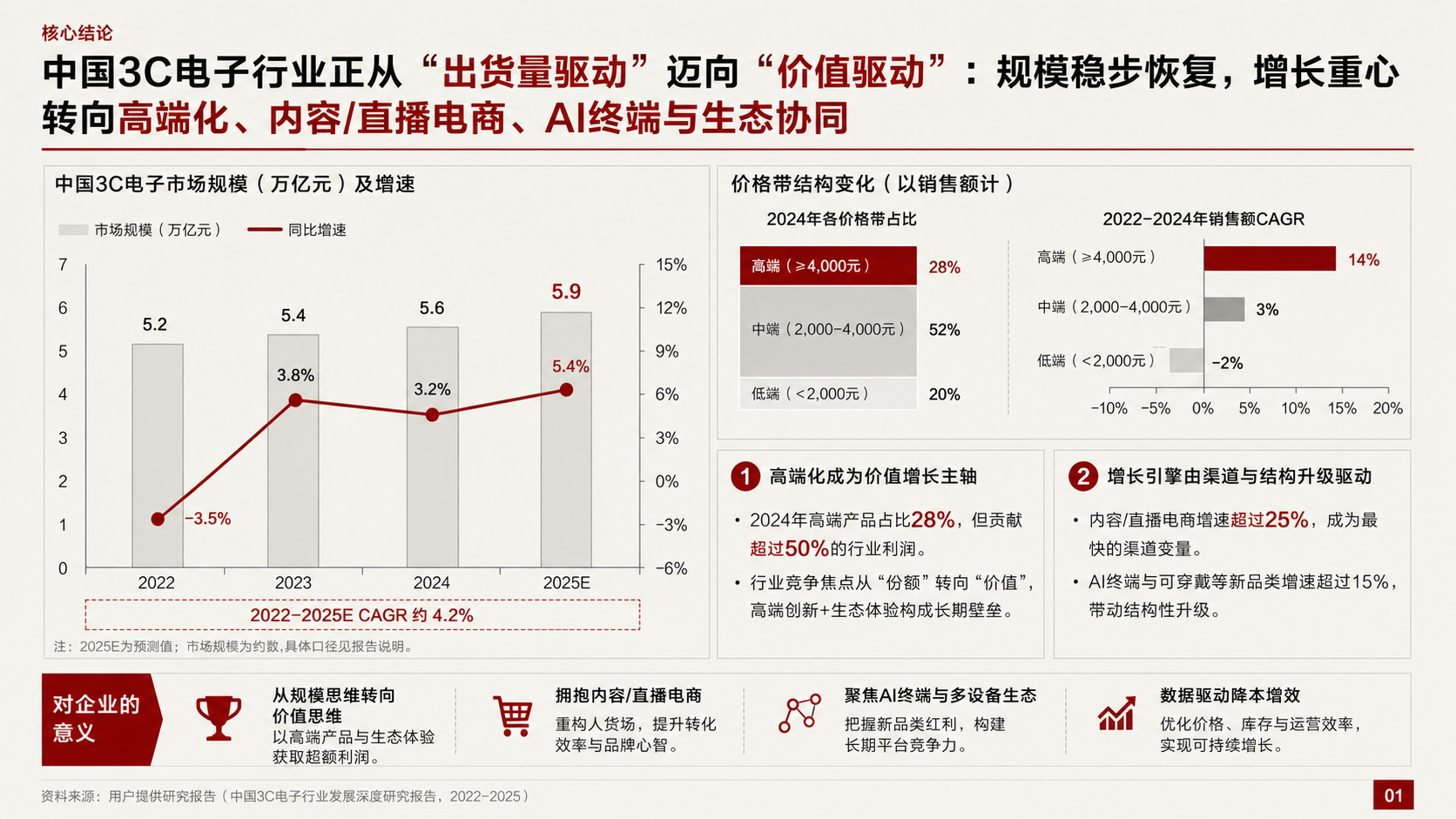
(Image from the CyberPPT repo.)
Here is what it suits and what it does not suit.
| Good fit | Poor fit |
|---|---|
| Industry research, consumer goods and e-commerce analysis, brand strategy | Speeches with little text and many images |
| Executive reports, board materials, client proposals, project reviews | Personal sharing, storytelling, and opinion-based slides |
Why It Is More Reliable Than Asking AI for a PPT Directly
A one-line PPT generator often produces a set of empty cards, and the numbers may be made up. CyberPPT splits the work into three stages. You approve each one.
- Build the evidence first, then write the conclusions. It first organizes your material into an evidence table. Every number has a source. Missing data is flagged. Nothing is made up.
- Create a blueprint first, then build the file. For each slide, AI first draws a preview image, called a blueprint. Only after you approve it does the tool start building the PPT.
- Restore each slide from its blueprint. The final output uses real PowerPoint objects. Every word can be edited.
Step 1: Get Three Things Ready
- Codex. The author wrote this skill for Codex. Phase 2 uses Codex's image generation to draw the blueprints.
- PowerPoint. The agent uses it to export finished slides as images, so they can be checked against the blueprints. The author's export script is for Windows. If you use a Mac, ask Codex to confirm how to export before you start.
- A materials folder. Put your reports, spreadsheets, and raw data in it. Word, PDF, text, and Excel files all work. The more complete your materials, the stronger the slides.
Step 2: Have Codex Install the Skill
Open Codex and send this message:
Help me install this skill: https://github.com/crazyykhllc-bit/CyberPPT . Follow the README in the repo, install it to my skills folder, and name the folder cyber-ppt.
After installing, check whether the tools it needs (Node.js, PptxGenJS, Python) are all present. If anything is missing, tell me first and wait for my approval before installing it.
After it is installed, start a new chat. Codex only reads the skill in a new chat. The rules the skill gives your agent are on the CyberPPT skill page.
Step 3: Phase 1, Analyze the Materials
In a new chat, start with the prompt below. Codex reads your files first, then creates an evidence table and an outline. It does not build the PPT at this stage.
Sign in to unlock this key section
New accounts get 10 free credits, plus 1 more for each daily check-in. Spend 1 credit to unlock and it stays open for you.
The first two lines, "Purpose" and "Audience," matter most. The same material needs a different storyline for a boss than for a client. When the outline is ready, check two things closely: whether each slide title is a single conclusion, and whether each number has a source next to it.
Step 4: Phase 2, Choose a Style and Review Blueprints
After you approve the outline, the skill sends you sample slides for its 8 built-in styles, such as classic deep red, ivory with navy, and black with gold.
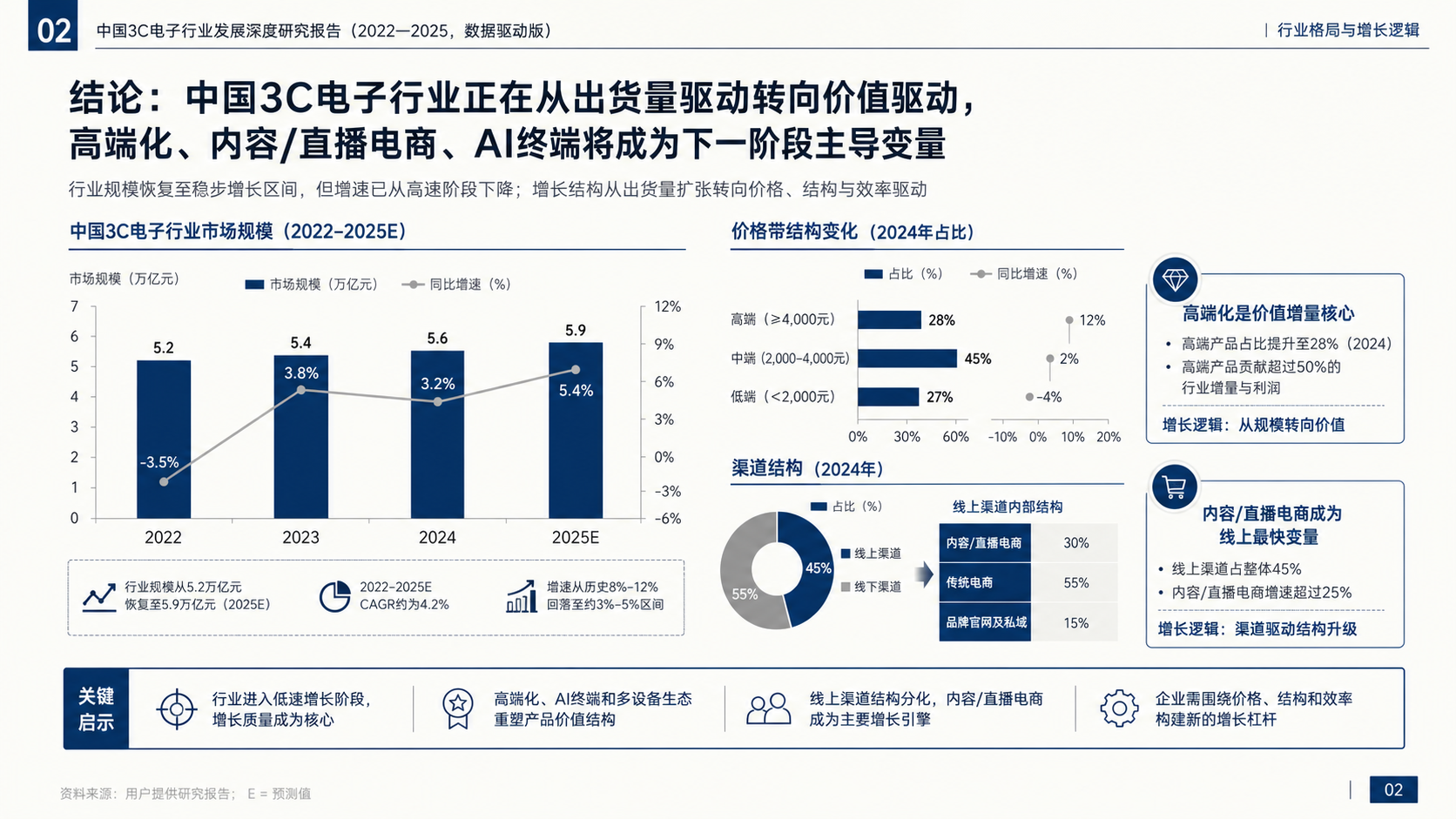
(Image from the CyberPPT repo.)
Reply with the number of the style you want. The skill then draws a blueprint for each slide. Take your time at this step. The blueprint shows what the final PPT will look like. A change to a sentence now costs far less than a change after the PPT is built. The text in the blueprints is placeholder. The numbers come from the evidence table in Step 3.
Step 5: Phase 3, Build an Editable PPT Slide by Slide
Once you approve every blueprint, the skill starts rebuilding them one slide at a time. Watch this step closely.
If it tries to finish every slide in one go, stop it right away. Slides built that way are usually just skeletons. Say this:
Stop. Follow the skill exactly and rebuild one slide at a time. Build slide 1 only, export a rendered image, show it next to the blueprint, and wait for my approval before doing the next slide.
If a slide is wrong, the most effective fix is to take a screenshot, draw arrows on the problem areas, and explain in one sentence how to fix it. The first two slides are usually the slowest and most error-prone. Once the process is set, it speeds up.
Curve charts are the hardest to rebuild. The skill also sometimes picks the wrong icon. Point it out and ask it to redo that part. When everything is done, it gives you the PPT file and an inspection report.
Notes
- Do not skip any phase. If you skip a step, the result will match the blueprints much less closely.
- This is much slower than generating a PPT from one prompt, and it uses more usage quota. It suits formal presentations, not a few slides you need in a hurry.
- Sensitive data in your materials goes to the AI for processing. For confidential company material, check first whether your company allows it.
- Do the last 10% yourself. Line breaks and font sizes are fastest to fix by opening the file in PowerPoint.
Comments (0)
No comments yet. Start the conversation.