


What you'll get
The OpenCode /goal command keeps a session working toward a goal you write down. After each round, a reviewer checks whether the goal is met. If it isn't, the session keeps going. It stops when the goal is met, when it gets stuck, or when you tell it to. It has been built into the terminal UI (TUI) and the Desktop app since v2.2.1, so there's no plugin to install. This tutorial walks you from upgrading to re-checking the result, and it includes 4 prompts you can copy and paste.
Let's get the expectations right first. /goal doesn't run forever. It has several reasons to stop on its own, and a table below covers each one. Whether it stops because the work is really done or because it only thinks it's done depends on whether your goal can be checked.

Write a goal you can check, start it with /goal, and the model works one round. The reviewer judges that round. The result is either another round, met, or paused until you step in.
Why it knows when to stop
In the past, when you asked OpenCode to do something big, it would finish a round, report back, and wait. You'd type "keep going," and it would do another round. /goal hands that "keep going" job to the reviewer.
The reviewer uses the session's current model. It reads the full conversation, including the result of every tool call, and then gives one verdict. There are five possible verdicts:
| Reviewer's verdict | Meaning | What happens next |
|---|---|---|
done |
The goal is met | Status changes to met, and it stops |
continue |
Not finished yet | It starts the next round automatically, with the reason and the next step |
blocked |
Stuck, and it needs you | Paused |
paused |
You said stop in the conversation | Paused |
wait |
The session's own background command is still running | It waits and doesn't start a new round |
Two things to keep in mind:
- The reviewer only sees what's in the conversation. If the tests ran and the output is in the record, it can judge that. A claim like "the code is cleaner now" has no evidence in the record, so the reviewer can only guess.
- The whole goal counts as one run. You don't get a notification after each round. You get one notification when the whole goal finishes.
Step 1: Upgrade to a version that has /goal
/goal was added in v2.2.1. Run this in your terminal:
opencode upgrade
For the Desktop app, update to the latest version. After upgrading, open a session, type /goal, and press Enter. /goal with no text shows the current status and how to use it. If you see the usage notes, this version has it.
If you installed a community goal plugin before, turn it off first, so two systems don't control the same session at once.
Step 2: Write a goal you can check
A goal can be up to 4,000 characters. That's enough to say what to build, how to know it's done, what you must not touch, and what to do if it gets stuck.
If you're not sure how to write one, have OpenCode draft it for you. Send this in a normal chat:
Don't start yet. What I want to do is: [describe it in one or two sentences].
Rewrite this as a goal for /goal, written as one paragraph, including:
1. What to build (one sentence)
2. Done criteria: 2 to 3 items, each one you can confirm by running a command or opening a file
3. Boundaries: which directories you may change, and what you must not do
4. When you should stop and ask me
When you're done, send me only the goal text. Don't start running it.
It will look through your project and find the real test command and folder names. That's usually more accurate than what you'd write from memory.
Here's the goal template we use. Each of the four parts is one sentence. Replace the text in brackets:
Sign in to unlock this key section
New accounts get 10 free credits, plus 1 more for each daily check-in. Spend 1 credit to unlock and it stays open for you.
Step 3: Start it and check the status
Send your goal. You can type it right after /goal, or wrap it in quotes. If the session doesn't have a title yet, the goal is used as its name automatically.
In the terminal UI, a line ◎ Goal: your goal appears at the top of the conversation, and ◎ goal appears on the right, below the input box.
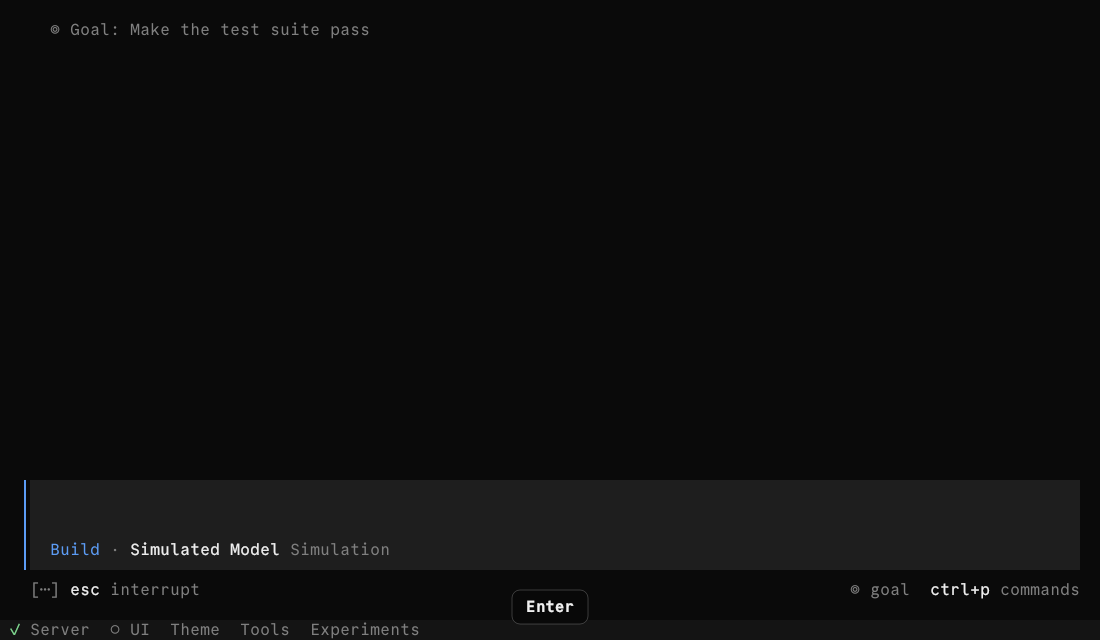
The status has three values: ◎ goal (running), ◎ goal paused (paused), and ◎ goal met (met). It doesn't show the round count. Click the status to open a small window with the goal text, the current status, and the reviewer's latest reason.
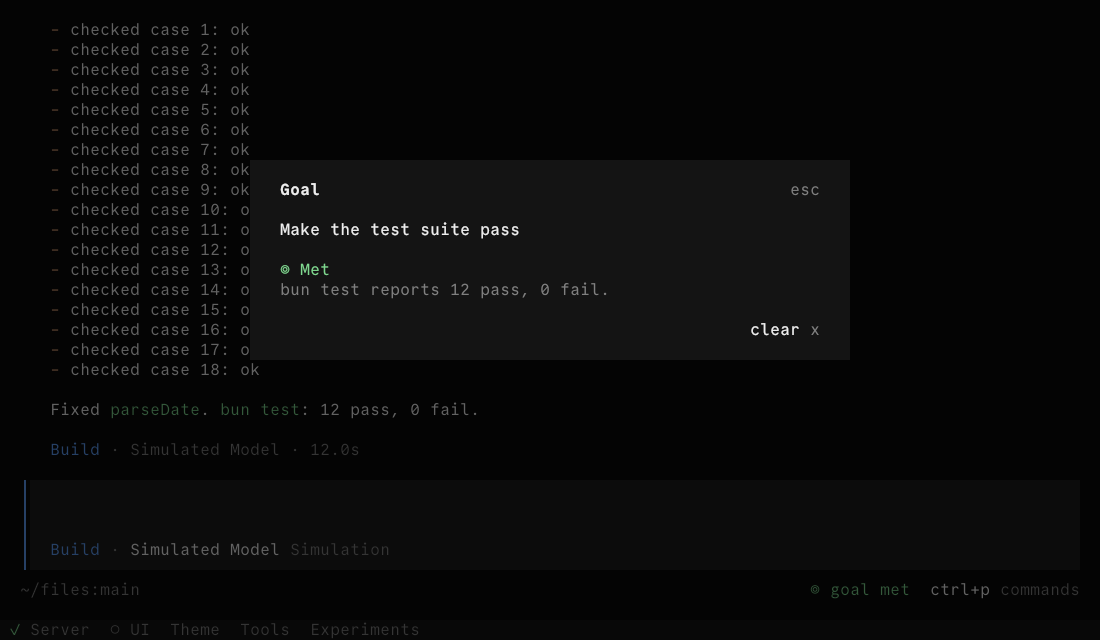
Both screenshots come from the feature's official pull request (PR #59437).
In the Desktop app, the same info is a small label next to the input box, reading Goal, Goal paused, or Goal met. Click it to open a menu. The Desktop menu doesn't show the reviewer's reason. To see it, send /goal with no text.
Step 4: Pause or change the goal midway
These commands work at any time. If the model is working when you send one, it takes effect right away.
| What you want | Terminal UI | Desktop app |
|---|---|---|
| Pause | /goal pause, or press p in the status window |
Click Pause in the label menu |
| Resume | /goal resume, or press r |
Click Resume |
| Cancel the goal | /goal clear, or press x |
Click Clear |
| Switch to a different goal | Send a new /goal … directly. The old goal is replaced |
Same as the terminal UI |
| See status and reason | Send /goal alone |
Same as the terminal UI |
Pressing Esc to interrupt the session also pauses the goal.
To add a requirement midway, you don't need to clear the goal and start over. Pause it, send the new requirement as a normal message, then resume:
Add one more requirement: [the new requirement]. The earlier goal and done criteria stay the same.
I'll resume the goal next, so keep going. First, tell me which finished parts this requirement affects.
Why it stopped on its own
Once it's paused, send /goal with no text first. Read the reason the reviewer left, then check the table below.
| What you see | Why | What to do |
|---|---|---|
| The reason is "Not making progress: …" | Three rounds in a row with no progress. A round counts as no progress if the model called no tools in it, or if the reviewer's reason is the same as the previous round | The goal is probably too vague or too big. Make it more specific, or split it into smaller goals |
| The reason says something is missing | The reviewer gave blocked |
Give it what it asked for, then /goal resume |
| You pressed Esc, or told it to stop | You stopped the session, or the reviewer gave paused |
/goal resume |
| It became paused after you restarted OpenCode | A goal from before the restart doesn't resume automatically | Make sure you still want it, then resume |
| It paused after a long quiet period | 30 minutes passed after a round ended with nothing happening. This often means a background task hung | Deal with the stuck background task first, then resume |
| It paused after running a long time | It hit the 50-round safety limit | After resuming, the round count starts over. But first think about whether the goal should be split |
| It paused after an error | The run failed, or the reviewer gave two unusable verdicts in a row | Read the error, fix it, then resume |
The three-round and 50-round numbers aren't shown in the UI, so don't assume something broke when it pauses. Each /goal resume starts the count over.
Check again after it's met
◎ goal met means the reviewer thinks the goal is done. The reviewer and the worker are the same model, so they can make the same kind of mistake. When the status turns to met, send this:
The goal shows as met. Now only check, and don't change any files:
1. List each done criterion
2. Run the matching check again for each one, and paste the real output
3. List every file changed this time, with one sentence on what changed in each
4. Say whether anything was skipped, deleted, or loosened to pass a check. If so, be honest about it
Item 4 matters most. Deleting a failing test can also make "all tests pass" true, and things like that only come out when you ask directly.
FAQ
How do I use /goal in OpenCode?
Type /goal followed by your goal in a terminal UI or Desktop app session, then press Enter. It works round by round, and after each round the reviewer decides whether the goal is met. You need v2.2.1 or later.
How do I cancel or pause an OpenCode goal?
/goal pause pauses it, /goal resume resumes it, and /goal clear cancels it for good. Pressing Esc to interrupt the session also pauses the goal. Sending a new /goal replaces the old one.
Does /goal work with opencode run?
Not yet. opencode run doesn't support slash commands, so you can't use it in scripts or CI for now. Use /goal only in the terminal UI and the Desktop app.
Do I still need a goal plugin for OpenCode? No. It's built in, so it comes with the upgrade. If you used a community plugin for something similar, you can switch to the built-in one.
Which model does the reviewer use, and does it cost more? It uses the session's current model, and you can't set a different one for it yet. Each round adds one extra review request, which reads the full conversation. There's no cost cap setting for it yet, so keep an eye on usage before you start a long goal.
Watch out
- A session can have only one goal at a time. A new goal replaces the old one.
- Subagents and forked sessions don't inherit the goal. It only applies to the session where you set it.
- While a background subagent is still running, the reviewer isn't called. It waits for that subagent to hand back its result. A dev server running in the background won't block the goal.
- When a long conversation gets compacted, the system adds a reminder of the goal automatically, so you don't have to resend it.
- Don't use it for tasks that touch real systems, like deploying to production or deleting data. For tasks like that, write "stop and wait for my confirmation" into the goal.
The same command exists in Claude Code, and the idea is similar. See Manage Claude Code the way you'd manage a team.
Comments (0)
No comments yet. Start the conversation.