

What you get
Your project is built, but all you have is a README on GitHub and no real website? Install a free, open-source Skill, and your AI agent can use the README to write a black-and-white, magazine-style landing page (a single-page website for your product). What you get back is an HTML file you can upload right away. Below are three prompts you can copy and paste.
First, here is how the work is split. Your AI agent handles the layout and breaks up the content, and it also checks how the page looks on phones and computers. You make the calls on the headline and on every sentence the page says publicly. This Skill never makes up numbers or user reviews. If it isn't in the README, it won't show up on the page.

Here is the whole process. You give your README to the AI agent, and it first drafts a page and lists the parts you need to write yourself. You settle the headline and decide whether the top of the page shows a sign-up form or a download button. The agent then checks the page in Chrome at four screen widths, phone, tablet and desktop included, and hands you the HTML.
See what it looks like first
The Skill is called Mono Editorial Landing. It comes from Lookbk's free Skill collection and is released under the MIT license. The two images below were generated by the official team using a sample project:
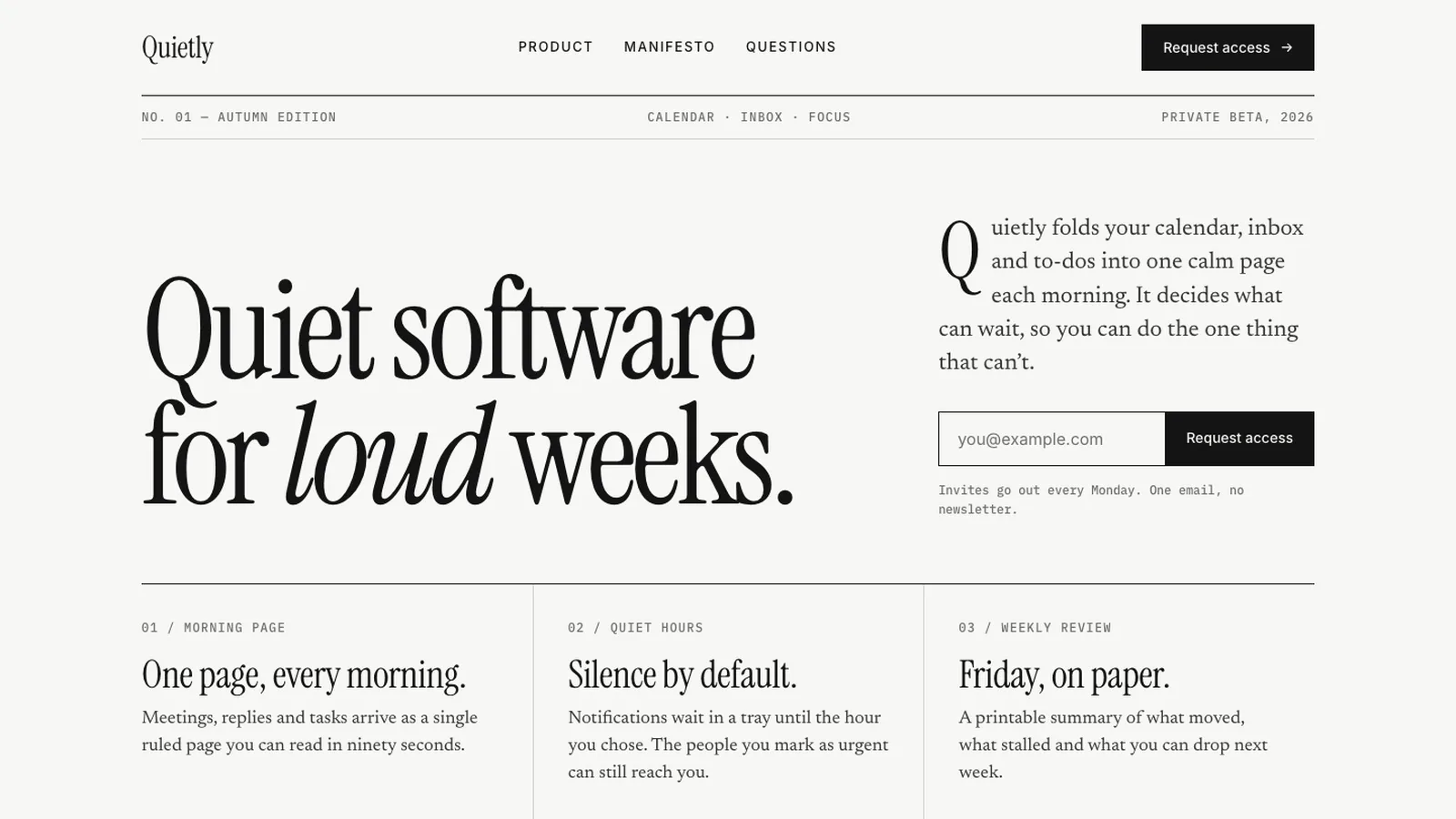

The images come from the Mono Editorial Landing introduction page on the Lookbk website. A few features stand out right away:
-
A large serif headline. You can italicize one word or give it an accent color.
-
Thin-rule columns. Three or four key points sit side by side, numbered and separated by fine lines, like a magazine table of contents.
-
Alternating image and text. Each feature gets its own block with a picture, a code sample or a drawn app screen, alternating left and right.
-
Defaults to black text on white. You can switch to a dark background or add an accent color.
Step 1: Have your AI agent install the Skill
Your computer needs Node.js 18 or newer (a tool for running JavaScript) and Chrome. You don't need an API key, and the Skill doesn't call any AI model. Let your AI agent handle the installation and checks. Copy this:
Help me install an open-source Skill: mono-editorial-landing from the Lookbk collection, to turn my project's README into a landing page.
Repo: https://github.com/lookbkdev/lookbk-skills
1. First read the Mono Editorial Landing section of the repo README, plus skills/mono-editorial-landing/SKILL.md, and tell me in plain language what it needs.
2. Check the Node.js version on my computer and whether Chrome is installed. If something is missing, tell me first. Don't pay for or sign up for any service on my behalf.
3. Install only mono-editorial-landing, not the whole collection. The install tool sends anonymous install counts by default, so please turn that off.
4. Once it's installed, tell me where it lives and how to ask for it when I need it.
Why it's written this way: the collection has more than thirty Skills, and installing only the one you need keeps things clean. The install tool reports anonymous install counts by default. The author explains in the README how to turn that off, so the prompt asks the agent to do it for you.
Step 2: Hand over the README and get a first draft
In your project folder, send your AI agent the prompt below. If the project has no README, paste in your product description, your old website address or a few paragraphs about the product instead.
Sign in to unlock this key section
New accounts get 10 free credits, plus 1 more for each daily check-in. Spend 1 credit to unlock and it stays open for you.
Why it's written this way: when this Skill drafts a page, it only copies wording straight from the README. Someone has to write the headline and the feature subheadings, so point 2 has the agent ask you. Point 4 makes the "no made-up data" rule explicit, so the agent doesn't add a line like "Trusted by 10,000 users" just to look good.
Step 3: Edit the headline and choose what to include
Once the draft comes back, there are two things to do:
-
Set the headline. A good headline says what the reader gets. Keep it short and italicize one word. For example, "Turn a pile of Markdown into a book" works better as a magazine headline than "A Markdown typesetting tool."
-
Choose the content. Look at the list of "in the README but not on the page" items. If any of them matter more than what's already there, ask the agent to swap them in.
If you're unhappy with any part, just say so in plain language: "The second paragraph is too long, cut it in half," "Switch to a dark background," or "Point the download button to our release page."
Step 4: Check it and put it online
The agent hands back an HTML file, plus a folder for images. Before that, it runs three checks: the layout holds up at four screen widths, the color contrast is strong enough, and the form actually submits. The form submission is only simulated on your own computer. Nothing is sent to a real form service.
When you're ready to go live, send one more message:
Help me put this landing page online. I'm using [Cloudflare Pages / Netlify / GitHub Pages]. Walk me through it step by step, and stop to tell me about any login or confirmation I need to do.
Once it's live, if the top of the page has a sign-up form, sign up once with a real email address yourself, and confirm that the form service's dashboard received it.
Notes
-
Fonts load from Google Fonts. If the page can't reach Google when it opens, it falls back to system fonts, and the serif headlines lose much of their look.
-
Collecting emails means you need a privacy policy. If the top of the page has a sign-up form, link to a privacy policy page in the footer.
-
Only this one is free. The Lookbk website has more than two hundred paid Skills, but this tutorial uses only the free one from the collection, so you don't need a membership.
-
You're responsible for the headlines and reviews. The page speaks publicly for you. If you quote someone's review, get their permission first.
Comments (0)
No comments yet. Start the conversation.