


What You'll Get
Google's Antigravity is an agent coding tool. Many people install it and only use it as a chat box, but it's best suited to "busywork": tool-heavy, context-hungry tasks such as organizing notes, syncing Notion, checking web pages, and finding bugs across files. This article only covers the essentials for getting started: which version to install, the three settings to change first, the most common commands, and how to save quota.
Step 1: Install the Desktop App
Antigravity has a desktop app, a terminal CLI, and extensions for major IDEs. Sign in with the same Google account and credentials carry over. Beginners should install the desktop app directly, since the newer features (built-in browser, PDF reading, plugin marketplace) are most complete in the app.
- Download: antigravity.google/download
- After installing, type
agyin the terminal to use the command-line version.
Open the app, click New Project, and bind a local folder. One project can link multiple folders, which is useful when changing several repositories at once.
The interface is simple: on the left are Projects, Automations, and Customizations (plugins and rules). In the input box at the bottom, type @ to reference files and / to call commands. In the lower-left corner, switch models, and click View Usage to check your quota.

Image from the official Antigravity documentation.
Step 2: Change Three Settings Before You Start
1. Check your working directory and use Worktrees. Above the input box you can see the currently bound folder and Git branch. Before changing code, click the branch and choose Work in a New Worktree, so the agent works in a separate copy and the main directory stays clean. Merge once you've verified the results.
2. Beginners should start with Request Review. The permission mode is in the lower-right corner of the input box, with four levels:
| Mode | Meaning |
|---|---|
| Request Review | Every command requires your approval |
| Default | Asks you only before sensitive actions |
| Auto | Decides on its own whether to ask |
| Turbo | All commands run directly, with no restrictions |
When starting out, use Request Review and see what it plans to do before allowing it. Don't treat Turbo as a "speed mode." It grants full file and terminal permissions, and prompt wording cannot stop high-risk operations.
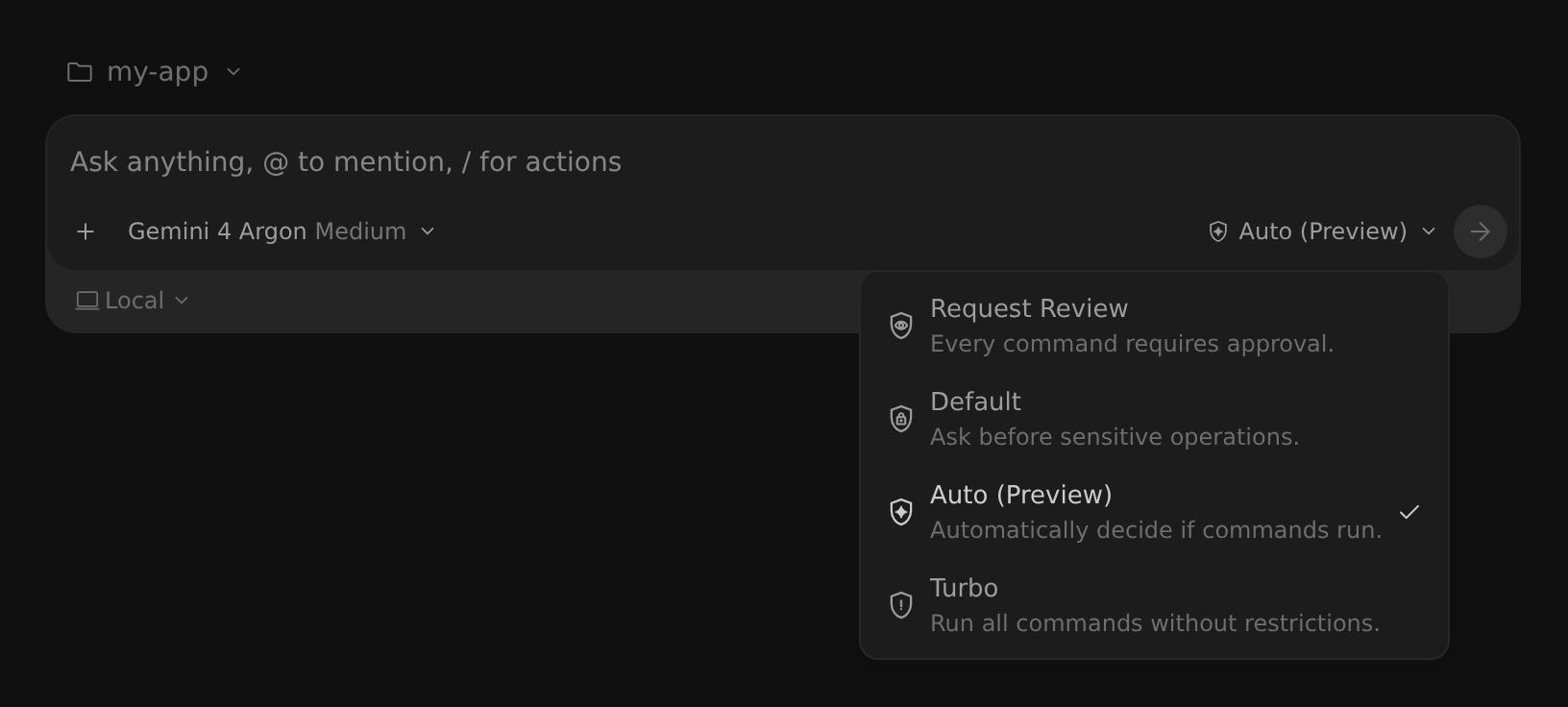
Image from the official Antigravity documentation.
3. Turn on the Browser Subagent. Go to Settings → General, where you can fine-tune permissions for files, terminal and MCP (Tool Permissions) and the plan review policy (Plan Review Policy). Scroll to the bottom, find Browser Subagent and turn it on. After installing Chrome, you can use /browser to have it operate web pages on its own.
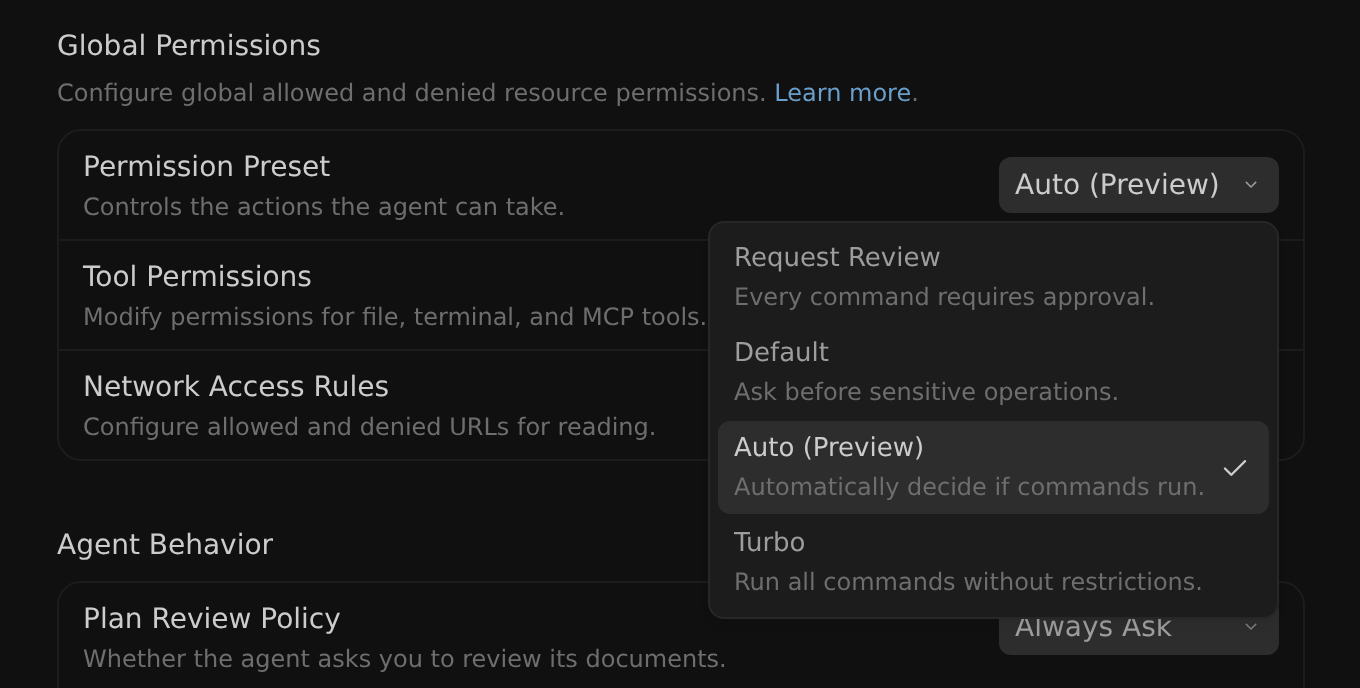
Image from the official Antigravity documentation.
Step 3: Put It to Work on Busywork
Connecting Notion. In the left panel, go to Customizations → Marketplace, search for Notion, and click + to authorize as prompted. When the plugin details show CONNECTED under Accounts, it's connected. Ask it to list the pages you've authorized to confirm it can read them. Notion syncing requires many consecutive tool calls and uses a lot of quota, so this kind of work suits Antigravity's cheaper Flash model.
Using it in Obsidian. The Obsidian plugin Claudian (MIT) supports Antigravity, and your note vault becomes the agent's working directory directly. The order matters:
- First install and sign in to the
agycommand line, and run it once in the terminal to confirm it works. The plugin uses the local CLI, not the desktop app. - In Obsidian settings, turn on community plugins, search for Claudian, verify the author is Yishen Tu, then install and enable it.
- In Claudian's settings under providers, choose Antigravity and turn it on. It will automatically detect the CLI and available models.
- Use
@to mention notes or folders to find material; select a passage of text and give an instruction to edit it directly.
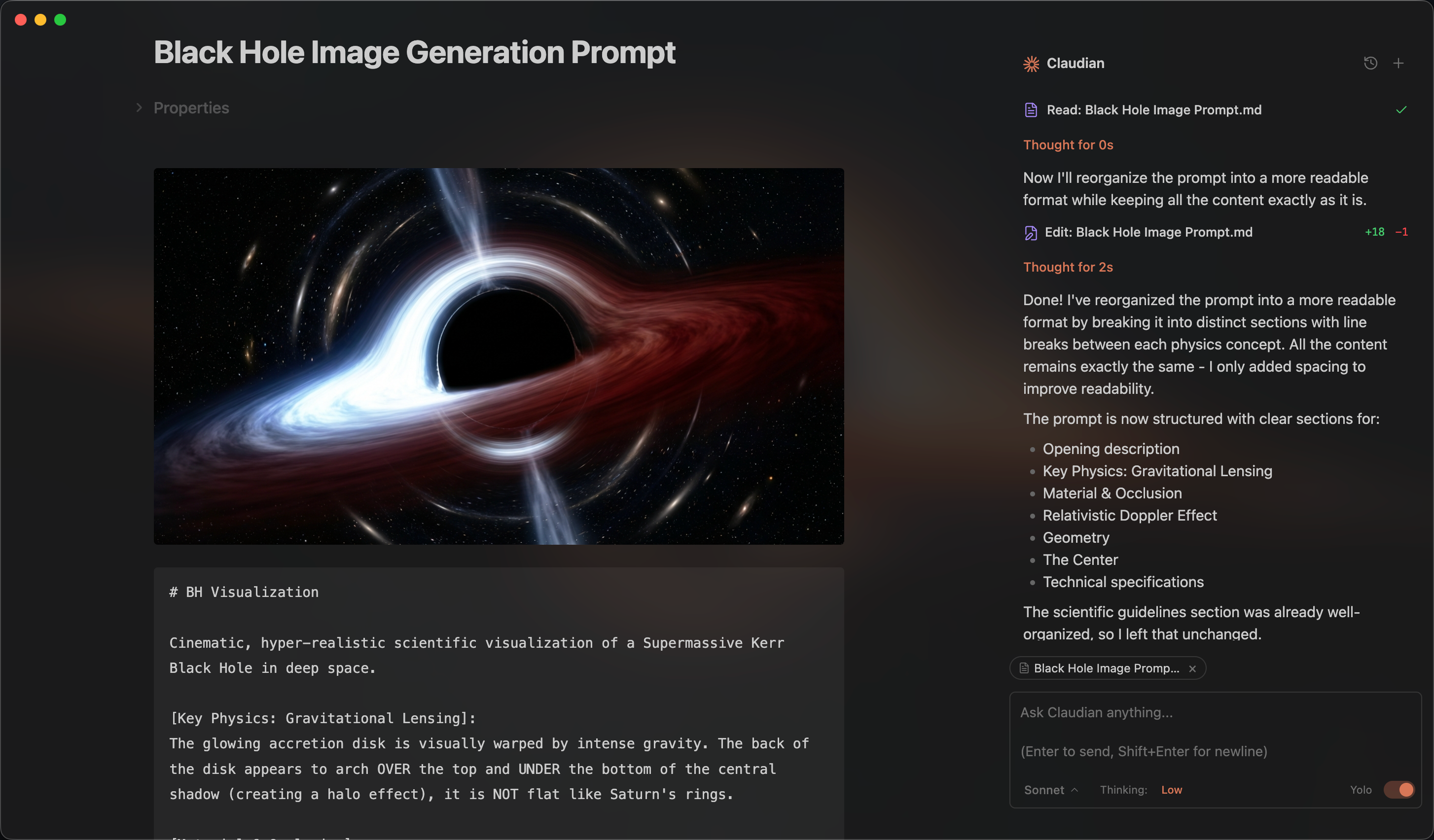
Image from the Claudian repository README.
Check back as you add more. In project settings you can see how many tokens Rules, Skills and MCP Tools each take up. When over budget, large rules and custom content may be automatically trimmed or excluded.
Step 4: Remember These Commands
Sign in to unlock this key section
New accounts get 10 free credits, plus 1 more for each daily check-in. Spend 1 credit to unlock and it stays open for you.
About /boost and /teamwork: /boost has a master agent split the task among several sub-agents, runs them in isolated environments, then cross-verifies the results. For everyday hard tasks, it's enough. /teamwork launches even more sub-agents, with a longer process; the author found it very hard to converge and very expensive in quota, so don't use it casually.
Frontend tip: If the generated web pages look dated, you can install Chrome Modern Web Guidance from the Marketplace, which puts modern web practices into the context.
Step 5: Use It on the Go
| Remote Control | Remote Agents | |
|---|---|---|
| Where it runs | Your own computer or server | Google's cloud |
| Does your computer need to stay on? | Yes, it must be powered on and online | No, it keeps running even when your computer is off |
| How to use it | Open the Remote Control page in a phone browser, switch instances, and continue sending commands | Create a Remote Project, connect a GitHub repository, Google Drive, or upload files directly |
Step 6: How to Set Up Models and Quota
- Use Gemini Flash most of the time (the author uses Gemini 3.8 Flash): it's fast and has generous quota, and is enough for writing, Notion work,
/browserand/boost. - Save Gemini 4 Argon for the hard problems, since its quota is more limited.
- Don't run multi-agent and tool-heavy tasks on Claude Opus. When several sub-agents call Opus at the same time, the Claude portion of your quota will run out quickly. For quota groups and reset times, follow what's shown in View Usage.
Notes
- These practices come from one heavy user's experience. Antigravity updates quickly, so menu names and features should be checked against the official documentation.
- For permission settings, see the official explanation: Permissions & Sandbox.
- Text constraints cannot stop dangerous operations; the real boundary is your permission settings.
Comments (0)
No comments yet. Start the conversation.