


If you subscribe to Google AI Ultra, don't waste it: the monthly Colab compute it includes runs for over 200 hours on A100 GPUs, which is an excellent deal for running open-source models. The official plan page lists Ultra as 1,000 or 2,000 compute units per month (two tiers), added directly to your Colab balance. Subscribers have reported the benefit as 2,500 compute units, which runs for over 200 hours on an A100. Tiers and regions may differ, so go by what your account shows. How many hours you actually get depends on which GPU you use: the more powerful the card, the more you spend per hour.
The problem is that many people subscribe and never use it, because every session means opening the Colab website, choosing a runtime, pasting code, watching progress and remembering to shut down. Google now offers two official ways to have an AI handle these steps for you:
- Colab CLI: a command-line tool that your local Agent (Claude Code, Codex, etc.) calls to start machines, run code, transfer files and shut down.
- Colab Remote MCP: an MCP interface hosted by Google. Once connected to an MCP-capable chat client, you can start a GPU, run code and shut down the server directly in conversation.
This article covers what each route is best for, how to run open-source models with an Agent, and how to avoid wasting your quota. We have organized the technical details of both routes into a Skill: Manage Google Colab Cloud GPUs with an Agent. Just hand it to your Agent.
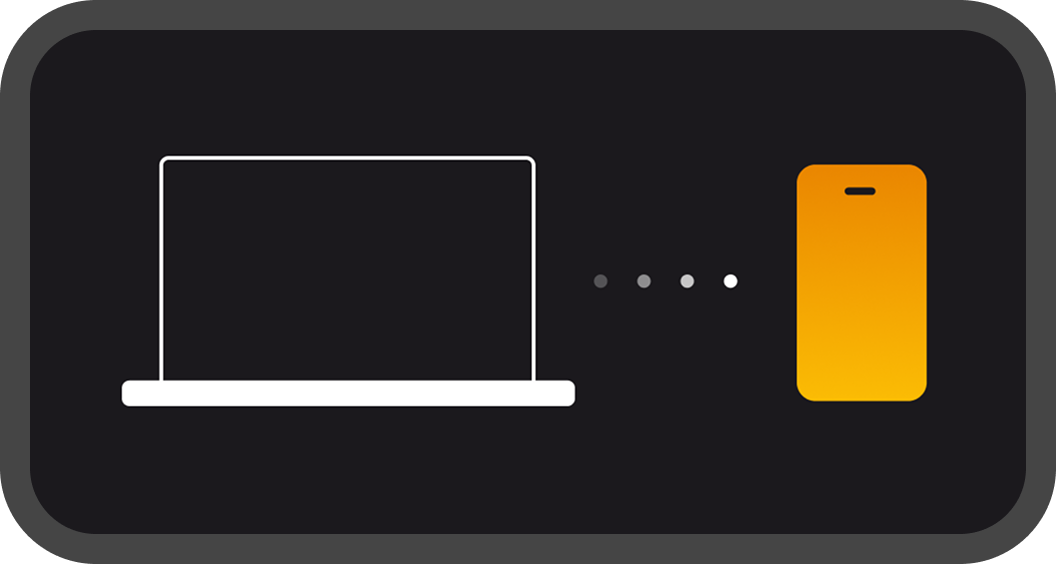
Image from the official Google Colab website.
Check your quota first: how much compute you have
Colab bills by compute units. A running machine keeps consuming units at a rate set by its GPU type. The Colab compute units included monthly with each Google AI plan (go by the official plan page):
| Plan | Colab compute units per month |
|---|---|
| Google AI Plus | 50 |
| Google AI Pro | 200 |
| Google AI Ultra | 1,000 or 2,000 (two tiers); subscriber benefit reported as 2,500, which runs for over 200 hours on an A100 |
Three principles for saving money:
- Choose the GPU for the task. For inference with small models such as 7B or 8B, a T4 or L4 is often enough. Only large models or training need an A100 or H100.
- Shut down as soon as you're done. An idle machine consumes units just the same, and this is the most common form of waste.
- For one-off jobs, use a "release when finished" approach so the tool shuts the machine down itself instead of relying on someone to remember.
Choosing between the two routes
| Colab CLI | Colab Remote MCP | |
|---|---|---|
| Where you use it | An Agent in a local terminal | A chat client that supports remote MCP |
| Does your computer need to stay on | Yes, the Agent runs locally | No, use it anywhere |
| System requirements | Linux, macOS; Windows requires WSL2 | None |
| Capabilities | Broader: file transfer, SSH, mounting Google Drive, one command that runs and releases | Lightweight: start machines, execute code, manage sessions, shut down |
| Best for | Complex model deployment, fine-tuning, batch processing | Running a quick piece of code, checking results, shutting down remotely |
In short: use the CLI for serious work, and MCP for quick management. You can also combine them: a machine started via the CLI can generate a link so you can continue working in the browser.
Route 1: Have your local Agent run open-source models with the CLI
Step 1: Install the Skill
Give the Colab Skill to your Agent, and it will check for and install the CLI.
Step 2: Log in once
The CLI needs authorization from your Google account, and you have to complete this step yourself in the terminal (a browser window will open). The Agent will give you the commands to run. Run them once, and after that it can schedule work on its own.
The most common pitfall: if authorization is missing scopes, every later command fails with 401 or 403. The Skill includes the complete command, so don't trim it yourself.
Step 3: Describe the task
State the model, GPU and output directly in natural language:
Sign in to unlock this key section
New accounts get 10 free credits, plus 1 more for each daily check-in. Spend 1 credit to unlock and it stays open for you.
The Agent will then: start the machine, install dependencies, upload your local scripts and files to run, download the results back, and release the machine.
Step 4: Confirm shutdown
Have the Agent finish by reporting which GPU was used, how long it ran, and whether the machine has been released. The Skill also requires it to report this way.
Common CLI uses
- Batch inference: send a batch of text or images to an open-source model and pull the results back locally.
- Small-scale fine-tuning: upload a training script, then download the weights when it finishes.
- Running notebooks: hand it an existing
.ipynbto execute, with the output written to a new notebook. - SSH debugging: connect directly into the remote machine when needed, or attach it to an IDE for remote development.
Image from the official Google Colab website.
Route 2: Manage remotely with MCP inside a chat
Some people prefer this route: they connect Colab's remote MCP to ChatGPT and can start a GPU, run code and shut down the server from the chat window, even when they're away from their computer.
Setup approach
- Enable it in Google Cloud. Following Google's official documentation, enable the MCP service in your Google Cloud project and complete authentication. The Skill has the official links for the specific steps.
- Add the remote MCP in your chat client. The address is
https://colaboratory.googleapis.com/mcp. Each client has a different entry point for adding a custom connector, so follow that client's own instructions. - Use it in conversation. For example: "See which GPUs I can still start", "Start a T4 and run this code", "Shut down the one from before".
Limitations to know
- Text output only. Charts and table images are not displayed directly, so have it save them as files.
- Streaming output is cut off after 10 minutes of a single execution. The task itself keeps running, and the Agent can reconnect to the results using the method in the Skill.
- Machine starts are rate-limited. Reuse an existing machine where you can. Switching to a new session for isolation is faster than starting a new machine.
- When you authorize with your own identity, MCP has the same permissions you do, and all actions are recorded under your account.
FAQ
- Can't get the GPU you want: GPUs and TPUs are allocated according to subscription tier and account quota, and may be unavailable at peak times. Have the Agent fall back to a T4 or L4 to get things running first.
- Constant 401 or 403 errors: almost always incomplete authorization. Log in again with the full command from the Skill.
- Worried the Agent will burn through quota: before starting a machine, have it report the GPU type and expected duration first; for expensive GPUs (A100, H100), have it ask you first. The Skill already builds in these rules.
- Using the CLI on Windows: not supported natively; install it inside WSL2. If you don't want the hassle, use MCP.
- Can I run any model: technically yes, but you must follow the model's license and Colab's terms of service.
To have your Agent get started right away, give it Manage Google Colab Cloud GPUs with an Agent.
References
- google-colab-cli, Apache-2.0 license
- Colab MCP reference documentation
- Google AI plans
Comments (0)
No comments yet. Start the conversation.