

What You'll Get
Connect Meta's personal AI agent Muse to your Gmail so it reads through your emails once a day or once a week and sends you a summary report: which ones need a reply, which are bills, and which can be ignored. You only read the report and no longer have to go through emails one by one.
All you need are two things: a Gmail Connector and a scheduled task.
Muse is not yet available in every region, and some features may not work where you are. First confirm that you can open the Muse app or web version.
Step 1: Connect Gmail to Muse (Connector)
Muse connects to external services through Connectors. Once Gmail is connected, it can search and read your emails.
Choose either of two ways:
- Tell it directly: In a conversation, say "Connect my Gmail" to Muse.
- Add it from Settings: Open Settings → Connectors, click Connect next to Gmail, click Continue after reading the instructions, then sign in to your Google account and grant authorization as prompted.
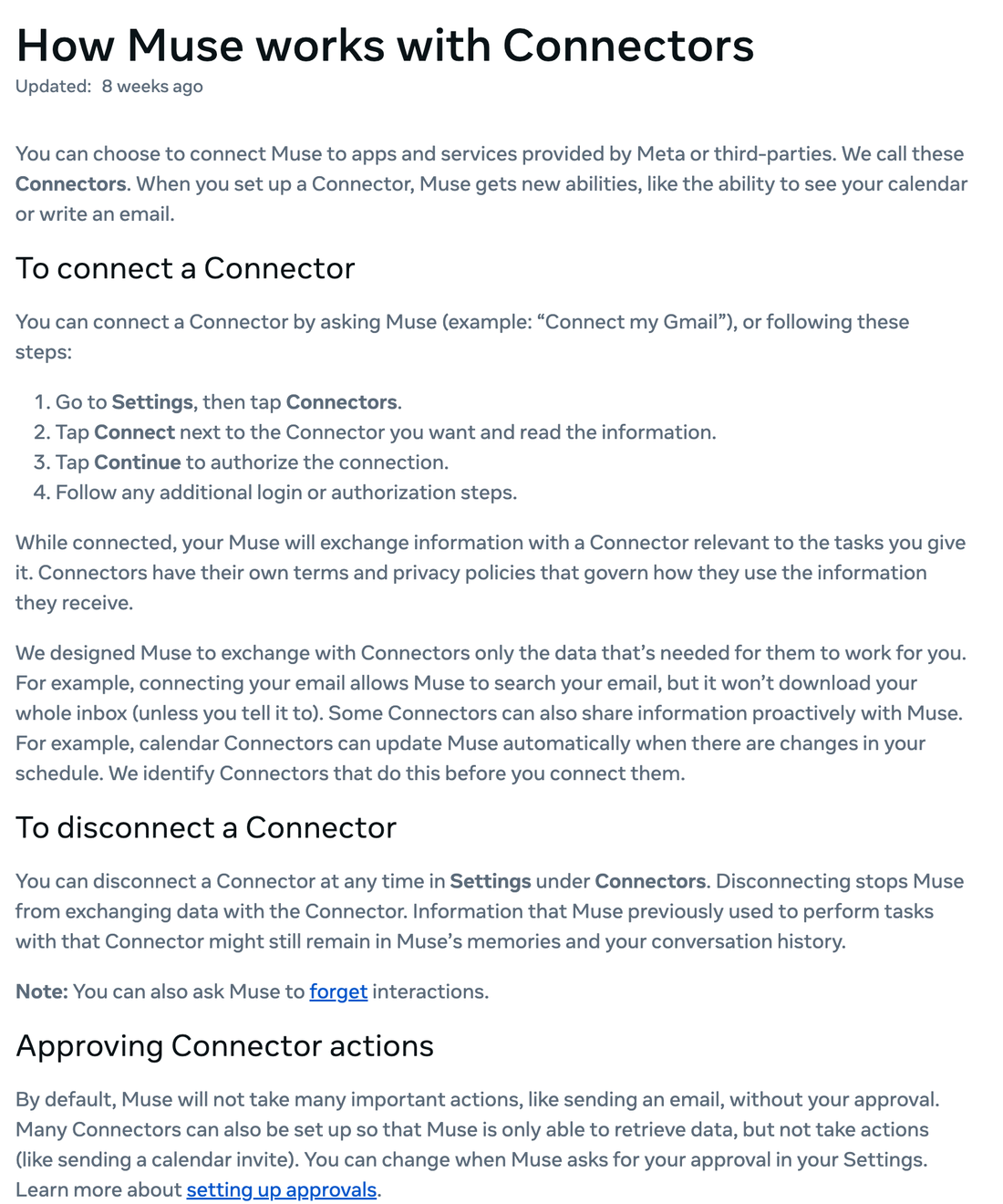
The official documentation has two points worth knowing:
- It does not download your entire mailbox. After you connect your mailbox, Muse can search your emails, but it only pulls the relevant ones when a task needs them, unless you explicitly ask it to download everything.
- Sending email requires your approval by default. For important actions such as sending email, Muse will not do them on its own. A Connector can also be set to read-only, with no actions allowed.
Step 2: Set Permissions to "Read-Only" for Peace of Mind
This task only needs to read emails, not send them. We recommend going to Settings → Permissions and setting Gmail to read-only, or choosing "Always ask" (it will check with you before every action).
Muse divides actions into two categories:
- Read actions: viewing information, such as reading an email.
- Write actions: making changes on your behalf, such as sending messages or buying things.
With only read permission enabled, the worst case is that it reads something incorrectly. It will not send emails for you carelessly.
Step 3: Set Up a Scheduled Task
Muse can run tasks on a schedule: daily, weekly, or at a custom interval. Simply tell it in one sentence what to do and how often:
Sign in to unlock this key section
New accounts get 10 free credits, plus 1 more for each daily check-in. Spend 1 credit to unlock and it stays open for you.
If you want it once a week instead, change the opening to "Every Monday at 9 a.m., read the emails from the past 7 days...".
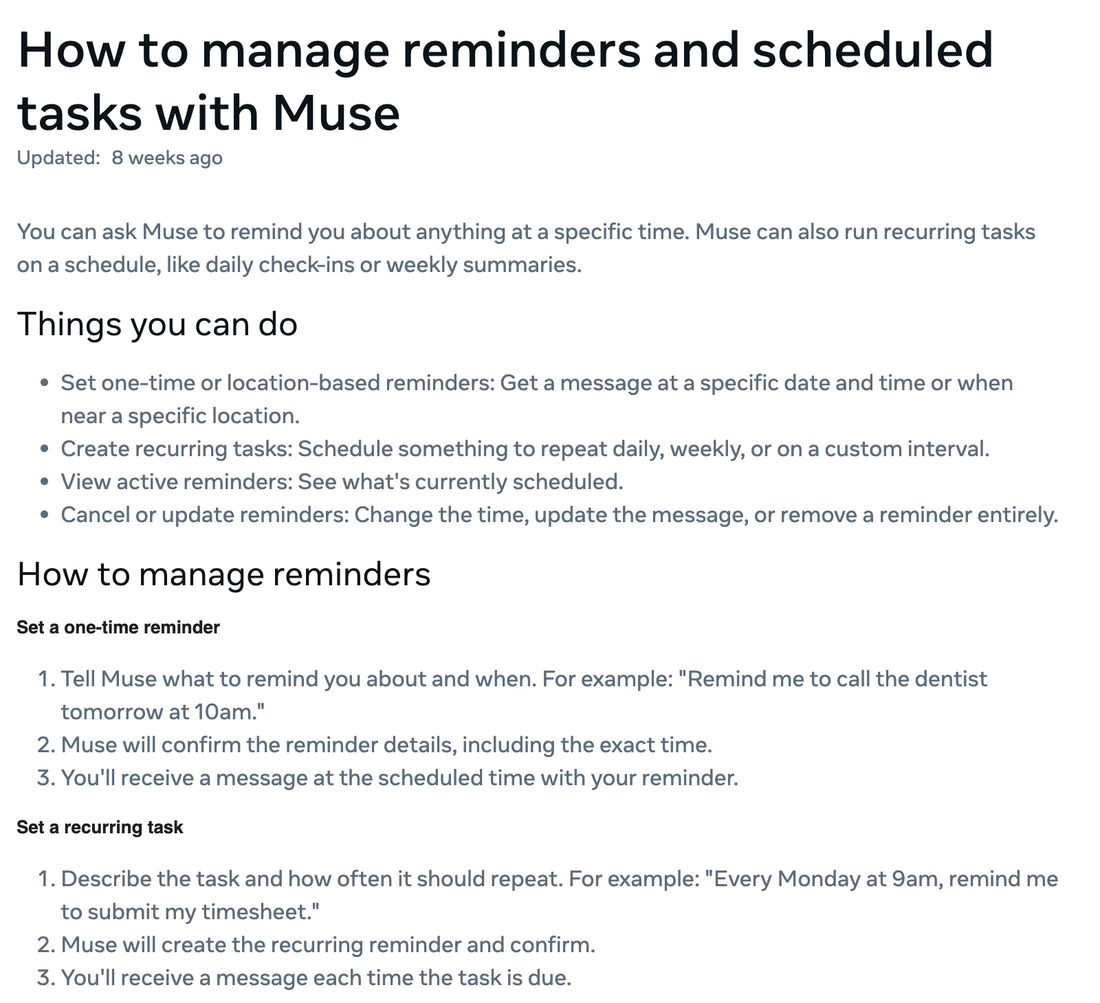
Muse will repeat the task's time and content back to you for confirmation. After that, whenever the time arrives, the report will be sent as a message into your conversation with Muse.
Step 4: Review and Adjust
- See your scheduled tasks: Ask Muse "What scheduled tasks do I have?", or tap the assistant icon at the top of the app and open the Upcoming tab to view them.
- Change the time or content: Simply say "Move the 8 a.m. daily email summary to 7 a.m."
- Stop it: Say "Cancel the daily email summary." Recurring tasks keep running until you cancel them.
Tips for Making Reports More Useful
- Always specify a time range. "Past 24 hours" or "past 7 days". Without one, it may keep rereading old emails.
- Specify the format you want. Sort into categories and state what each category should list. The more specific, the better.
- Add "do not reply, do not delete". Even with read-only permission, writing it into the task adds another layer of safety.
- Watch the time zone. Scheduled tasks run in your time zone.
- Ask it to cite sources. You can have it include email subjects in the summary so you can check against the original emails.
Notes
- Read-only permission still means Muse can read your email content. Only connect the mailbox you are willing to let it read.
- Muse can also make mistakes, so for important amounts and dates in the summary, check the original emails.
- To disconnect: you can disconnect at any time under Settings → Connectors. After disconnecting, information it used earlier may still remain in its memory and conversation history, and you can ask it to "forget" that information.
Sources
- Meta Help Center: How Muse works with Connectors
- Meta Help Center: How to manage reminders and scheduled tasks with Muse
- Meta Help Center: How Muse works with your guidance and approval
Comments (0)
No comments yet. Start the conversation.