


What you get
If you already use Meta Muse, you can connect it to an AI assistant such as Claude Code or Codex. Then, in the assistant's chat box, say something like "make a product image" or "generate a 10-second short video." The assistant uses your own Muse account to make it and hands the file back to you. The bridge is a free, open-source app called Muse4AI, which runs on your own Windows computer. This article includes 3 prompts you can copy and paste directly.
To be clear: this is an unofficial tool made by the community. It uses your own Muse account and your own credits. It is currently available for Windows only. There is no ready-made installer for Mac yet.

How it works
Muse4AI works like a bridge. One end connects to the Muse account you are already logged in to. The other end connects to your AI assistant. The assistant hands the image or video job to Muse4AI. Muse4AI runs it on your computer through Muse. The finished files, the job history, and the asset library are all stored on your computer. They do not pass through the developer's server.
Things you can ask the assistant to do:
| You say | It does |
|---|---|
| "Make an image of ..." | Generates an image from text. It can also use a reference photo. |
| "Generate a short video of ..." | Generates a video clip of about 8 to 10 seconds. |
| "Keep filming this video ..." | Extends the video from its end. You can extend one video up to several times. |
| "Change ... in the video to ..." | Edits an existing video with one sentence. |
| "Ask Muse a question" | Chats with Muse, and can pick up where the last chat left off. |
Step 1: Install Muse4AI and log in to Muse
This step needs a few clicks from you:
- Open the Muse4AI download page, download the Windows installer, and run it. Windows may say the file is not signed. Click "More info," then click "Run anyway."
- Open the app. Under Accounts, add your Muse account and log in.
- When Ready appears next to the account, you are ready to use it.
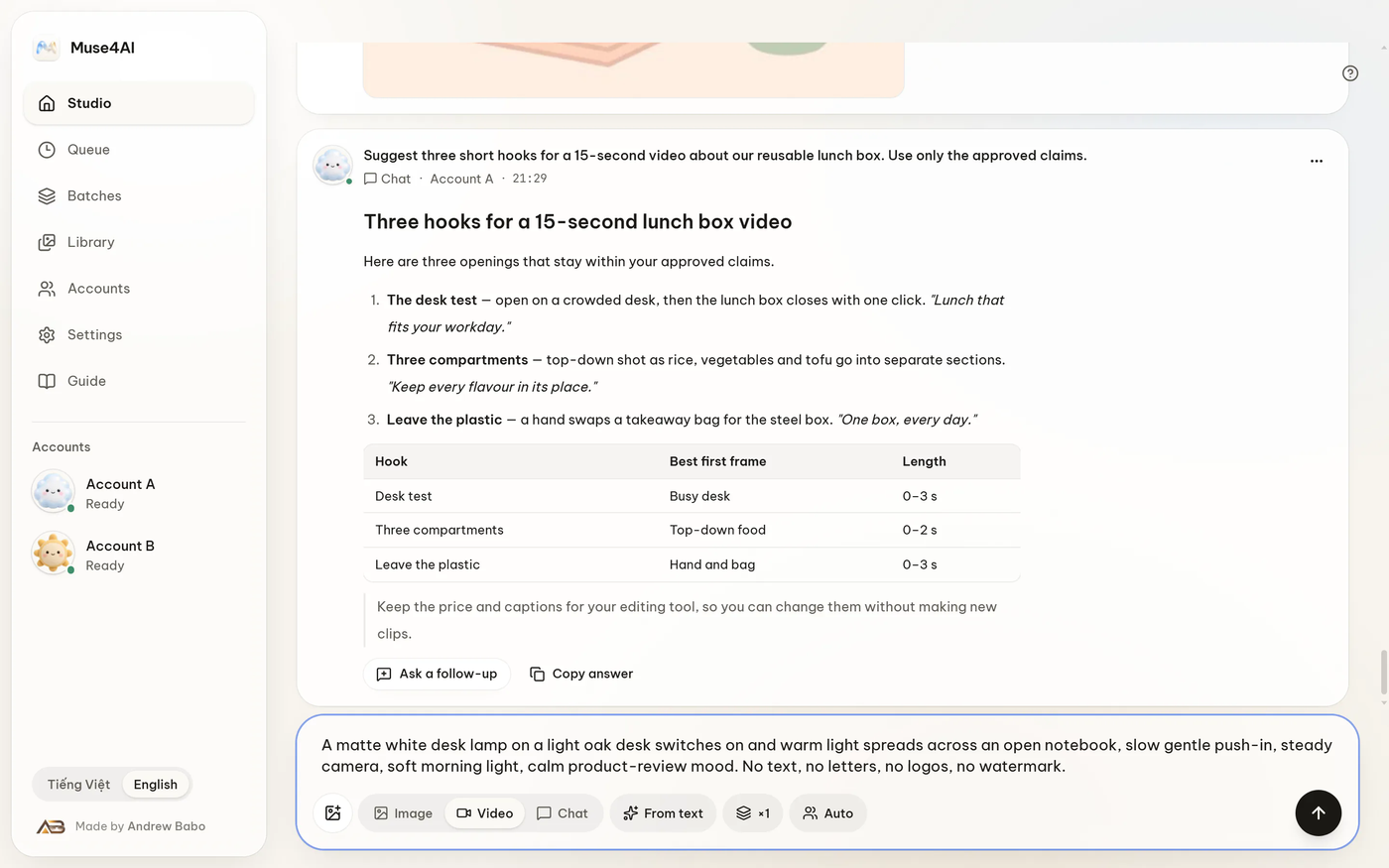
(Image from the project repository.)
Step 2: Connect it to your AI assistant
On the Settings → API & agent page in the app, Muse4AI already has connection commands ready for Claude Code, Codex, Cursor, and other assistants. You do not need to understand them. Copy the command and give it to your assistant.
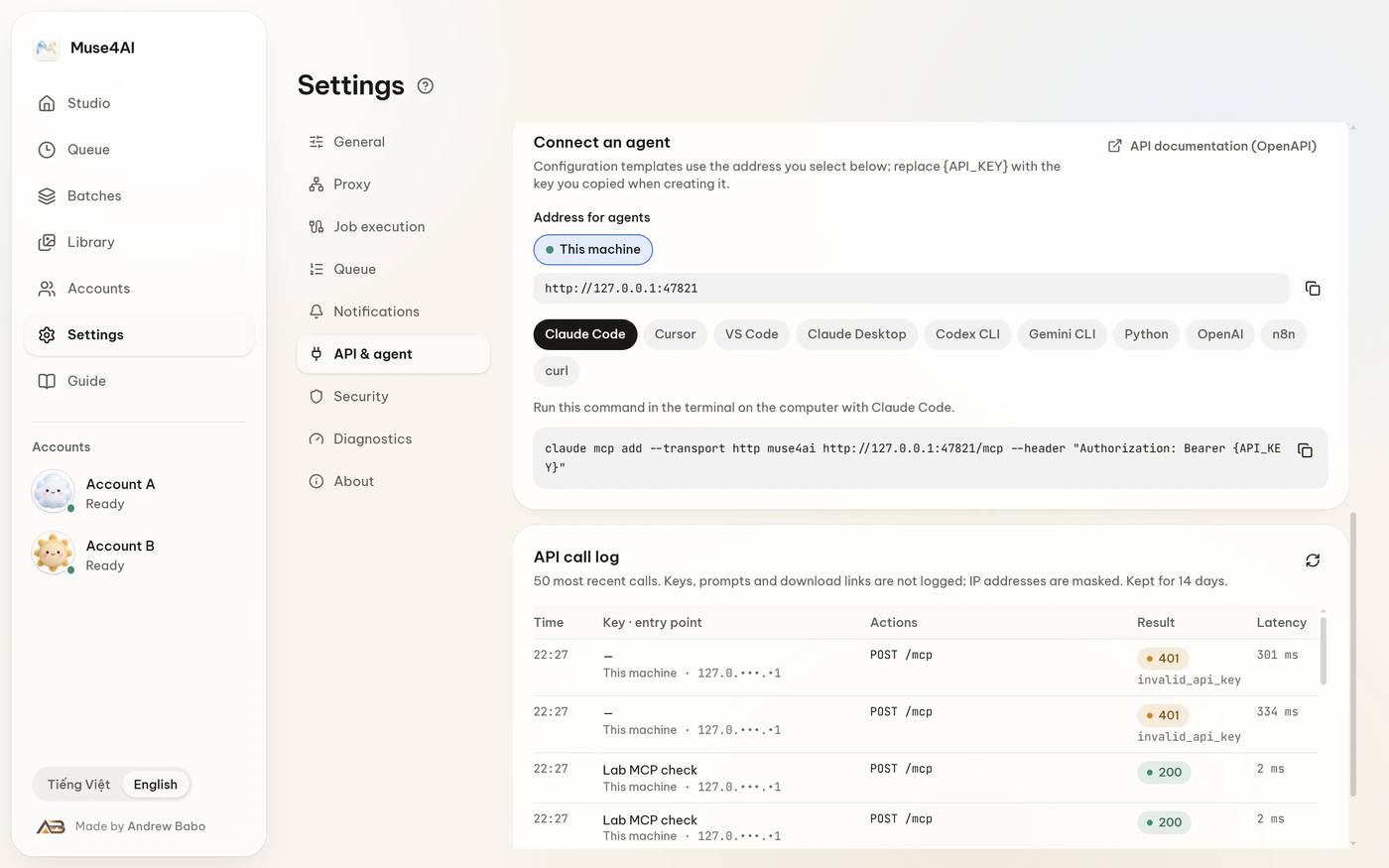
(Image from the project repository.)
In Muse4AI, first click Create key and copy the key. Then send the text below to Claude Code:
Help me connect Muse4AI to you here. It runs on my computer at http://127.0.0.1:47821.
I will send you the connection command and the key from the Muse4AI settings page. Please run the command for me, but do not write the key into any file, and do not show it in your reply.
Also, please install the Skill that comes with it (agent-kit/muse4ai in the andrew-babo/muse4ai repository), so you know how to use it.
After connecting, first check the status and tell me in plain words: which features work, how many accounts are ready, and how many credits are left.
After installing, start a new conversation.
Step 3: Ask for images and videos
Now you can make your request directly. The text below also sets out the rules, including asking me before any credits are used:
Sign in to unlock this key section
New accounts get 10 free credits, plus 1 more for each daily check-in. Spend 1 credit to unlock and it stays open for you.
The first rule matters most. Every generation uses credits from your Muse account. Let the assistant report the count first, and only go ahead when you say yes. That way, your credits will not run out without you knowing.
Step 4: Join short clips into a longer video
Muse makes only one clip of about 8 to 10 seconds at a time. For a longer video, ask the assistant to split it into shots first, then generate each part:
I want to make a short video of about 30 seconds: [describe the content in one sentence].
First, split it into 3 to 4 shots. Write one sentence describing the picture for each shot. Show me before you generate them one by one.
After they are done, tell me which free tool is the easiest way to join them together.
When you review the shot list, look closely. The more specific the shot descriptions are, the closer the result will be to what you want.
Notes
- Unofficial tool: This is not from Meta. Calling a Muse account through automation may break the platform's terms of use. You need to judge the risk to your account yourself.
- Credits get used: Every generation uses credits from your own account. Do not let the assistant retry endlessly or make too many at once.
- Windows only: The computer must stay on and the program must be running, or the assistant cannot use it.
- Videos are very short: Each one is about ten seconds long. The person may not look exactly the same from one clip to the next, so make longer videos in parts and join them.
Comments (0)
No comments yet. Start the conversation.