


What You Get
Hand a PDF, a Word document, or a block of text to an AI, and it generates a genuinely editable PowerPoint on your computer: you can click any shape, chart, or table and keep editing it. It is not a stack of images. This is PPT Master (MIT license), an open-source project. It is free; you only pay for the AI model you use.
First, look at what it produces (both examples were generated once by the project author, with no manual changes):
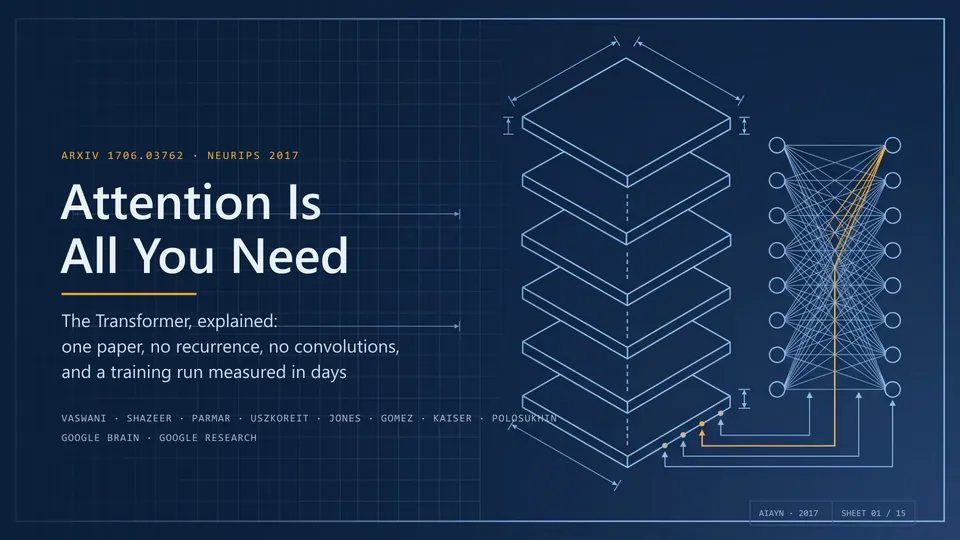
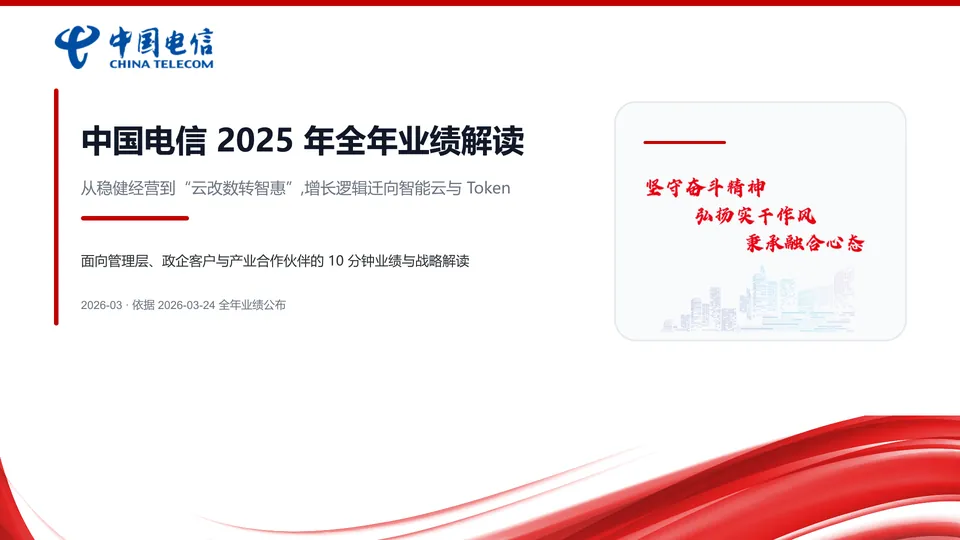
Images come from the project repository README. You can browse more examples on the online examples page.
The whole process takes three things from you: install Python, install an AI tool, and drop your materials in. No coding required.
Step 1: Install Python
You need Python 3.10 to 3.14, downloaded from python.org.
- Windows: During installation, be sure to check Add to PATH. Windows takes a few extra steps, so the author wrote a Windows installation guide. Following it takes about 10 minutes.
- macOS: Run
brew install pythonin Terminal.
Step 2: Choose an AI Tool
It needs an AI tool that "can read and write files, can run commands, and can hold multi-turn conversations." Don't be intimidated by the name; here it is simply a chat window that can operate on files.
- The author most recommends Claude Code, which the project is mainly developed and tested on.
- You can also use Cursor, Codex, Gemini CLI, or Copilot in VS Code, among others.
The model matters a lot. The author's point, roughly: the tool only handles the workflow, and the ceiling on quality is set by the model. Use a capable model with a long context window (such as Claude). Cheaper models can also run it, but you will have to fix a lot more yourself.
Step 3: Download the Project and Install Dependencies
There are two ways; pick one.
Option 1: Download with Git (recommended, makes future updates easier)
git clone https://github.com/hugohe3/ppt-master.git
cd ppt-master
pip install -r requirements.txt
Option 2: Download a ZIP archive: On the GitHub page, click Code → Download ZIP, unzip it, then run pip install -r requirements.txt in the folder. If the full archive is too large and the download fails, go to Releases and download the slim skills-only package (about 56 MB).
Step 4: Hand Over Your Materials
First, have your AI tool open the ppt-master folder: in an editor like Cursor, use "File → Open Folder"; in a command-line tool, run cd ppt-master before starting it. From then on, all operations happen in the chat box.
Put your PDF, Word file, or images into the projects/ folder, then say:
Make a deck from projects/q3-report/sources/report.pdf
Or paste the text directly:
Turn the following into a deck: [paste your content]
By default, it will first confirm the design plan with you: which template to use, 16:9 or another ratio, and roughly how many slides. Once you confirm, it analyzes the content, designs the layouts, generates the pages, and exports the file.
In a hurry? State it explicitly and the confirmation step is skipped:
Quickly make a 5-slide deck from projects/q3-report/sources/report.pdf without checking with me
Step 5: Get Your PPT
The finished file is in the project's exports/ folder. It is a standard .pptx that you can open and edit in PowerPoint. The default workflow also saves a preview image of each page in svg_final/.
Charts and tables are editable shapes by default. If you want native PowerPoint charts and tables that support "Edit Data," tell it so, and it will export a separate file with native charts.
What It Can Also Do
Sign in to unlock this key section
New accounts get 10 free credits, plus 1 more for each daily check-in. Spend 1 credit to unlock and it stays open for you.
Notes
- Don't expect perfection on the first try. The author is blunt about it: this is a tool, not a wish-granting machine. It takes care of most of the grunt work, and the final polish is up to you, which is exactly why the output is editable.
- It uses a lot of tokens. The tool is free, but page-by-page design and native editability mean many model calls, and you bear those costs.
- Data mostly stays local. Apart from calls to the AI model and the image search, image generation, and voice services that you choose to enable, the whole process runs on your computer.
- If the AI gets lost: ask it to reread
skills/ppt-master/SKILL.md; for other problems, see the FAQ. - Updating later: If you downloaded with Git, run
python3 skills/ppt-master/scripts/update_repo.py. If you used the ZIP, download it again and copy your old.envandprojects/over.
Comments (0)
No comments yet. Start the conversation.