

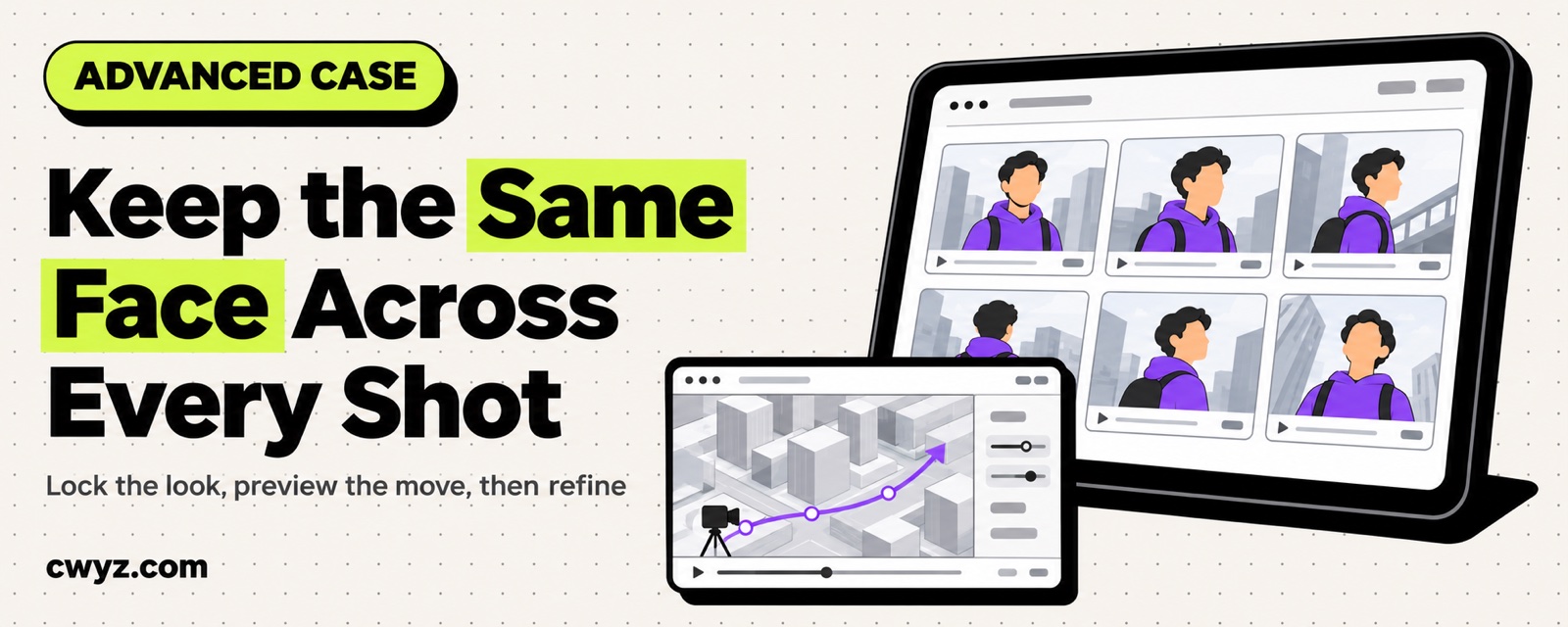
One creator built an AI short-video pipeline on Meta's Muse to fix four problems that keep coming back. Switch to a new shot and the main character's face changes. Big movements send hands flying. Longer videos come out in slow motion. And a few tries are enough to burn through the quota. According to the creator's share, the fix starts with writing the lead's look down as a text note based on one photo, then shooting only 5 to 6 second clips. The credit-heavy image and video generation goes to the free Meta AI, while Muse only writes prompts and checks the results. Hard orbiting camera moves start as a motion-only draft from Muse, which then goes to a local MiniMax H3 to swap in the lead for a final pass. Street scenes are set up first in Blender, using real 3D city data to lock the perspective. The core of this pipeline is splitting "does it look right," "is the motion correct," and "is the perspective accurate" into separate checks, and giving each one to the tool that does it best.
The Pipeline at a Glance
| Stage | Handled by | Responsible for | Output |
|---|---|---|---|
| Set the rules | Muse | Up front, no music or subtitles, and no big arm waving | A clean conversation |
| Lock the face | Muse | Facial features and hairstyle only, not clothes or background | A note on the lead's look, plus a 6-second test clip |
| Split the work to save credits | Muse writes prompts, Meta AI generates | Muse only writes and checks, Meta AI draws and animates | A small prompt dashboard to copy from, plus a batch of free assets |
| Stretch it out in segments | Muse writes the shot list | Splits 30 seconds into six 5-second shots, generates each one separately, then stitches them | A normal-speed long video, interpolated to 60fps for smoother motion |
| Preview hard shots first | Muse drafts the motion, MiniMax H3 refines | The draft handles camera and motion only, and the refinement only swaps in the lead's face | 5-second shots with steady camera moves and the same face |
| Ground streets in 3D | Blender with real city 3D data | Locks the building perspective first, then AI adds light and motion | Push-in shots where the buildings stay straight |
By the creator's account, one 6-second short uses roughly 2% to 12% of Muse's weekly quota. Each image takes 20 to 40 seconds to generate, and each short video takes 1 to 2 minutes.
The steps and numbers above come from the creator's public sharing. We haven't run through them step by step ourselves. Muse's quota rules and features change quickly, so go by what your account shows.
Why It Works: Three Reasons
- Each stage does one job: A single prompt that asks for the look, the motion and the camera move all at once will always drop something. Split apart, each step has one pass or fail check. When something breaks, you know which step to go back to.
- Test cheap, finalize expensive: Six-second shots and free tools handle the trial and error. Credits and GPU time get spent only after you've picked a direction. The most expensive step is no longer where you gamble.
- Anchor the hard parts to something certain: Motion comes from the draft video, and perspective comes from the 3D model. AI only adds detail on a skeleton that is already right, so there's less room for it to make things up.
Build It: A Six-Step SOP
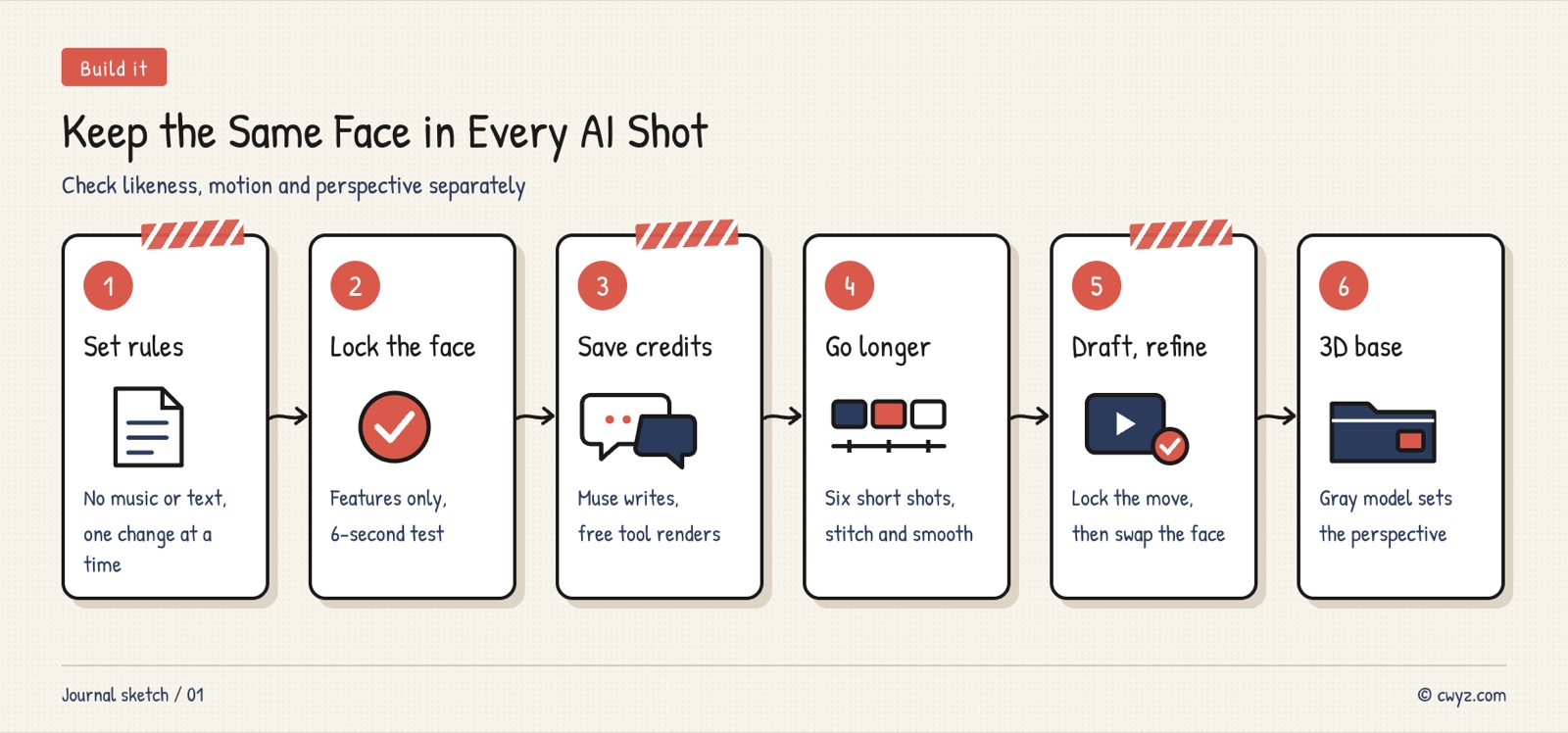
Steps 1 to 3 only need a Muse account. Steps 5 and 6 use a local ComfyUI and Blender, so if you don't have a graphics card with at least 16 GB of VRAM, rent a cloud GPU. Give the table and template below to your AI agent, and have it check each step against the completion criteria before moving on.
Sign in to unlock this key section
New accounts get 10 free credits, plus 1 more each day you sign in (none on days you don't). Spend 1 credit to unlock and it stays open for you.
Safety Basics
- Use only faces you have permission to use: Use your own photo, or one from someone who has agreed to it. Turning someone else's photo into a video can violate their portrait rights.
- Think through copyright before commercial use: According to the creator, Muse's free version doesn't come with a clear commercial-use guarantee. For ads or paid promotion, you can use Muse only for storyboards and drafts, render the final cut with local open-source models, and check each model's license first.
- Click the authorization prompts yourself: Rules set in the chat can't control account permissions. When you connect an outside account or a computer folder, review the settings before you agree.
Common Pitfalls
- Starting with a 30-second story: The face isn't locked yet, so it drifts more the longer the story runs. Get the 6-second test clip right first.
- Asking for a 20-second clip outright: The model often stretches a few seconds of motion into slow motion. Generate it in segments and stitch them together instead.
- Requesting three or four changes at once: The model loses track and is most likely to alter the face. Change one thing at a time, in the same conversation.
- Lazy refinement prompts: If you pass a reference image, still write out the hair color and clothing in every prompt. Otherwise the second half may switch to a passerby's face.
- Importing a whole city into Blender at once: Too many polygons and it freezes. Keep only the one to two kilometers of blocks around the shot.
For the indoor version of the Blender gray-box previz method, read the advanced tutorial Lay out indoor AI video shots with a Blender gray box. To upscale low-res H3 footage on your own machine, see how to have your AI agent upscale an AI video to 2K.
Where it usually breaks
- 01Shooting a long story before the face is locked.
- 02Asking for a 20-second clip outright, which turns into slow motion.
- 03Requesting several changes at once, which breaks the face.
- 04Skipping hair color and clothing in refinement prompts, so the second half swaps faces.
- 05Importing a whole city into Blender at once, which freezes it.
Comments (0)
No comments yet. Start the conversation.