

What you get
Google has just opened up an official API and a hosted MCP endpoint for Google Colab, and free accounts can use them too. Once connected, jobs your own computer struggles with, like transcribing a folder of recordings or running an open-source model, can go to your AI agent. It starts a cloud GPU on Colab, uploads your files, runs the work, pulls the results back, and shuts the machine down. You never have to open the Colab website. This guide includes two prompts you can copy as-is.
The split of work is simple: every step that touches your Google account is yours to click. Your AI agent handles starting the machine, running the code, and shutting it down, and it asks you before each machine starts.
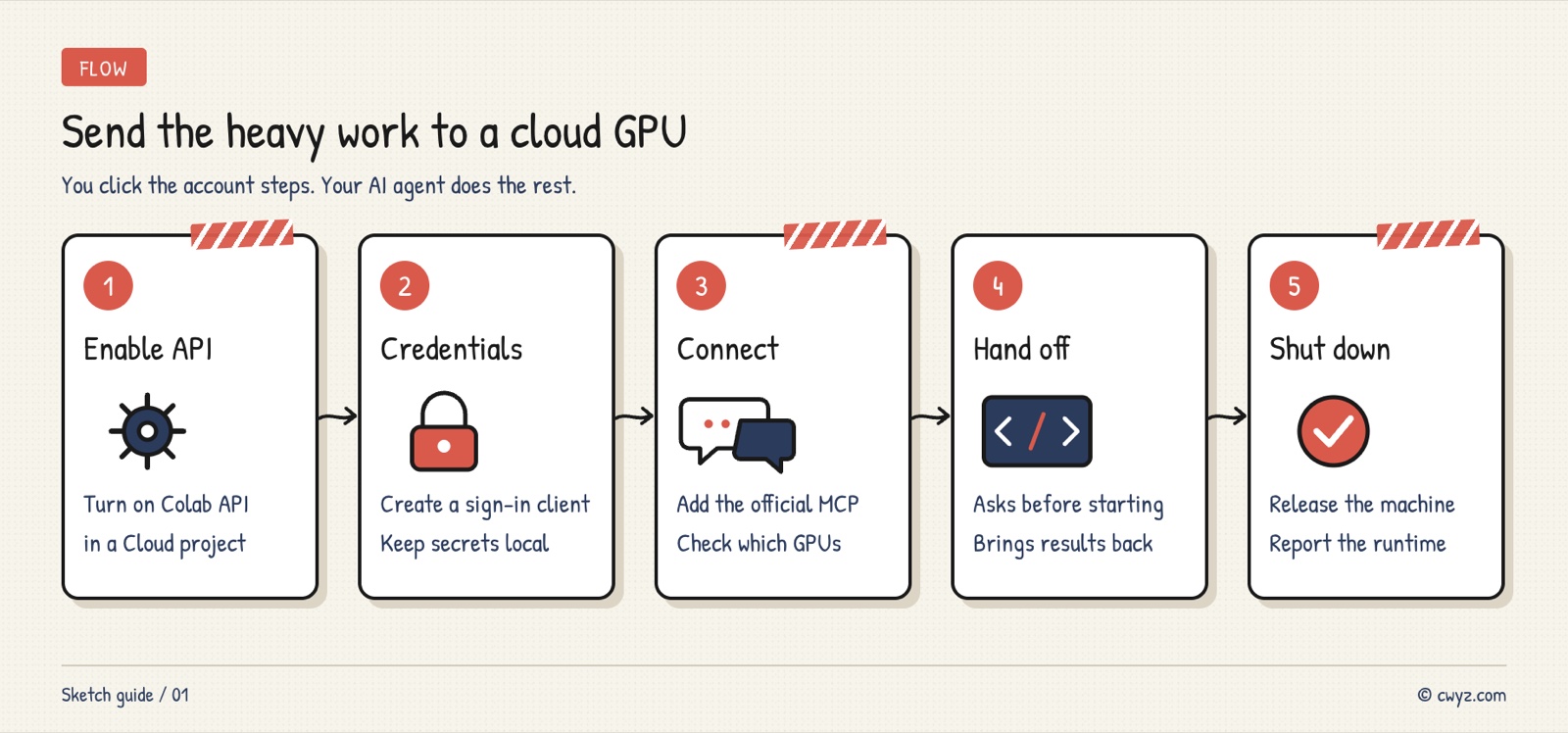
There are five steps in total: enable the Colab API in a Google Cloud project, create an OAuth client and keep its secret on your machine, connect your AI agent to the official MCP and check which GPUs you can open, hand over the job, and confirm the machine is really released.
What Google opened up
Colab is Google's online Python notebook service, and its biggest draw is access to GPUs in Google's data centers. Two new pieces arrived:
- Colab API: an official interface that lets programs start and stop machines and list which ones your account can use. Google's own Colab plugin for VS Code runs on it.
- Hosted MCP endpoint: at
https://colaboratory.googleapis.com/mcp. MCP is the general standard that lets AI call outside tools. Once your agent connects, it gets a new set of tools.
| Tool | What it does |
|---|---|
| get_subscription | Checks whether you're on Free, Pro or Pro+ |
| list_runtime_specs | Lists the CPU, GPU and TPU machine types your tier can open |
| create_runtime / delete_runtime | Starts a machine / releases it |
| create_session / execute_code | Opens a session and runs Python in it step by step, keeping variables and installed libraries |
| list_runtimes / list_sessions | Shows which machines and sessions are running right now |
Image from the official Google Colab blog.
Which GPUs you can open is the same as on the website and depends on your subscription tier. Google's examples: Pro and Pro+ can open H100 GPUs or TPU v6e. Free accounts work too, but the top hardware isn't always available. If you pay for a Google AI membership, the Colab compute units bundled with it also work here.
Step 1: Enable the Colab API in Google Cloud
Open the Google Cloud console, pick a project (or create a new one), go to APIs & Services → Library, search for the Colab API (colaboratory.googleapis.com), and click Enable.
You do this step and the next one yourself, because both involve your Google account and your AI agent stays out of them. If you're not sure where to click, take a screenshot and send it to your AI agent. It can tell you which button to press next.
Step 2: Create an OAuth client for sign-in
Still in the same project, follow Google's OAuth 2.0 guide to create an OAuth client. OAuth is Google's general authorization system. Think of it as a pass that lets your AI agent sign in on your behalf. When you're done, you get a client ID and a client secret.
Keep the secret on your own computer. Save it in a file that only your user account can read, and give your AI agent just the file path. Don't paste the secret into the chat.
Step 3: Connect your AI agent to the official MCP
Send this to your AI agent:
Please connect Google's official Colab MCP endpoint to your own tooling.
Endpoint: https://colaboratory.googleapis.com/mcp
Docs: https://developers.google.com/colab/api/reference/mcp
My OAuth client info is stored in: [file path]

1. Read the docs first, then tell me how you plan to configure it. If you need me to authorize in the browser, tell me exactly what to click and I'll do it myself.
2. Read the client secret and login credentials only from that file. Don't print them, and don't write them into any file that gets uploaded.
3. Once it's set up, call only get_subscription and list_runtime_specs, then tell me in plain language: what tier I'm on, which machine types I can open, and which one suits running models.
4. Don't start any machine in this step.
Checking first, without starting anything, confirms that the connection works and shows which GPUs your tier can open. That way, when you hand over real work later, your agent already knows which machine to pick, and you won't wait on one that can't start.
Step 4: Hand over the job
Try something that would be slow on your own machine, like turning a folder of recordings into text. Send this to your AI agent:
Sign in to unlock this key section
New accounts get 10 free credits, plus 1 more each day you sign in (none on days you don't). Spend 1 credit to unlock and it stays open for you.
Rules 1 and 5 are about money. Idle machines keep burning compute, so "shut it down as soon as you're done" has to be spelled out. Rule 3 follows Google's own advice: pushing file contents through the chat would fill your agent's context window. Rule 6 keeps it from quietly switching to a pricier GPU just to get past an error.
Step 5: Confirm the machine is off
After your agent reports the machine as released, ask it to call list_runtimes once more and confirm nothing you own is still running. You can also open the Colab website and check your resource usage.
Want to run a larger open-source model, or use the command-line Colab tool? See Advanced: run open-source models on the Colab compute that comes with Ultra. The steps are also packaged as a Colab skill.
Things to know
- Text output only: the code tool returns text only, so charts won't display directly. Have your AI agent save images to files and download them.
- Upload credentials expire in about an hour: if a transfer fails because its credentials have expired, ask the agent to fetch new ones.
- Machine starts can fail: when GPUs are scarce or your quota runs out, a start can fail. Too many running machines will also block new ones. Wait a bit and try again, or switch to a different machine type.
- Still in beta: the API is v1beta, so tool names and parameters may change. That's why the prompt tells your AI agent to read the docs first.
Comments (0)
No comments yet. Start the conversation.