

What Not to Share With AI
What You'll Get
AI is so handy that it's easy to paste in everything: photos of your ID, contracts, customer lists, medical checkups. But what you send stays on someone else's server. Some of it may even be used to train models, and you can't fully delete it. This article covers what to keep out, how to handle things when you must share them, and how to check two privacy settings.
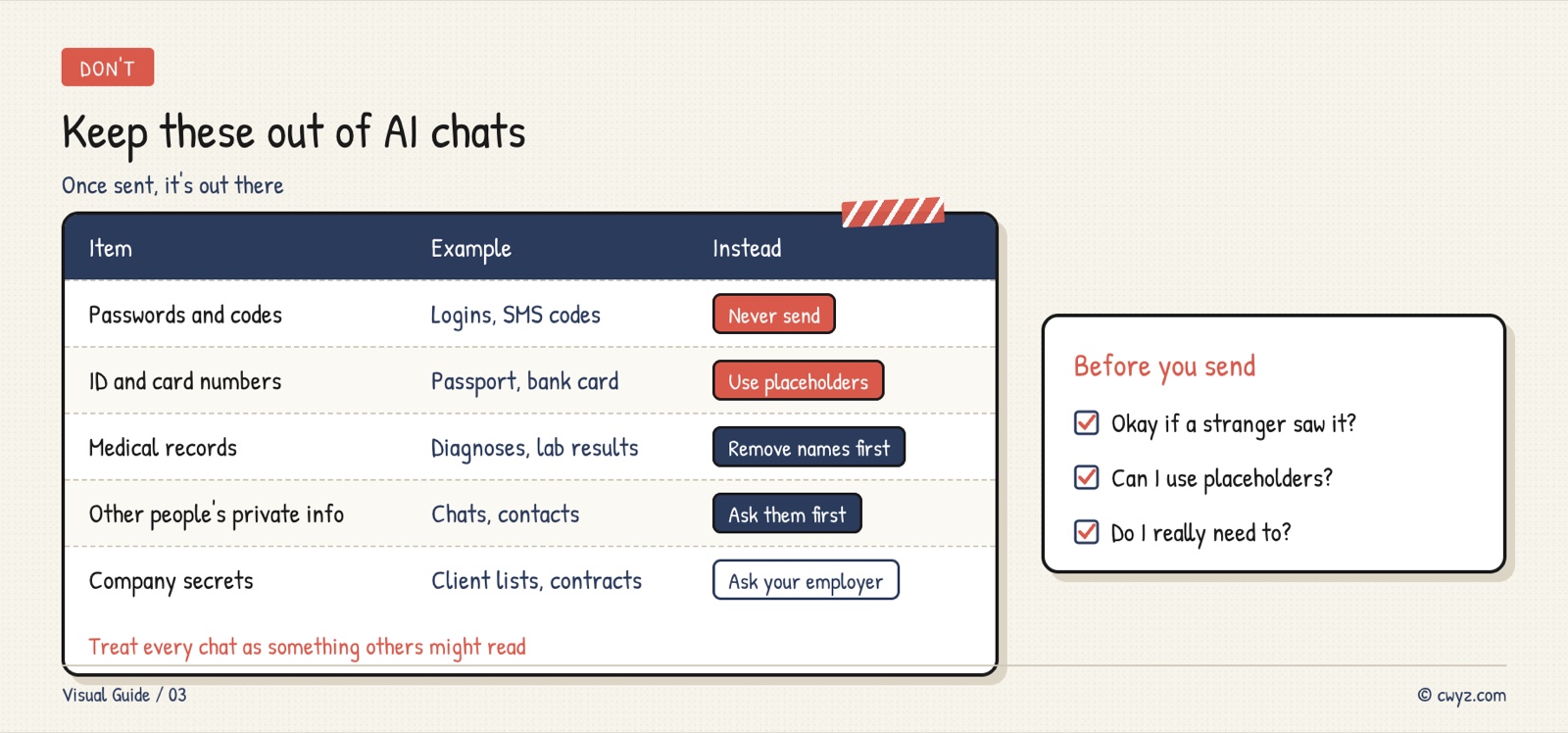
Treat every chat as if someone else could read it. If you wouldn't want an outsider to see it, don't send it.
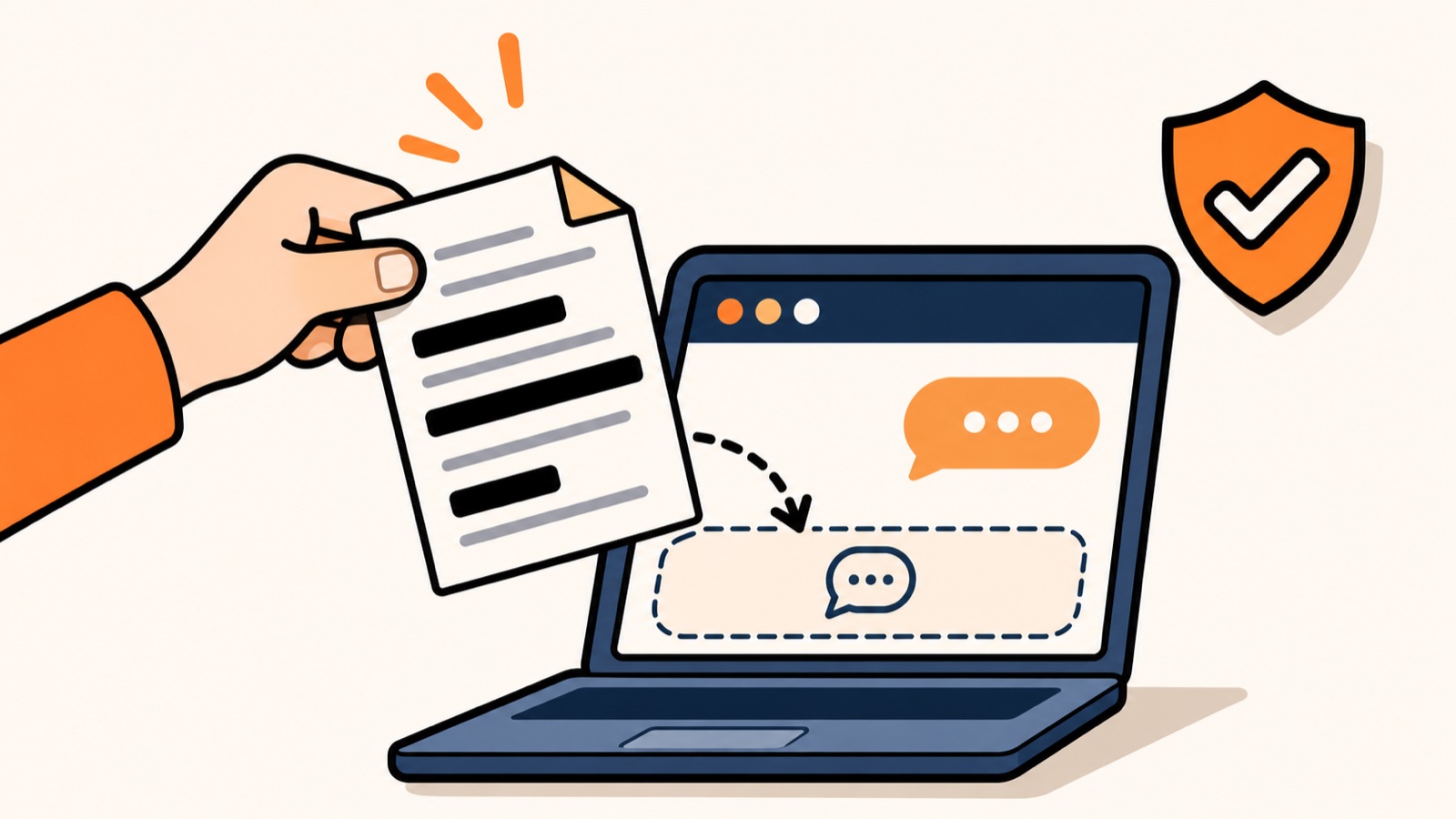
This illustration was made by AI. It is not a real screenshot of any software.
What Not to Share
If You Must Share, Clean It Up First
Often you really do need AI to read a contract, polish a resume, or sort customer feedback. You don't have to skip it. Just clean things up before you send:
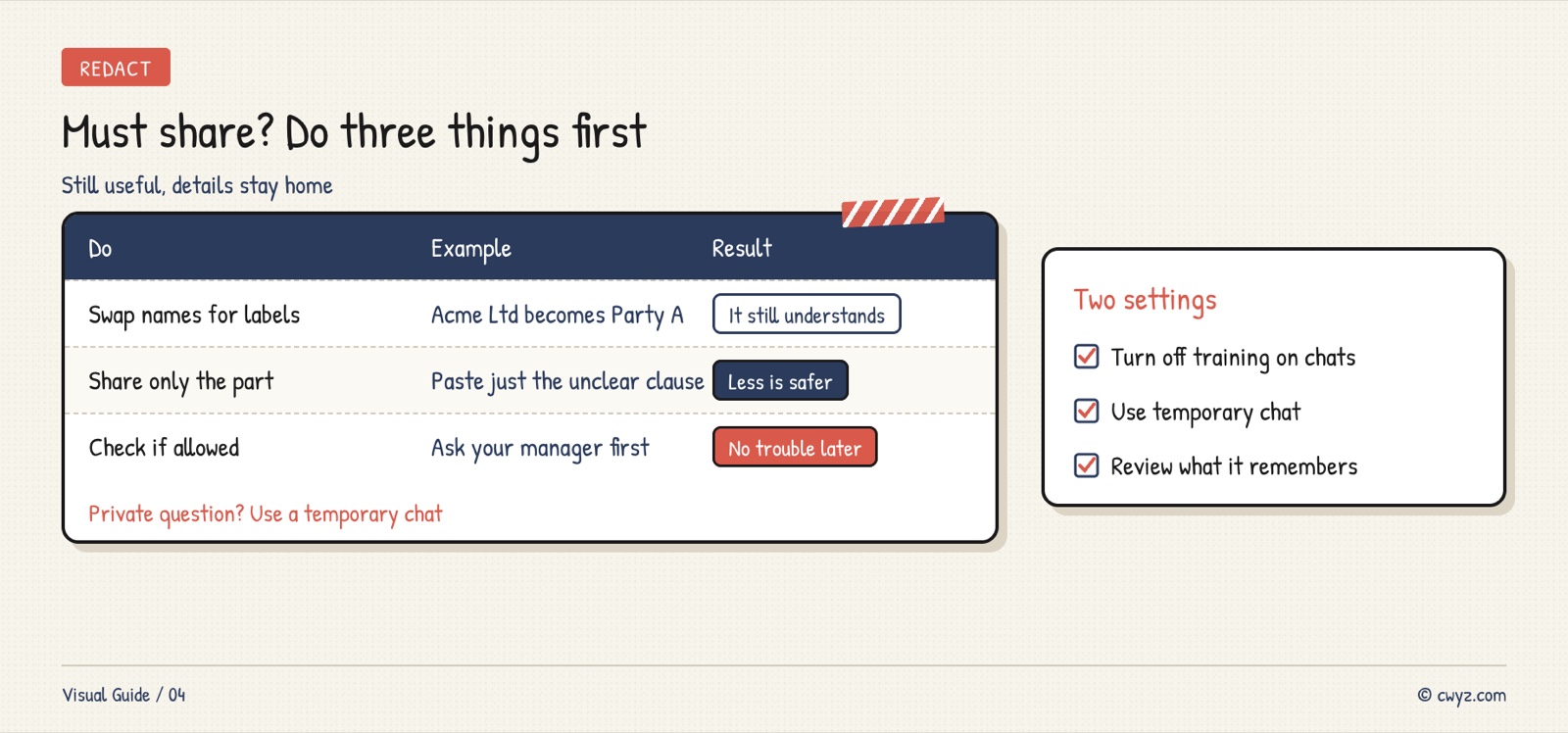
For example, if you ask it to read a contract, change the other company's name to "Party A" and the amount to "$X". Only paste the clauses you don't understand. It can still explain them clearly, and your information never leaves your hands.
Check Two Settings
Training switch: Most AI tools have a setting like "Use my chats to improve the model." In ChatGPT it is called Improve the model for everyone, under Data Controls in Settings. In Claude it is called Help improve Claude, under Privacy in Settings. If you don't want your chats used for training, turn it off:
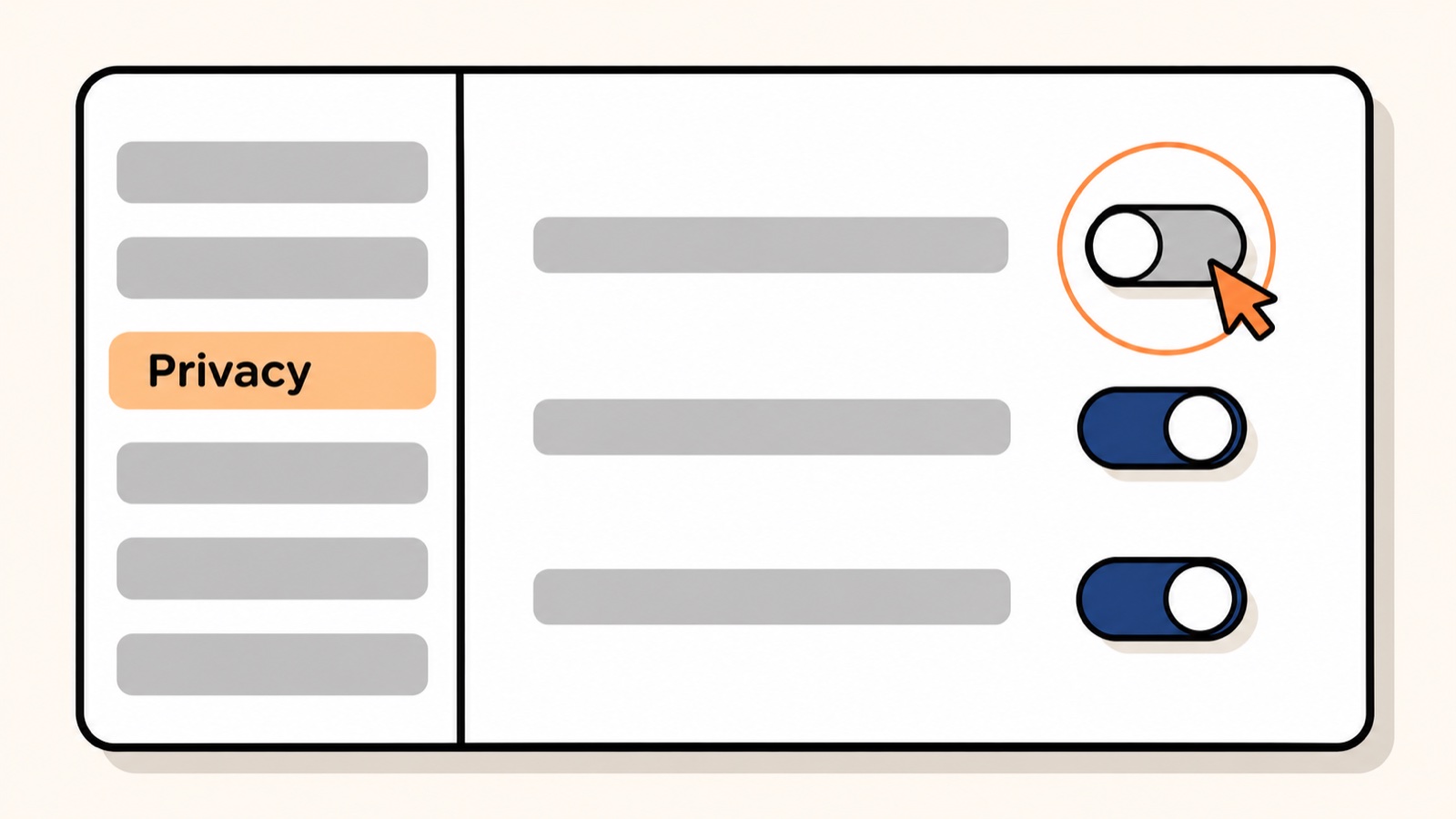
This illustration was made by AI. Company names and menu locations change, so go by what you see.
Temporary Chat: ChatGPT has Temporary Chat. These chats don't appear in your history, aren't saved to memory, and aren't used for training. If you need to ask something private now and then, open a Temporary Chat first.
Let Your AI Keep Watch
Send this to your AI agent. It will help you check your settings, and it will keep watch for you from now on:
Sign in to unlock this key section
New accounts get 10 free credits, plus 1 more for each daily check-in. Spend 1 credit to unlock and it stays open for you.
The number in the test is made up. It's a good check to see whether your AI stops and reminds you first.
Notes
- Once something is sent, deleting the chat may not remove it from the server. So the key is to check before you send.
- With AI on a work computer or work account, your company can sometimes see your chats.
- Check the corners before you take a screenshot. Don't capture message pop-ups or other windows by accident.
- Memory features remember what you tell them. Every so often, check in Settings to see what it has saved. See Is Your AI Agent Getting Dumber? Clean Up Its Memory Files.
References
- Claude privacy settings (Anthropic privacy center)
- The rules for things like passwords: Stop Your AI Agent From Spending or Deleting Without Asking
- Want to see what you still need to learn? Check Your AI Starting Level
Comments (0)
No comments yet. Start the conversation.