

Can't Describe It? Just Screenshot It or Say It
What You'll Get
Many beginners get stuck on the first step: they don't know how to describe the problem in words. You don't need perfect words. Today's AI can read images and listen to you. Screenshot something and ask "What does this mean?" Take a photo of a manual and ask "How do I set this up?" Or turn on voice and just talk. This article shows you how to work with AI using screenshots, photos, and voice.
When you can't explain it in words, one screenshot works better than a long paragraph.
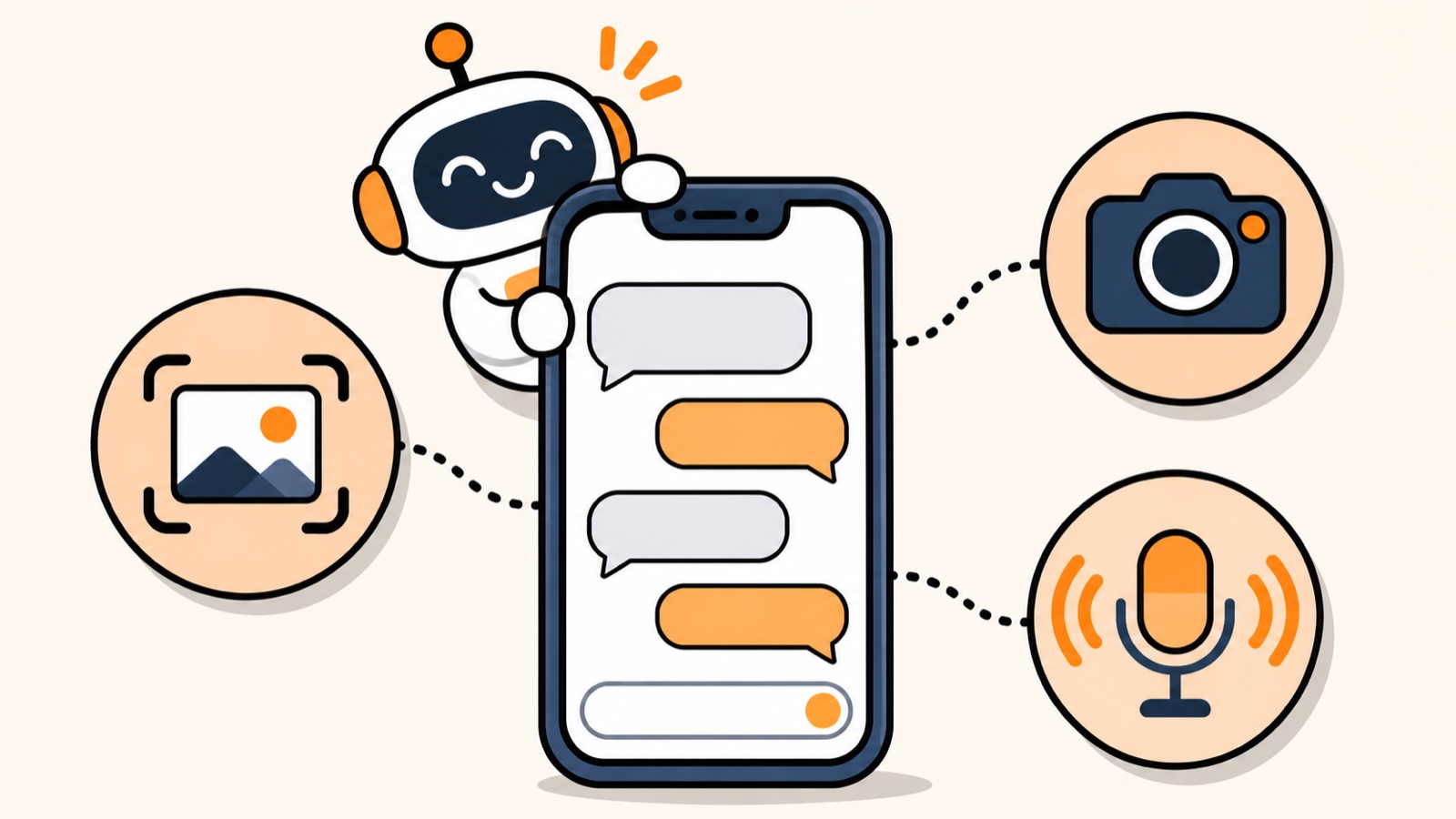
This illustration was made by AI. It is not a real screenshot of any software.
Three Ways to Ask Without Typing
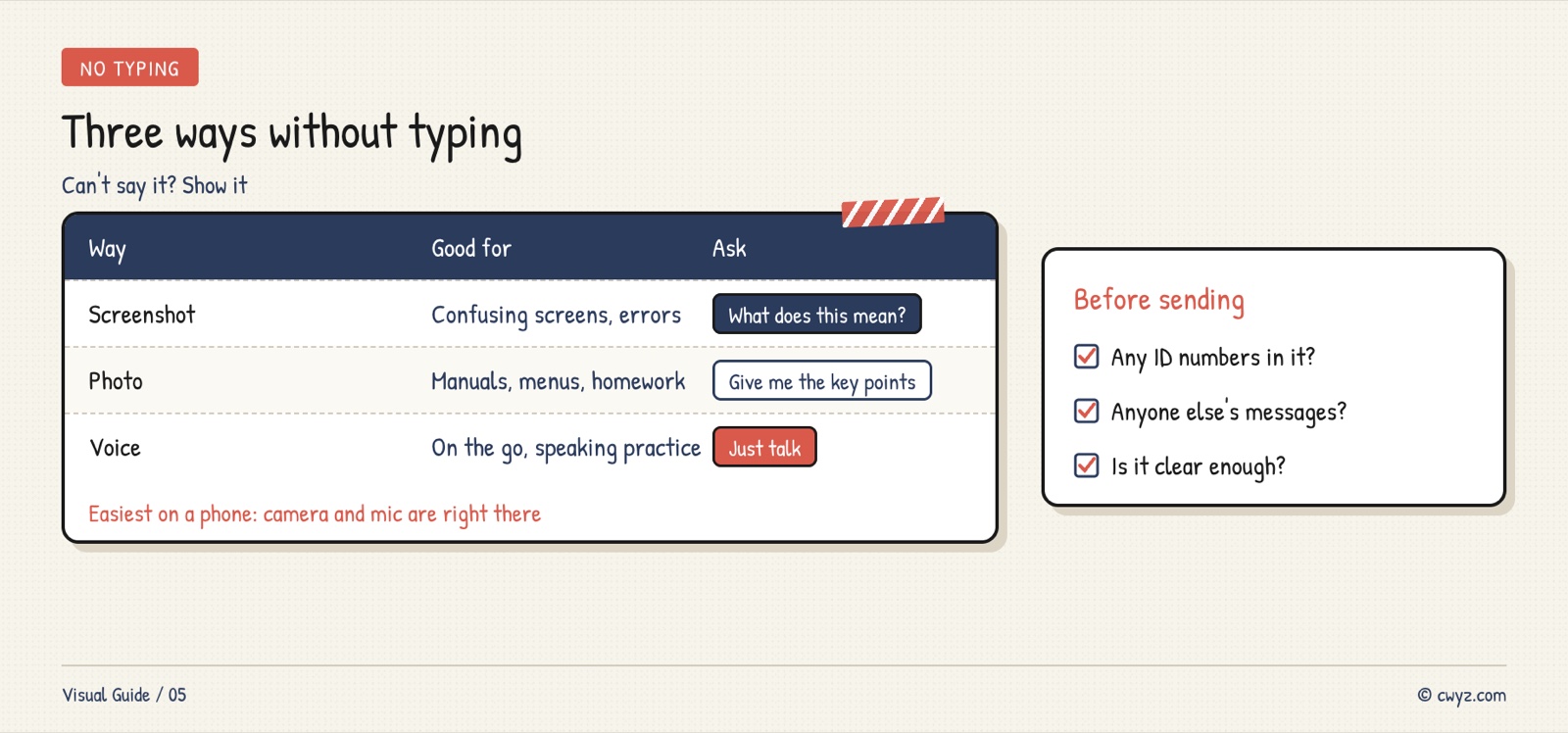
ChatGPT, Claude, and Gemini can all read images now. ChatGPT and Gemini have the smoothest voice chat, and Claude has it too. Phones are the easiest way, since taking photos and talking are built in.
Send It a Screenshot
On a computer, press Win + Shift + S on Windows or Shift + Command + 4 on a Mac. Select the area you want to ask about, then paste it straight into the chat box, or drag the image in:
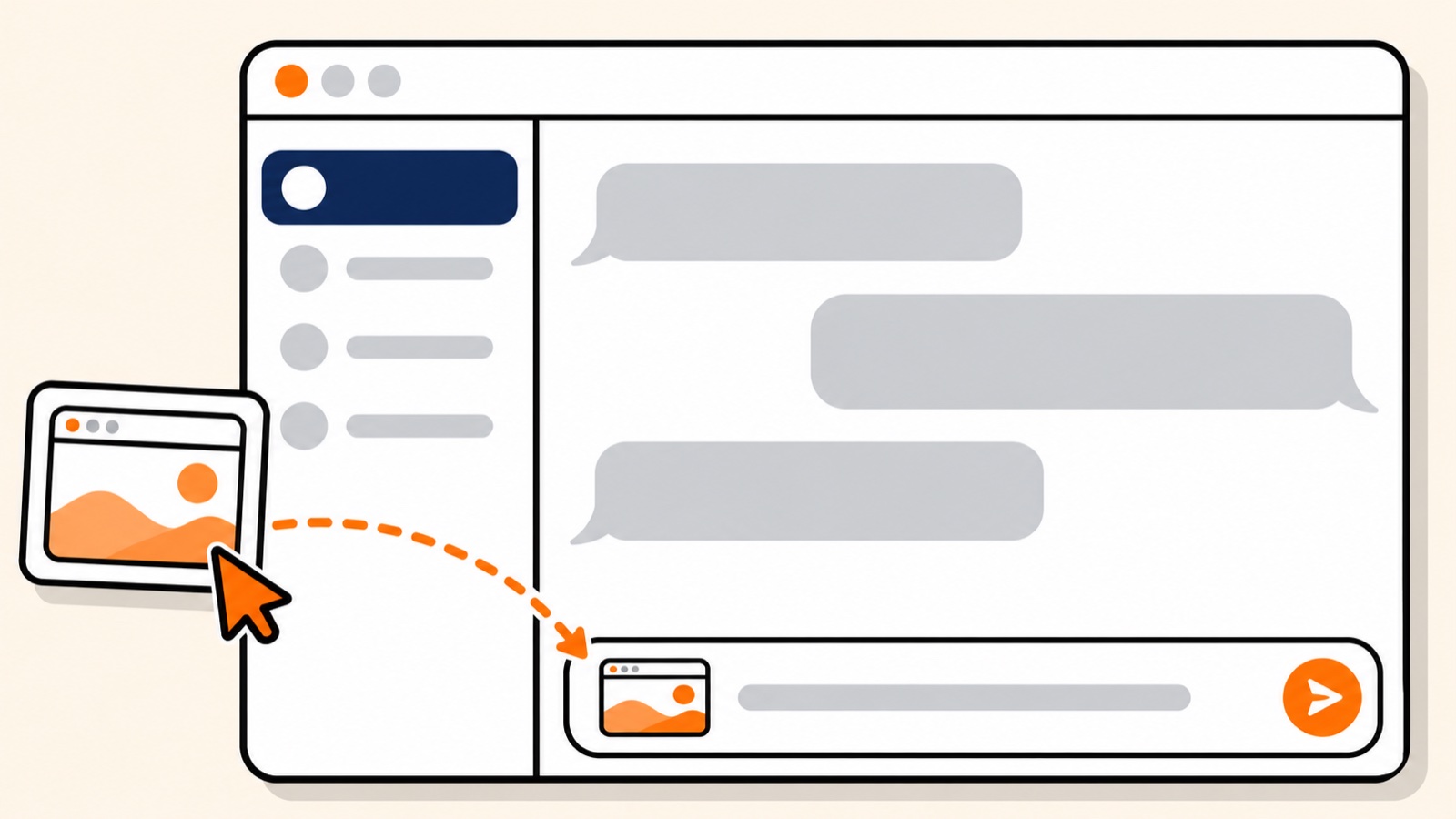
This illustration was made by AI. It is not a real screenshot of any software.
When you take the screenshot, select only the part you want to ask about. Then add a line saying what you want to know: "What does this mean?", "Which button do I press next?", or "What's wrong here?"
Send It a Photo
Take a photo of paper things directly: a manual you can't read, a menu in another language, your child's homework, the dosage on a medicine box. In the phone app, tap the + or camera icon next to the input box. Once the photo is taken, you can ask your question.
Talk to It
In the phone app, there's a microphone or sound wave icon next to the input box. Tap it to start talking directly. The AI will talk back to you:
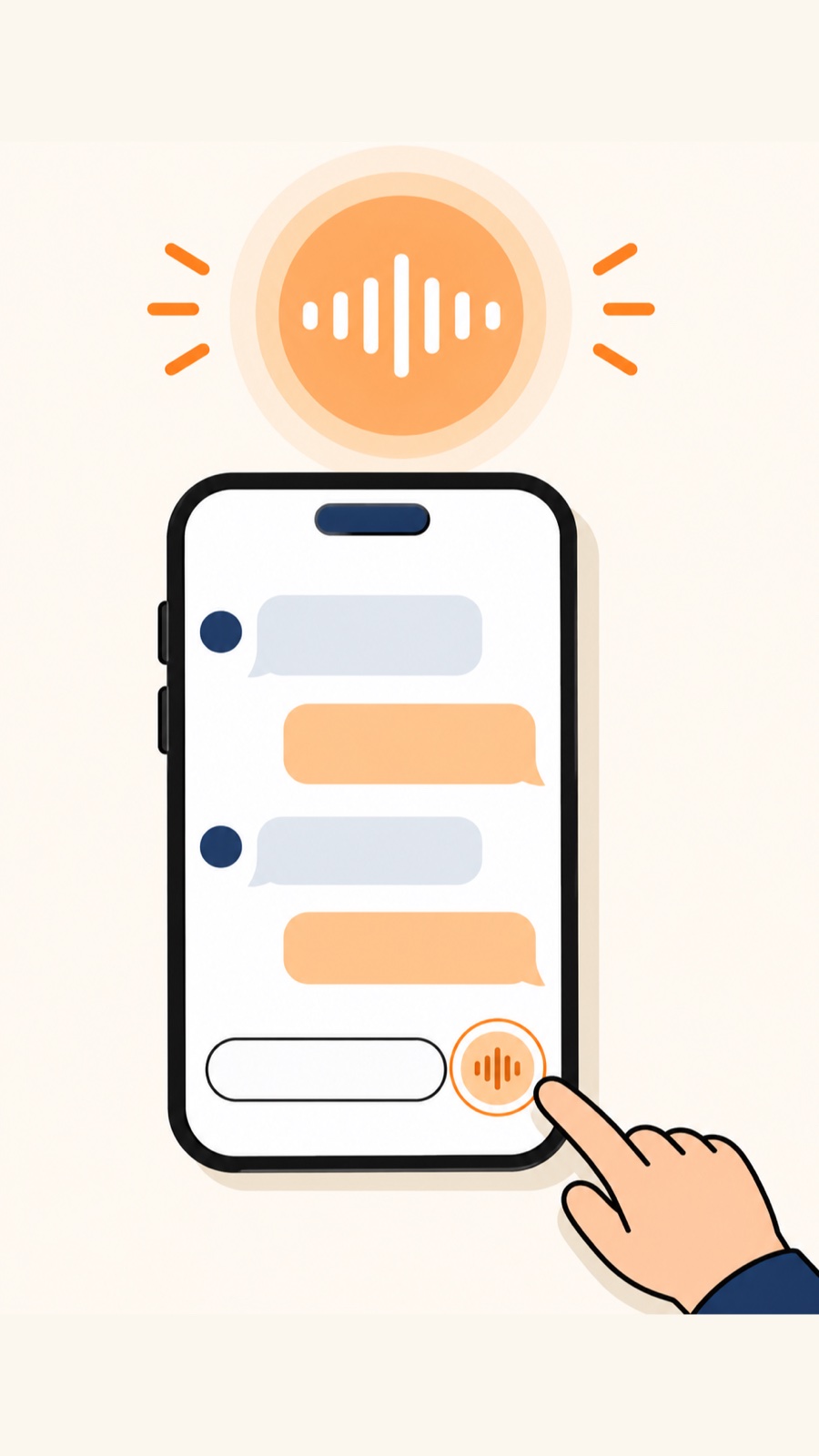
This works well for asking about a recipe while you cook, sorting out your thoughts while you drive, or practicing speaking. Some apps can also turn on the camera so the AI can look and talk with you.
Practice Once
Send this to your AI. It will walk you through trying all three methods, one at a time:
Sign in to unlock this key section
New accounts get 10 free credits, plus 1 more for each daily check-in. Spend 1 credit to unlock and it stays open for you.
After one round, your first move the next time you can't explain something is to take a screenshot or snap a photo.
Notes
- Don't include your ID, bank cards, or other people's chats in screenshots or photos. See What Not to Share With AI.
- If the image is blurry, the AI may misread it. If the photo isn't clear, move closer and shoot again.
- It can also misread numbers in an image, so double-check important ones yourself. See Check Your AI Agent's Work Before You Use It.
- Voice and image uploads use more of your quota than plain text. Keep an eye on your usage before you use them a lot.
References
- Claude vision guide (Anthropic docs)
- Gemini Live help (Google)
- Screenshots help when you're stuck too: Stuck While Using AI? How to Get Unstuck
- Want to see what you still need to learn? Check Your AI Starting Level
Comments (0)
No comments yet. Start the conversation.