

What you get
Install the open-source PhoneGo and your Android phone gets an AI agent that taps through apps on its own. Say something like "Find a hotel near HKU on Xiaohongshu (RedNote), then check tonight's price on Ctrip." It opens both apps, carries the hotel name from one to the other, and tells you the price. You don't need a computer, a USB cable, or a rooted phone. All you need is an Android 14 or later phone and an API key from a model provider. The article includes 2 copy-ready prompts.
Set your expectations first: it's fast and reliable in apps it already knows. A brand-new app means it has to read screenshots and work things out, which is slower and uses more tokens. When it reaches a step that involves paying, placing an order, or entering a password, it stops and hands control back to you.
Why it's faster than screenshot-only phone agents
Most phone agents take a screenshot at every step and have the model look at it before deciding where to tap. That works with any app, but it's slow, uses more tokens, and repeats the same work if you walk the same path twice.
PhoneGo builds a "map" of each app. Pages become places, and buttons and jumps become roads. Routes you've already walked are saved as commands and replayed without looking at the screen. Only when something isn't on the map, such as a new page or a pop-up, does it hand the screen to a vision model. In the project's own real-device test, the same Xiaohongshu (RedNote) task took a screenshot-only agent 32 steps and 146 seconds. PhoneGo took 17 steps and 64 seconds, using about 55% fewer tokens.
- Each app gets its own map, stored on your phone. Apps without a map still work. They just take the slower screenshot route.
- Screenshots are uploaded only when the model needs to look, and they go to the model service you chose. The maps, pairing keys, and settings stay on the phone.
- If an app redesigns its screens, its map stops matching. You can have it explore the app again to rebuild the map.
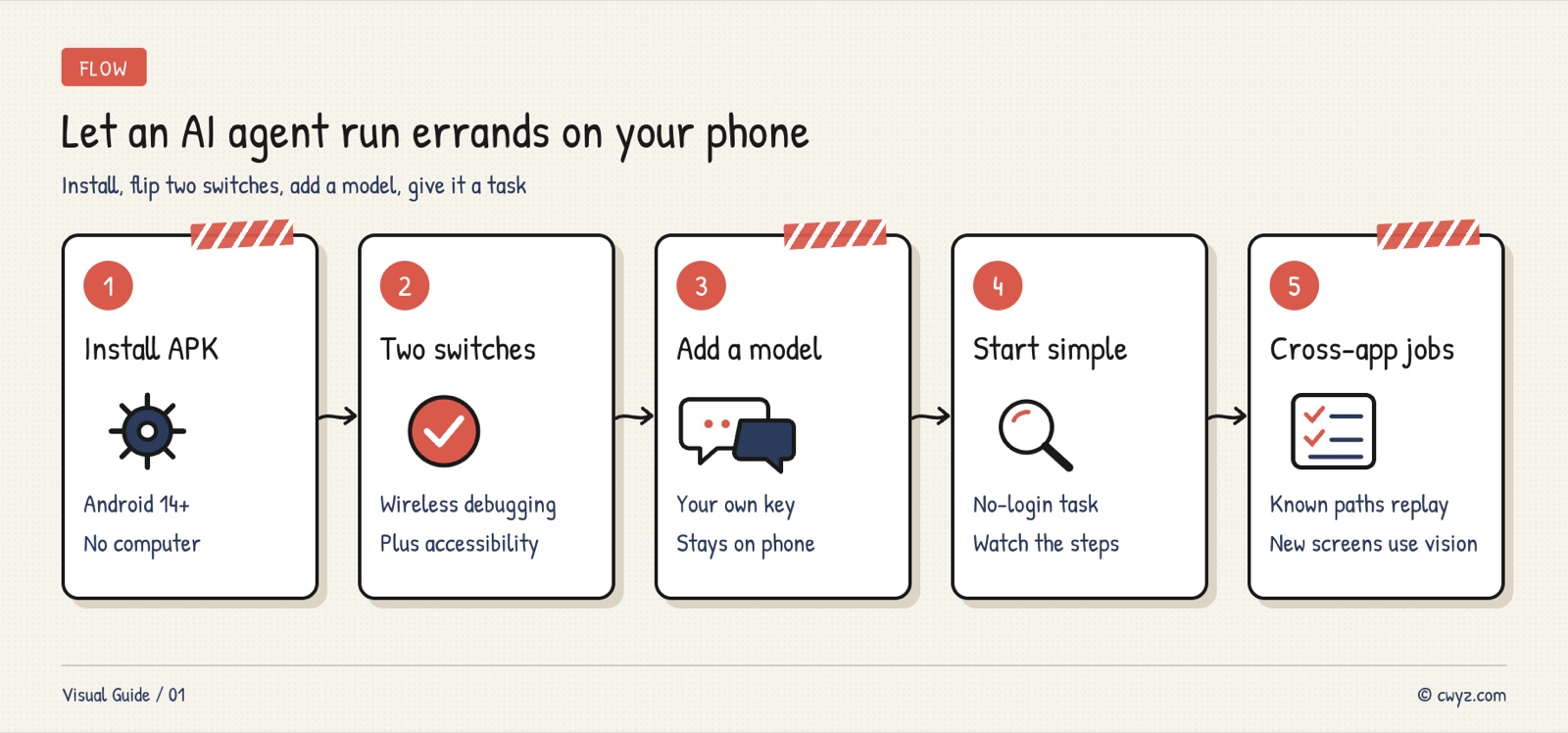
Step 1: Install the APK
Download the latest PhoneGo installer from the project's GitHub Releases page (0.4.2 at the time of writing) and open it on your phone to install. You need Android 14 or later with a 64-bit ARM processor. Most mainstream Android phones from the last few years meet this.
Android will ask whether to allow installs from unknown sources. Allow it for this install. On Xiaomi phones you'll see one more prompt. Tap the continue-install button. Future updates install over the top, and your settings are kept.
Step 2: Turn on two switches, in this order
PhoneGo uses Android's built-in Wireless debugging to operate the phone, so you don't need to connect a computer. You need to turn on two switches:
- Settings → Developer options → Wireless debugging, and turn it on. If you don't see Developer options yet, go to About phone and tap the build number a few times.
- Settings → Accessibility → PhoneGo, and turn it on. You can also long-press the Settings button in PhoneGo to jump there directly.
Accessibility is required. PhoneGo uses it to read the six-digit pairing code that Android shows, so it can finish pairing on its own. After you turn it on, reopen PhoneGo. The chat will tell you it's connected.
Step 3: Connect your own model
PhoneGo doesn't include a model or an API key. Go to Settings → Model Settings and pick a Provider: DeepSeek, OpenRouter, Zhipu, Alibaba Bailian, SiliconFlow, Kimi, OpenAI, Gemini, Anthropic, and others. After you choose one, the URL and model name fill in automatically. Paste your API Key, and it tests the connection when you save.
Your key is encrypted and stored on the phone. Not sure which provider to pick, or where to get a key? Hand this prompt to your AI agent on your computer:
I want to use PhoneGo, an open-source tool that lets AI operate apps on my Android phone. It needs an API key from a model I choose myself. Please help me pick one:
1. Supported providers include DeepSeek, OpenRouter, Zhipu, Alibaba Bailian, SiliconFlow, Kimi, OpenAI, Gemini, and Anthropic.
2. My main use: [e.g. looking up info across Xiaohongshu (RedNote) and Ctrip], about [how many times] per day.
3. Prefer a model that can read images (has vision), is inexpensive, and that I can pay for directly in [your country or region].
4. Tell me which page to apply for a key on, and how to set a monthly spending cap.
Don't ask me to paste my key into this chat. I'll paste it into the phone myself.
This matters because the screenshot route needs a model that can read screenshots. A wrong pick will leave it stuck on new pages. Setting a spending cap first keeps costs down if a task goes off track.
Step 4: Run a task that doesn't need a login first
Don't ask it to book a hotel on the first try. Start with a task that doesn't need a login and finishes in seconds:
Open Settings and tell me which Wi-Fi network the phone is connected to right now.
You'll see each step listed in the chat, a small window in the corner showing what happens on its own "screen," and finally the answer. Most of the time it works on a virtual screen in the background, so you can keep using your phone. If an app only runs on the main screen, it borrows the main screen for a moment and gives it back when it's done.
Step 5: Make it work across apps
Once that works, try a task that spans apps. This is where it's most useful. Here's the core template. Replace the brackets with your own task:
Sign in to unlock this key section
New accounts get 10 free credits, plus 1 more for each daily check-in. Spend 1 credit to unlock and it stays open for you.
Why it's written this way: spelling out what to find in each app and what to carry over tells it which information to move from the first app to the second. The final rule sets the boundary, so it stops first even if the settings change later.
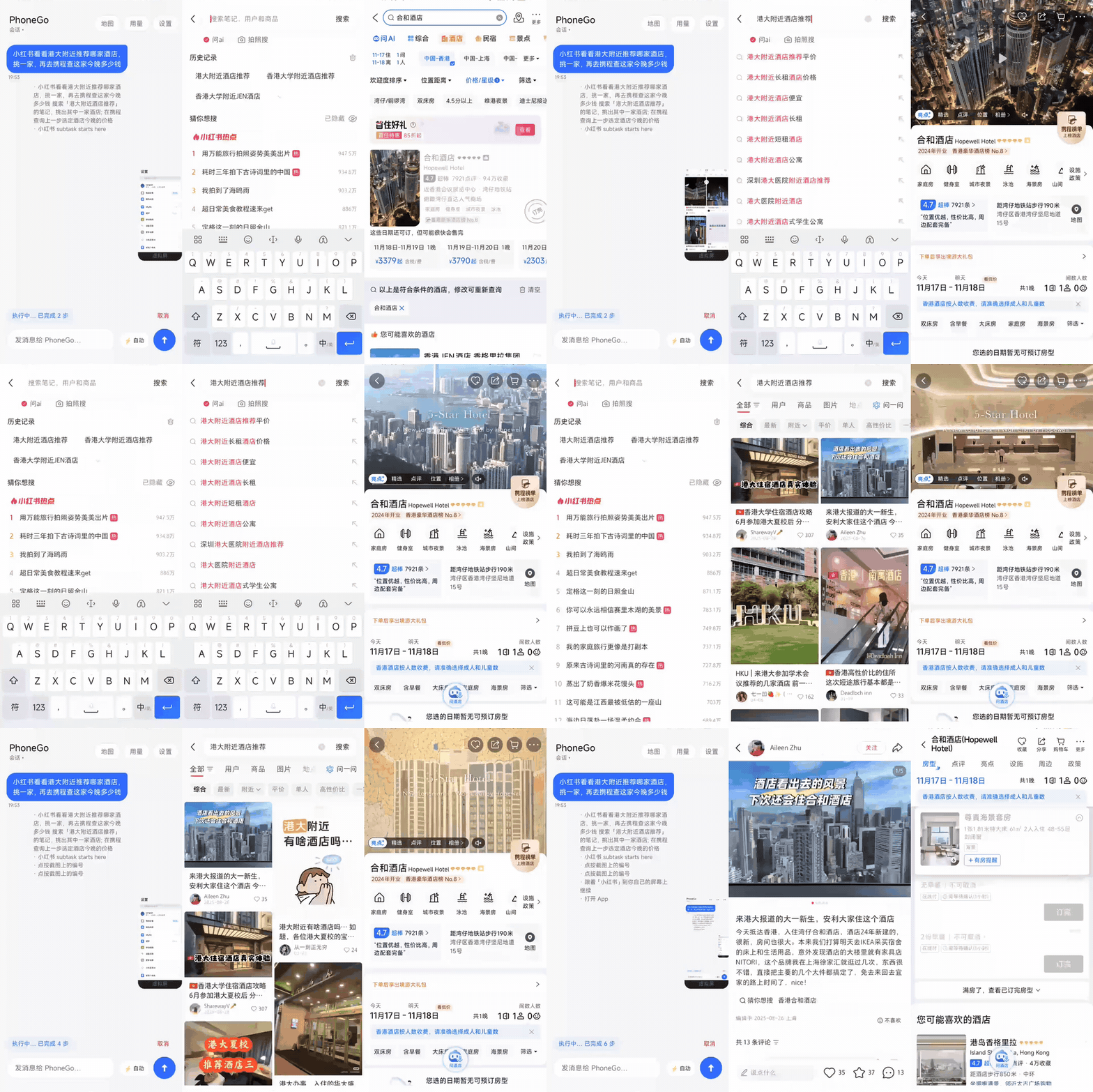
The image comes from the project's repo README. On the left are PhoneGo's chat and steps. In the middle, it searches in Xiaohongshu (RedNote). On the right, it switches to Ctrip to check hotel prices.
Steps the chat marks as replayed are following a route that's already on the map. Steps that read screenshots mean the app doesn't have a map on your phone yet, so the vision model is exploring. For apps you use often, have PhoneGo explore them once to build a map. After that, tasks run faster.
Notes
- Wireless debugging turns itself off after a phone restart, which disconnects PhoneGo. Turn Wireless debugging back on, and PhoneGo reconnects on its own.
- The system may kill background tasks. Set PhoneGo's background running and battery usage to "No restrictions."
- Settings include a "Never ask me about money" switch. Leave it off. By default, PhoneGo stops and asks you before any payment or order.
- The first run of a new app is slower and uses more tokens. Don't treat that first-run speed as normal.
References
For another way to have an agent on your computer operate a phone, one that also works on iPhone, see the case An Agent Uses Your Real Phone and Waits for You Before Paying.
Comments (0)
No comments yet. Start the conversation.