

Stuck While Using AI? How to Get Unstuck
What You'll Get
A wall of error text, an app that won't respond, an AI that has changed the same thing three times and it still doesn't work. Beginners often stop right there. Most of the time, one method gets you unstuck: hand over exactly what you see, and say what you want. If that still fails, start a new chat or ask in a smaller way. This article explains that method.
Getting stuck isn't the problem. Guessing on your own is. Hand over the exact message and let the AI explain it to you first.

This illustration was made by AI. It is not a real screenshot of any software.
Hand Over What You Saw, Word for Word
The most common mistake is retelling it from memory: "It says something about a file being wrong." When the AI gets a blurry version of the problem, it guesses in the wrong direction. Send the exact thing instead:
- The error is text: select the whole message, copy, and paste. Don't rewrite it or pick out just one line.
- The error is a pop-up or a web page: send a screenshot.
- Nothing shows up, but something is wrong: take a screenshot of what you see.
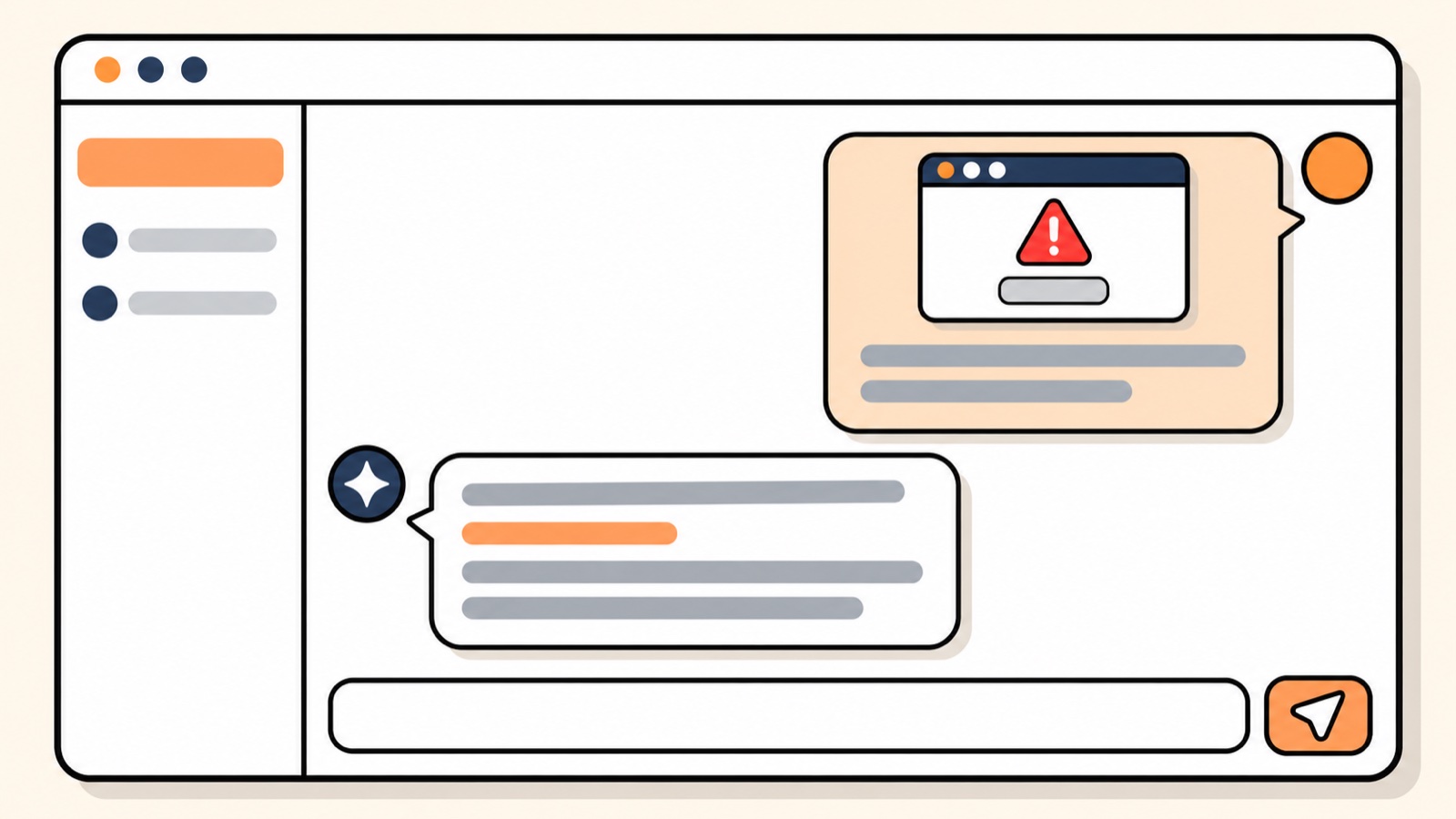
This illustration was made by AI. It is not a real screenshot of any software.
Then Explain Three Things
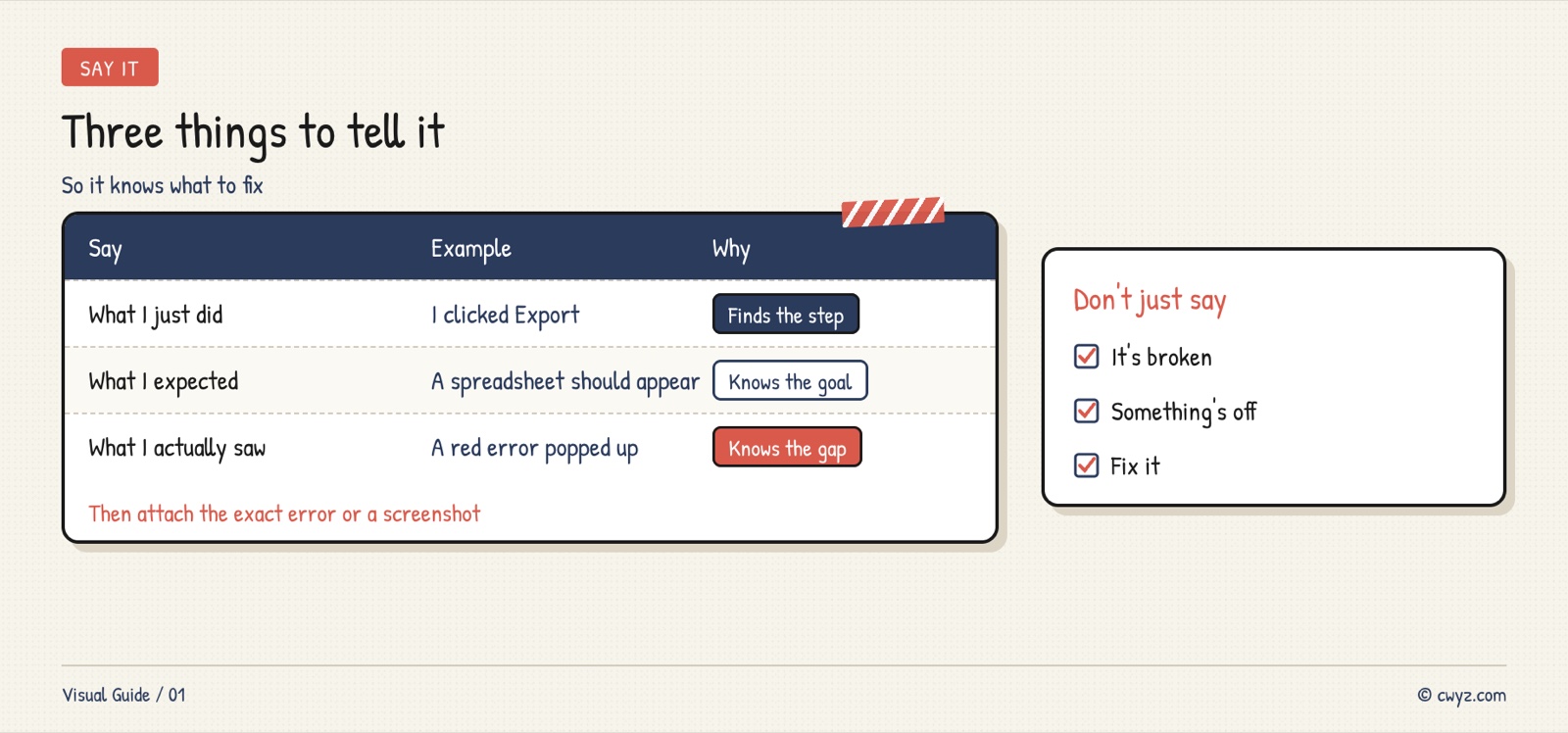
A screenshot alone only lets the AI guess what you want. Add these three sentences, and it knows where to fix:
Failed Three Times? Switch Approach
AI can get trapped in a loop: it fixes one thing, breaks another, and the mess grows. A good rule is this: if the same problem still fails on the third try, stop.
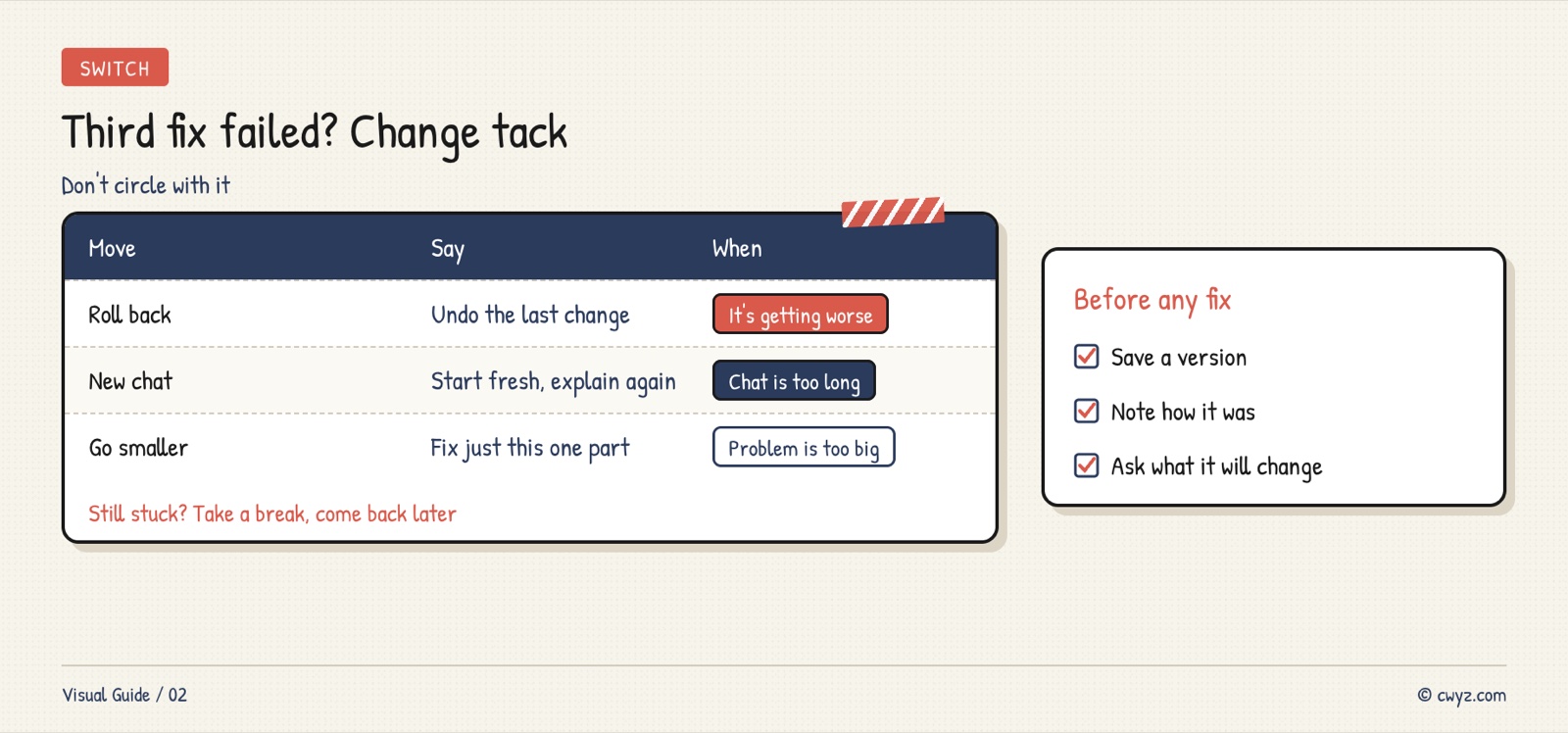
- Go back: ask it to undo the last change and return to the working version.
- Start a new chat: a long chat can drag the AI off course with old mistakes. A new chat, with the problem explained clearly from the start, is usually faster.
- Make it smaller: don't say "fix the whole website." Say "first, make the button on the home page clickable."
Set the Rules in One Paragraph
Send this to your AI agent. The next time you get stuck, it will guide you through this method:
Sign in to unlock this key section
New accounts get 10 free credits, plus 1 more for each daily check-in. Spend 1 credit to unlock and it stays open for you.
This practice doesn't need a real error. Going through it once shows you how to work with your AI the next time you get stuck.
Notes
- If the error shows a password, key, or phone number, blur it before you take a screenshot.
- If you find a fix online, send it to your AI first. Ask what it will change before you use it.
- If you still can't fix it, take a break. Come back later in a new chat, and it often works right away.
- Save a copy before you change things, so there's somewhere to go back to. See Let Your Agent Handle Git Without Learning a Single Command.
References
- Claude Code troubleshooting (official Anthropic docs)
- Check the work before you use it: Check Your AI Agent's Work Before You Use It
- Want to see what you still need to learn? Check Your AI Starting Level
Comments (0)
No comments yet. Start the conversation.