

What You Get
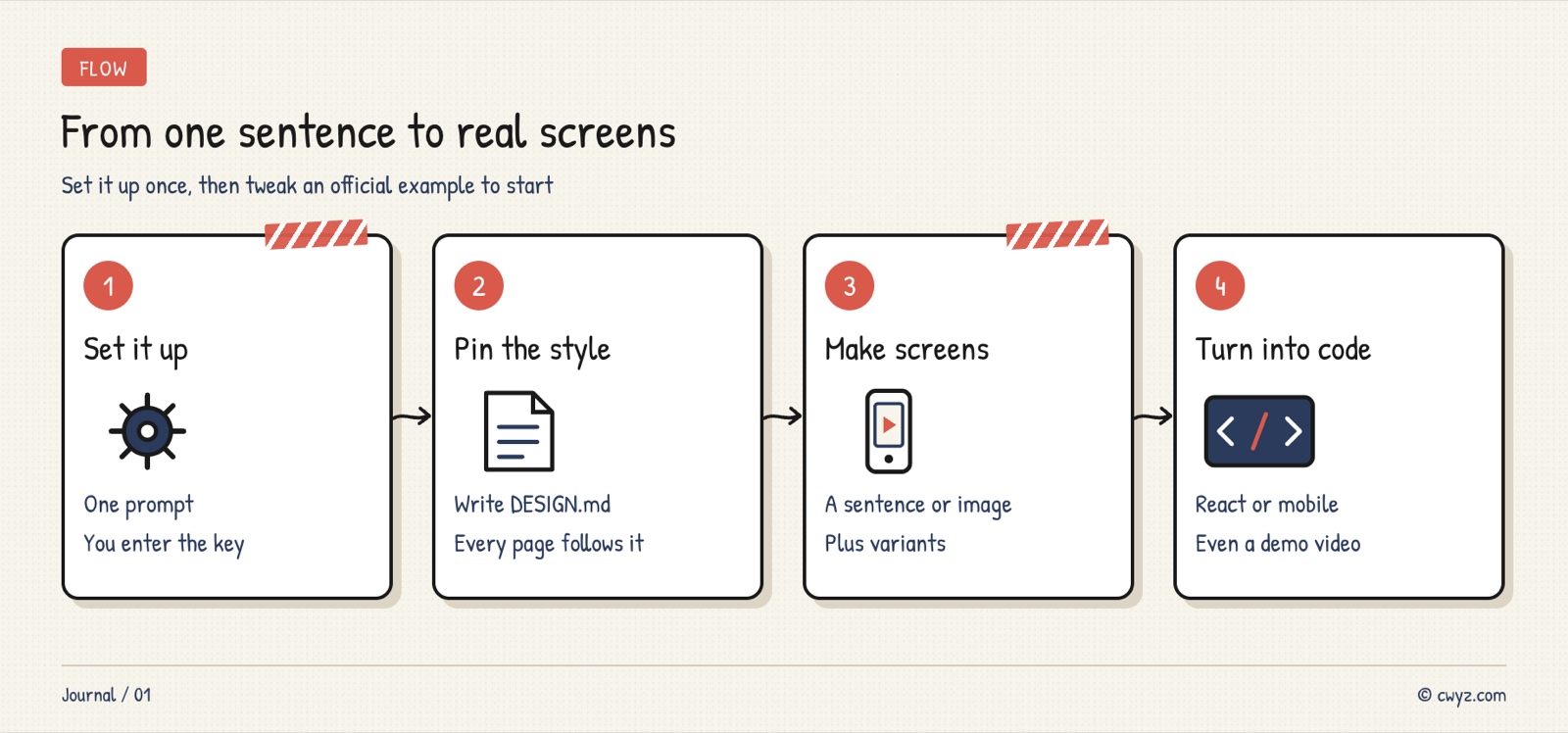
Google Labs packaged the way to use Stitch, its AI design tool, into a set of open-source Skills (stitch-skills, Apache-2.0 license). Once installed, you give a one-sentence description or a reference image, and your AI agent produces web and app interfaces. From there you can lock the style into a file, generate a full multi-page website, and turn it into code.
This piece spends less time on steps and more on ready-made examples from the official repo. Each example comes with a prompt we adapted for you. Pick the one closest to what you need, change a few words, and send it to your AI agent.
First, the Basics
A Skill is a professional instruction manual written for an AI agent. This manual connects to Stitch itself. Stitch is Google Labs' AI design tool, and it hands its capabilities to your AI agent through MCP (a universal plug that lets AI agents use external tools, see the MCP handbook). The official docs say it supports AI agents including Claude Code, Codex, Cursor, Gemini CLI and OpenCode.
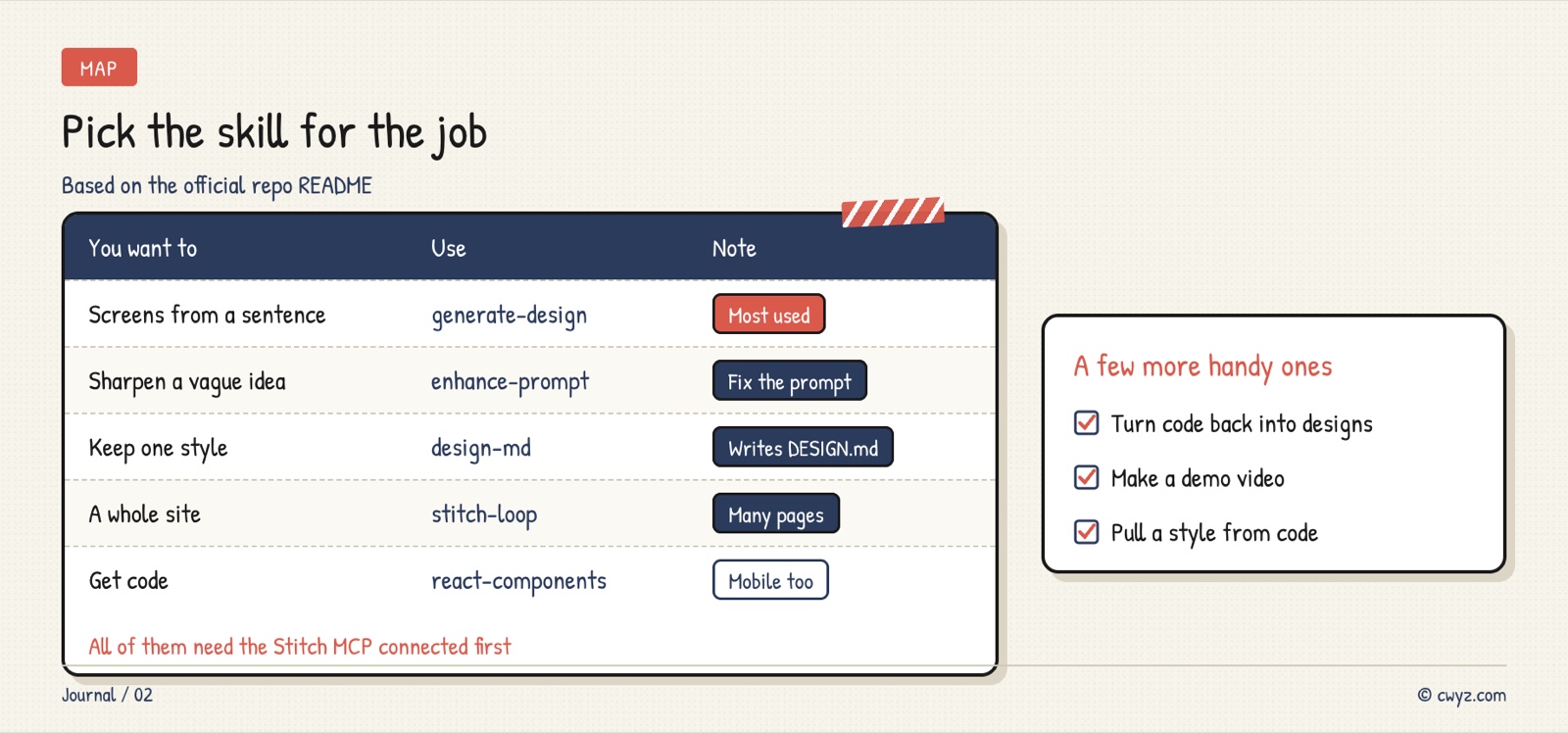
The repo groups its Skills by purpose into three categories: design, turning designs into code, and helper tools. The README lists 15 Skills. The table below shows the most commonly used ones.
Install: Hand One Prompt to Your AI Agent
You need two things: an AI agent that can install plugins or Skills, and a Google account that can sign in to Stitch. Send this to your AI agent:
Sign in to unlock this key section
New accounts get 10 free credits, plus 1 more each day you sign in (none on days you don't). Spend 1 credit to unlock and it stays open for you.
Item 3 keeps your key out of the chat history. Once it's installed, each example below is something you say directly to your AI agent.
Official Examples: Pick One and Adapt It
An Interface from One Sentence, Then Revisions and Variants
generate-design is the one you'll use most. The official README gives three examples. The first is a browsing page for a dating-ideas app. The second adds a "Remember me" checkbox to a login page and changes the button to blue. The third creates three variants of the homepage, one in dark mode and one with a denser layout.
To adapt it to your own needs:
Use Stitch to build a home screen for a mobile app: a small tool for logging how much water you drink each day. The home screen shows how much you've had today and how far you are from your goal, with a big "Add a glass" button at the bottom.
After that, make 3 variants: one in dark mode, one with a tighter layout that shows more information, and one that's more playful.
To change a specific detail, name it the way the official examples do: which page, what to change, and what it should become.
Fuzzy Idea? Have It Write a Professional Prompt First
enhance-prompt is for vague requests like "make a settings page." The official demo is clear. The user only said "make a landing page for my fitness app Pulse, with a features section and a hero." The rewritten version became a full brief: the purpose (an energetic, modern fitness app), the platform (web, desktop first), and then the page structure block by block: top navigation, a large hero image with headline, three-column feature cards, user testimonials, and a footer.
The rewrite follows one rule: it describes only layout, structure and copy, not colors or fonts. Those are left to the style file in the next section. You can use it like this:
First use enhance-prompt to turn this idea into a professional Stitch prompt, and show it to me before generating anything:
"Build a homepage for my handmade cake shop. Visitors should be able to see the signature cakes and find out how to place an order."
Lock the Style into One DESIGN.md
When a site has many pages, the biggest risk is that each page ends up with a different style. design-md reads your Stitch project and writes a DESIGN.md style guide. The official example is a furniture showroom website. Its overall mood is written as "calm, like a high-end furniture showroom, with plenty of white space." Colors are not just listed as hex codes. Their uses are spelled out too: off-white (#FCFAFA) as the background, and a restrained muted deep teal (#294056) used only on primary buttons. The font is Manrope, and the weight and size for headings, body text and buttons are all specified.
taste-design is the strict version, built to avoid the generic "obviously AI-generated" look. Usage:
Analyze my Stitch project [project name] and generate a DESIGN.md, saved in the project's .stitch folder.
For colors, specify where each one is used. For fonts, specify the weight and size of headings, body text and buttons. Every new page from now on should follow it.
One Sentence for a Whole Website
stitch-loop builds a multi-page website one page after another until it's finished. The official example is a single line: "Use Stitch to make a 5-page portfolio website." It first writes a SITE.md file as the project's long-term memory. The official sample is a handmade solid-wood furniture store. The file records the brand positioning, target customers and tone, checks off finished pages, lists unfinished ones as to-dos, and gets updated after each page.
Use stitch-loop to build a 4-page website for me. I'm a wedding photographer, and it needs a home page, a portfolio, pricing packages, and a contact page.
Write SITE.md first and show it to me. After I confirm, build one page at a time, and tell me the progress after each page is done.
From Design to Code, Plus a Demo Video
Once you're happy with the design, react-components turns the Stitch screens into React components, react-native turns them into mobile app code, and react-vite-dashboard is built specifically for admin dashboards. The official description is short: "Convert all screens in the Stitch project into React components." If the design changes later, just say "sync to the latest version of the Stitch project."
There's also one that suits social media well. remotion turns the whole Stitch project into a demo video with transitions and push-in camera moves.
Convert all the screens in the Stitch project [project name] into React components, and put them in src/components of my current project.
After that, use remotion to make a demo video of about 30 seconds, with transitions in page order.
The Other Way: From an Existing Website Back to a Design
Already have website code and want to keep working on the design in Stitch? code-to-design extracts pages from your frontend code and uploads them to Stitch along with the style. The official example uploads the code of an admin dashboard as a new Stitch project. extract-design-md only pulls a DESIGN.md out of the code, which is handy for organizing the style of an older website first.
Notes
- Not an official Google product: the repo itself states that this is not a product officially supported by Google. Stitch is still in testing, so usage may change.
- Connect the Stitch MCP first: without the connection, the Skills won't work even when installed. This is the most common stumbling block.
- Install only what you need: the official repo warns that these Skills depend on each other. If you install just a few, install their dependencies too. Beginners are better off installing the whole set.
- We didn't install and test them ourselves: all the examples come from the README and sample files in the official repo. The prompts were adapted by us from those official examples.
Comments (0)
No comments yet. Start the conversation.