


What you'll get
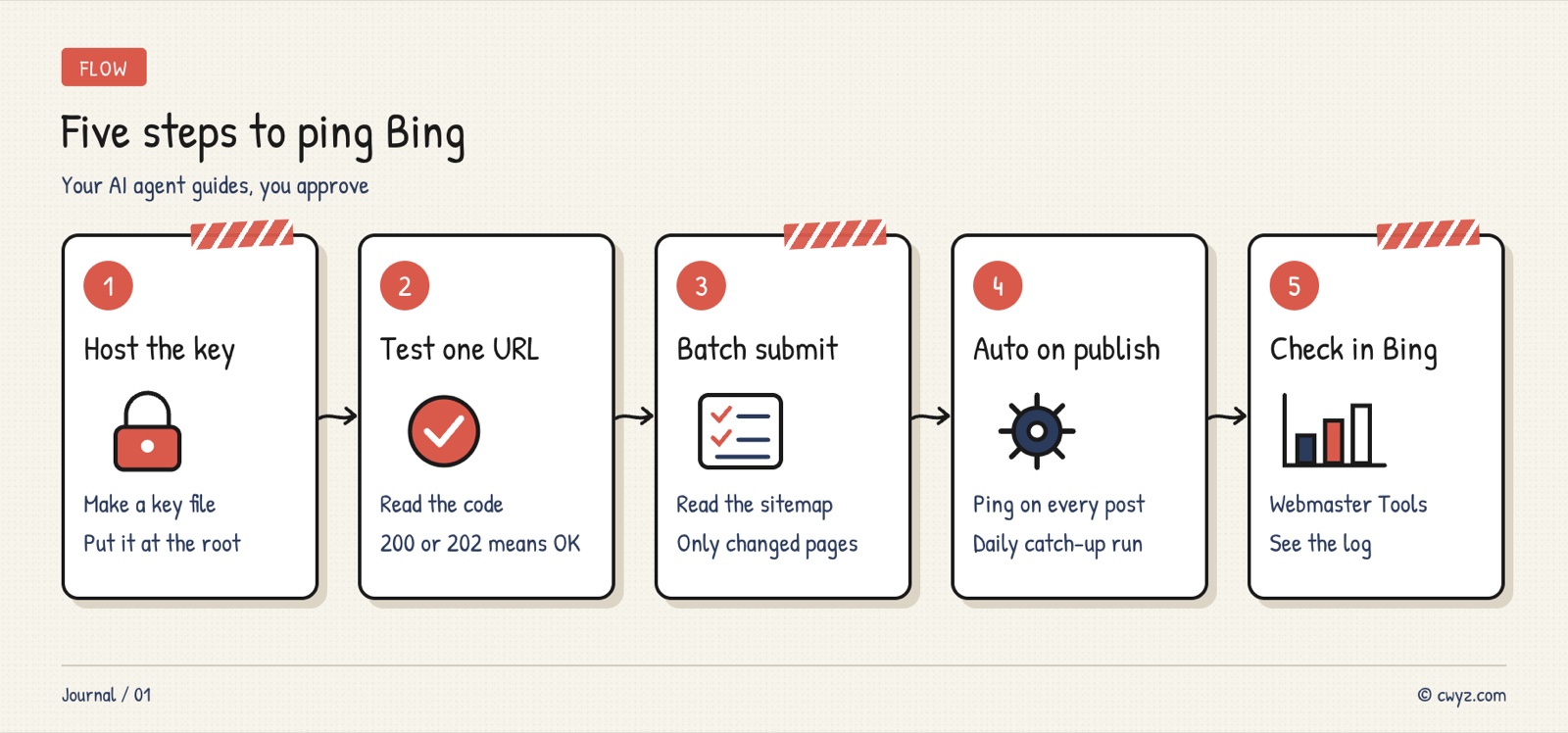
With the IndexNow protocol, your AI agent can walk you through pushing new and updated pages on your site to Bing, then wire that into your publishing flow so every new post gets pushed automatically. You don't write code or install a plugin. You just need to be able to put a file on your site and read a status code. This guide uses cwyz.com as a live example and includes 3 copy-ready prompts.
IndexNow only knocks on the door. It doesn't guarantee indexing. It tells search engines right away which URLs have changed. Whether they crawl those URLs and where they rank still depends on the quality of the page itself. Treat it as a way to save a few days of waiting, not as a way to reach the front page with one push.
Why it's worth half an hour
Search engines normally find changes by crawling on their own. After you update a URL, the crawler may not come back for days or even weeks. IndexNow works the other way: you notify search engines as soon as you publish a change. A few key facts, from the official IndexNow documentation:
- Push once, several engines receive it. Bing, Yandex, Naver, Seznam, Yep and other participating search engines share submitted URLs with each other, so pushing to any one of them is enough. Google is not part of this group. For Google, you still rely on Search Console and your sitemap.
- AI search benefits too. The official FAQ notes that faster indexing means your content is also updated sooner in AI-driven search results.
- It uses up crawl budget. Every URL you push counts against your site's crawl budget, so only push pages that actually changed. Don't push the whole site every day.
Step 1: Generate a key and place it in the site root
Search engines first need to confirm that the site is yours. To do that, they check for a small text file on your site:
- Key: a string of 8 to 128 characters, using only letters, digits and hyphens.
- Key file: name the file
<your-key>.txtand put the key itself as its only content. Save it as UTF-8 and place it in the site root. For cwyz.com, once it's deployed,https://cwyz.com/<your-key>.txtshould open and show exactly that key.
You don't need to download the key from anywhere. Have your AI agent generate it from the command line, and it can check the encoding for you too. Where the file goes depends on how your site is built. Static sites usually use a public/ or static/ folder, and WordPress uses the site root. cwyz.com runs on Cloudflare Workers, so the file goes in public/ and then you redeploy.
I want to turn on IndexNow for my website [URL, e.g. https://cwyz.com]. For now, just do step one: generate the key and put the key file in place.

1. First, look at my project and work out which folder maps to the site root (for example public/ or static/). If you can't tell, ask me a multiple-choice question about how the site is built.
2. Generate a 32-character hexadecimal key from the command line. Create a file named "<key>.txt" whose only content is that key, UTF-8 encoded, with no extra blank line at the end.
3. Tell me what to deploy or upload, then wait until I've deployed before continuing.
4. After deployment, open https://[domain]/[key].txt with curl and confirm it returns 200 and that the content matches the key exactly. If it doesn't match, tell me what's wrong.
5. Save the key in the project's .env file or a configuration note. Don't paste it anywhere public, and don't commit it to a public repository.
Why this approach: key files downloaded from a website often break because of encoding or line endings. Generating the file yourself and reading it back with curl is the simplest and most reliable way.
Step 2: Push one URL first to confirm it works
Before you push in bulk, submit a single URL as a test and check the status code:
| Status code | Meaning | What to do |
|---|---|---|
| 200 | Received | All good, but this only means it was received, not that it's indexed |
| 202 | Received, key still being validated | Common on the first submission. Push again in a moment and it should return 200 |
| 400 | Bad request format | Check the JSON and the URL format |
| 403 | Invalid key, or verification not finished | If the key file won't open or its content doesn't match, fix the file. When we pushed a batch for cwyz.com right after adding a new key, we got 403 with SiteVerificationNotCompleted. The file was fine. Wait a few minutes to a few hours and push again |
| 422 | URL doesn't belong to this site | The URL's domain must match host exactly. www and non-www count as different |
| 429 | Too many requests | Slow down, and don't resubmit the same URL over and over |
Use the generic endpoint https://api.indexnow.org/indexnow. It forwards your submission to all participating search engines.
Step 3: Pick the changed pages from your sitemap and push them in batches
One request can carry up to 10,000 URLs. But being able to push a URL doesn't mean you should. cwyz.com's sitemap has over two thousand URLs, and only a handful are added or changed each day. The better approach is to read the <lastmod> (last modified time) of each URL in the sitemap and push only the ones changed since your last push.
This step is the easiest to get wrong, so it's best to hand the whole thing to your AI agent. The prompt below makes it act as a guide: before each step, it explains in plain language what it's about to do, and it waits for your go-ahead. Where a decision is yours to make, it asks you a multiple-choice question.
Sign in to unlock this key section
New accounts get 10 free credits, plus 1 more each day you sign in (none on days you don't). Spend 1 credit to unlock and it stays open for you.
Why this approach: the dry run lets you check the list before anything is submitted, so you don't accidentally push URLs that shouldn't be indexed, such as admin pages or search result pages. Saving the last push time means tomorrow's run only pushes new content, so you don't waste crawl budget.
Step 4: Hook it into your publishing flow so it runs automatically
Manual scripts are easy to forget. A more reliable option is to run the push automatically right after you publish:
- Your own site: in your deploy script or publishing API, after the content goes live, call the script from Step 3 and push only the URLs for that one post, including every language version.
- WordPress, Shopify, Wix and similar platforms: these platforms support IndexNow natively or through plugins. Turn it on in their admin panel or plugin, and you won't need to store a key yourself.
- Scheduled job as a backstop: run the Step 3 script once a day to catch anything that was missed.
Hook IndexNow pushes into my site's publishing flow.

1. Find where I publish or deploy content (the deploy script, the publishing API, or the CMS plugin). Tell me where you plan to add the push, and wait for my approval.
2. After publishing one piece of content, push only the URLs for that piece. If the site has multiple languages, push every language version.
3. A failed push must never break the publish itself. Writing one line to the log is enough, and it shouldn't throw an error.
4. Also add a scheduled job that runs once a day and pushes only changed pages, to catch anything that was missed.
5. After the change, publish a test piece of content and show me the push log and the status code.
Why this approach: logging a failure instead of throwing an error means a brief network hiccup won't block your normal publishing.
Step 5: Verify in Bing Webmaster Tools
Open Bing Webmaster Tools and add your site. If you haven't set that up yet, see the setup step in the AI search checklist. On the IndexNow page, you'll see the URLs Bing received and when they were submitted. Records usually appear within a few minutes, although the very first connection can take a few hours. If nothing shows up after 10 minutes, wait at least 5 more minutes and push again. If it's still missing, check again the next day.
Cloudflare also offers one-click IndexNow (Crawler Hints). Cloudflare decides which URLs to push. Some users report that what gets pushed is mostly resource files like robots.txt and fonts, with few of the articles they actually want indexed (user feedback, not verified yet). If you want precise control over which pages get pushed, use the script above.
Notes
- A 200 only means received. Whether a page gets indexed, and where it ranks, still depends on the content.
- Only push pages that changed. Every URL uses up crawl budget, so pushing the same URL again only wastes it.
- Push deleted pages too. After you delete a page, push its URL once so search engines drop it from results sooner.
- Keep the key private. The key file itself is publicly accessible, but don't put the key in a public repository or an article. If it leaks, switch to a new key and delete the old file.
Comments (0)
No comments yet. Start the conversation.