

What You Get
Pagekin (formerly AI Novel Writer) is a free, open-source desktop app that walks you through writing a book in the order it actually gets written. You start with the setup and the story's foundation, move on to a chapter-by-chapter blueprint, and then write the text, with the AI helping you finish a long novel one chapter at a time. Your work stays on your own computer. You connect the app to a model with your own API key, or you can run a local model instead. The guide includes three prompts you can copy.
When you keep extending a story in a chat window, the AI forgets the early settings after a few dozen chapters. Pagekin sends the AI only what each chapter needs: that chapter's blueprint and the related characters, plus the world-building, a summary of earlier chapters, and the full text of the previous chapter. The AI drafts, and you make the calls on review and finalizing.
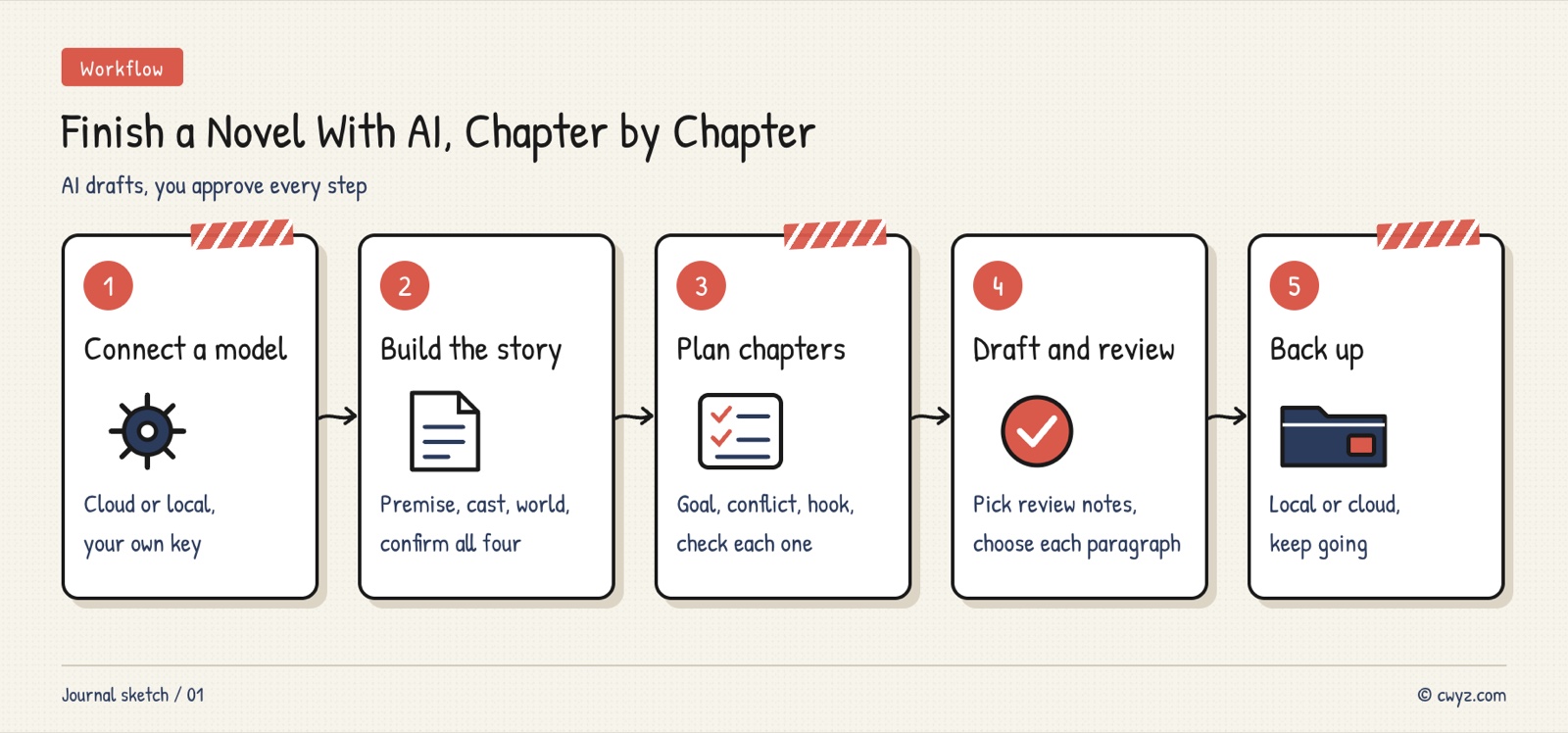
Here is the whole process. Install the app and connect a model, set up the story's foundation, plan each chapter, write a draft, review and revise it, finalize it, and back up your work.
Meet the App
Pagekin is open-source software under the GPL-3.0 license, maintained by the developer EthanYoQ. It has about 2700 stars on GitHub and runs on Windows and macOS. According to the project's own description, it breaks book writing into four steps. The result of each step is saved in your project, and the next step builds on it:
| Step | What you do | What you get |
|---|---|---|
| Setup | Enter the genre, the readers, the writing language, the total number of chapters and the words per chapter | The basic settings for the whole book |
| Architecture | Have the AI generate the premise, character list, world-building and plot outline, or write them yourself | Four confirmed sections that form the story's foundation |
| Chapter blueprint | Write out, chapter by chapter, the protagonist's small goal, the conflict and turns, the suspense hook, and who appears | A blueprint for each chapter |
| Manuscript | Write, review, revise and finalize | The finalized text of each chapter, plus every earlier version |
Pagekin also has features that help with long books. It tracks plot threads and foreshadowing chapter by chapter. A knowledge base lets you import reference material. Every draft of a chapter is kept, so you can compare versions and roll back. You can import another author's novel, have the app break down its structure, and write in a similar form. You can also import chapters you already wrote and keep going from there.
We haven't written a full book with it ourselves yet, so the screenshots below come from the project's repository.
Step 1: Install the App and Connect a Model
Download the installer only from the project's GitHub releases page. The installer is not code-signed, so Windows will warn you about an unknown publisher. On a Mac, you need to allow the app to open in System Settings → Privacy & Security.
The app doesn't come with a model. You have to connect one in the settings:
- Cloud models: DeepSeek, SiliconFlow, Zhipu BigModel, OpenAI, xAI Grok and Google Gemini have presets. Enter your own API key. You pay the model provider based on how much you use.
- Local models: Run them on your own computer through Ollama. This costs nothing, but your computer needs to be powerful enough.
Not sure which one to choose? Give this to your AI agent:
I want to write a long novel with Pagekin (github.com/EthanYoQ/Pagekin), an open-source novel writing app, and I need to connect a model to it. Please help me:

1. First, only read and check my computer: the operating system, the amount of memory, and whether I have a dedicated graphics card and how much VRAM it has.
2. Tell me whether each of the two options suits me: running a model locally with Ollama (recommend one local model that runs smoothly on my computer and writes well in my language), or using a cloud model through its API (list the providers it has presets for, and the typical difference in writing quality and price).
3. If I choose local, ask me before you install Ollama or download any model, and tell me how much disk space it will take.
4. Finally, tell me what to enter in Pagekin's settings: the provider, protocol, address and model name. I will enter the API key myself, so don't ask me to send it to you.
Step 2: Set Up the Story First
Spend some time on the setup and the architecture before you start writing, because every chapter depends on them. You can work out your ideas in any AI chat first, then fill them into the app. Below is a template for an architecture draft to give to the AI:
Sign in to unlock this key section
New accounts get 10 free credits, plus 1 more each day you sign in (none on days you don't). Spend 1 credit to unlock and it stays open for you.
Fill the results into the four sections of the Architecture page, and revise them until you're happy. Confirm the sections one at a time. You can only move on to the chapter blueprint after all four sections are confirmed. The app adds this checkpoint on purpose, so you don't start writing before the foundation is solid.
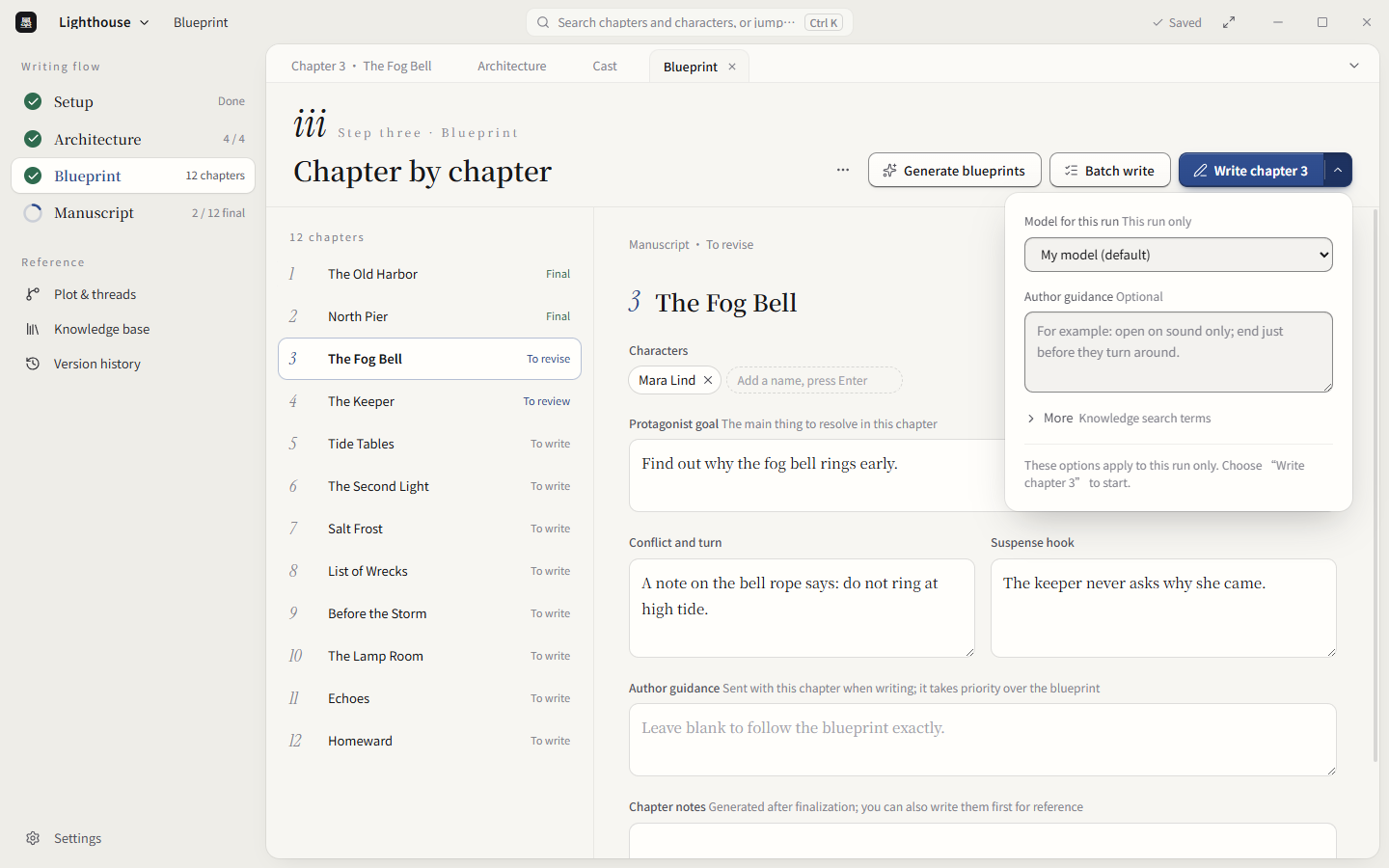
Image from the Pagekin GitHub repository.
Step 3: Plan the Blueprint and Write One Chapter at a Time
The app can have the AI generate the blueprint in batches by chapter range, and you review it chapter by chapter. Check what the protagonist needs to achieve in the chapter, where the conflict is, and what hook the ending leaves behind. When a chapter's plan looks right, click Write Chapter N. You can add a note beside it with guidance for that chapter, such as "slow the pacing in this chapter and spend more time on the setting."
After the AI writes a draft:
- Read it yourself first, and edit any sentences you don't like.
- Ask the AI to review it. It lists its comments one by one. Check the ones you agree with, and add your own if you want.
- Revise. The revised version is compared with the original paragraph by paragraph, and you decide which version to keep for each one. It never overwrites the original without asking.
- When everything checks out, finalize the chapter.
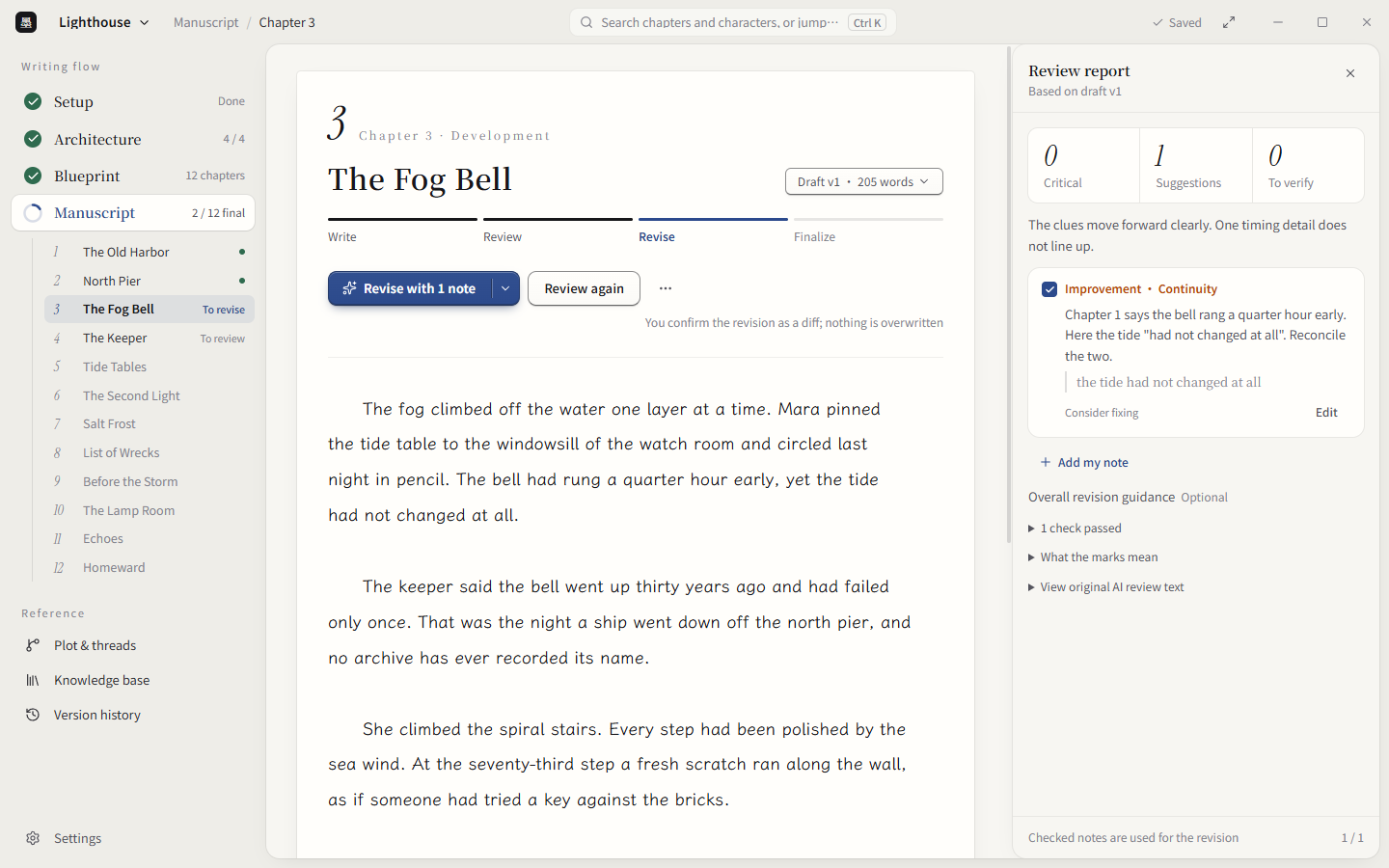
Image from the Pagekin GitHub repository.
If you want to write several chapters at once, use batch writing, up to 10 chapters at a time. We recommend writing the first few chapters one by one. Get a feel for how this model writes before you batch.
When you review a chapter, you can use this checklist. Copy it and give it to the AI so it reviews against the list:
Please review this chapter against the items below. For each item, reply either "no problems" or give specific comments with the paragraph they refer to:
1. Do the characters' words and actions match the personalities and motivations in the character list?
2. Does anything contradict the earlier chapters or the world-building (time, place, abilities, forms of address)?
3. Do the chapter's blueprint goal, conflict and ending hook all come through in the text?
4. Are the foreshadowing clues planted or advanced in this chapter recorded?
5. Are there hollow piles of adjectives, repetitive sentence patterns, or stock phrases that sound too much like AI wrote them?
Only give comments. Don't rewrite the whole chapter.
Step 4: Back Up and Keep Writing
The biggest risk in a long project is losing your drafts. Pagekin can package your work and save it on this computer, or back it up to your own WebDAV cloud drive. You can also export it as Markdown or TXT. Back up every few chapters.
If the AI's sentences feel too heavily "AI," you can import an anti-AI-tone writing Skill on the Writing Skills page in Settings, such as lieflat-less-ai-tone, and attach it to the drafting or revision stage. The app only accepts prompt-based Skills. It doesn't run code on your computer, and it shows you the contents before you install one.
Things to Keep in Mind
- The plot can still drift. Pagekin reduces forgotten settings, but it can't guarantee the AI gets every chapter right. You need to check the blueprint and the final text yourself.
- You pay for model usage. Cloud models charge by the word, and a full book adds up quickly. Try a few short chapters first to see what it costs.
- Install only from the official source. The installer isn't signed, so your system will warn you about it. Make sure you downloaded it from the project's GitHub releases page.
- Imitation shouldn't become plagiarism. When you break down someone else's novel, learn only its structure and pacing. Don't copy the plots or sentences. Whether adult content is allowed depends on your model's rules.
Comments (0)
No comments yet. Start the conversation.