

What you'll get
You'll get an explainer video with animation. The title flies in, a chart grows taller on its own, and the key points pop up one by one. At the end, you get an MP4 file saved on your computer. Your AI agent does the work, using a set of Agent Skills that Remotion released officially. A skill is a set of instructions written for an AI. The preview and the export both run on your own computer. You don't upload your materials, and there's no per-minute fee. The article has 3 prompts you can copy and paste.
You only tell the agent what you want to talk about. Then you look at the preview and ask for changes. The agent writes all the animation and code. You don't need to know video editing or programming. Free use has one condition: individuals and small companies of up to three people can use it for free. Larger companies need to buy a license. The details are in "Keep in mind" below.
Why explainer animations come out more reliable this way
Remotion is an open-source tool that lets you "write" videos with code. Every word and line on the screen is calculated by a program, so the text stays clear and the numbers stay accurate. If you want to change one word, you change it and export again. Normally, you need to know how to code to use Remotion. Now the agent handles that part.
Remotion's team packed its video-making know-how into the Skills. Once the agent has read them, it sticks to three rules:
- Design for video: Text needs to be big enough. Important content stays away from the edges. Each scene covers one idea. The agent won't lay out the screen like a web page.
- Open the preview before building: The agent opens a preview window in your browser first. You can watch the video come together scene by scene.
- No export until you ask: The agent only starts rendering when you clearly say "export" or "give me the MP4."
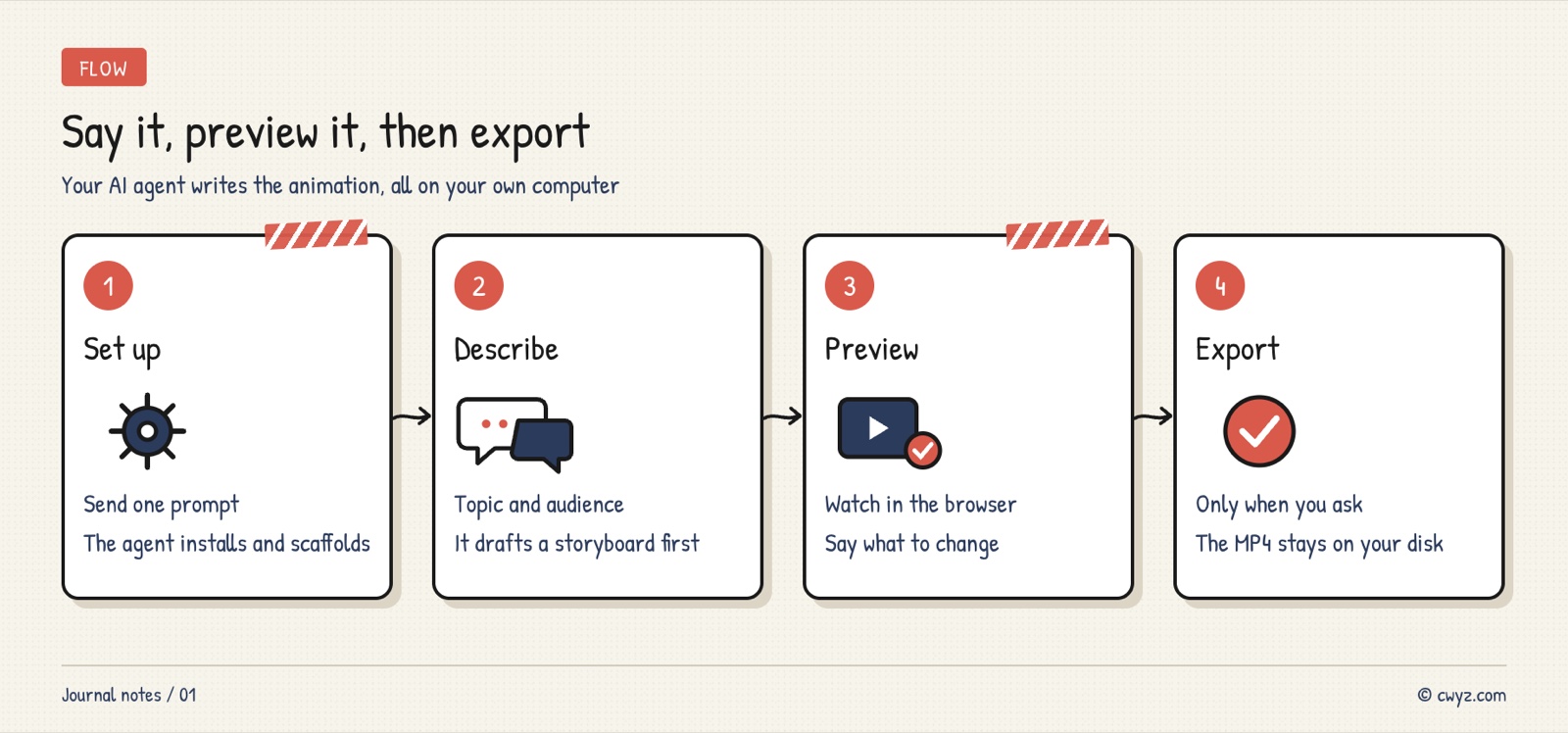
Step 1: Have your agent install the skills and set up the project
This step takes just one message from you. Your computer needs two basic programs: Node.js and Git. Let the agent check whether they're installed, and how to install them if they're missing.
I want to make an explainer animation video with Remotion on this computer. Please get everything ready for me first:

1. Check whether Node.js and Git are on this computer. If one is missing, tell me which one first, and ask me before installing anything.
2. Install Remotion's official Agent Skills: npx skills add remotion-dev/skills
3. Create a new blank Remotion project in an empty new folder called [folder name, for example my-explainer].
4. Open the Remotion Studio preview, and send me the preview address in the browser.

Explain what you're doing in plain language the whole time. If you're not sure about something, ask me with multiple-choice questions. When you're ready, stop and don't start making the video yet.
The last sentence separates "getting ready" from "creating." If the setup runs into a problem, you can see right away where it got stuck. The problem won't get mixed up with the video content.
When the setup is ready, a preview screen appears in your browser. The picture is in the middle, and the timeline is below it. You can drag the timeline to see any second of the video.
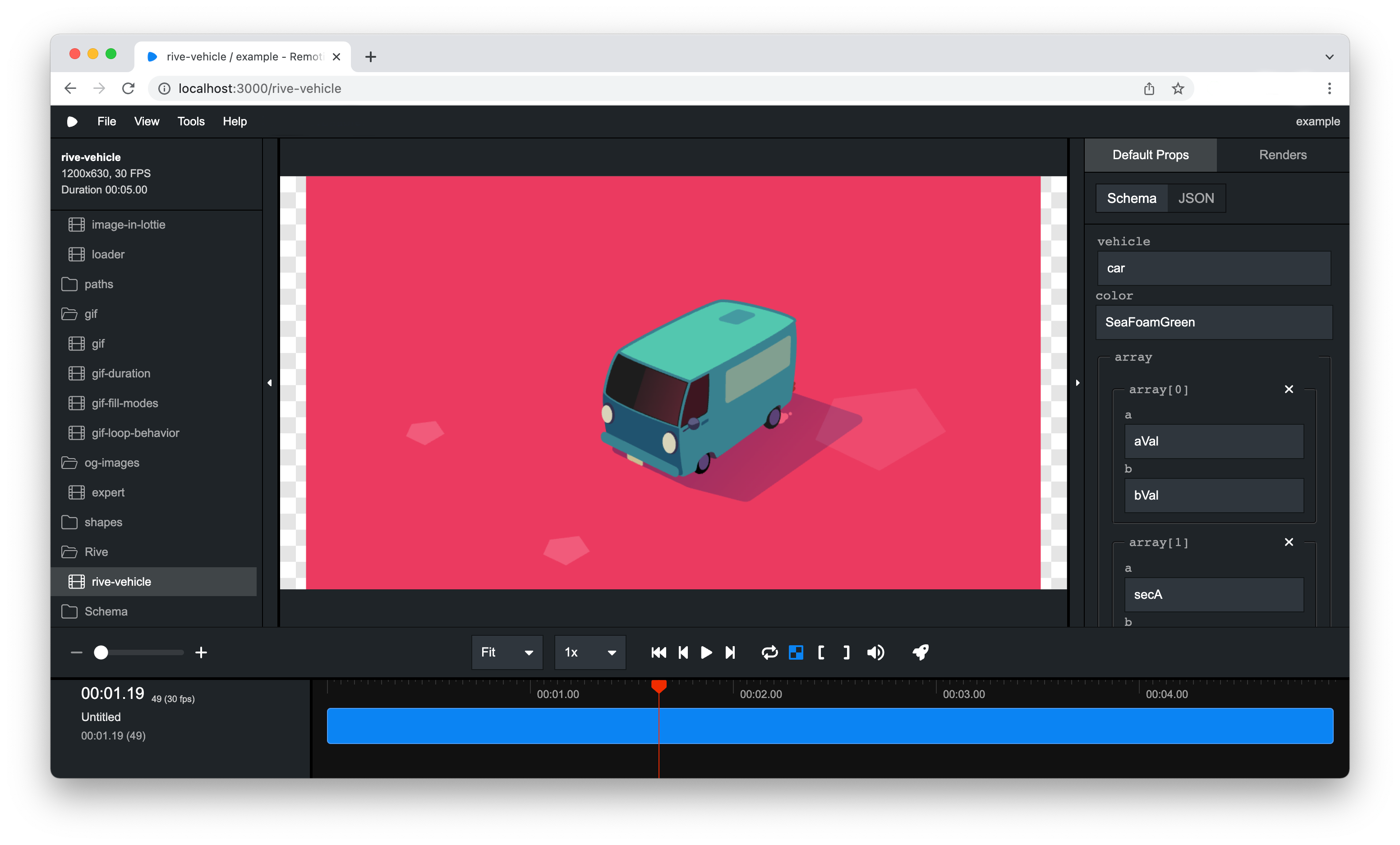
Image from the official Remotion docs.
Step 2: Tell the agent what you want to say
How good the explainer animation turns out depends mostly on how much information you give in this step. Replace the text in brackets with your own, then send it to your AI agent:
Sign in to unlock this key section
New accounts get 10 free credits, plus 1 more each day you sign in (none on days you don't). Spend 1 credit to unlock and it stays open for you.
Asking for a storyboard first matters because changing one line of text is much faster than changing a finished animation. Building one scene at a time keeps problems inside the current scene. You won't find out at the end that the pacing of the whole video is off.
Step 3: Check the preview and tell the agent what to change
Each time the agent finishes a scene, go to your browser and drag the timeline to watch it. When you ask for changes, say which scene, where, and what you want it to look like. For example:
- "The numbers in scene 2 appear too fast. Slow them down to two seconds."
- "Scene 3 has too much text. Keep only the title and one number."
- "The colors are too busy overall. Keep only orange as the accent color."
If you change something yourself in the preview interface, the official skills tell the agent to keep your change. It won't overwrite it. If you can't tell what's wrong, that's fine. Just ask: "From the point of view of someone seeing this for the first time, which part of this scene is hardest to understand?"
Step 4: Say "export"
After you've confirmed every scene, send this:
I've confirmed the preview. Please export the video:

1. Export it as an MP4 at [1920×1080] resolution.
2. It's for personal use. I qualify for Remotion's free license, so please set it up under the free license.
3. After exporting, tell me which folder the file is in, how big it is, and how long it is.
4. If the export fails, tell me the reason in plain language. Retry the same fix at most once.
Export uses your own computer's processing power. A video under one minute usually finishes after a short wait. The longer the video and the more complex the animation, the longer the wait.
Adding voice-over and subtitles
Voice-over: By default, the voice-over process in the official skills connects to a paid speech synthesis service, which needs your own key. To keep it free, record the narration on your phone yourself. Give the audio file to the agent, and ask it to match each scene's length to your speaking pace.
Subtitles: The skill can run a speech recognition model directly on your computer's graphics card. It turns the narration into subtitles, and the audio never leaves your computer. This needs a graphics card that supports it. Older computers may not be able to run it, so ask the agent to check first and then decide.
If you already have a subtitle file with timestamps and want a hand-drawn whiteboard style, see the SRT whiteboard animation Skill. To cut a live-action talking-head video together with animation, see the talking-head director Skill.
Keep in mind
- Free use has limits: On Remotion's official licensing page, individuals and companies of up to three people can use it for free, including for commercial work. Larger companies need to buy a company license. Check this yourself before you use it. If your AI agent itself needs a paid subscription, that's a separate cost.
- Start short: Make your first video 30 to 60 seconds long. Short videos are quick to change, and they help you learn the style.
- Check the facts yourself: The agent turns the key points you give it into animation, but it can't tell whether the numbers are right. Go over every number on screen yourself before you export.
- We haven't tested the install ourselves: These steps are based on the official docs and the skill instructions. That's why this article has no screenshots of a finished video we made.
Comments (0)
No comments yet. Start the conversation.