

What you'll get
With the open-source Typebot, your AI agent can design a conversation and turn it into a chat box in the bottom-right corner of your website. Visitors click it and answer your questions one at a time. They leave their name, email, and what they need, and the answers are saved automatically and can be exported as a spreadsheet. You don't need to code, and the free cloud plan is enough to get started. The article includes three prompts you can copy.
Here's how the work is split: your AI agent handles the thinking and the building. You handle the account and the final call. It drafts the questions and the flow file, you import it and chat through it yourself, then you decide whether to publish. Your account and password stay with you the whole time. Your AI agent never touches them.
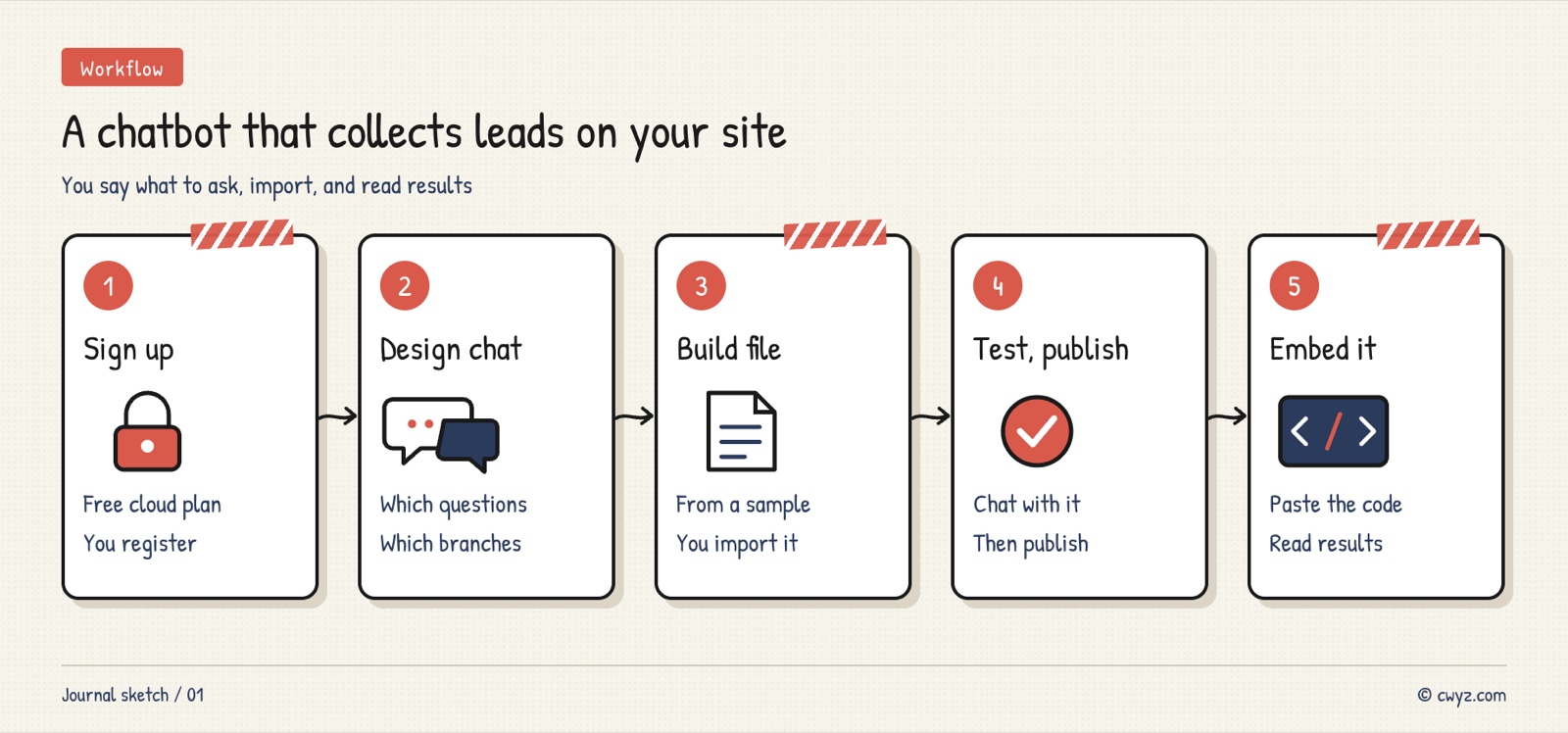
The process has five steps. First, you sign up for a free Typebot Cloud account. Then your AI agent designs the questions and branches and writes them into a file you can import, using a sample you export from Typebot as a template. After importing, you chat through the bot yourself, publish it when you're happy, and finally have your AI agent add the embed code to your site. After that, check the collected answers regularly.
Meet Typebot
Typebot is a visual tool for building chatbots, with more than 10,000 stars on GitHub. It breaks a conversation into blocks: message bubbles, input fields where visitors type their answers (text, email, phone, date, and more), and conditional branches that send the conversation down different paths depending on the answer. It can also connect to outside services like Google Sheets and OpenAI.
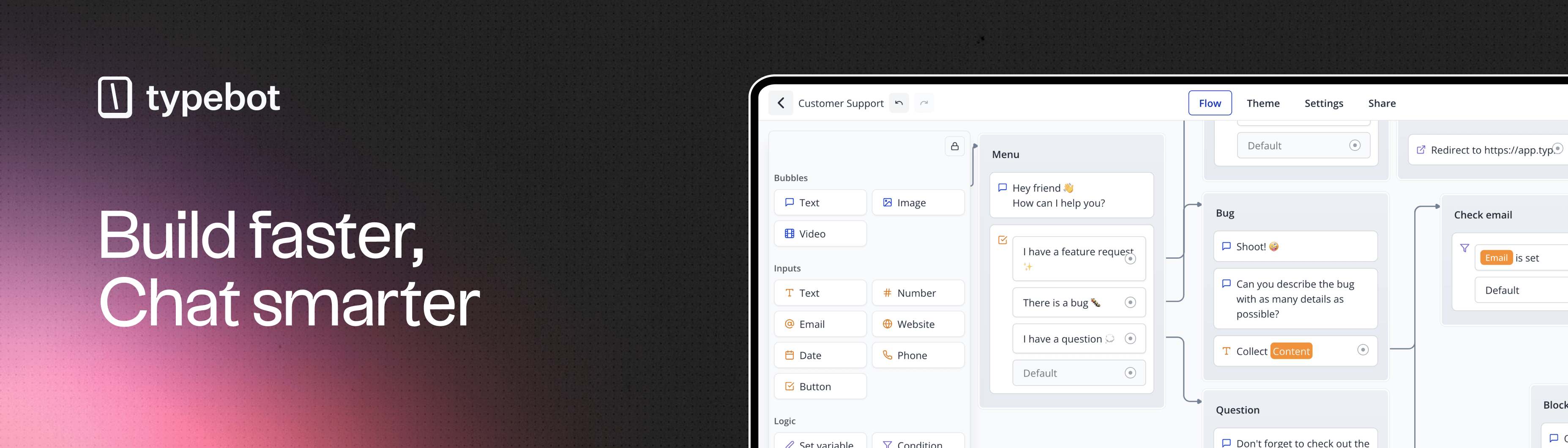
The image comes from the project's GitHub repository. The connected blocks on the right make up a conversation flow.
You can use it in two ways:
| Cloud | Self-hosted | |
|---|---|---|
| How to start | Sign up on the website and start using it | Rent or own a server running Docker, then set it up and keep it running yourself |
| Cost | The free plan includes 200 conversations per month with unlimited bots. Paid plans start at $39 a month | No software fee, but you pay for the server and storage |
| Best for | Beginners and anyone who wants to try it first | People who have a server and need control over where their data is stored |
If you're new, start with the free cloud plan. The steps below assume you're using it. A conversation means one visitor starting to chat. However many messages they send, it counts as one.
Step 1: Sign up for a free account
Go to the Typebot website and sign up. Do this step yourself. Your AI agent won't sign up for you or touch your password.
Once you're signed up, create a bot. Pick any template from the official starter templates. It will serve as a sample for your AI agent. In the editor, open the menu in the top-right corner and choose Export. You'll get a JSON file. JSON is a plain-text format for storing data. Save the file in a folder on your computer that's easy to find.
Step 2: Have your AI agent design the conversation
First, decide what you want the bot to do, such as handling consultation requests or taking event sign-ups. Send this to your AI agent:
I want to put a Typebot chatbot on my website. Its job is: [for example: take consultation requests for my design studio].

Please design the conversation first. Don't write any files yet:
1. Make a table of every line the bot will say and every question it will ask the visitor, along with the answer type (text, email, phone, or button choice).
2. Wherever the conversation should branch based on the answer (for example, asking "quote" and "partnership" separately), write a short branch description in plain terms.
3. Collect no more than 5 pieces of information, and only ask for what you'll really use. End with a line telling the visitor how soon they'll hear back.
4. Use plain language. If something is unclear, ask me with multiple-choice questions. Stop and wait for my confirmation when you're done.
Why design before building: the order and wording of the questions decide whether visitors drop off partway through. It's much easier to fix the list now than to drag blocks around in the editor after importing.
Step 3: Have it write an importable file based on your sample
Once the conversation is settled, send this to your AI agent:
Sign in to unlock this key section
New accounts get 10 free credits, plus 1 more each day you sign in (none on days you don't). Spend 1 credit to unlock and it stays open for you.
Why import a small file first: Typebot's file format changes between versions, so writing from your own exported sample is the safest approach. If the small file opens, the format is right, and building the full version won't be wasted effort.
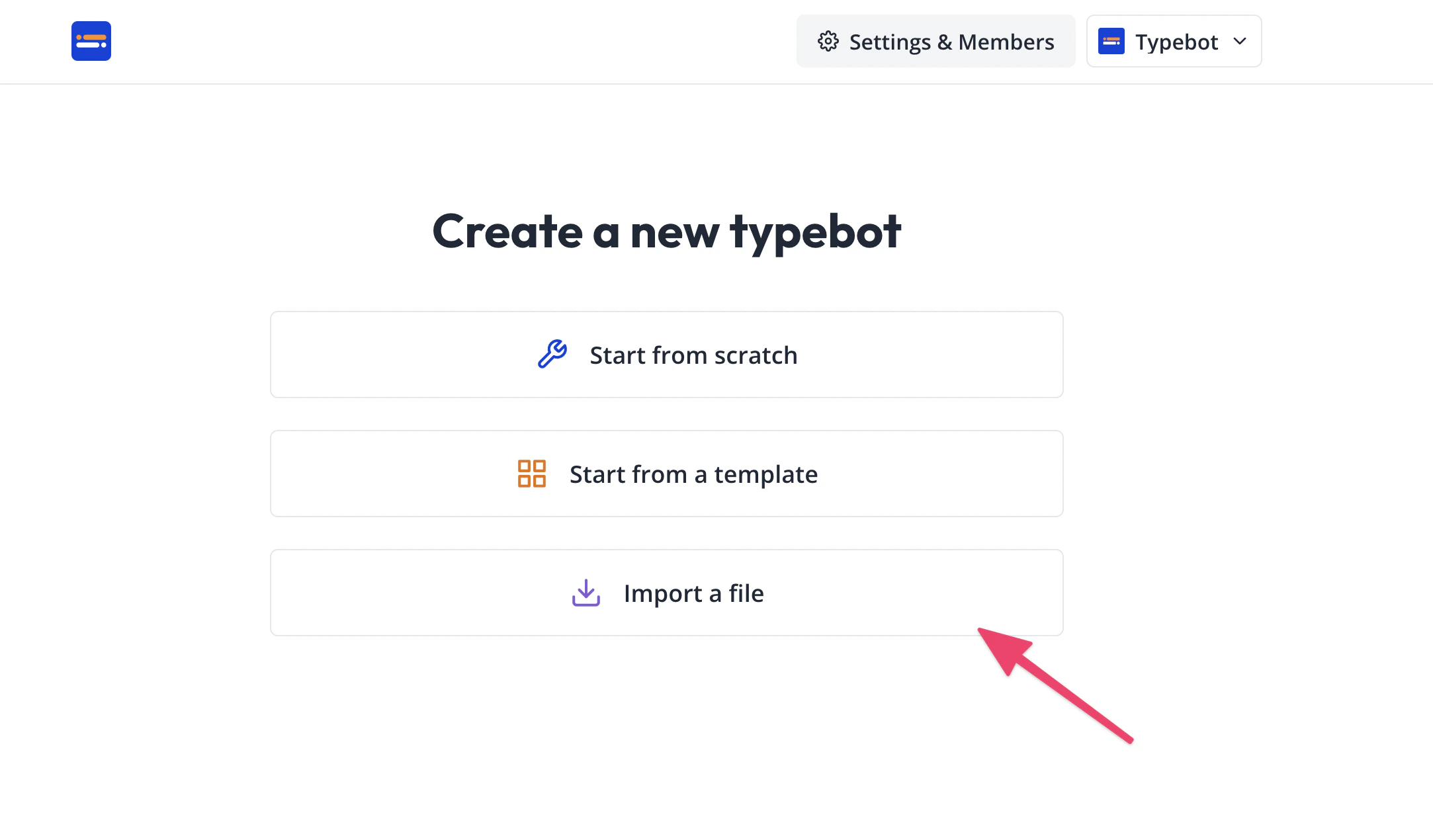
The image is from Typebot's official docs. When creating a new bot, choose Import file, then select the JSON file your AI agent wrote.
Step 4: Test it yourself, then publish
After importing, click Preview in the editor and go through the conversation from start to finish, the way a visitor would, taking every branch. If something doesn't work, tell your AI agent directly, for example, "The second question is too long" or "When I pick partnership, it doesn't ask about budget." Have it update the file, then import again.
Adjust colors, fonts, and corner roundness in the editor's theme settings so they match your website. When you're happy with it, click Publish.
Step 5: Add it to your site and check the results regularly
After publishing, the share page gives you an embed code. You can embed the bot directly in a page, show it as a pop-up, or use a floating chat bubble in the bottom-right corner. Give the code to your AI agent:
This is the Typebot embed code I got: [paste the code].
Please add it to my website: [your website project folder, or tell me which site builder you use, such as WordPress].
1. First, tell me which file you plan to change and where the code will go. Wait for my approval before you change anything.
2. Use the floating chat bubble style, and don't cover any existing buttons on the page.
3. After the change, tell me how to preview it locally or in a staging environment. Don't publish it live.
Once the bot is live, visitors' answers appear on Typebot's results page, where you can export them as a spreadsheet. Export them regularly, hand the file to your AI agent, and ask it to sort the answers and flag the people you should reply to first.
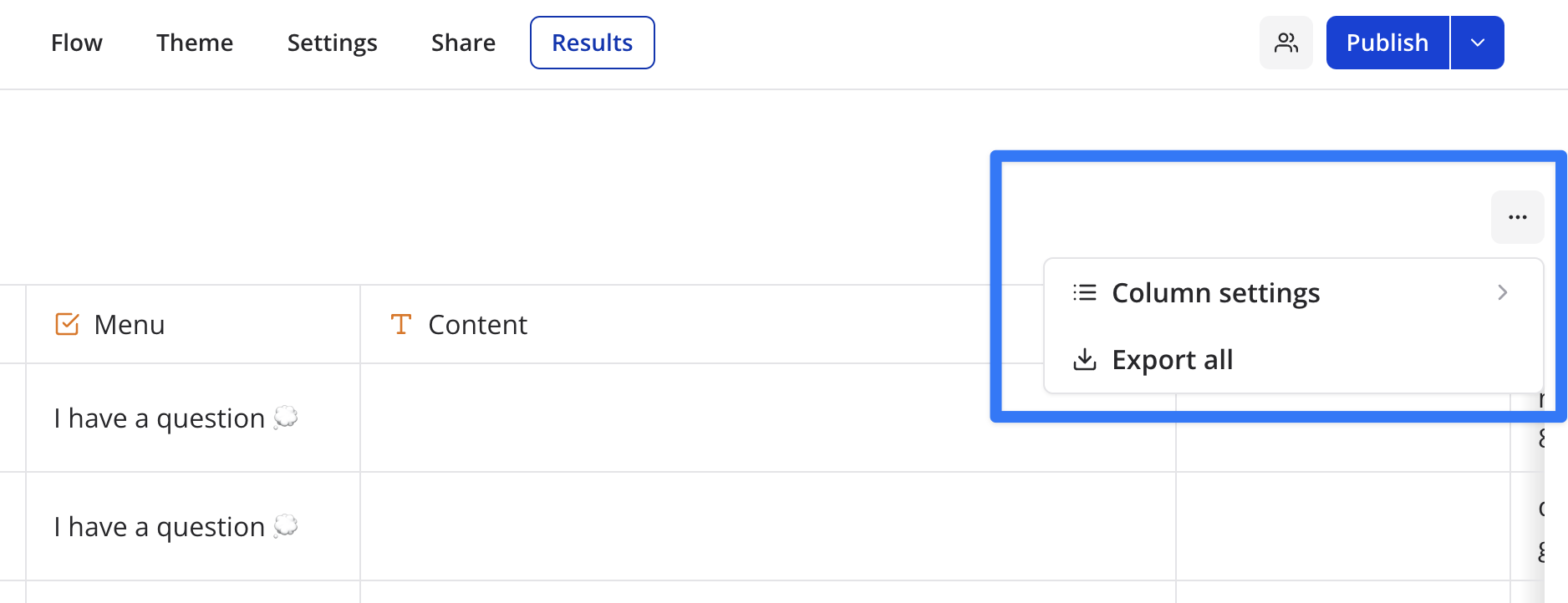
The image is from Typebot's official docs.
Watch out for
- The free plan has a monthly conversation limit: 200 conversations per month. If you get more visitors than that, upgrade or switch to self-hosting.
- Collect only what you need: Before you ask for an email address or phone number, explain in the conversation why you need it. If your site serves regions with privacy regulations, mention it in your privacy policy.
- The import may not work the first time: The file format depends on the version. If the import fails, ask your AI agent to walk you through building the flow by hand in the editor. You'll end up with the same result.
- Check the license before using it commercially: Typebot uses the FSL license. You can use it for yourself and for your own business, but you can't use it to build a commercial product that competes with Typebot.
Comments (0)
No comments yet. Start the conversation.