

What you'll get
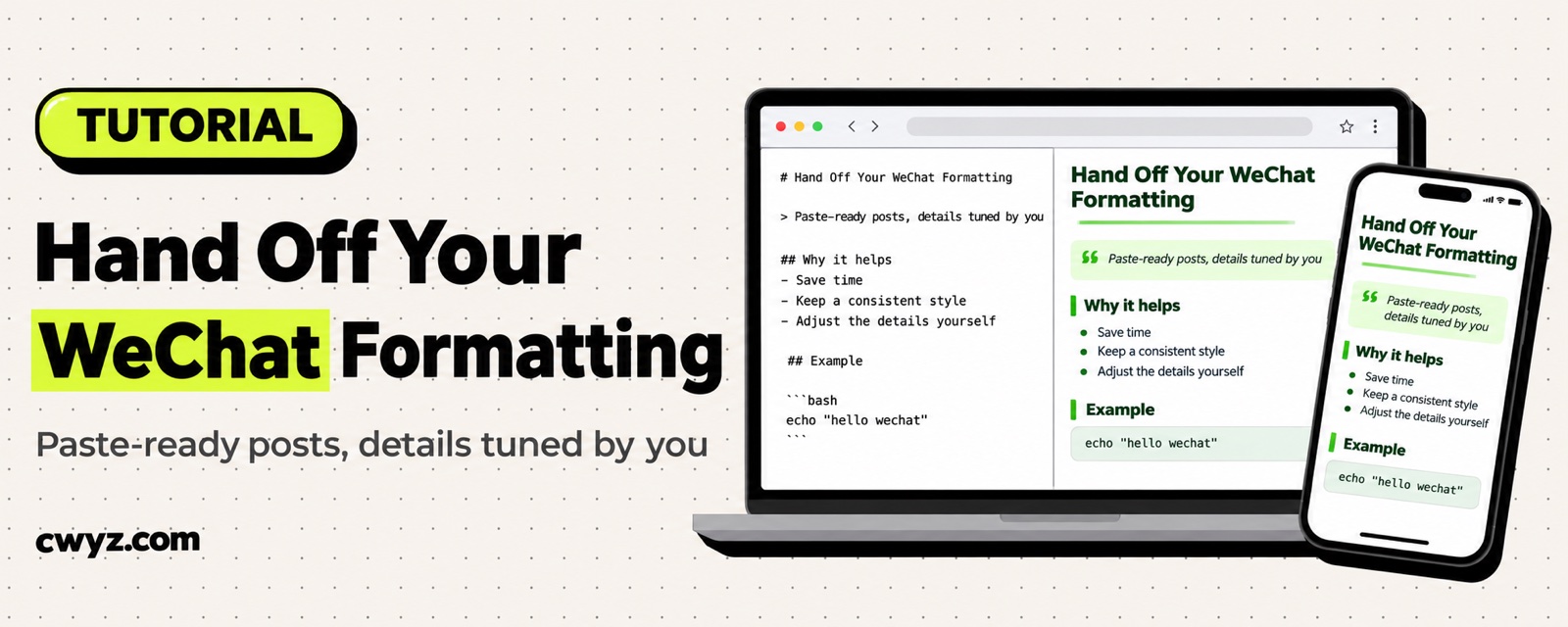
Writing a WeChat Official Account article is one thing. Formatting it is often harder. You have to get the heading levels right, bold the key points, give code blocks and quotes a background color, and the layout can still fall apart when you paste it into the editor. The Luobo Typesetter project, whose source code is public on GitHub, gives you two ways to fix this. The first is to install its formatting Skill on your AI agent. You send over your Markdown draft, and the agent picks a style, cleans up the structure, and hands back a web page. One click copies the whole article into the WeChat editor. The second is its online editor. You write on the left, and the right side shows a live preview at phone width. If something looks off, you can adjust it yourself. The guide has 3 prompts you can copy.
Here's how to split the work: let your AI agent handle the structure and style of the whole article. Fix the details you don't like yourself, on the web page. The settings you like can be saved as a scheme file. Hand that file back to your AI agent, and it will use the same look for your next article.
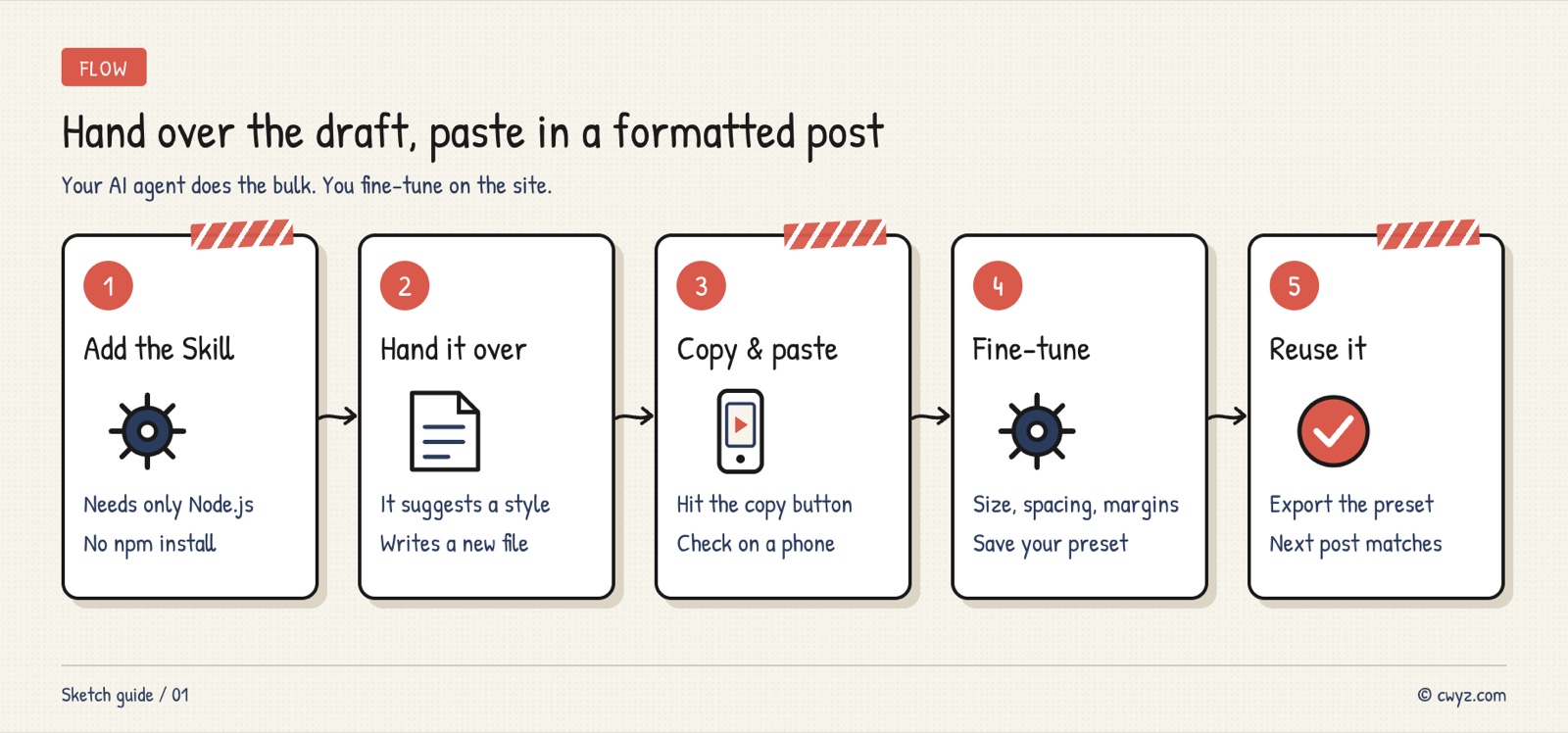
There are five steps: install the typesetting Skill on your AI agent, hand it your draft, open the page it returns and click copy, then paste it into your WeChat Official Account draft. If something still looks off, fine-tune it on the website and save it as a scheme. Send the scheme file back to your AI agent, and every article will follow that look from now on.
Which path to pick
| Your situation | Use this |
|---|---|
| You want a ready-to-publish version as soon as you hand over the draft | The typesetting Skill, through your AI agent |
| You want to watch the result as you tweak it, like making the body text one size bigger or the lines a little looser | The online editor |
| You've dialed in a style you like and want every article to match it | Save it as a scheme on the website, then export the file for the Skill |
Both use the same typesetting engine, so the Skill's output looks the same as the website preview. The project includes six style schemes: Jade Business (玉石商务), Sea Salt Magazine (海盐杂志), Warm Orange Report (暖橙报告), Violet Tech (紫电科技), Cherry Light (樱桃轻盈), and Ink Jade Song (墨玉宋韵). If you're not sure, go with Jade Business.
Step 1: Install the typesetting Skill on your AI agent
The typesetting Skill lives in the skills/luobo-gzh-design folder of the project repo. You need Node.js 18 or newer on your computer. There's no npm install step, and it doesn't need an internet connection. Your AI agent reads the SKILL.md file inside the folder, or AGENTS.md if that's the file it uses. Both files describe the same workflow.
Please install the WeChat typesetting Skill "luobo-gzh-design" for me. It's in the skills/luobo-gzh-design folder of the repo at https://github.com/zhouwei713/luobo-gzh-design.

1. First, check whether my computer has Node.js 18 or newer. If it doesn't, tell me how to install it, and ask me before you install anything.
2. Copy only the skills/luobo-gzh-design folder into your Skill directory. I don't need the whole repo, and don't run npm install.
3. After it's installed, run its scheme list once (scripts/typeset.mjs --list-schemes), and show me the schemes you can use.
4. Tell me how to call it next time.
If you see all six schemes listed, the install worked. Start a new chat after installing, so your AI agent loads the new Skill.
Step 2: Hand your draft over for formatting
Prepare your draft in Markdown. Most drafts written with AI are already in Markdown. Then tell your AI agent:
Sign in to unlock this key section
New accounts get 10 free credits, plus 1 more each day you sign in (none on days you don't). Spend 1 credit to unlock and it stays open for you.
The second point matters most. The Skill already requires a rewrite into a new file, and it doesn't add content the original doesn't have. I repeat it here so the agent doesn't change your opinions by accident. You can also name a scheme from the start, for example "Use Jade Business, and don't add too many decorations," and the agent won't ask you to choose.
Step 3: Copy into the WeChat Official Account editor, and check it on your phone
Open the web page your AI agent returned in your browser. There's a copy button at the top. After you click it, go to the WeChat Official Account backend, create a new article, and paste. Font colors and cards come along with it. The project notes say the author confirmed the paste works in the real WeChat Official Account editor.
After pasting, preview the article on your phone with the WeChat Official Account mobile preview. A line that fits on one desktop screen can wrap onto three lines on a phone. Long titles and dense paragraphs only show their real look on a phone. Check the images carefully too. The project notes warn that images from different sources need checking, because some image hosts' images stop working once you paste them into WeChat.
Step 4: Fine-tune the details yourself on the website
If you want the body text one size bigger, or a paragraph with looser line spacing, you don't have to describe the change to your AI agent and wait for it to reformat. Open the online editor at gzh.chatgptdaily.com.cn. No sign-in needed. Edit your draft on the left, and the preview on the right updates instantly at phone width.
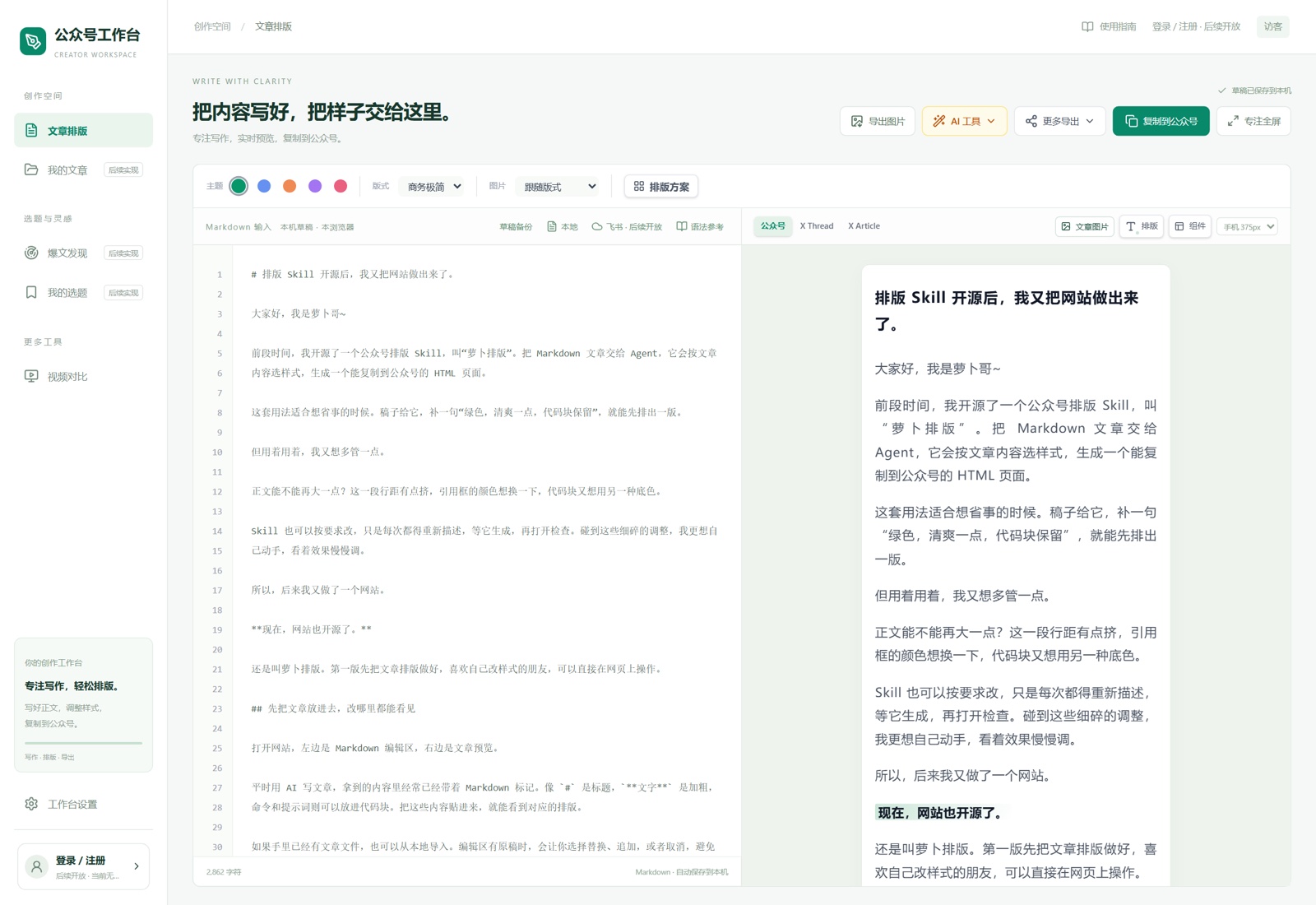
The image comes from the project's GitHub repo. It shows the site's real editor.
Start by picking a style scheme, then fine-tune the details: body text size and line spacing, how much space sits between paragraphs, and how narrow the side margins are. You can change how emphasis looks. Quotes and code blocks have their own styles. You can also change the corner radius of images. Once you're happy, click "Save current" (保存当前) to save the settings as your own scheme, and you can use it again next time.
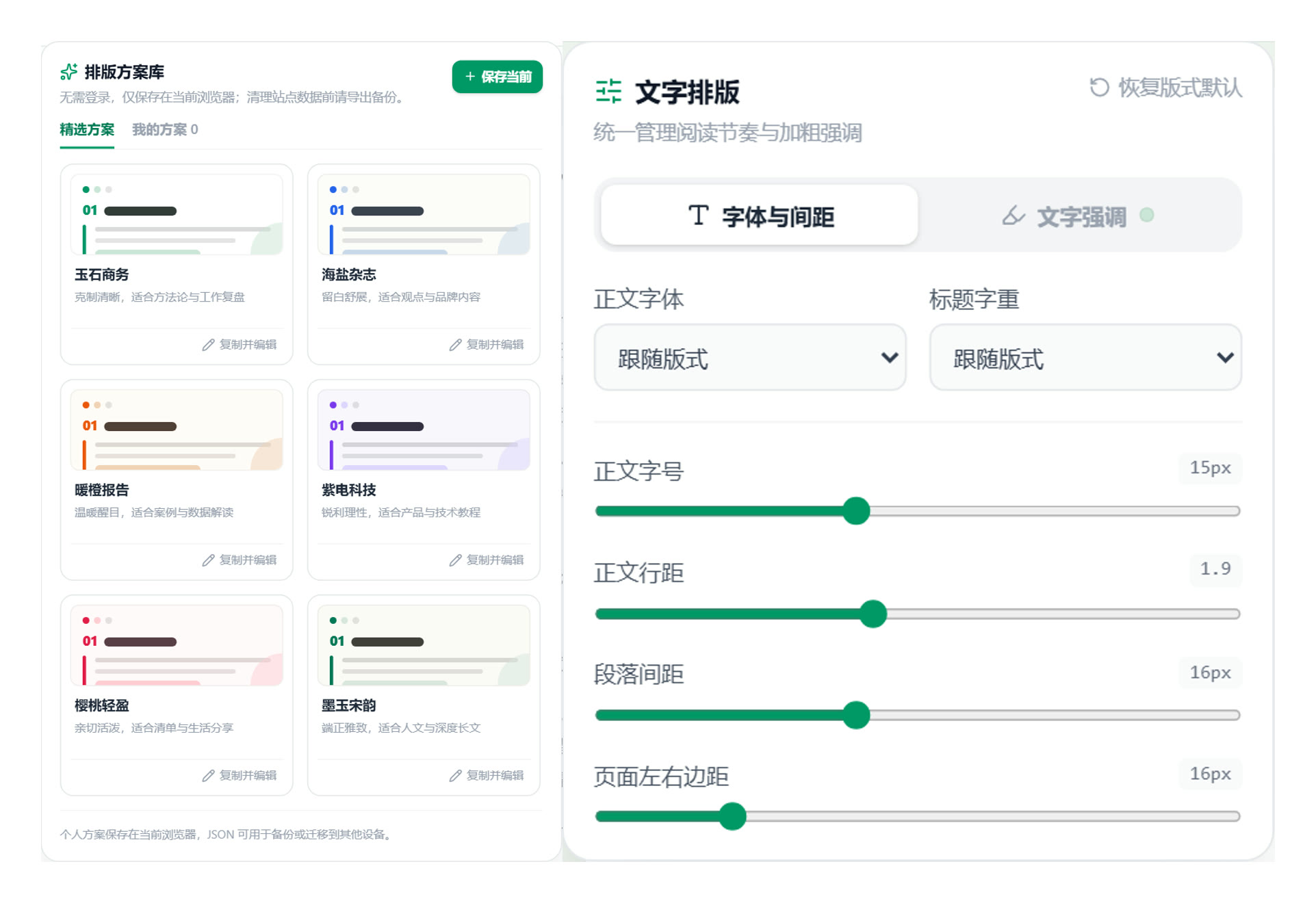
The image comes from the project's GitHub repo. The left side is the scheme library, and the right side has the text layout settings.
The website also has a full-screen focus mode and a dark theme. You can import an existing article file from your computer, too. If the editor already has text in it, the site asks whether you want to overwrite it, add the new text to the end, or cancel. That way it won't wipe out a draft you're halfway through.
Step 5: Send your scheme back to your AI agent
You can export a scheme you saved on the website as a JSON file. Give that file to your AI agent, and every article it formats from now on will use your settings.
I've made my own scheme on the Luobo Typesetter website. The exported file is at: [path to the scheme JSON file]. The scheme is called: [the name you gave it].

From now on, when you format an article with the WeChat typesetting Skill, use the scheme in that file (add the --scheme-file option when you render). Don't ask me to pick a style again. Try it on this article first: [file path]. When it's done, tell me where the web page file is.
Let the website's AI do the formatting
The website's workspace settings let you enter your own model service: the API key, the endpoint address, and the model name. After that, you can use one-click AI formatting. Before you start, add a note if you like, such as "Don't touch the body text, just tidy the headings." The result shows first, so you decide whether to use it. If you do use it, you can undo it.
These settings are stored only in the current browser. They aren't uploaded to a server, so you'll need to enter them again on a new computer. Calls are billed to your own API account. The project notes also say the API must allow direct access from the browser (cross-origin requests), and not every provider does. After you fill everything in, click "Test connection" (测试连接) first.
Notes
- Your draft is only stored in the current browser. The website saves what you write to this computer's browser automatically. If you clear your browser data, it's gone. Save important drafts separately. You can export drafts and schemes as files for backup.
- Gradient highlights on bold text trigger a warning. The Skill's compatibility check flags this. In some cases, the WeChat Official Account may ask you to add dark-mode support. If that bothers you, switch to another scheme, or pick a style without a gradient in the website's text emphasis settings.
- Several entry points aren't open yet. On the website, "My Articles," "Viral Post Finder," and "My Topics," along with sign-in and sign-up, are still in development. Only the typesetting feature works right now.
- The repo doesn't list an open-source license. Using it to format your own articles is fine. If you want to modify it and publish it, or use it commercially, ask the author first.
Comments (0)
No comments yet. Start the conversation.