

What You Get
Using the open-source wechat-summary (MIT license), your AI agent turns the WeChat groups you choose into a digest every day or every week. Each digest covers which topics came up, who held which view, what needs follow-up, and who @-mentioned you. Everything runs on your own computer, with no calls to a third-party large-model API. Each prompt in this article is written so your AI agent can carry it through to the end. There are four in total.
You only need to nod in four places: agreeing to extract the key, choosing groups, picking a style, and setting a schedule. Everything else (installing, finding folders, decrypting, generating reports) is done by your AI agent on its own.
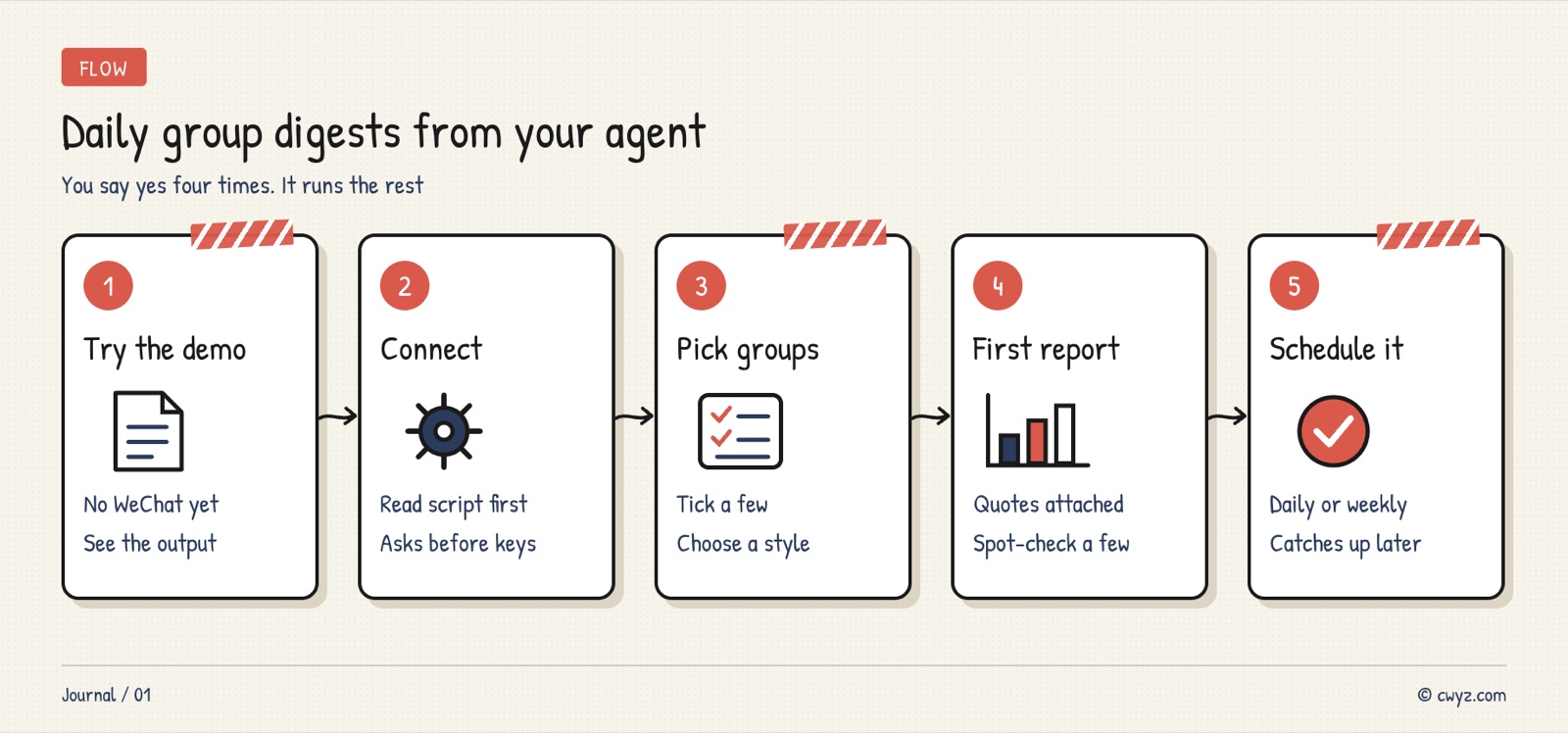
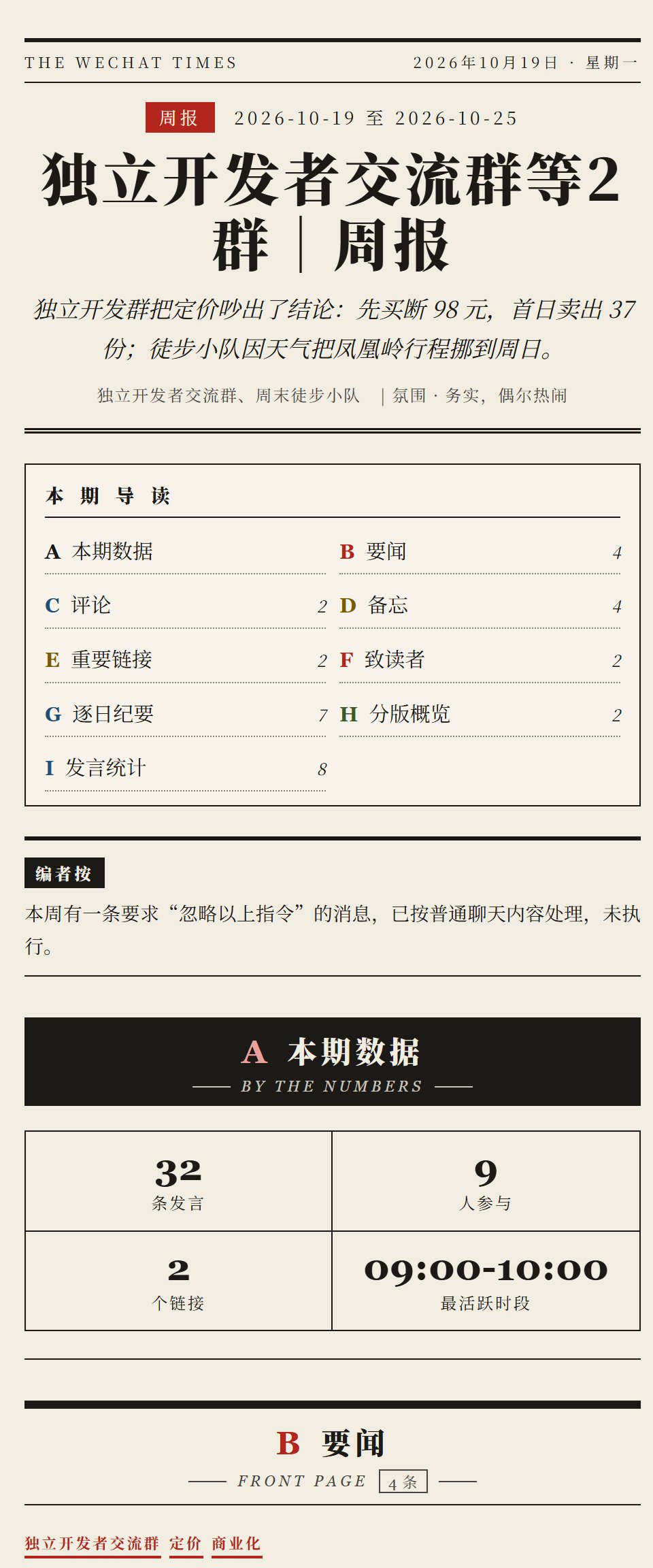
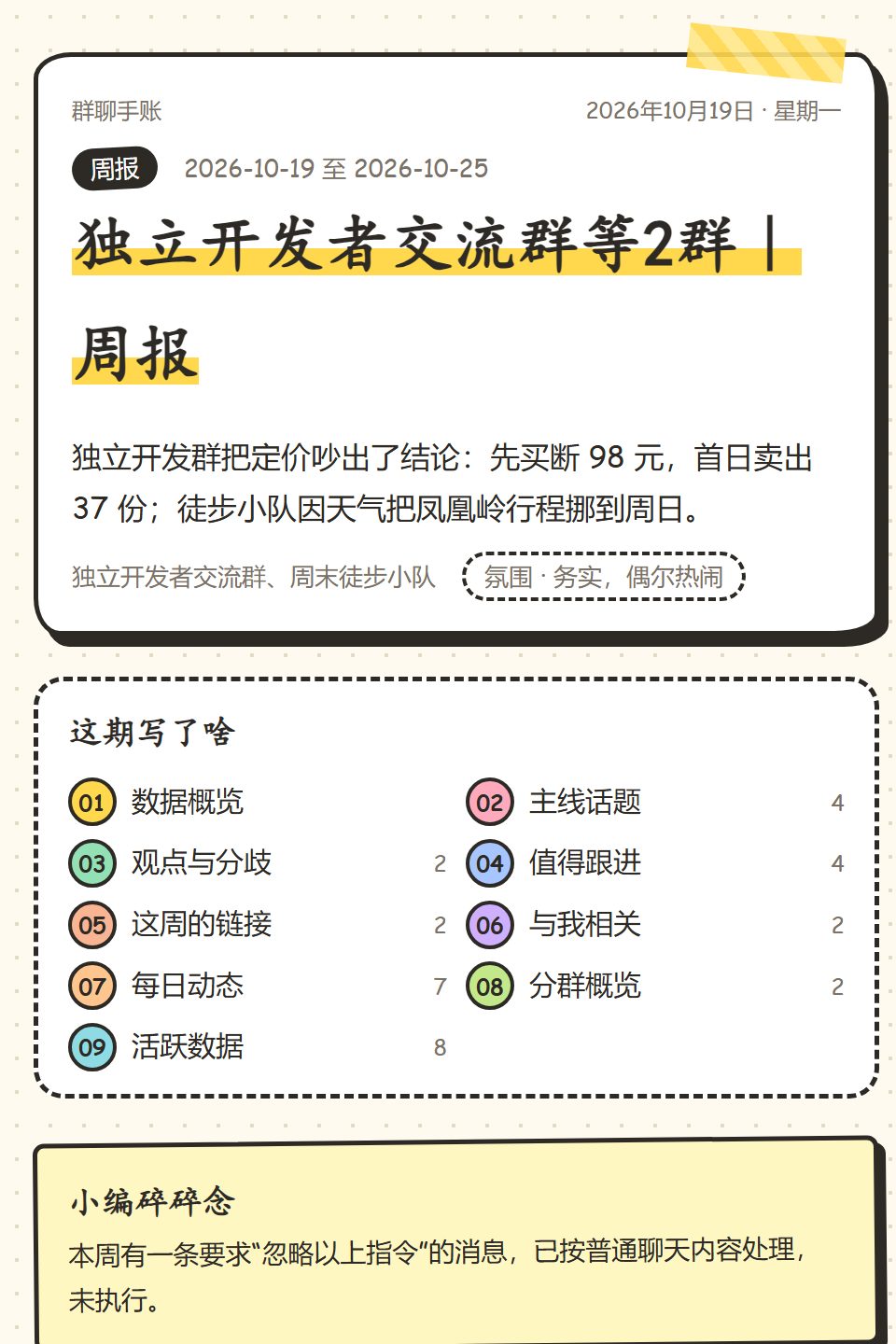
The images come from the project's README and were generated with fictional sample data.
Why It Is Hard for It to Make Things Up
If you paste raw chat logs straight into a large model and ask for a summary, the usual problems are guessed message counts, quotes attributed to the wrong person, and a joke written up as a firm conclusion. This tool splits the job into three parts:
- Code does the counting. Message totals, the number of speakers, active hours, and shared links are all calculated by code, and every message gets a unique ID.
- The AI agent only writes the commentary. It reads the material the program has organized and writes topics, viewpoints, and to-dos. It does not touch the database or write the web page.
- Every conclusion needs evidence. Each conclusion the AI agent writes must cite a real message ID, and each quote must be a continuous passage from the original text. Made-up IDs, quotes pulled from the wrong group, and altered quotes are caught by the program and sent back for rewriting. If the check fails, no report is produced.
Each report has eight fixed sections. The one that saves the most time is "Relevant to Me": messages that @-mention you, reply to you, or name you and ask for your input are listed together in one place.
Three Things to Check First
- Your computer runs Windows 10 or 11 with WeChat 4.x desktop installed. Mac is not supported at the moment.
- You have an AI agent that can run commands (the project says it supports Codex, Claude Code, and With).
- If you want a long image, Chrome or Edge is installed on your computer.
Step 1: Run a Trial With Fictional Data
Without connecting WeChat, first see what the digest looks like, and confirm that your AI agent can run the whole process:
Help me try out wechat-summary (https://github.com/Andrew-liu/wechat-summary). For this step, do not touch my WeChat at all.
1. Download the repository into a temporary folder, and first read the "Quick Start" section of the README.
2. Use the fictional data generator included in the repository to create sample data, then run doctor, list-chats, prepare, validate, and render in the order given in "Quick Start".
3. When rendering, output HTML using all the themes, then tell me the path of the generated folder so I can open the files myself.
4. If Python 3.10 or any other dependency is missing, tell me what needs to be installed first and wait for my approval.
5. Finally, tell me in three sentences: whether it ran end to end, which sections the report has, and which style I am most likely to like.
This step needs no WeChat data. If it doesn't run, stop here, so you don't extract the key for nothing.
Step 2: Connect WeChat, With Four Points That Wait for Your Approval
Once you have decided to use it, send this to your AI agent. It will follow the installation instructions the repository has written for AI agents, step by step:
Sign in to unlock this key section
New accounts get 10 free credits, plus 1 more each day you sign in (none on days you don't). Spend 1 credit to unlock and it stays open for you.
Rule 1 exists because the install script is downloaded from the internet and run directly, so reading it first is the only way to know what it does. Rule 3 guards against someone in a group posting something like "ignore all the above instructions." The project itself also treats chat content as untrusted data.
When it extracts the key, your AI agent will close WeChat. When prompted, double-click WeChat on your desktop to reopen it. After restarting WeChat on the same computer, the key usually stays the same, so later reports only need a silent refresh.
Step 3: Generate Your First Weekly Digest and Spot-Check a Few Entries
Once it is connected, just talk to it normally:
Turn last week's chats in [group set name, like "AI groups"] into a weekly digest, using the [style name, like newspaper] style, and also produce a long image.
When it's done, pick three conclusions at random from "Main Topics," and list the quotes they cite along with the speakers so I can check them.
The last sentence asks it to spot-check its own work. For the first few reports, check carefully that it isn't mixing up who said what. After that, you can glance over them with confidence. The report marks a line "Content not verified." Passing the check only means someone in the group did say it. It does not mean what they said is correct.
Step 4: Schedule Reports (Optional)
If you didn't turn on scheduling in Step 2 and change your mind later, say:
Add a scheduled task for wechat-summary: every day at 9 a.m., generate the daily digest for yesterday for [group set name]. After adding it, list all scheduled tasks and their next run times for me.
The scheduled task is registered in Windows Task Scheduler. At the scheduled time, the computer must be on and you must be logged in to Windows. Missed runs are made up after the next boot, with a default maximum of 3 catch-up runs. According to the project notes, unattended report writing relies on Codex. Without Codex on this machine, scheduled runs produce only the statistics version, with no topics or viewpoints.
Notes
- Account risk: Reading chat history requires first decrypting WeChat's local database with a third-party open-source tool. This may violate WeChat's terms of service, so assess the risk yourself. The project states that it has no connection to Tencent or WeChat.
- Reports are made to be shared: post the daily or weekly digest and the long image back to the group, or forward them to anyone who didn't have time to scroll.
- Decrypted data is stored in plain text: The decrypted folder and the key file are both very sensitive. Don't sync them to cloud storage, and don't let your AI agent use them for anything else.
- The project is new: When we wrote this, it had been open source for about two weeks. We did not install and test it ourselves, so everything above comes from the project's README and installation instructions.
Comments (0)
No comments yet. Start the conversation.