

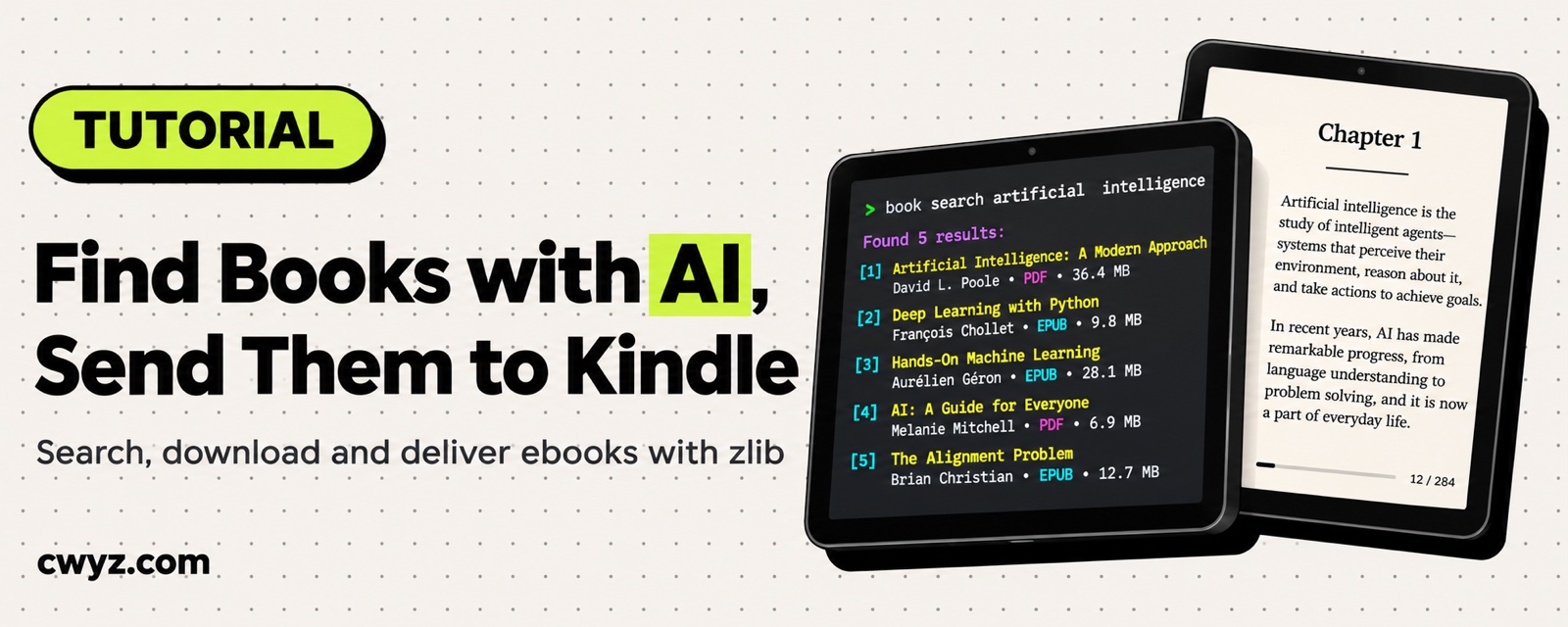
Find Books with AI, Send Them to Kindle or WeChat Reading
What you get
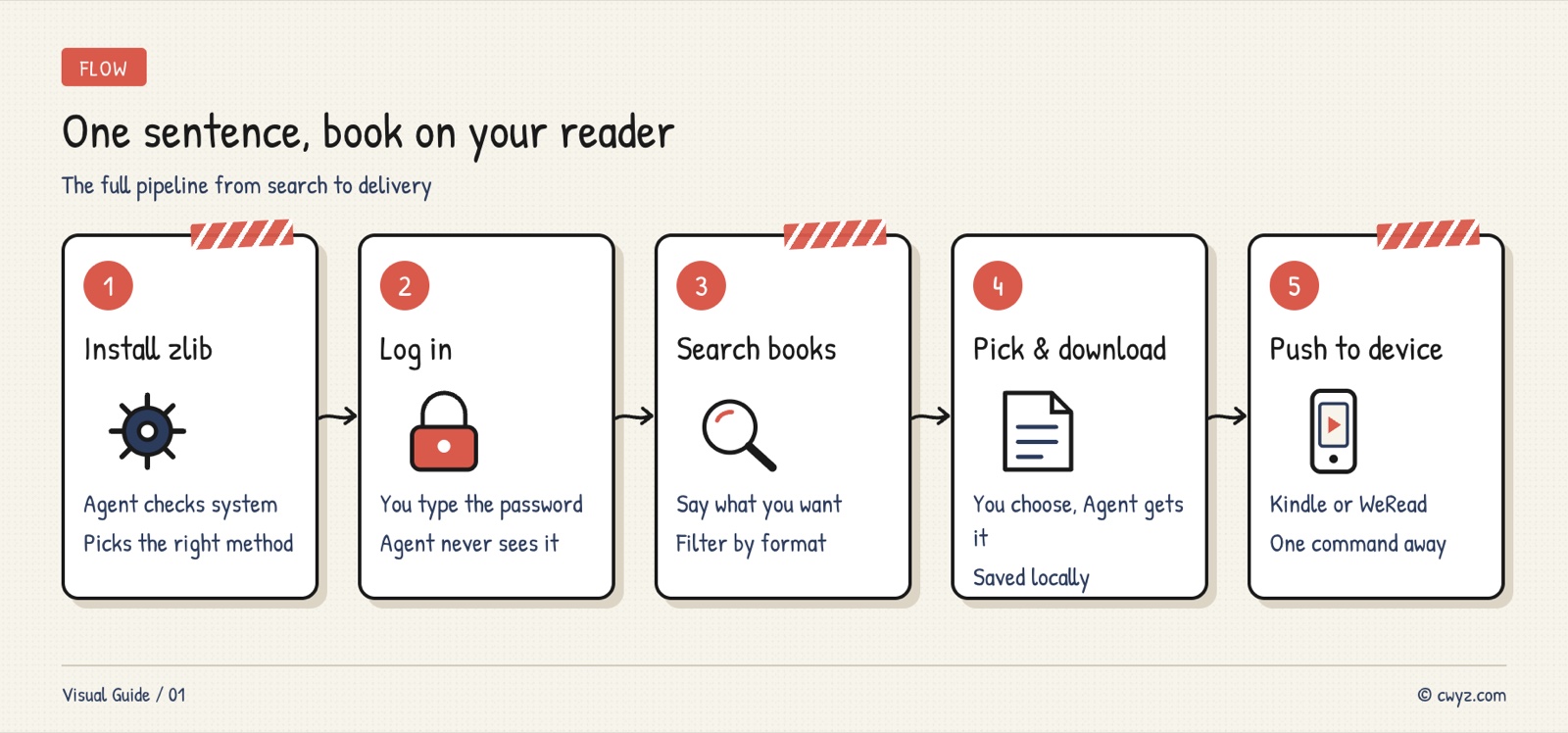
zlib is an open-source command-line tool. Combined with your AI agent, it runs the whole chain for you: searching Z-Library, downloading, and sending books to Kindle or WeChat Reading. You just say "find me a book about XX," and the agent handles the rest. Two copy-ready prompts are included below.
You decide what to look for and which book to download. The agent handles the searching, filtering, downloading and sending.
Why search from the command line
The Z-Library website often changes domains, so access can be unreliable. The zlib command-line tool skips the browser and talks to Z-Library through its API. When a domain goes down, it detects which one still works.
You can filter search results by format (EPUB, PDF), language and year, which is much faster than clicking through the website. Connect it to your AI agent and you don't even need to remember the commands. Just speak in plain language.
- Domain problems are handled by the tool:
zlib doctorfinds a working domain automatically, so you don't have to hunt for one. - Format filtering in one step: ask for only EPUB or only PDF when you search.
- Send right after downloading: both Kindle and WeChat Reading are supported, so you skip the manual file transfer.
Step 1: Install zlib and log in
Copy this prompt and give it to your AI agent. It will install zlib and walk you through logging in:
Help me install the zlib Z-Library command-line tool:

1. First, check whether my system is macOS, Linux or Windows
2. Install it the right way:
   - macOS/Linux with Homebrew: brew install heartleo/tap/zlib-cli
   - macOS/Linux without Homebrew: use the official install script
   - Windows: winget install --id heartleo.zlib --exact
3. After installing, run zlib version to confirm it worked
4. Run zlib doctor to find a working domain, and tell me which one it is
5. Tell me to run the login command: zlib login --domain [available domain]
   I have to type my email and password myself. Don't type them for me

Tell me the result of each step. If something goes wrong, explain how to fix it in plain language.
You only need to log in once. You won't have to log in again after that.
This prompt has your agent handle the installation and domain check. The only part you do yourself is typing your Z-Library email and password in the last step. The password never passes through the agent. You enter it directly in your terminal.
Step 2: Search and download
After you've logged in, tell your agent in plain language what book you want. The agent runs zlib's search command and shows you the results in a table.
For example, if you want a beginner's book on the Go language, say "Find me an introductory book on the Go language, EPUB format." The agent runs something like zlib search "Go programming" --ext epub --json --count 10, then lists the title, author, year and file size.
Once you've picked one, say "download number 3," and the agent downloads it.
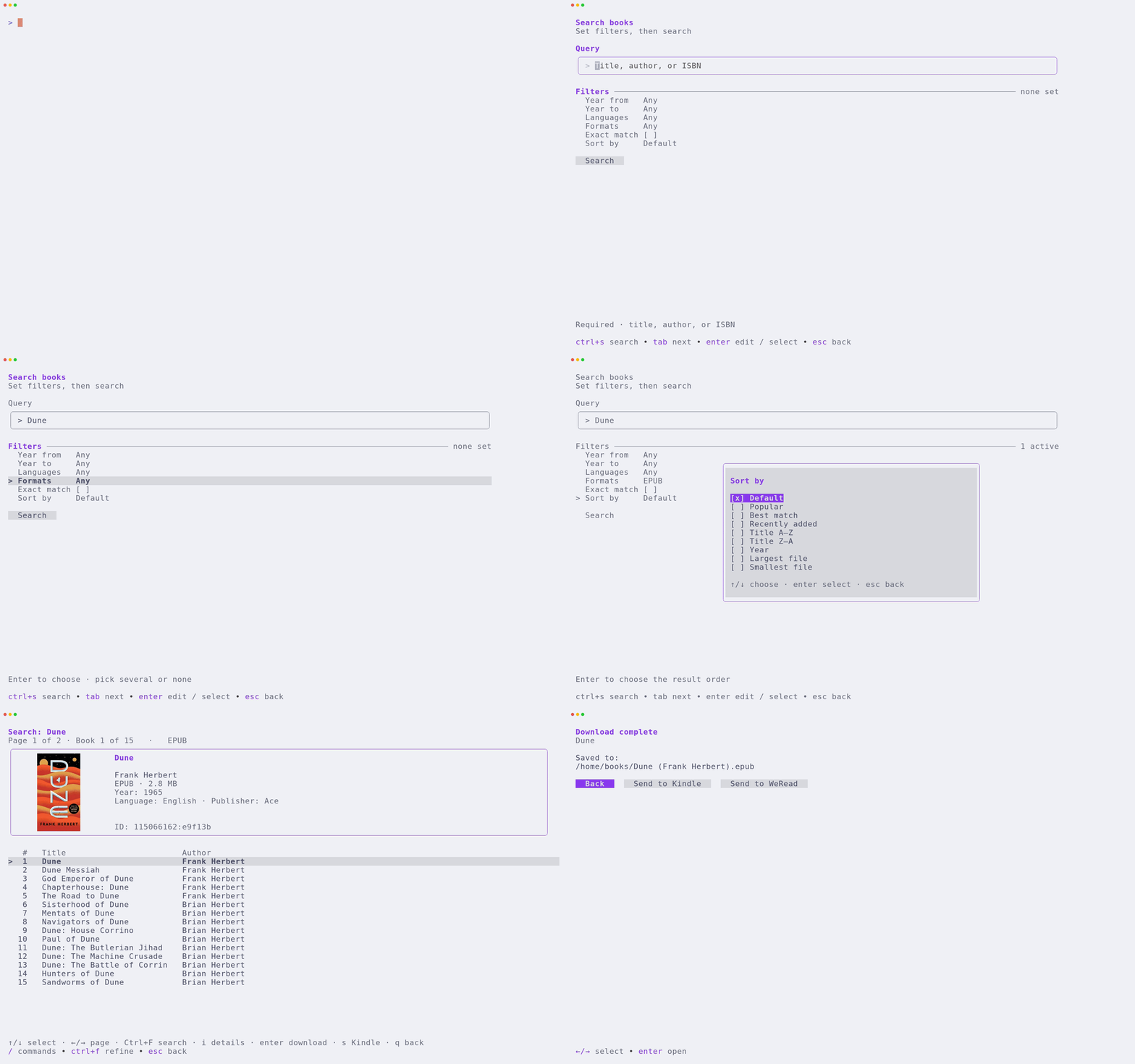
The image comes from the project's README and shows zlib's search in a terminal.
Step 3: Send to Kindle or WeChat Reading
Once a book is downloaded, you can send it straight to your reading device.
To send to Kindle, first set up an SMTP sending email. Your agent will guide you through it step by step. After that, the agent runs zlib kindle send "./downloaded-book.epub" to deliver the book to your Kindle.
For WeChat Reading, the first time you use it, you need to run zlib weread login in your terminal and scan a QR code. After that, your agent can import books with zlib weread import "./downloaded-book.epub". WeChat Reading supports EPUB and TXT. Each file can be up to 300 MB (TXT up to 20 MB).
Sign in to unlock this key section
New accounts get 10 free credits, plus 1 more each day you sign in (none on days you don't). Spend 1 credit to unlock and it stays open for you.
This prompt links searching, downloading and sending into one flow. You just say what you want to find. Once you choose a book, the agent runs the rest through to the end.
Step 4: Install the AI agent plugin (advanced)
The steps above have the agent call the zlib command line directly. If you want your agent to use zlib more intelligently, for example by recognizing whether you're asking for a book search or a quota check, you can install the official agent plugin.
If you use Claude Code, type this in the chat:
/plugin marketplace add heartleo/zlib
/plugin install zlib@zlib-plugin-cc
For Codex:
codex plugin marketplace add heartleo/zlib
codex plugin add zlib@zlib
Once the plugin is installed, your agent comes with a built-in skill that understands your intent more accurately. If you say "how many more books can I download today," it knows to call zlib profile. If you say "what books have I downloaded recently," it knows to call zlib history.
Notes
- Z-Library limits daily downloads. Free accounts usually get 10 a day. Your agent can check how many you have left.
- Domains can change. If you can't connect, ask your agent to run
zlib doctoragain to find a working one. - WeChat Reading imports sometimes take a while. A "importing" status doesn't mean it failed. Check your shelf.
- Downloaded books stay on your computer. Your agent doesn't upload them anywhere.
Comments (0)
No comments yet. Start the conversation.