

Stop Your AI Agent From Spending or Deleting Without Asking
What you will get
A chat AI only answers with text. An AI agent is different. It can actually change your files, open web pages, and send messages. Once you connect it to your accounts, it can even spend money. This tutorial shows you one small thing: how to make it stop and ask you before it does anything important. You don't need any technical skills. Find one button, then send your AI agent one message.
It asks, you nod, then it acts. If beginners follow only this one rule, AI is much less likely to get them into trouble.
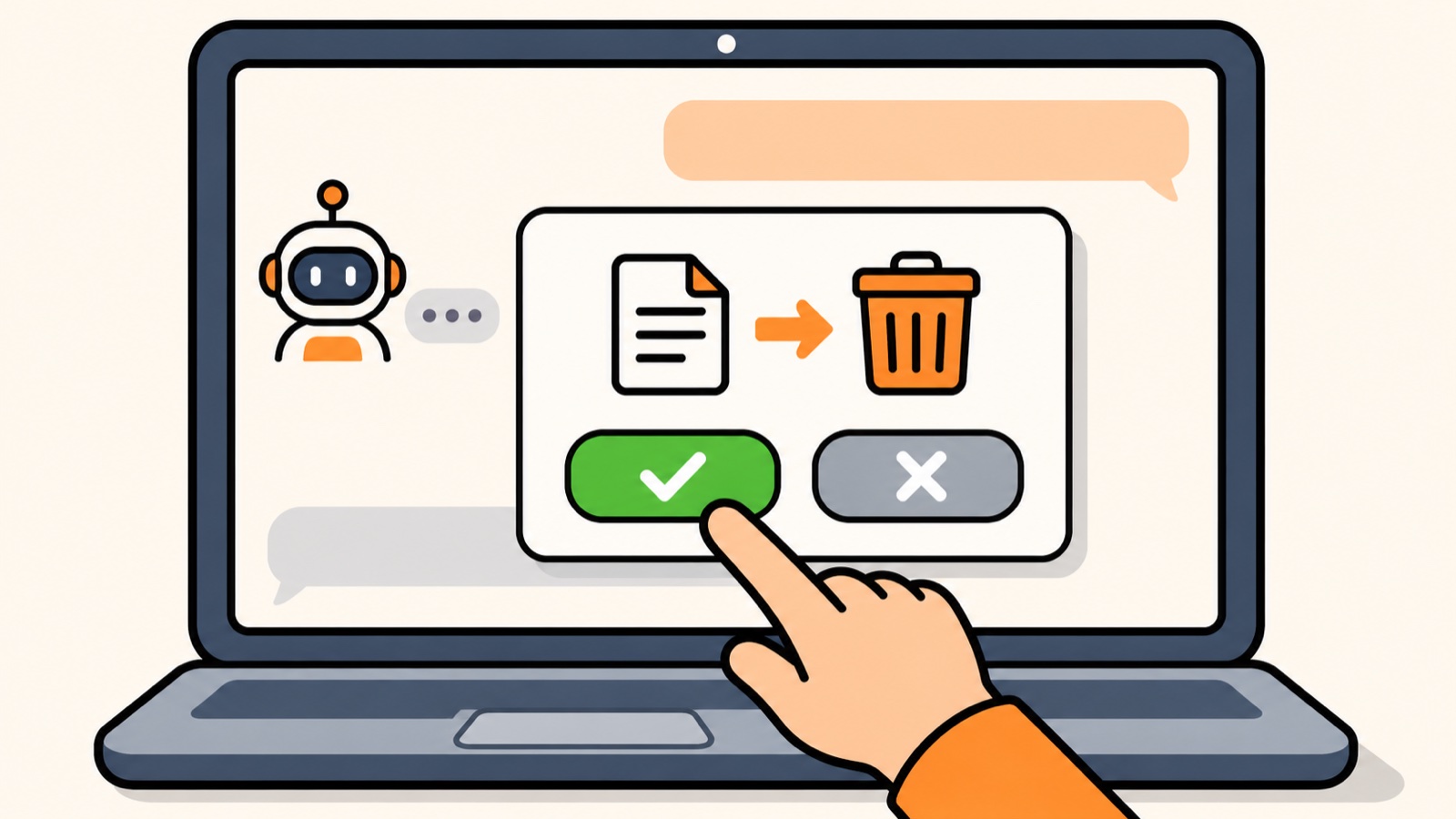
The illustration was generated by AI. It is not a real screenshot from any app.
First, understand why it asks
Think of an AI agent as a new intern. It's quick and eager to help, but it doesn't know which things it should never touch. If you say "tidy up my desktop," it might delete a file you thought was useless but actually still need. If you say "reply to this email for me," it might just hit send.
It doesn't do this on purpose. Nobody has told it where to stop. So set the rules up front: it can handle most of the work on its own, and when something important comes up, it should check with you first.
Which things must it ask you about first
These five kinds of actions are hard to undo, so always have it ask first:
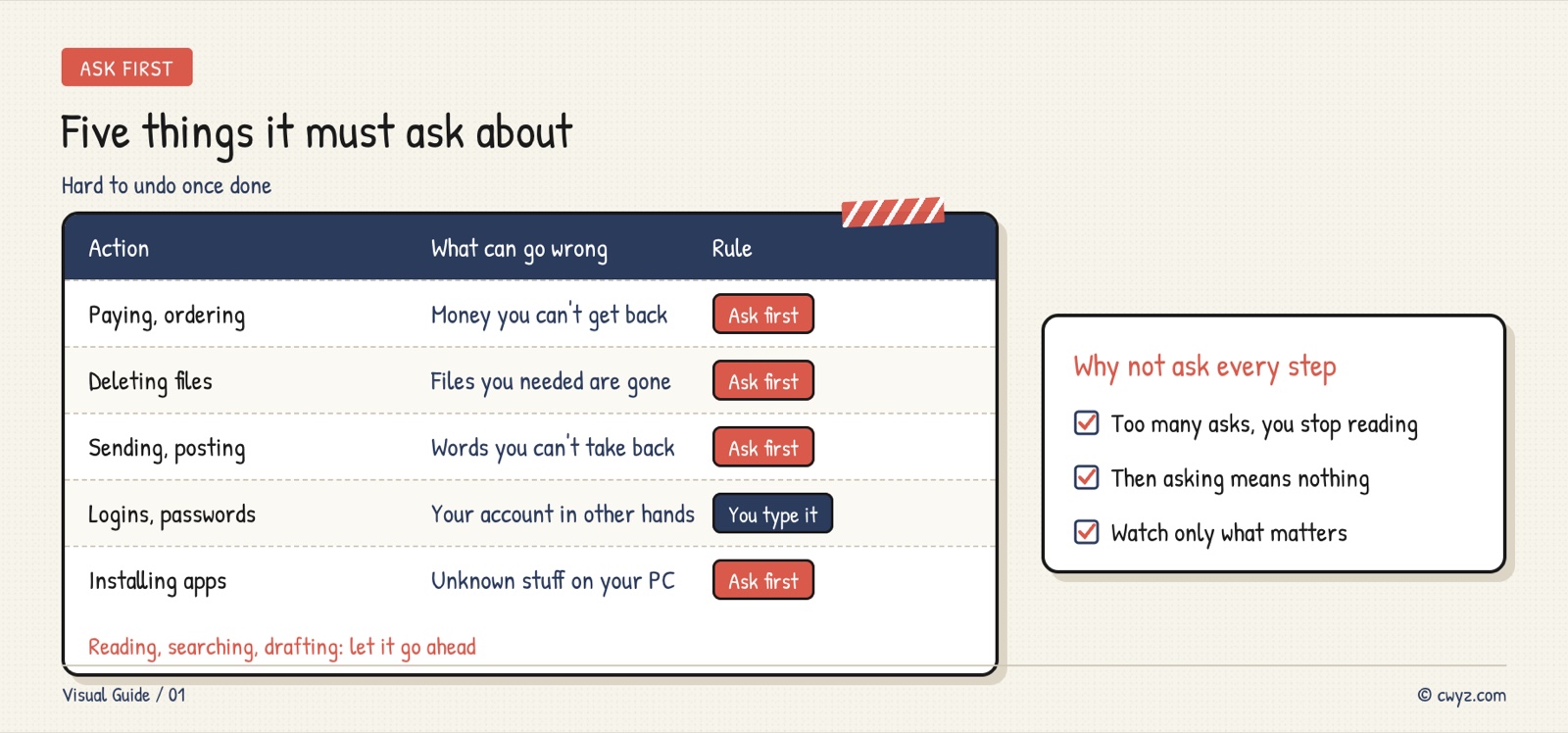
For everything else, like reading files, searching for information, writing drafts, and showing you results, let it go ahead on its own. If it asked you about every single step, you'd get annoyed, and eventually you'd click "yes" without reading. At that point, it's the same as not asking at all.
Find the permission button
Every AI agent has a switch that controls "ask me first or not." The name differs from app to app, but it's usually right next to the input box.
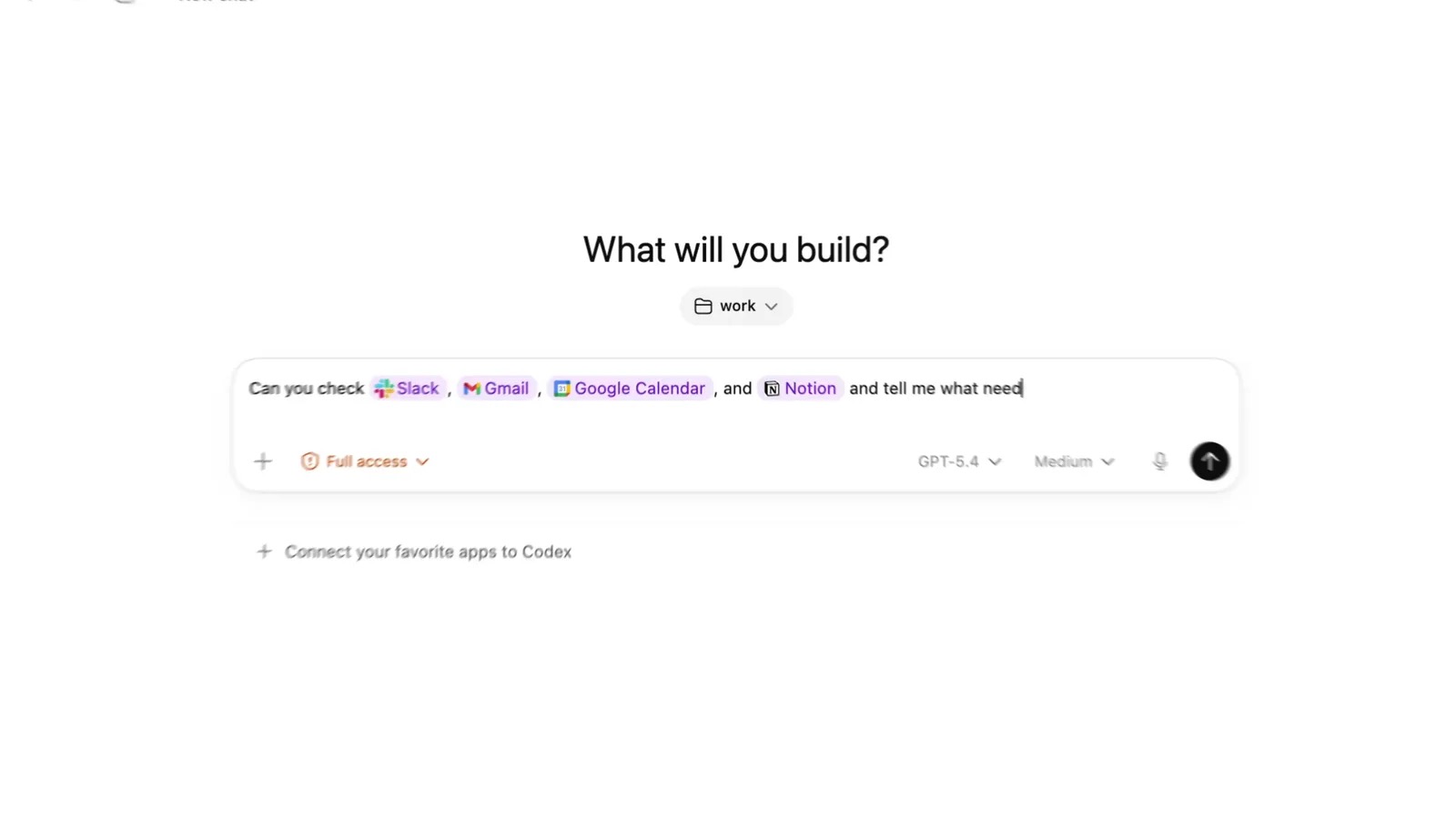
In the ChatGPT desktop app, switch to Codex, and the button below the input box is the one. In the picture below, it shows Full access. Beginners should not stay on that setting. Click it and switch to the Ask for approval setting.
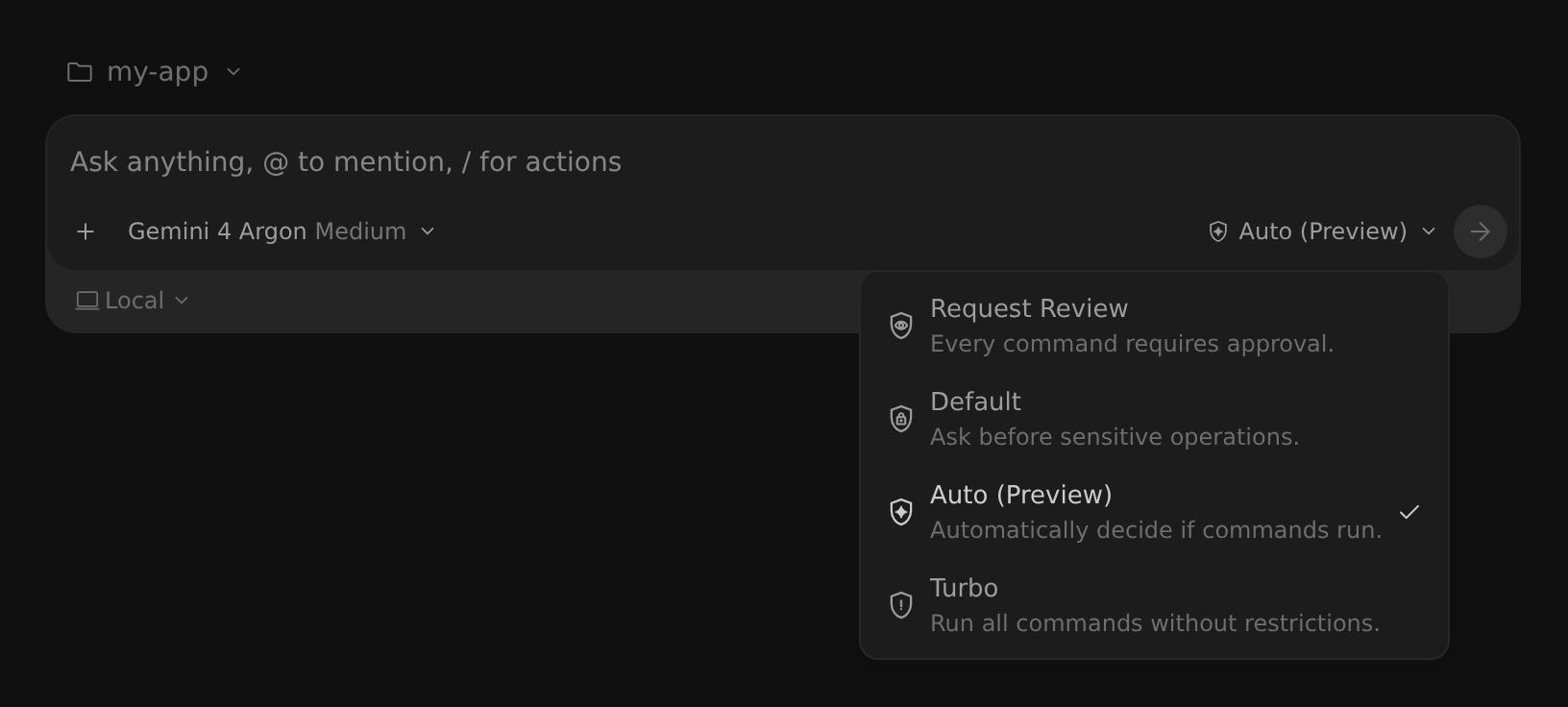
Google's Antigravity has four levels, which makes the idea easy to see. From top to bottom, the agent makes more decisions on its own.
In the Claude desktop app, when it wants to touch something on your computer, a pop-up asks "Allow / Deny." The first time you see it, don't take the shortcut and click "Always allow." The cloud-based Meta Muse already stops and waits for you to confirm before anything like posting or paying.
Not sure which level to pick? Look at this:
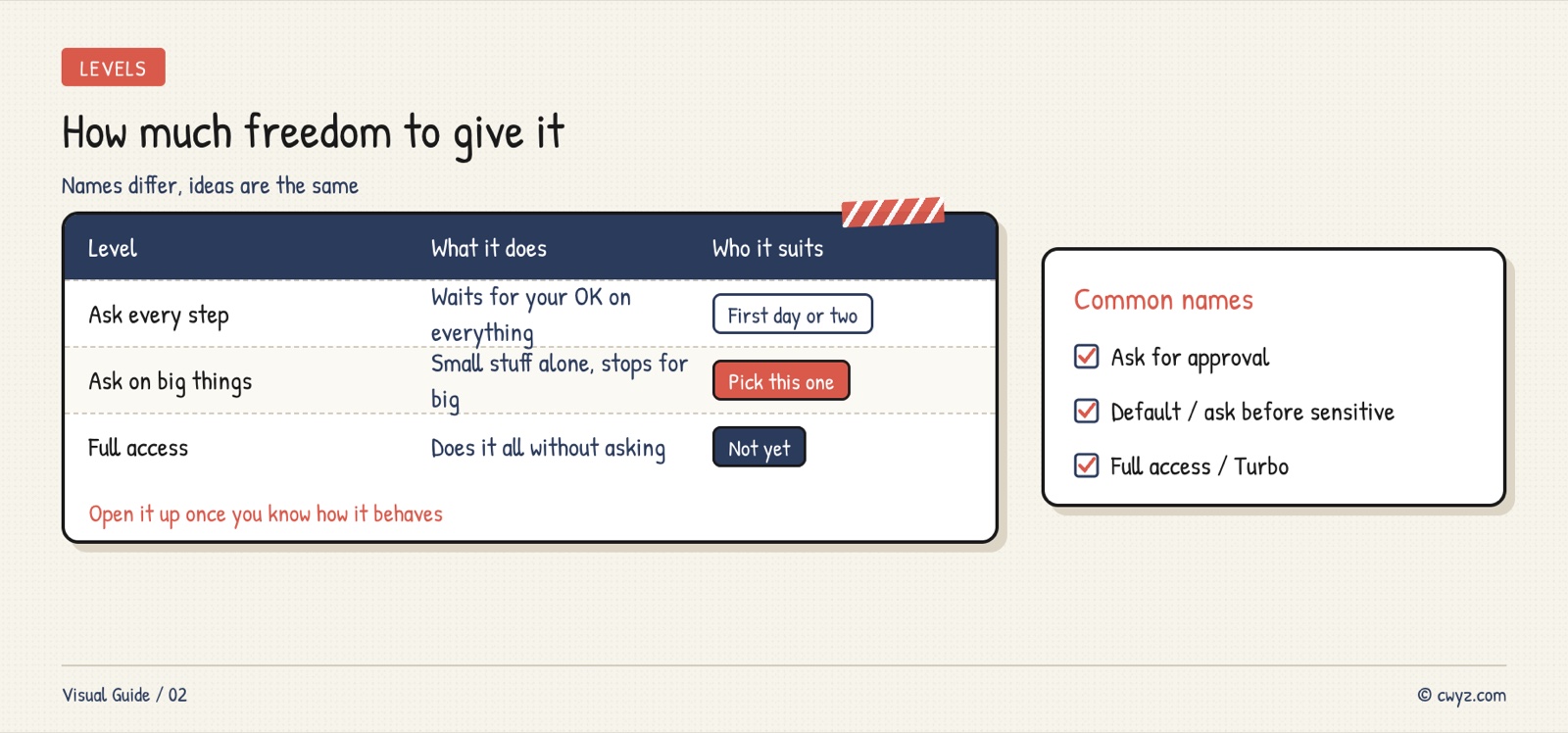
When you're just starting out, pick the middle level, "ask only for important things." Once you're comfortable and know what it will do, you can loosen the setting bit by bit.
Tell it the rules in one go
The button controls whether it can act at all. It also needs to know what you care about. Send the text below to your AI agent. It will check the switch, write the rules down, and then run a test in front of you:
Sign in to unlock this key section
New accounts get 10 free credits, plus 1 more for each daily check-in. Spend 1 credit to unlock and it stays open for you.
The final test matters most. Writing a rule down doesn't mean the AI will follow it. Watch it stop and ask you at least once, and only then will you know you can trust it.
When it asks you
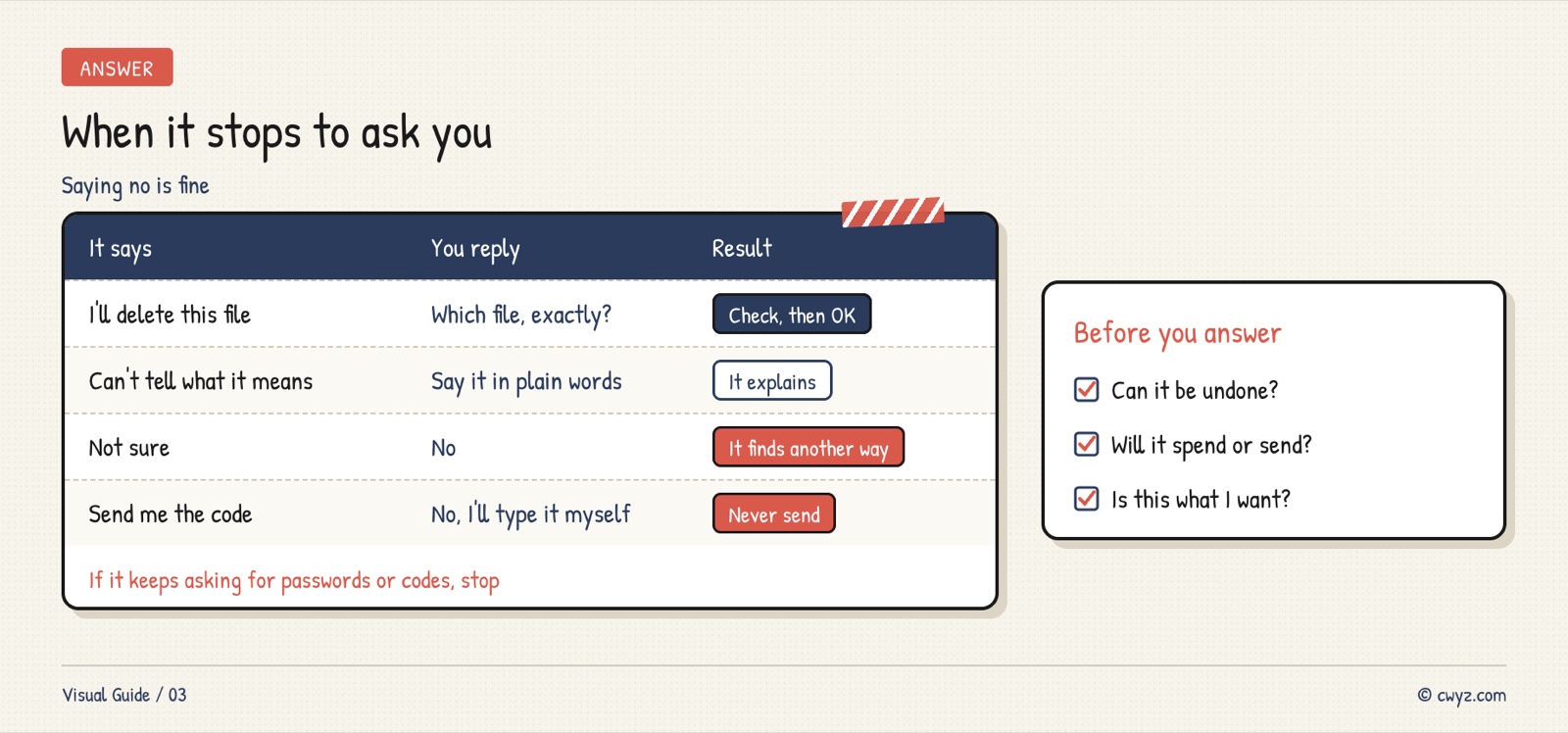
When it stops to ask, first look at what it wants to do, then decide. If you don't understand, just ask: "In plain language, what are you going to do? Can it be undone afterward?"
Saying "no" is completely fine. It won't get upset. It will try another way or wait for you. There's only one situation to watch for: if it keeps asking you to send your password or verification code into the chat, don't send it, no matter how it explains the request.
Notes
- The permission button sometimes goes back to its default in a new chat, so glance at the button next to the input box every time you start a new conversation
- "Always allow" means it won't ask about similar things again. Beginners should skip that for now
- Even with good rules, the AI can still miss something, so keep a separate backup of your important files
- If you switch to a different AI agent, send these rules again, because agents don't share memory with each other
References
- Codex security and permissions guide (OpenAI official docs)
- Antigravity permission modes (Google official docs)
- Claude Code permission settings (Anthropic official docs)
- Don't have an AI agent yet? Start from zero: install your first agent and let it do real work for you
- Want to see what you're still missing? Check your AI beginner level
Comments (0)
No comments yet. Start the conversation.