

What You Get
You install an AI agent, and AI goes from only answering questions to working on your computer. It can create files, organize your notes, and follow your instructions one step at a time. You can install the Claude desktop app, or install the ChatGPT desktop app and switch to Codex. If you don't want to install anything, use Meta Muse in the cloud. You don't need to know how to code. This article includes 2 prompts you can copy and paste right away.
Once you have an agent set up, learning new things gets much easier. Find something you want to do on this site, open the tutorial, and copy its prompt to your AI agent. It will build it step by step. Your job is to say what you want, answer its multiple-choice questions, and tell it what to change when the result isn't right.
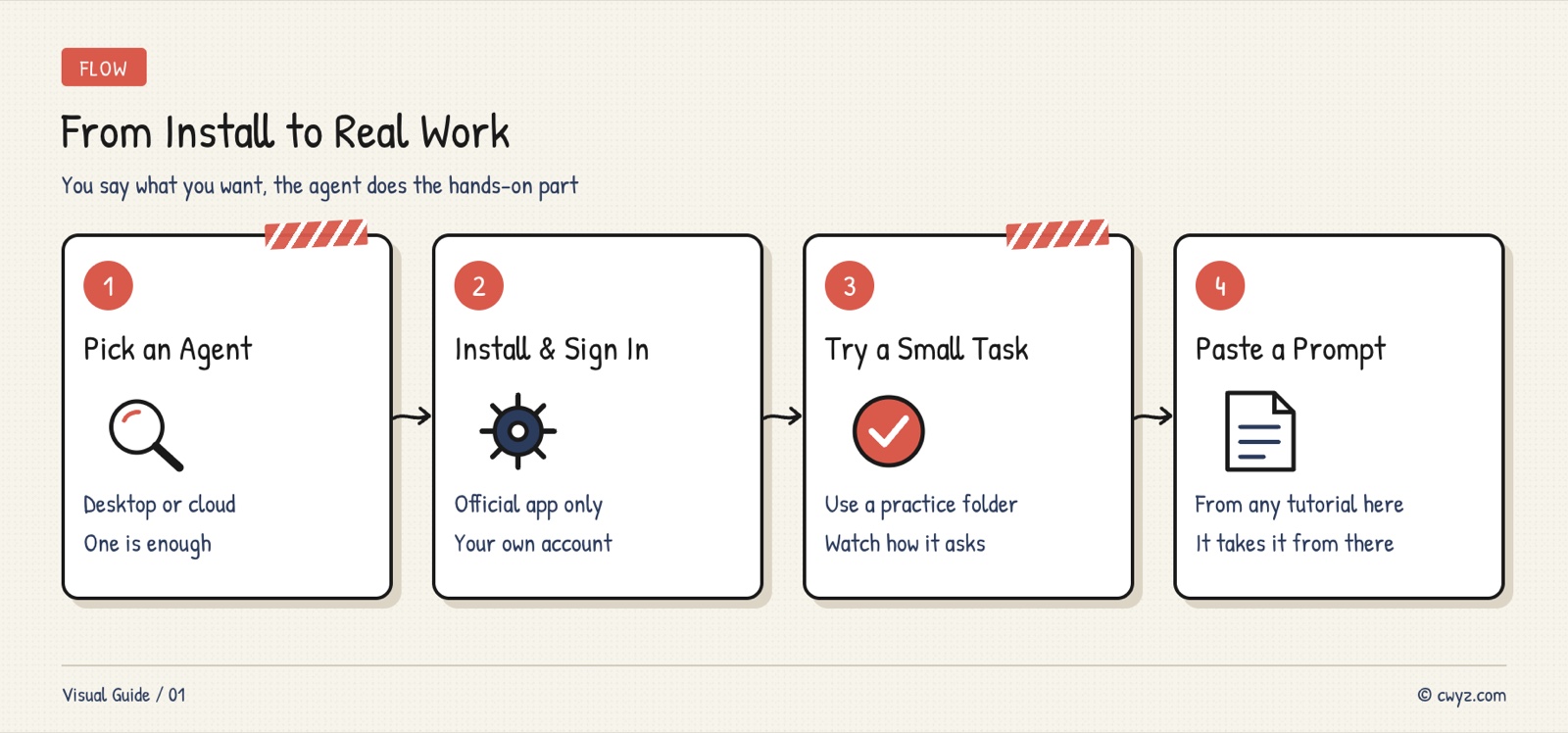
Pick an agent, install it, and log in. Then try a small task so you can see how it asks you questions. After that, you can use the prompts in this site's tutorials to do real work.
What Makes an Agent Different From a Chatbot
A normal AI chat only gives you text, so you have to do the work yourself. An agent has hands. It can open a folder you choose, read the files in it, create and edit files, run programs when needed, look things up online, and then tell you the result.
When you're just starting, keep these three points in mind:
- It asks first: Before it edits files, installs software, or goes online, it stops and waits for your OK by default. If you're new, don't turn these checks off.
- It only works where you point it: In the desktop app, you choose a folder, and it mainly works inside that folder.
- It uses your subscription quota: Each service has usage limits. Complex tasks use up the quota faster, and you have to wait for it to refill.
Step 1: Pick One of the Three Options
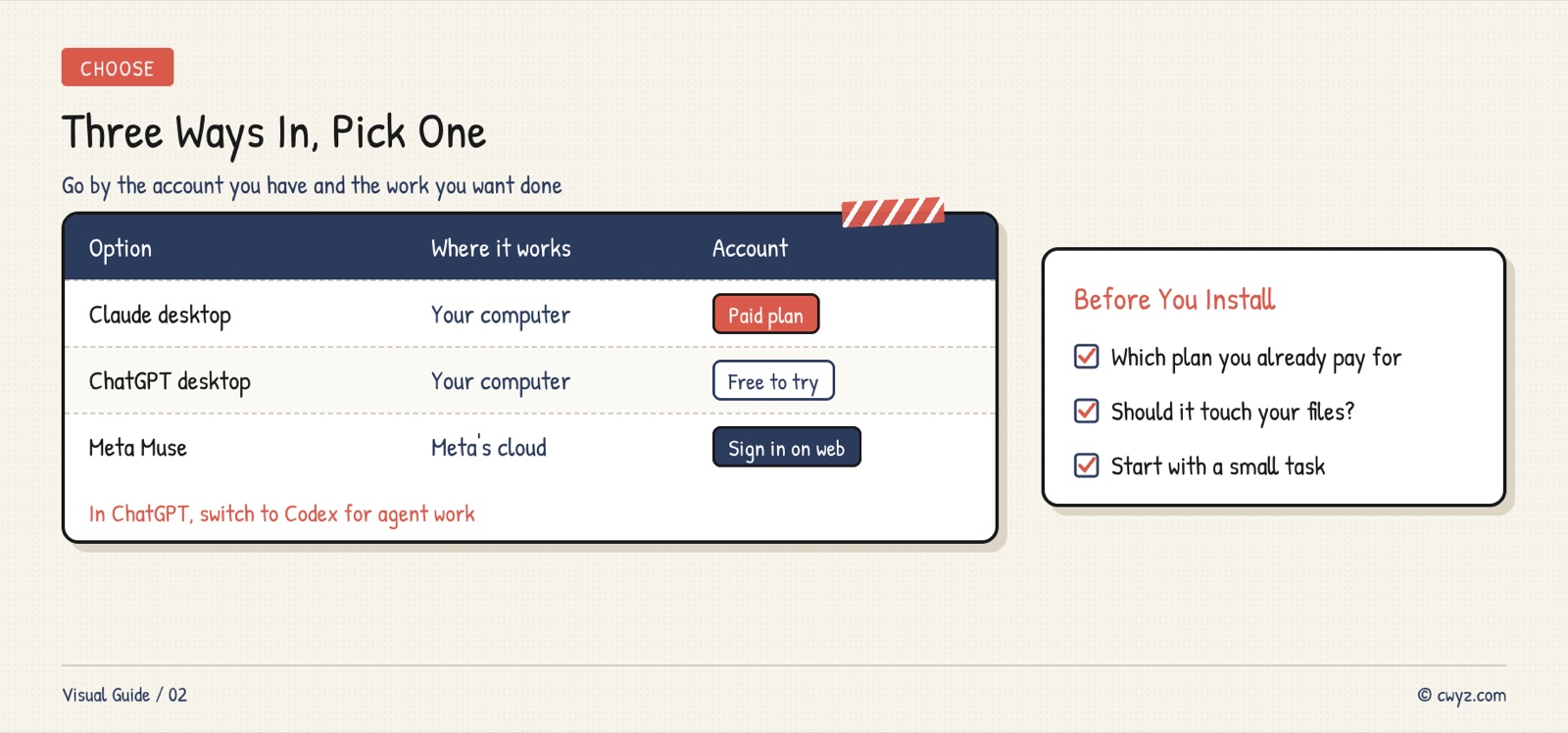
You don't need to install all three. If you already pay for one of them, start with that one. If you don't want to spend any money, try Codex in the ChatGPT desktop app first. If you don't want to install anything on your computer, use Meta Muse.
If you're not sure, install a desktop app. Most tutorials on this site install tools and work with files on your own computer, and only a desktop agent can do that.
Step 2: Install the Claude Desktop App
- Go to the Claude download page at claude.com/download and download the version for your system. Mac and Windows are available. Linux is in beta for now.
- Open the app after installing it, and log in with your Claude account.
- In the sidebar, the top section has a Code tab. Click it. If you see an upgrade prompt, you need a paid subscription (Pro or higher) first. A free account can only use chat.
- In the row below the input box, set the environment to Local (it runs on your own computer). Then click the folder button next to it, choose Open folder…, and pick a folder.
- In the same row, there is a permission mode. Beginners should choose Manual. It asks you before every file change and every command.
We suggest creating a new empty folder called "agent-practice" and using it only for the agent. Don't point it at a folder with important files on your first try.
The Claude desktop app also has a Cowork tab. It's better for organizing documents and making spreadsheets, which don't involve coding. It also requires a paid subscription, and the app has to stay open while it works. The tutorials on this site use Code by default.
Step 3: Install the ChatGPT Desktop App and Switch to Codex
- Go to the ChatGPT download page at chatgpt.com/download and download the desktop app. Mac and Windows are available.
- Open the app after installing it, and sign in with the same account you use for ChatGPT.
- The app has two entries: ChatGPT and Codex. Choose Codex. If you stay in regular ChatGPT chat, it only answers questions.
- Click New chat to start a new conversation. Open a folder. Again, use a dedicated practice folder.
- Below the input box, there are permission settings. Choose Ask for approval first. OpenAI also recommends starting with this for most tasks. Full access lets it change any file on your computer, so beginners should not choose it.
According to OpenAI's pricing page, Codex is also included in the free account. The free quota is small, so it's good for getting a feel for it. Paid plans have much larger quotas.
Step 4: Don't Want to Install Anything? Use Meta Muse in the Cloud
Meta Muse runs on Meta's cloud servers. Open the website or the mobile app, log in with your Meta account, and you can start using it. You don't need to install anything on your computer. It can look things up online, fill in forms for you, and generate images and videos. If you connect an account like Gmail or Google Calendar, it can also help you handle email and your schedule.
Before you use it, open Settings → Permissions, and set the default rules for web access and connectors to ask you every time. Muse also has a Chrome extension that works in your own browser. For how to use it and what to watch out for, read this news post.
Keep in mind that Muse cannot access the files on your computer. If a tutorial asks you to install tools or work with local files on your machine, you still need a desktop app. Tutorials written especially for Muse, such as Build a Pose Prompt Library in Muse Spaces, work fine in Muse.
Step 5: Give It a Small Task First
After you set up an agent, don't start with a big job. Send your AI agent the message below. It shows you how the agent communicates with you, and it also checks that everything works.
I'm new to AI agents. Please help me with a simple first-time test:

1. In plain words, tell me: which folder can you see right now, what can you do in it, and which things will you ask me about before doing them
2. In the current folder, create a file called "first-test.txt" with today's date and one line: "Hello, Agent"
3. Then create "my-todo.txt". Ask me three things I want to do this week, and write my answers into it
4. When you're done, tell me where both files are and how to open them to look

Don't install any software, and don't touch anything outside this folder. If you're unsure about something, ask me with multiple-choice questions.
When it's done, open both files in the folder and take a look. If you can see the files and the content is right, your AI agent can now take actions for you.
If you're using Muse, replace steps 2 and 3 with "write the results directly in the chat."
Step 6: Find a Tutorial on This Site and Give Its Prompt to Your Agent
This is the part you'll use every day. Tutorials on this site are written around "give the prompt to your AI agent."
- Find something you want to do on this site, such as using an AI agent to make an explainer animation video or using an AI agent to upscale an AI video to HD.
- Read the tutorial from top to bottom so you know the general steps and which accounts you need.
- When you reach a prompt code block, click the copy button in its top-right corner, paste it into your AI agent, and send it.
- Before it installs anything or spends money, it will ask you. Read the question carefully before you agree. When it asks a multiple-choice question, just pick one.
- If you don't like the result, say in plain words what to change. You don't need to edit it yourself.
Before you follow your first tutorial, send the message below to your agent. After that, every time you paste a tutorial prompt, it will follow these rules.
Sign in to unlock this key section
New accounts get 10 free credits, plus 1 more each day you sign in (none on days you don't). Spend 1 credit to unlock and it stays open for you.
We set these rules first because each tutorial prompt is written on its own, and some don't say "ask me first." With the rules set in advance, the agent stops at every step for your confirmation, so it's harder for it to run all the way through without you.
Notes
- Your subscription quota runs out: Big jobs like installing software or making videos use a lot of quota. Once it runs out, it can take a few hours to a week to refill, depending on your plan.
- Start with strict permissions: Until you're comfortable, don't turn on options like Full access that allow everything. Watch what it does at each step, and only loosen the permissions slowly.
- Don't give it important files: Use the practice folder first. Before you work with work files, make a backup copy.
- It makes mistakes: For actions like payments, sending emails, or deleting files, check the result yourself again.
References
- Claude desktop app download
- Getting started with the Claude Code desktop app (official docs)
- ChatGPT desktop app download
- ChatGPT desktop app guide (official docs)
- Codex permission modes (official docs)
- Codex pricing and plans
- How Muse handles tasks online (Meta Help Center)
To learn what an agent is first, read the Agent handbook.
Comments (0)
No comments yet. Start the conversation.