

What You Get
Ask an AI agent to build a web page and you often get that familiar "AI look": purple gradients, big rounded cards, and every page starts to feel the same. Once you install the free, open-source Awesome Design HTML, you can say "make it feel like Stripe" or "go with Linear's dark style." Your AI agent then opens a real brand's sample page and copies its colors, fonts, corner radius, and button shapes. This guide includes three prompts you can copy.
The key point: You borrow the style, not the identity. Swap in your own name and logo, write your own copy, and you get a page with real design taste that doesn't look like a template.
Why Showing Your AI Agent a Sample Beats Just Describing It
If you only tell your AI agent "make it look like some brand," it has to guess from memory. The colors come out a bit off, the buttons are a bit too round, and the whole page just doesn't feel right. This project makes one web file for each brand that opens right in your browser. The top half is a sample page in that brand's style. The bottom half lists the settings one by one: colors, font sizes, corner radius, buttons and cards. Your AI agent reads this same file, so the values it uses match what you see in the gallery.
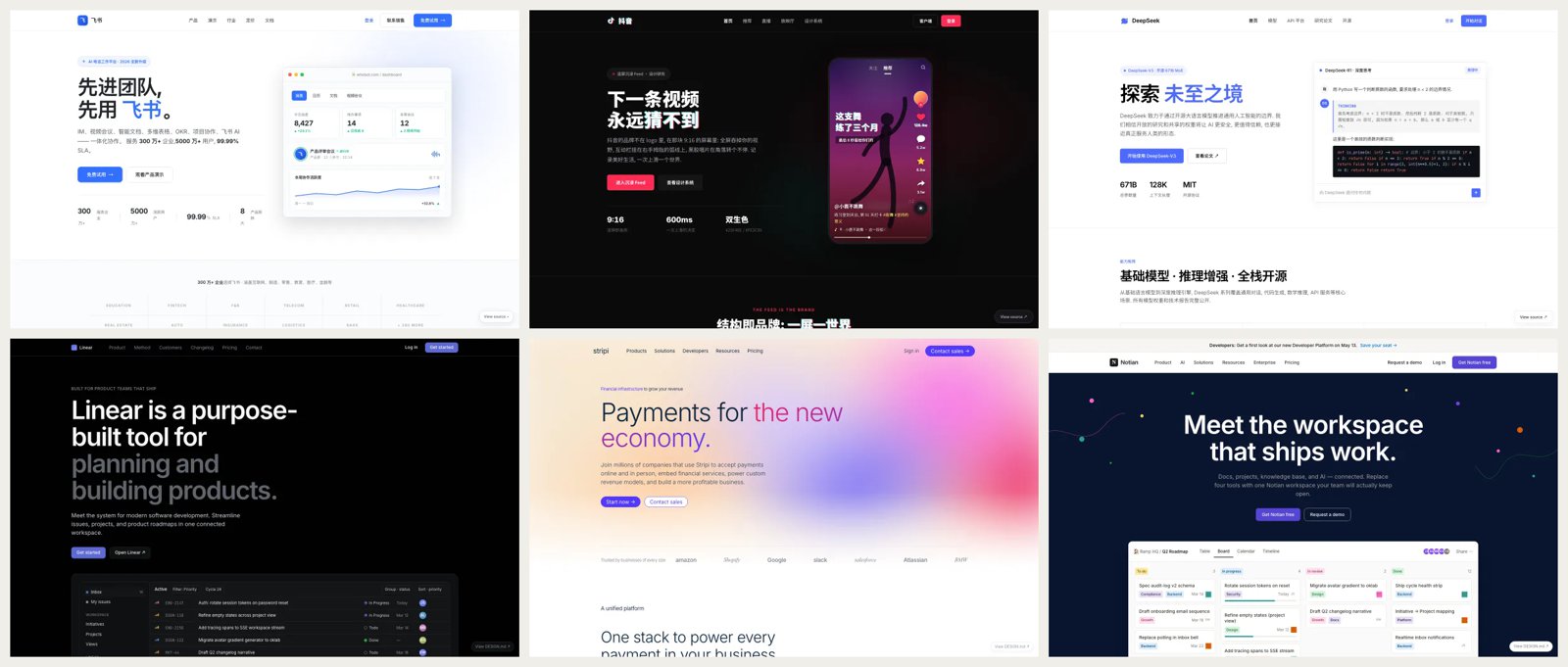
Image from the Awesome Design HTML GitHub repository.
According to the author, there are 118 samples right now:
- Web pages: 95 samples. They cover 22 Chinese brands, including Feishu, Douyin, Doubao, Alipay, WeChat, DeepSeek, Kimi, Xiaomi EV, Bilibili, and Xiaohongshu. They also include popular reference brands like Stripe, Linear, Notion, Apple, and Tesla.
- Mobile app screens: 22 iPhone mockups, including Spotify, Instagram, Duolingo, and ChatGPT.
- Chinese traditional colors: a Chinese traditional colors chart with 700+ named colors. Click once to copy the hex code, which is handy for Chinese-style palettes.
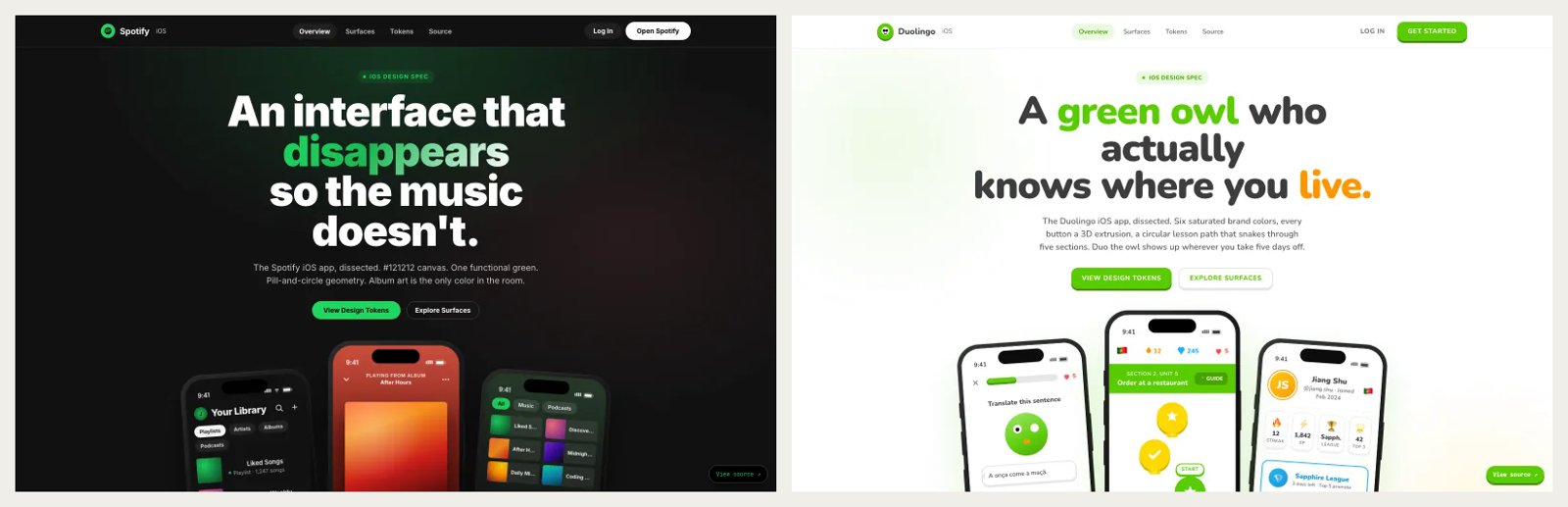
Image from the Awesome Design HTML GitHub repository.
Step 1: Pick a Style in the Gallery
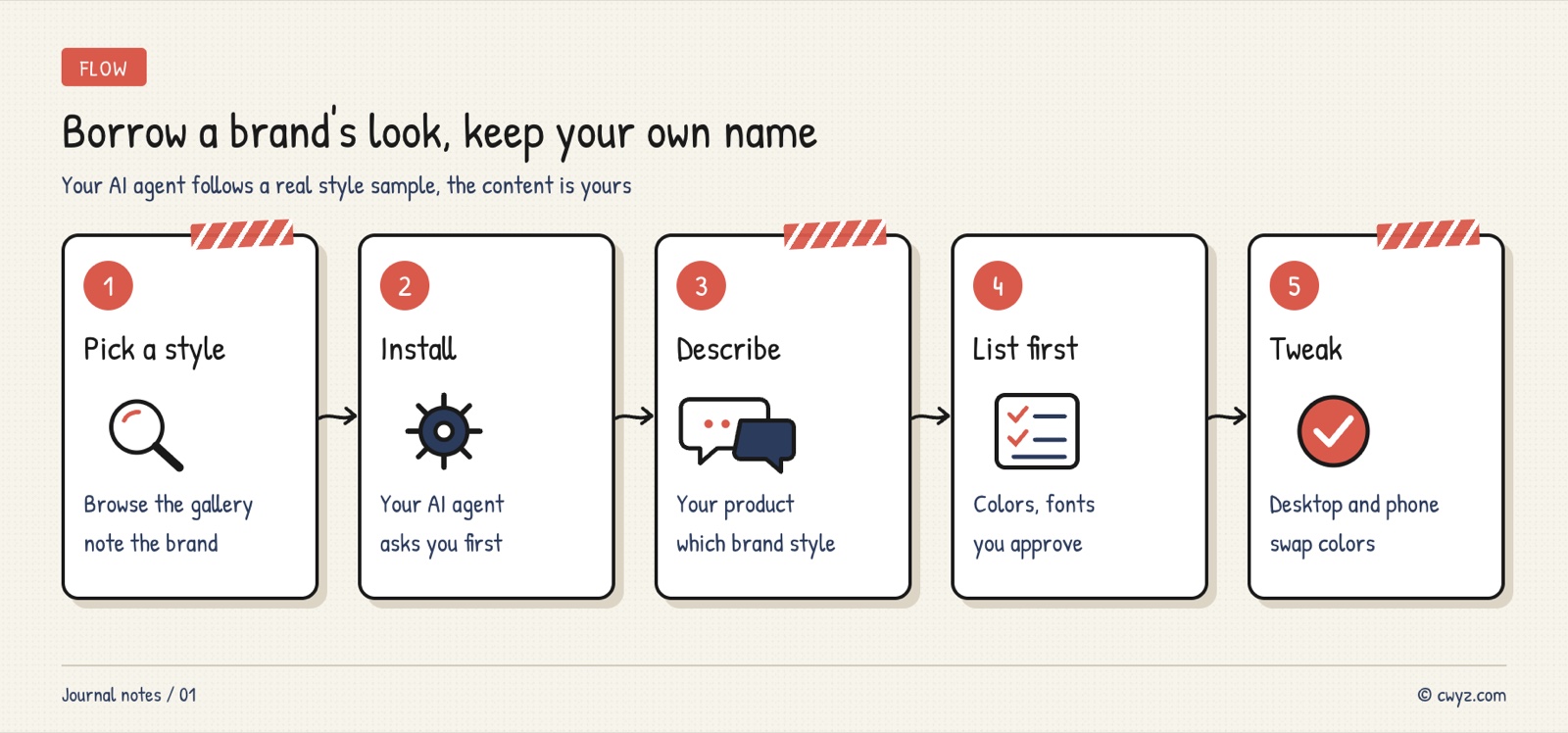
Open the author's online gallery, click into a few brands you like, and note their names. As you browse, think about two things. Who will see your page (young users, business clients, or developers)? Do you want a light or dark look? For a product intro page, pick a web sample. For a sketch of a mobile app screen, pick an iOS sample.
Step 2: Have Your AI Agent Install It
Please install the Awesome Design HTML skill (a library of web page samples in brand styles, repository: https://github.com/yzfly/awesome-design-html).
1. First read the repo's README and SKILL.md, and tell me in plain words which folder it will install to and roughly how big it is.
2. Install it to wherever you keep skills (for Claude Code, that's ~/.claude/skills/). Wait for my approval before installing.
3. After it's installed, confirm you can find the Linear and Stripe sample files, and tell me how many samples there are in total.
4. Stop when done and wait for me to tell you what page to build.
It's just a set of web files. No account or API key is needed. Once it's installed, mention a brand name plus words like "style," "page," or "interface" in your chat, and your AI agent will look up the matching sample on its own.
Step 3: Describe Your Page and Name the Brand
Sign in to unlock this key section
New accounts get 10 free credits, plus 1 more each day you sign in (none on days you don't). Spend 1 credit to unlock and it stays open for you.
The first requirement makes your AI agent show what it plans to borrow, so you can tell at a glance whether it read the sample correctly. The second one matters most. Copying another company's logo and name can mean infringement, and the page can easily be mistaken for a fake.
Step 4: Check the Screenshots and Tweak
When you get the screenshots, just say what's wrong. You can send several common fixes in one message:
Make these changes to the page we just built:
1. [Change the primary color to my brand color #1F6FEB, and adjust the other colors to match]
2. [Change the buttons from rounded to square corners, closer to Linear's restrained feel]
3. [Then, based on the Spotify iOS sample, draw a phone home screen wireframe for this product]
After the changes, retake the desktop and phone-width screenshots, and tell me which design parameters changed this time.
Want a different feel? Ask for another brand sample, build a second version, and put the two side by side. Don't mix three or four brand styles on one page. It ends up looking like no style at all.
Things to Know
- Borrow the style, not the identity: Don't put another company's name, logo, slogan, or product images on your page. Don't make it look like an official page either.
- The values are a reference, not an official spec: The author compiled the colors and font sizes from public designs. Most web samples come from another open-source project, awesome-design-md. When you deliver a brand page to a client, follow the brand's official design guide.
- Brands not on the list are unknown to it: If the brand you name isn't in the samples, have your AI agent tell you "no sample found," then pick a similar style. Don't let it guess from memory.
- Fonts come from Google Fonts: The sample pages load fonts from the web and fall back to system fonts if that fails. Before you launch, have your AI agent switch to fonts you host yourself.
- Want your AI agent to draft the interface design before it writes code? Read Google's Own Skills Let Your AI Agent Design Screens From a Single Sentence.
Comments (0)
No comments yet. Start the conversation.