

Let Your AI Agent Browse the Web and Read Your Email
What You Get
Your AI agent can only chat with you in a chat box. That limits what it can do. Connect it to a browser, and it can open web pages, look things up, and fill in forms. Connect it to an account like Gmail or Calendar, and it can read your email and sort out your schedule. This tutorial shows you the difference between these two setups. It also shows you how to connect the first one, and how to lock down its permissions from the start so you can take them back anytime.
Start read-only with manual approval. Loosen things up once you feel comfortable.
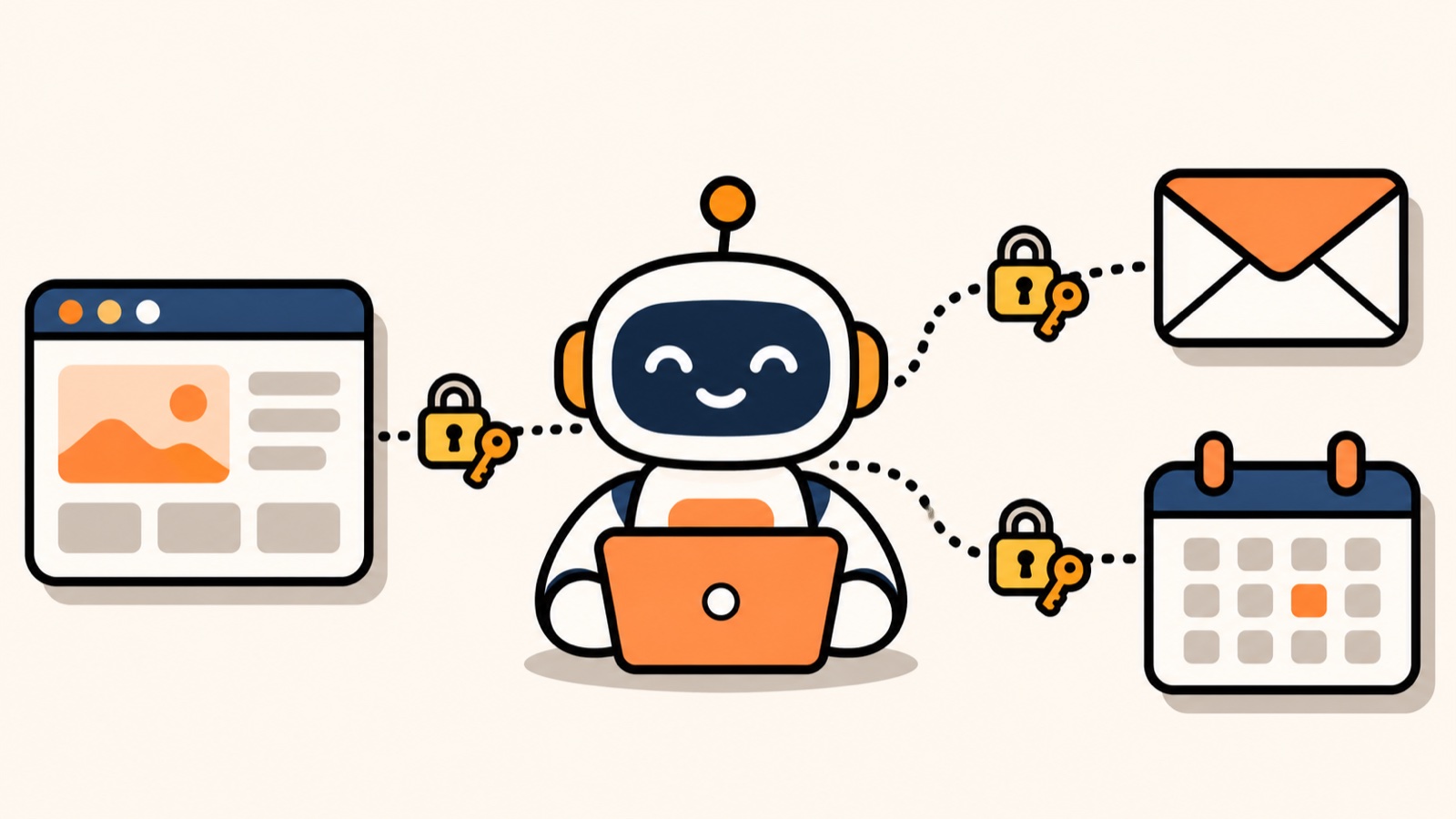
This illustration was made with AI. It is not a real screenshot of any app.
Two Ways to Connect
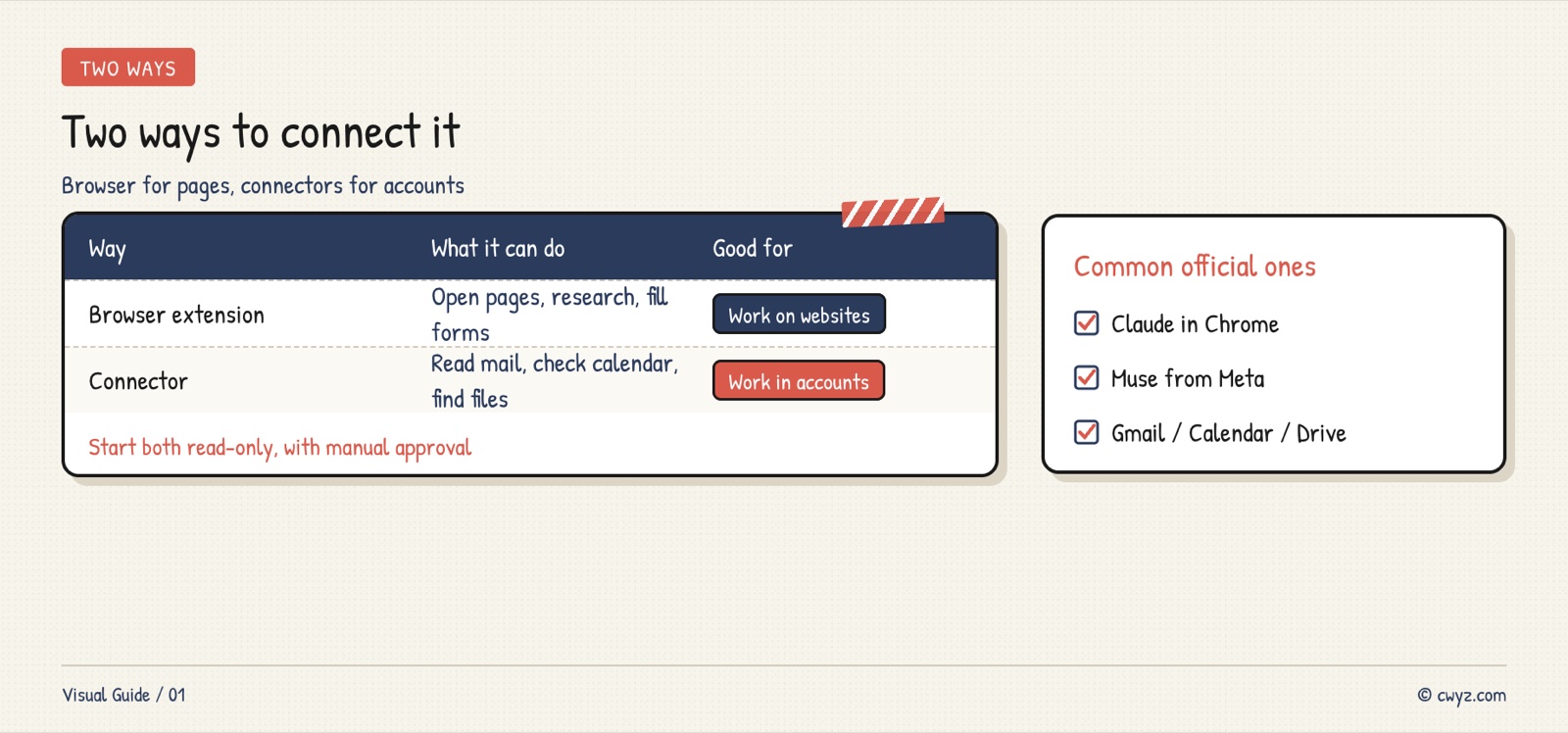
Connect the Browser
Each major AI company offers an official browser extension. Examples include Claude in Chrome from Anthropic and Muse from Meta. Setup is much the same for all of them. Install the official extension from the Chrome Web Store. Sign in with your paid account. Then click the icon in the top-right corner of your browser to open the side panel. From there, your AI agent works next to the page you are looking at:
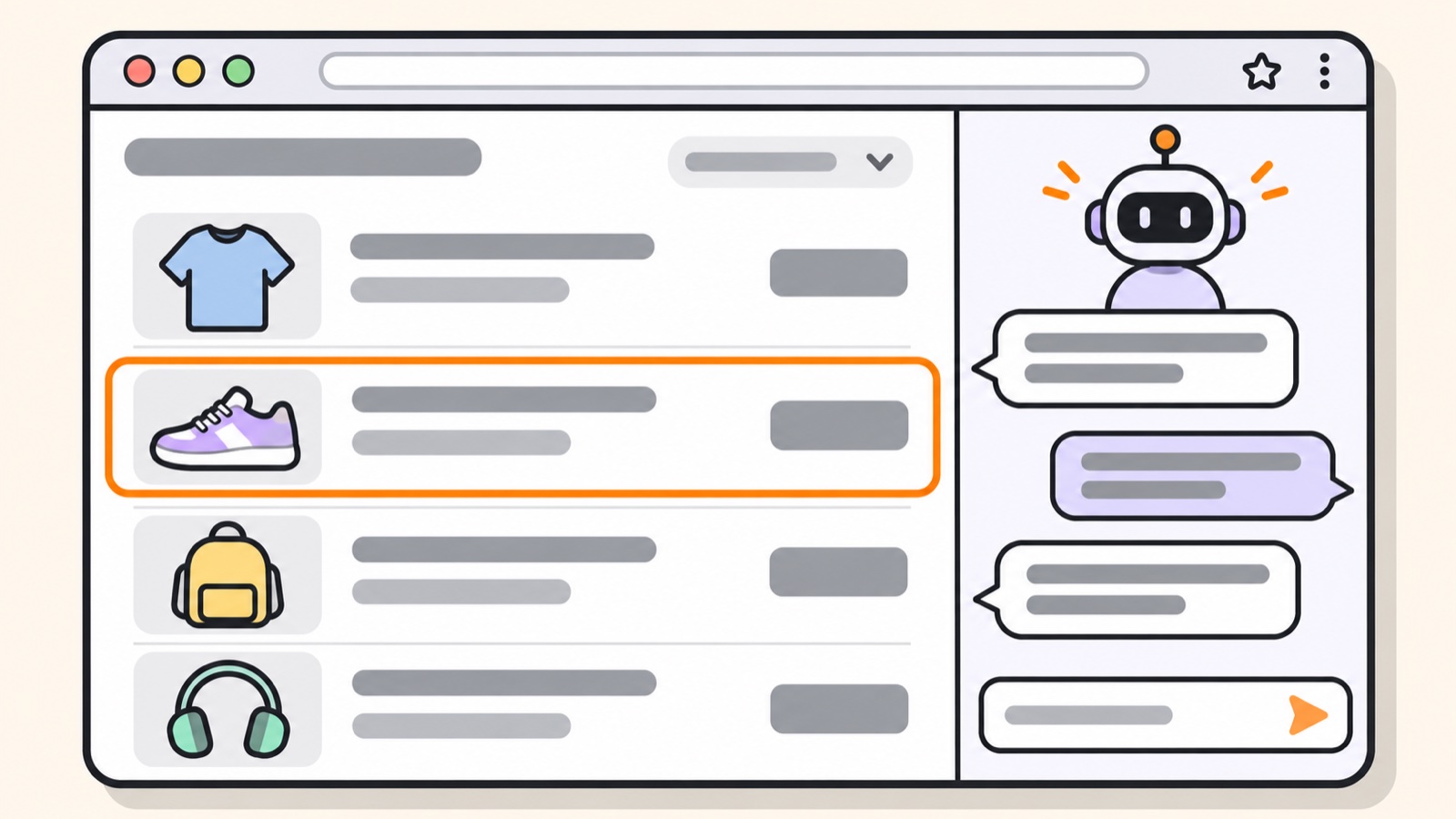
This illustration was redrawn from screenshots in online tutorials.
Change one setting before your first use. Next to the input box in the side panel, there is a permission menu. Some extensions default to "Automatically approve." If you are new, switch it to "Manually approve." Then your agent stops and asks you before every step:
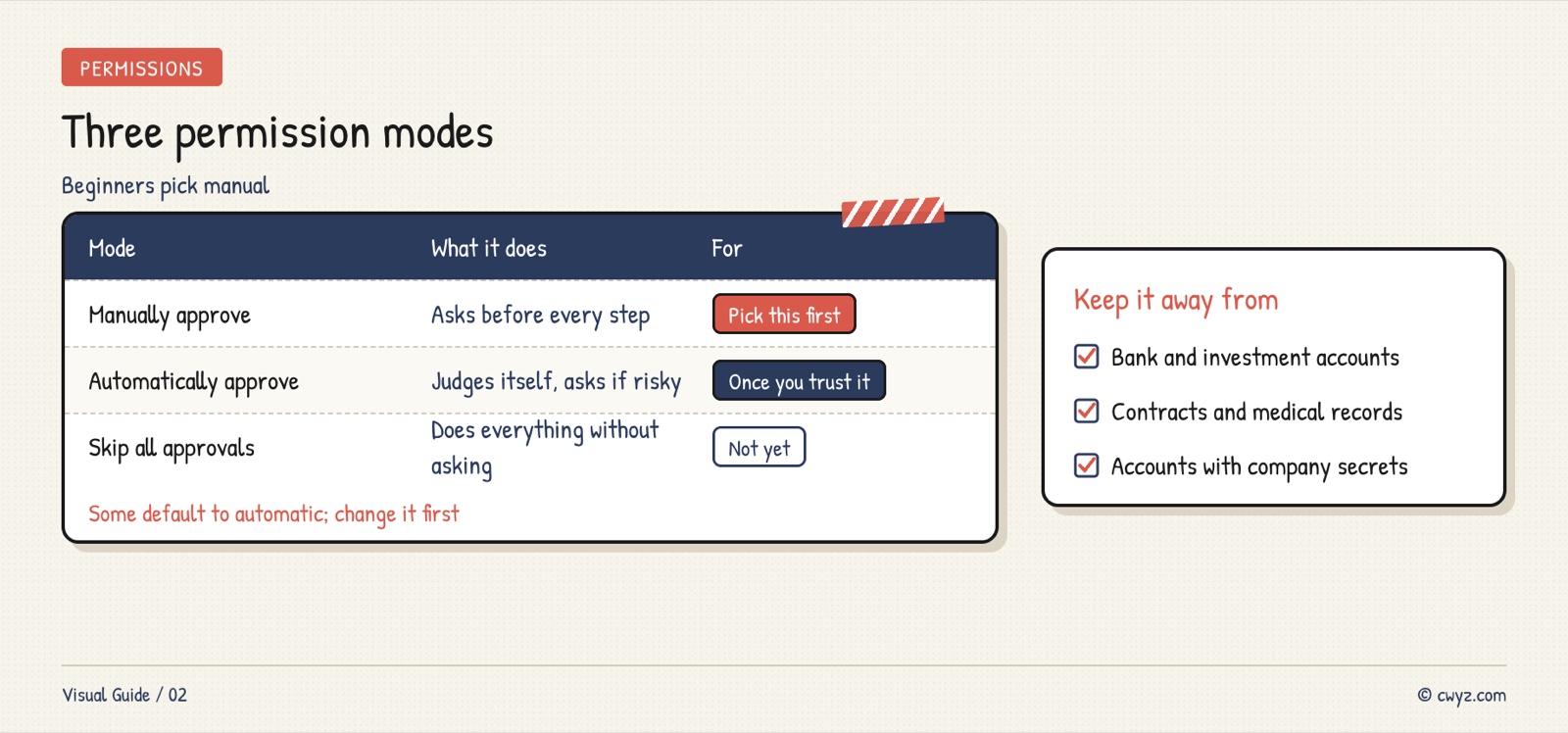
Know where it should stay out, too. The official guidance says not to let it touch bank and investment accounts, contracts, medical records, or work accounts that hold company secrets. Claude in Chrome refuses to place orders or make payments on its own. Those steps are yours to click.
Connect Your Email and Calendar
Connectors live in the settings. With Claude, the path is Settings → Connectors. Find Gmail and click Connect. You will land on a Google sign-in page. Confirm the access there:
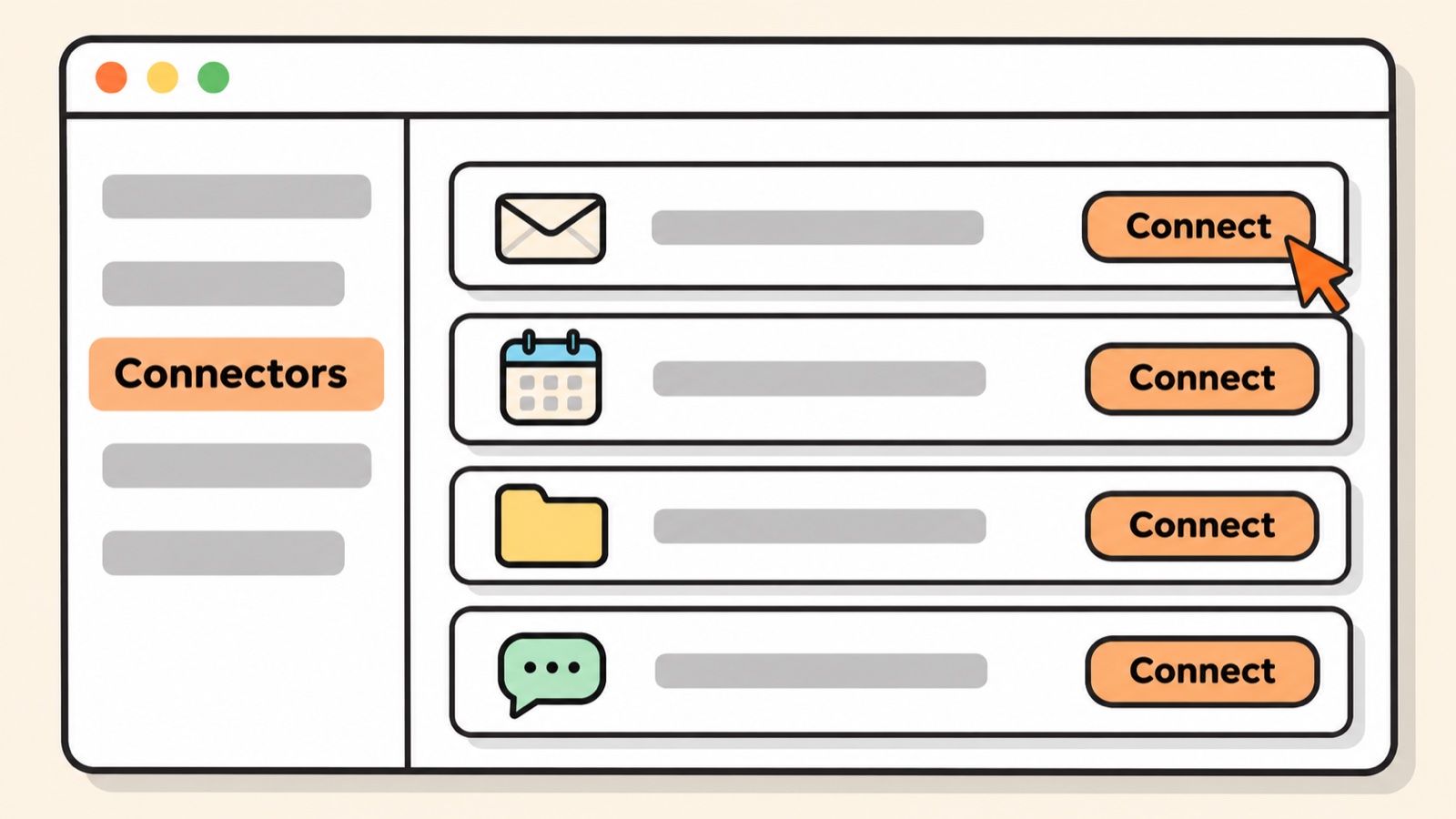
This illustration was redrawn from screenshots in online tutorials. Each app puts things in different places and uses different names. In ChatGPT, it's under Apps. Meta Muse also calls them Connectors. For details, see Have Meta Muse Read Your Gmail and Send You Summaries.
Once connected, your agent can find emails, summarize them, and draft replies. Whether it can send them for you depends on the permission you choose. If you are new, pick "ask me before every email." Or let it save drafts only, and press send yourself.
Connect and Test with One Paragraph
Send the paragraph below to your AI agent. It walks you through the connection for the app you use. Then it runs one test in the safest way:
Sign in to unlock this key section
New accounts get 10 free credits, plus 1 more for each daily check-in. Spend 1 credit to unlock and it stays open for you.
Don't skip that last question. Knowing how to undo a connection makes it feel less risky.
How to Disconnect
Go back to the same Connectors page and click Disconnect. To remove access completely, go to your Google Account. Open Security → Third-party apps & services. Find the app and remove its access there.
Notes
- A browser extension can see every web page you open. Before you let it work, close tabs that are unrelated or private.
- Hidden text on a web page can also try to give your agent orders. If it suddenly tries to do something you never asked for, refuse.
- Having your agent work on web pages uses more of your usage limit than a normal chat. Estimate the cost before you start a big task.
- Connections sometimes expire. When your agent asks you to reconnect, you still do the authorization yourself.
References
- Getting Started with Claude in Chrome (Anthropic Help Center)
- Gmail and Google Calendar Connectors (Anthropic Help Center)
- Meta's browser extension: Meta Muse Can Now Drive Your Own Chrome
- Set safety rules first: Stop Your AI Agent From Spending or Deleting Without Asking
- See what you still need to learn: Check Your AI Starting Level
Comments (0)
No comments yet. Start the conversation.