

What You'll Get
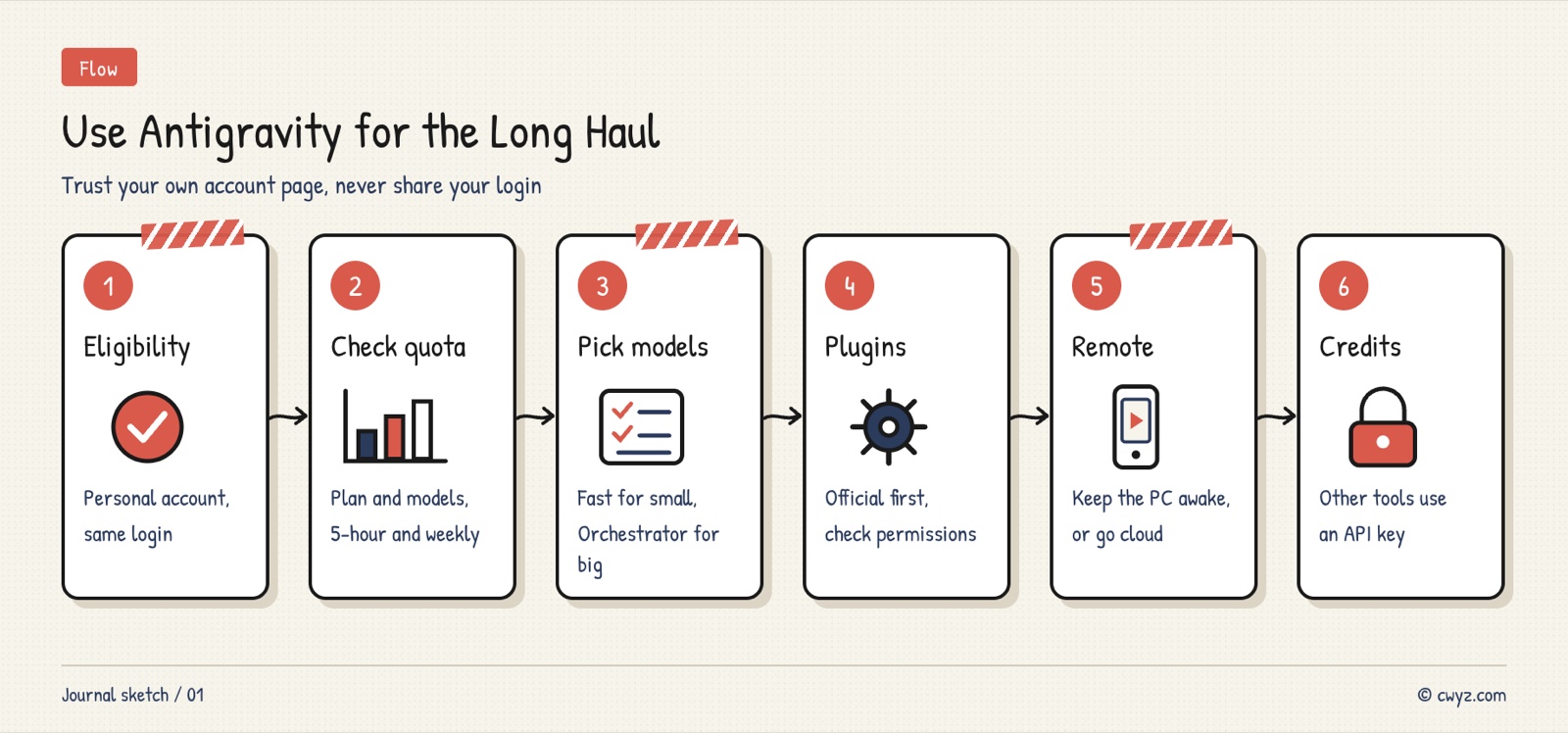
This tutorial covers how to keep Antigravity working reliably over the long run. First, confirm that your account qualifies. Then check which models your plan includes and pick the cheapest one that fits each job. After that, we cover how to choose third-party plugins, how to keep managing tasks from your phone when you're away from your computer, and how to claim the Google Cloud credit that comes with your membership and use it in other tools. Last, we cover the one thing most likely to get your account suspended. The article includes 4 copy-ready prompts you can send straight to the agent inside Antigravity.
Keep one thing in mind: quotas and benefits are whatever your own account shows. Don't compare them with someone else's screenshots. Plans, models and prices change by region and over time. If you see something different from this article, the official pages are the final word.
If you haven't installed Antigravity or changed the basic settings yet, read Get Comfortable With Antigravity by Changing a Few Settings First first, then come back to this one.
Step 1: Confirm Your Account Can Use Antigravity
When you sign in, Antigravity checks three things: your account type, your region and your age. You need a personal Google account. A Google Workspace account from your company or school doesn't come with Antigravity plan quotas. You also need to be in a region where Antigravity is officially available, be at least 18 years old, and have completed age verification on your account.
If you see Eligibility check failed or Unable to Access Antigravity after signing in, one of those three conditions isn't met. Check them one at a time. Don't keep editing your profile details, because repeated changes are more likely to draw the system's attention.
There's also a common trap: the account you subscribe with on the web must be the same account you're signed into in the app. If you bought Pro with account A but the app is signed in as account B, you'll only see the free-tier models.
Step 2: Check Your Plan, Models and Quotas
After you install the desktop app (download it from antigravity.google) and sign in, do three things:
- Open Settings and check that your plan status matches the tier you bought.
- Open the model picker below the chat box and see which models you can actually select.
- Click View Usage to see two kinds of quota: the one that refreshes every five hours, and the weekly cap.
According to the official docs, the tiers look roughly like this (your account's display is the final word):
| Plan | Main models available | Quota |
|---|---|---|
| Free, Google AI Plus | Basic models such as Gemini 3.8 Flash | Refreshes weekly |
| Google AI Pro | Adds Gemini 4 Argon, Gemini 4 Hydrogen and Orchestrator (Argon). Paid plans also get Claude Sonnet 5.5 and Opus 5.5 | Refreshes every five hours, until you hit the weekly cap |
| Google AI Ultra | All Gemini 4 models, both Orchestrators, and Claude models | Highest, refreshes every five hours |
A few details: the Pro trial can't use the Claude 5.5 series or Hydrogen, so you need to switch to a paid plan first. When Pro or Ultra runs out of base quota, you can choose whether to automatically spend purchased AI credits. Set this to Never first so you don't spend money without noticing.
Step 3: Choose the Model for Each Job
Stronger models burn through quota faster. Sort your typical work into three tiers:
- Small edits and quick questions: use Gemini 3.8 Flash or Gemini 4 Hydrogen. They're fast and cheap.
- Complex architecture and stubborn bugs: use Gemini 4 Carbon or Gemini 4 Argon.
- Large projects: use Orchestrator. It has Carbon or Argon read the project, make the plan and check the results, while the faster Hydrogen handles the actual code changes, builds and tests. That uses less quota than running everything on a large model.
If you prefer the way Claude writes code, pick Sonnet 5.5 or Opus 5.5, as long as your plan includes them.
You don't have to memorize these rules. Save them as a rule so Antigravity reminds you before each task starts:
Sign in to unlock this key section
New accounts get 10 free credits, plus 1 more each day you sign in (none on days you don't). Spend 1 credit to unlock and it stays open for you.
The point of this rule is to make you think before each task. The last line, "Do not switch models on your own," keeps the final decision in your hands. If your plan doesn't include a model, tell the agent to replace that tier with one you can use.
Step 4: Install Official Plugins First
Antigravity has an official plugin marketplace. In the desktop app, find it under Customizations → Marketplace. In the command line, type /plugin to open it. You can also enable, disable or uninstall installed plugins there.
Third-party plugins you find online, such as interface translators or small panels that show context or quota usage, need a close look before you install them. If you only want to see how much quota you have left, the built-in View Usage shows it at a glance, so there's no need to install anything extra. If you still want a plugin, have your agent check it first:
I want to install this third-party Antigravity plugin: [GitHub URL]. Don't install it yet. Check it first and tell me in plain language:
1. What permissions it needs, and whether it reads or uploads my sign-in information, tokens or conversation content;
2. Whether it connects to unknown servers;
3. When it was last updated, and whether anyone is maintaining it;
4. Whether Antigravity's built-in features can do what it does.
Finish with one line: recommend installing or not installing, and give your reason. Only install it after I approve.
Pay the most attention to the first point. Any plugin that touches your sign-in information can cause trouble for your account, for the reason explained in the last step.
Step 5: Leave the Computer and Keep Tasks Running from Your Phone
Big tasks can run for dozens of minutes, so Remote Control lets you walk away. In the desktop app, open Settings → Application, turn on Enable Remote Control, and optionally give this computer a name. Then open the official remote control page in your phone's browser, sign in with the same Google account and select this computer. From there you can check progress, send extra instructions and approve its plans. On your phone, you can add the page to your home screen, and you'll get a notification when a task finishes or needs your confirmation.
If you use the command-line version, have your agent set up a background connection that keeps running:
Turn on Remote Control for the Antigravity command line, running in the background (agy remote-control start).
After it starts, check the status and tell me whether it's online. Then tell me how to check the status later and how to turn it off.
Don't change my computer's sleep or power settings. If changes are needed, tell me what to change and I'll do it myself.
Remote Control runs on your own computer, so if the computer sleeps or loses its connection, the task stops. If you want tasks to keep running after you shut down, use Remote Agents. They run in a Google cloud environment (requires Pro or Ultra). The tradeoff is that they can't read files on your computer, so your code has to be somewhere they can reach.
Step 6: Claim Your Credit and Use an API Key for Other Tools
Pro and Ultra members get a monthly Google Cloud credit: $10 a month for Pro, and $40 to $100 a month for Ultra depending on the tier. See the benefits page for current amounts. To claim it, sign in to the Google Developer Program, find the monthly Google Cloud credit under My Benefits and claim it. Redeem it to your own Google Cloud billing account, then create an API key in AI Studio or in a Cloud project.
The credit can only be spent on Google Cloud services such as Vertex AI, Cloud Run and Firebase. It can't be cashed out, and it isn't a general-purpose Gemini API balance. It usually expires 12 months after it's issued.
Its biggest use is letting other tools use Gemini the proper way. When an agent like Cursor or DeepSeek Harness needs to call Gemini, give it this key:
Connect Gemini in [Cursor / DeepSeek Harness / other tool name] using the API key I created in AI Studio.
Requirements:
1. I'll paste the key into the tool's settings page or environment variables myself. Don't write the key into code, don't commit it to Git, and don't repeat it in the conversation.
2. Don't read, copy or forward the sign-in credentials for Antigravity or Gemini CLI, and don't use their sign-in state to call any model.
3. After it's connected, send one test message to confirm it's using the API key. Then tell me where in the Google Cloud console I can see how much this key has spent.
Requirement 2 is the red line covered in the next section.
The One Thing Most Likely to Get Your Account Suspended
Google's terms don't allow using Antigravity through third-party software. For example, you can't connect Antigravity's sign-in session (OAuth) to another agent so it can call models. Many people in the community have had their accounts suspended for this. The suspension often reaches beyond Antigravity: Gemini CLI can stop working too, and appeals can take a long time.
Avoid all of these:
- Disguising a tool as the official client;
- Forwarding your main account's sign-in session to another program;
- Rotating secondary accounts in your family group to dodge bans;
- Using a reverse proxy to share your subscription quota with other tools.
Any other tool that needs Gemini should use the API key from the previous step, or Vertex AI.
Notes
- Model lists change: the official site has announced that Claude Sonnet 4.6, Opus 4.6 and GPT-OSS 120B will be retired on November 18, 2026. If your workflow depends on them, switch in advance.
- Quota depends on the workload: the same request uses more quota when the task is more complex, so check View Usage before a big task.
- Auto-spend credits stay off: the setting that spends AI credits automatically once quota runs out defaults to "Never." Turn it on only temporarily, when you really need it.
- Install fewer third-party plugins: the more plugins you have, the harder problems are to track down. Never install a plugin that touches your sign-in information.
Comments (0)
No comments yet. Start the conversation.