

What You Get
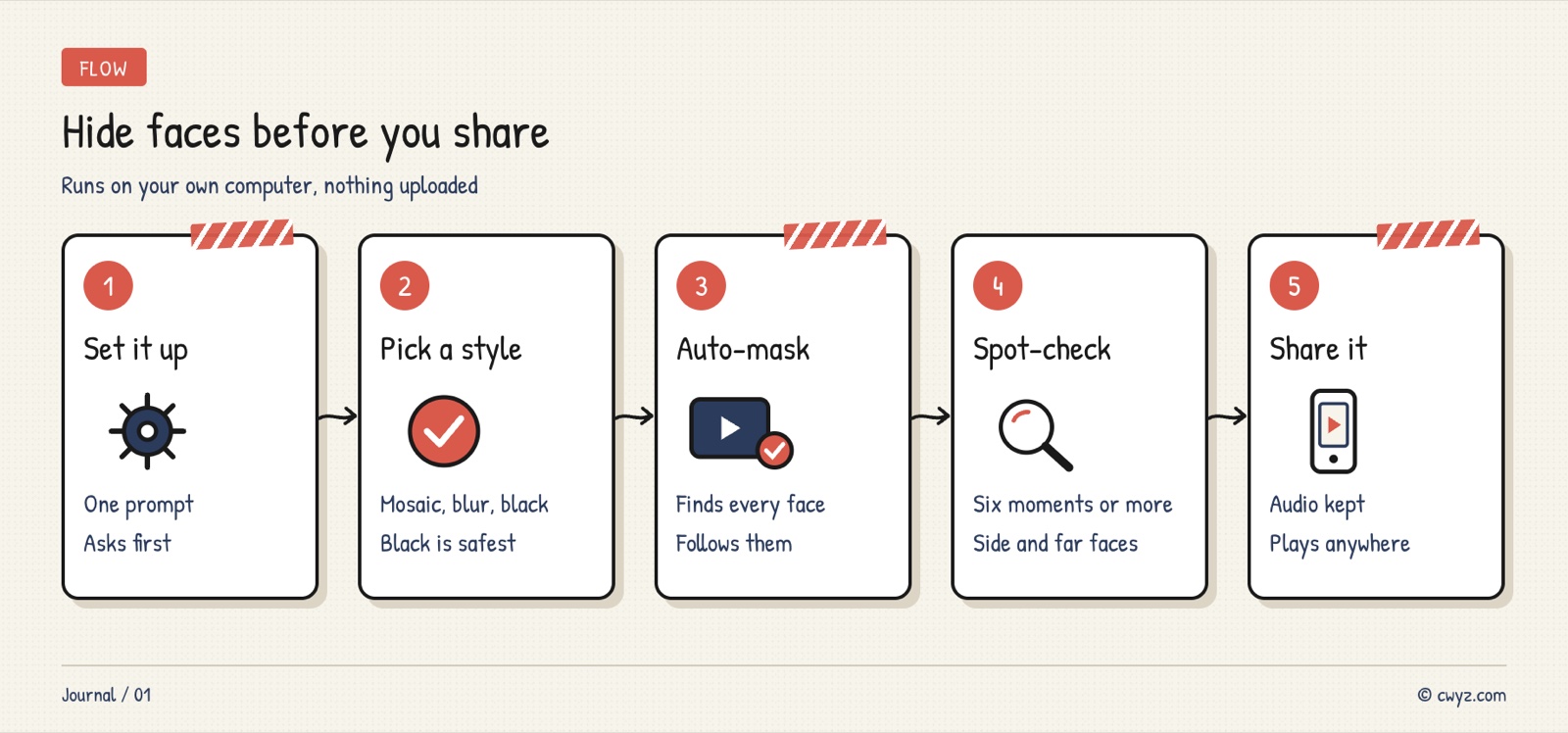
Got footage with bystanders', coworkers', or kids' faces that you want to hide before posting? Hand it to your AI agent. It finds every face frame by frame on your own computer, follows each person as they move, and adds a mosaic, blur, or solid black mask. Sound and motion are kept, and the output plays directly on phones, Telegram, and common video players. Nothing is uploaded, and it is free. You can also keep yourself or the lead visible and mask only others: you choose who stays visible, and everyone else is masked by default. The article includes four prompts you can copy directly.
This uses the video-face-anonymizer Skill we published (a professional instruction manual written for AI agents). It hides the vast majority of faces, but it does not guarantee 100%, so always spot-check at the final step.
Choose the Cover Style and Detection Method First
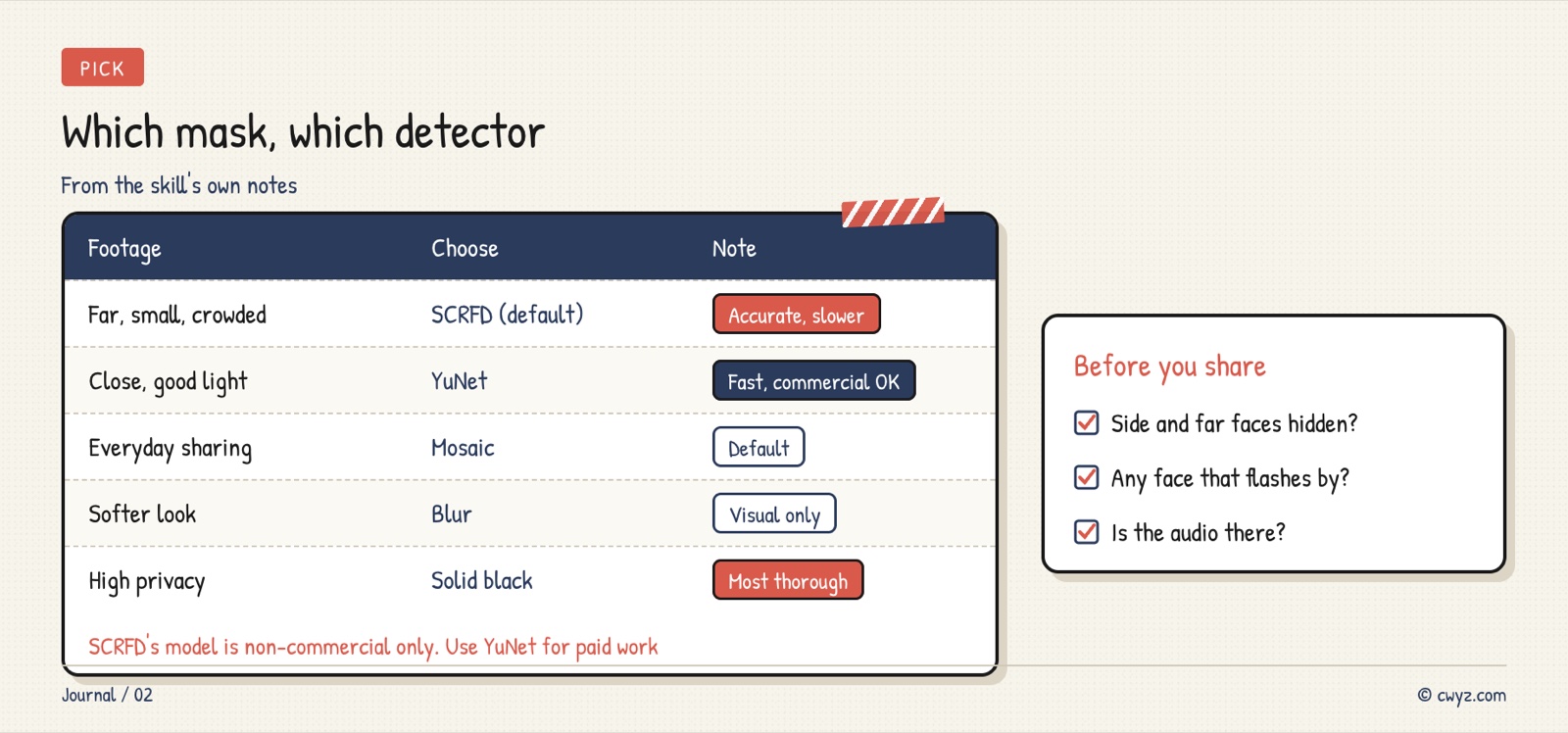
- Cover style: Mosaic is the default. Use blur for a softer look. For children, witnesses, or anyone who does not want to be seen, use a solid black mask, which hides the most. Mosaic and blur only make faces hard to see; they are not encryption.
- Detection method: The default SCRFD is more accurate on small distant faces, side profiles, low light, and crowded scenes, but it is slower on an ordinary computer. For close-up or mid-range videos with good lighting, switch to YuNet, which is much faster.
- Commercial use: The model behind the default SCRFD is licensed for non-commercial research only. For client work or commercial projects, have your AI agent switch to YuNet (MIT license).
Step 1: Let Your AI Agent Install It
Please install this Skill: https://cwyz.com/api/skills/video-face-anonymizer/raw
1. Read the full text first, and tell me in plain language what it will install, which models it will download, and roughly how big they are.
2. Check whether Python and ffmpeg are on my computer. If anything is missing, tell me first and wait for my approval before installing.
3. Save face_mosaic.py from the Skill into the folder I approve.
4. After it is installed, tell me, and I will hand you the video next.
The first time you use the default detection method, it automatically downloads a model of about 275 MB. We mention it up front so you don't think it has frozen.
Step 2: Hand It the Blurring Job
Sign in to unlock this key section
New accounts get 10 free credits, plus 1 more each day you sign in (none on days you don't). Spend 1 credit to unlock and it stays open for you.
Item 4 says whether the video is for commercial use, so your AI agent can pick the right model. Item 5 has it check the format and audio itself first, so you won't find out there is no sound only after publishing.
Step 3: Spot-Check to Make Sure No Face Was Missed
Automatic detection always misses some faces: a face that flashes by, a head turned away for a moment, a person far in the background. Before you publish, have your AI agent send you screenshots:
Compare the original video with the blurred video. Send me side-by-side screenshots at no fewer than 6 time points. They must include:
- The first appearance of each important person
- The closest and the farthest faces
- Side profiles, head tilts, and moments when something blocks a face and then it reappears
- The beginning, middle, and end
If any screenshot still shows a recognizable face, tell me the exact second it happens. Then enlarge the detection size or the mask area, or rerun with frame tracking kept on, switch to a solid black mask if needed, and show me again.
Side-by-side screenshots are the most reliable check. A moving video only shows that it is not a still image; it does not prove that every face is covered.
Keep only certain people visible
Vlogs and interviews you shot yourself often need the lead to stay visible while passersby are hidden. The same goes for videos you shot while out with your kids. Replace Step 2 above with this prompt:
Use video-face-anonymizer to process this video: [video file path], keep only the people I choose visible, and mask everyone else.
1. First use --list-faces to list the people in the video. Show me the numbered contact sheet, and wait for me to tell you the numbers of the people who should stay visible.
2. If one person was split into two groups, count both groups. Ignore contact-sheet tiles that are not faces (such as hands or a desk lamp).
3. Use --keep so only the people I chose stay visible. Use [mosaic / blur / solid black mask] as the cover style, and save the output as [file name]-blurred.mp4.
4. Don't lower the recognition threshold just so the chosen people get masked less often.
5. When you spot-check, look specifically for any person I did not choose who shows their face in any frame, and check whether the chosen people are visible most of the time.
All you need to do is look at the contact sheet and tell your AI agent the numbers. A chosen person who has just come into view, turns away, or is briefly blocked will be masked for a few frames. This is intentional: when it is not sure, it masks a little extra rather than let someone else show.
Two people who look very alike, such as twins, may be confused with each other. When you spot-check, take a closer look at the frames where they appear together.
Notes
- Not guaranteed 100%: Very small, badly blurred, or fully hidden faces may not be detected, so review high-risk videos segment by segment.
- The default model is not for commercial use: The InsightFace model used by SCRFD is for non-commercial research only. Switch to YuNet for commercial use.
- Ordinary computers are slow: The default detection method runs on the CPU, so long videos take a while. If you are in a hurry and the video is close-up, switch to YuNet.
- This Skill was first shared in the agent discussion group. For the discussion record, see the chat group's topic report (June to September, in Chinese).
Comments (0)
No comments yet. Start the conversation.