

What you'll get
Booth is a free desktop app that lets you make AI voiceovers on your own computer. Type a line, pick a voice and an emotion, and it generates several versions for you to choose from. Record a short clip of your own voice, and it can read your script in that voice. Once Booth is installed, your AI agent can also call it directly to voice a whole script in batches.
It's useful for narrating videos, opening podcast episodes, and voicing dialogue for game or animated characters. Your scripts and recordings stay on your computer. You don't need an account or a subscription, and once the model is downloaded, it works offline.
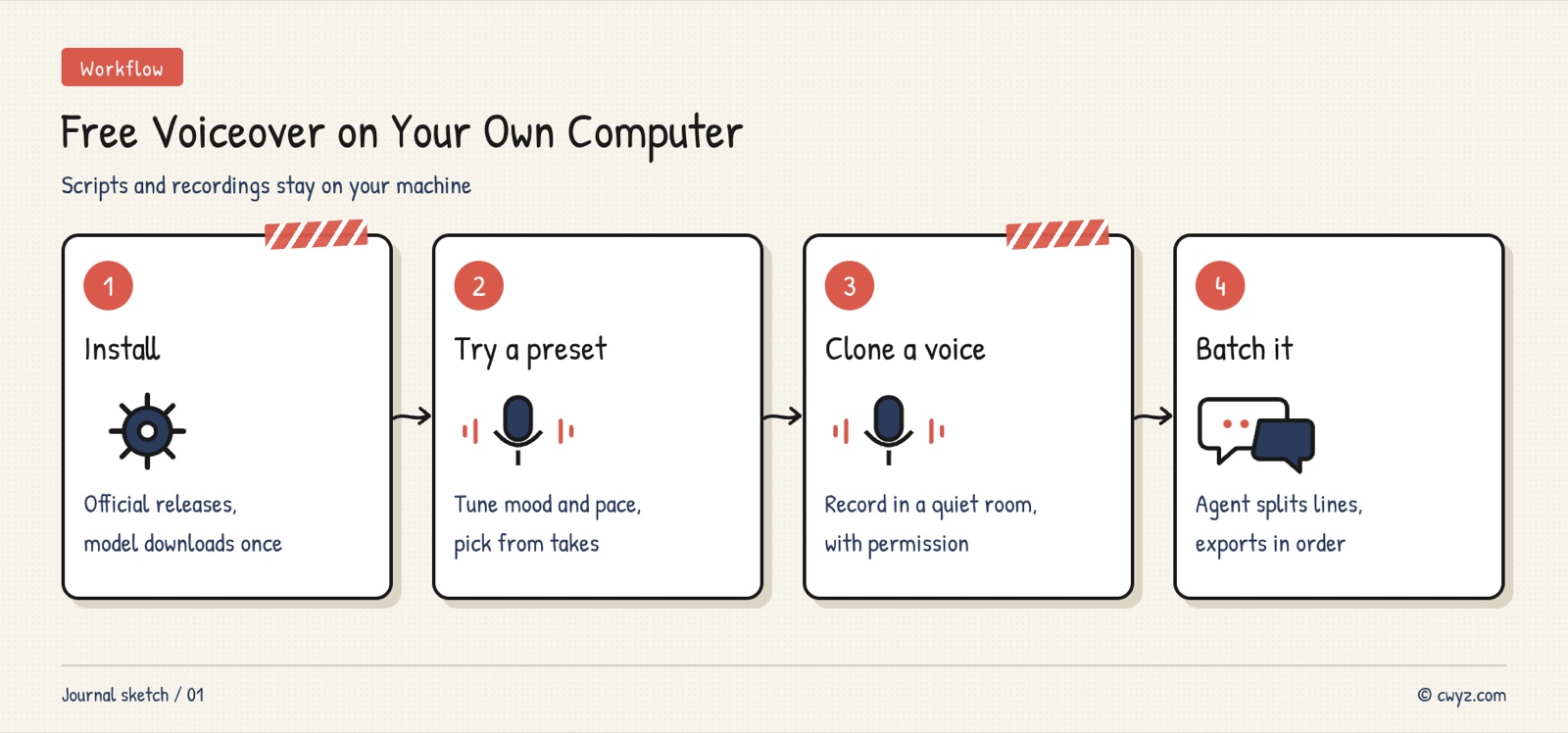
Here's the plan: install the app, get a feel for the controls with a built-in voice, clone your own voice, then let your AI agent voice a long script one line at a time.
What Booth is
Booth is an open-source app built by the developer NoFaceTube (Apache-2.0). Under the hood, it runs the ZONOS3-Mini voice model from Zyphra. According to the official model page, the model supports 43 languages, including Mandarin Chinese, Japanese, and Korean. It can clone a voice from a recording, and it can adjust emotion and speaking speed.
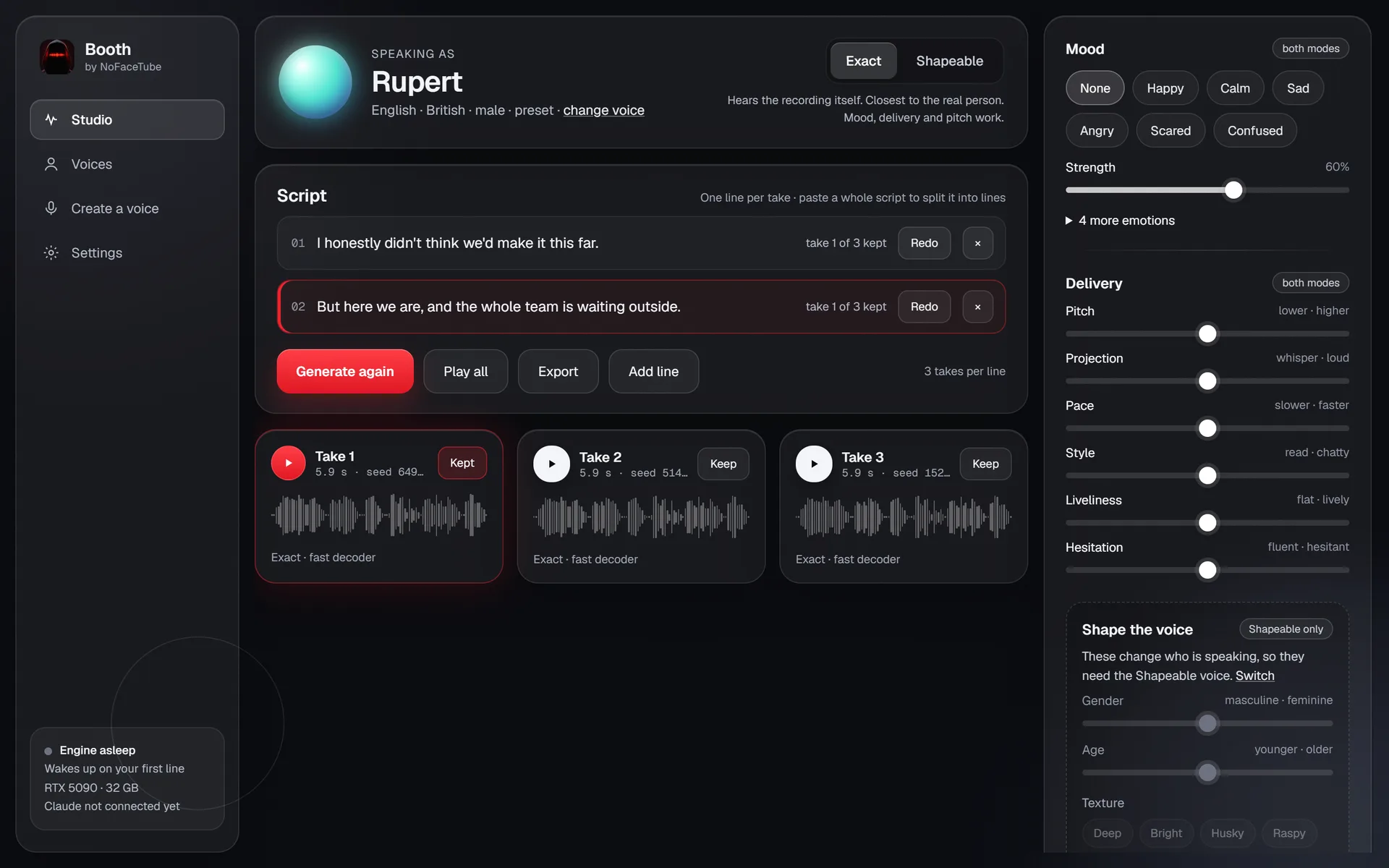
Image from the Booth website.
Booth stands out from other voiceover tools in a few ways:
- Several takes per line: Each line generates multiple versions at once. Listen, keep the one you like, or run another round if none of them work.
- Adjustable tone: You can change emotion, pitch, and speed. A slider lets you move between a read-aloud feel and a casual, conversational one. Drag it and regenerate.
- Batch a whole script: Paste in a full script, and Booth splits it into lines automatically. Each line can use a different voice and tone.
- Your AI agent can use it directly: Booth ships with an MCP interface for Claude. Once connected, your agent can help you voice scripts in batches.
Two things to know up front. The project is only a few days old and has few GitHub stars so far. The official site says the Mac and Linux versions haven't been tested on real hardware yet, and Windows with an NVIDIA graphics card is currently the most reliable setup. We haven't tested how well each language sounds, so try a short line in your language first.
Step 1: Download and install
Go to Booth's GitHub releases page and download the installer for your system. Installers are available for Windows, Apple silicon Macs, and Linux. Your computer doesn't need to be powerful:
- Windows: 64-bit Windows 10 or 11. A regular processor is enough. If you have an NVIDIA graphics card from the RTX 20 series or newer, choose the GPU engine, which can be several times faster.
- Mac: An M1 chip or later, running macOS 13.3 or later.
- Disk space: The voice model is about 1.2 GB. With all the add-ons installed, it can take up to about 9 GB. The model downloads automatically the first time you open the app.
Booth isn't code-signed yet, so your system will show a security warning during installation. On Windows, click More info → Run anyway. On a Mac, go to System Settings → Privacy & Security and click Open Anyway next to Booth. Only download from the official GitHub releases page, and avoid installers that someone else passed along to you.
If you're not sure your computer can run it, give this prompt to your AI agent first:
I want to install Booth, a local AI voiceover app (github.com/stepupgaming/booth). Please only check first, and don't install anything:
1. My operating system version. Is it 64-bit? If I'm on a Mac, is it Apple silicon, and which macOS version is it?
2. Do I have an NVIDIA graphics card? What model is it, and can I use its GPU engine (this needs an RTX 20 series or newer)?
3. How much free space is left on my system drive? (The models need 1.2 GB to 9 GB.)
When you're done, tell me in plain language whether I can install it and which installer I should download. Then stop and wait for me.
Step 2: Try a preset voice first
When the app opens, don't clone a voice yet. Start with the built-in voices:
- In Studio, pick a voice and type a line.
- On the right, choose an emotion. Move the speed and pitch sliders a little.
- Click Generate, listen to the takes, and keep the best one. If none of them work, click Redo to run another round.
Starting with preset voices helps you learn what each slider does. Extreme values tend to sound warped, so move the sliders a little at a time, starting from the middle.
Step 3: Clone your own voice
In Create a voice, upload a recording of yourself. The original author recommends 10 to 60 seconds. The quality of the recording determines how well the clone works:
- Record in a quiet room with the mic about a fist's length from your mouth. Turn off air conditioners and fans.
- Use your normal speaking voice, and read a complete passage rather than isolated words.
- Avoid background music and rooms with heavy echo, such as a bathroom or an empty room.
Once the clone is ready, play the same line in a preset voice and in your clone, and you'll hear right away how close it sounds. Only clone your own voice, or a voice whose owner has given permission. A voice from a public video doesn't count.
Step 4: Let your AI agent voice a full script
Clicking through a long script one line at a time gets tedious. In Booth's Settings, click Add to Claude Desktop, and Claude Desktop can use Booth directly. The Claude Code tab next to it gives you the command to connect Booth to Claude Code. Other AI agents that support MCP can connect the same way. Once it's connected, give this prompt to your AI agent:
Sign in to unlock this key section
New accounts get 10 free credits, plus 1 more each day you sign in (none on days you don't). Spend 1 credit to unlock and it stays open for you.
The first request makes the agent split the script and wait for your approval, so you settle the tone before anything gets generated. That saves time compared with redoing lines one by one afterward. The third request targets the most common AI voiceover mistake: misread numbers and abbreviations.
Things to know
- Get permission for voices: Only clone your own voice or a voice whose owner has agreed to it. When you publish, label the audio as an AI voiceover, as the platform requires.
- The project is new: It was released only a few days ago, and the Mac and Linux versions haven't been tested on real hardware yet. If you run into problems, open an issue on GitHub.
- Get the installer from the official source: Because the app isn't signed, your system will always show a warning. Make sure you downloaded it from the official GitHub releases page.
- Check the sound yourself: Before you use Booth for real work, try several lines of different types.
If you want another free local option that is cleared for commercial use, compare it with the VoxCPM2 tutorial. To dub a whole video into another language, see Dub a video into another language with your AI agent.
Comments (0)
No comments yet. Start the conversation.