

What You'll Get
Install the free, open-source ffmpeg-skill, and your AI agent can edit videos right on your own computer. It can trim silent gaps, turn landscape footage into vertical video, add subtitles, and balance the volume. You don't need an API key, and your footage is never uploaded. The guide includes three prompts you can copy and paste. You describe what you want, then review what the agent hands back.
Regular editing tools stop once the export is done. This skill adds one more step: before handing the video back, it checks the result against platform standards on its own. It catches problems you can't see by eye, like a frame that's too small or audio that's too quiet, and fixes them before you get the file.
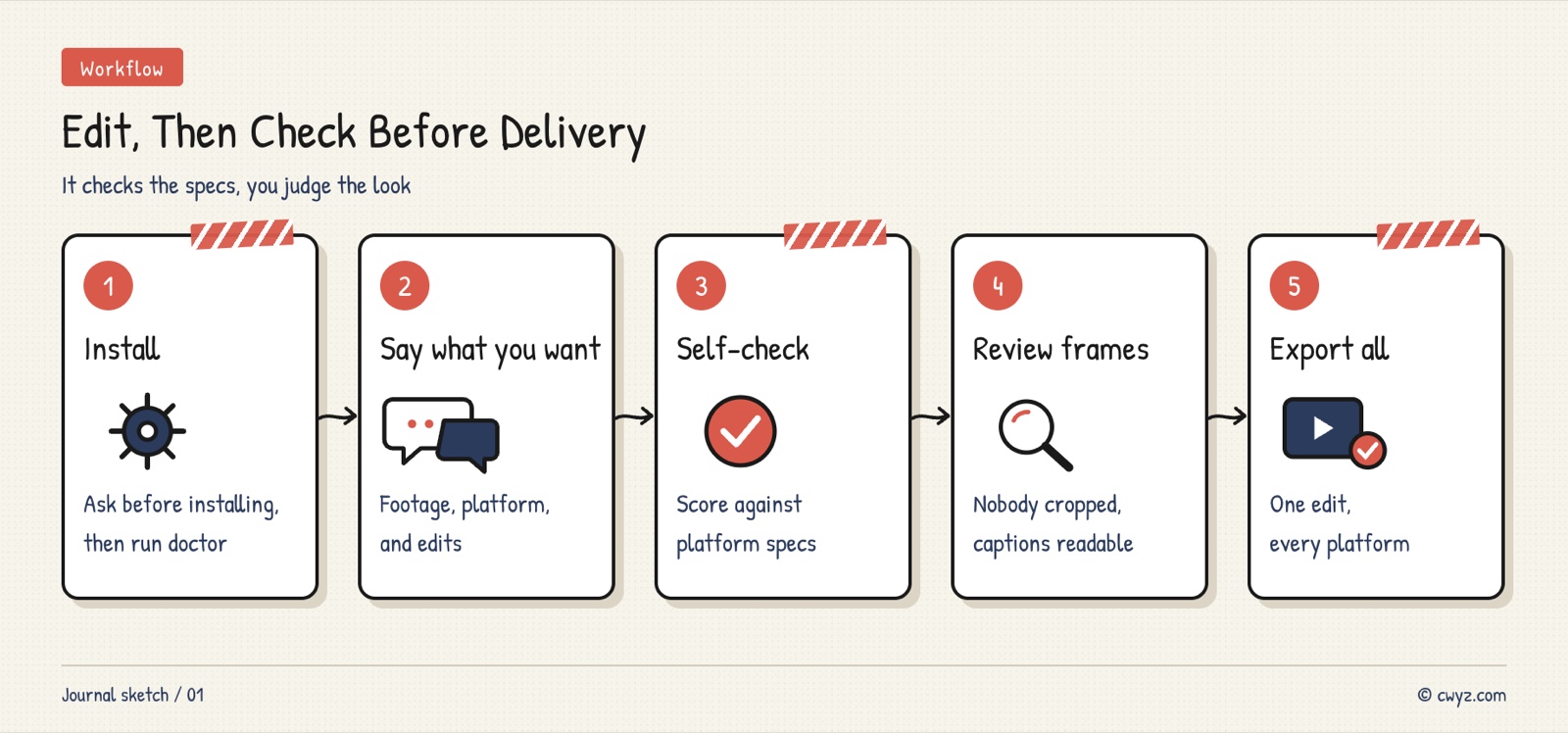
Install the tool and let it check your computer first. Then describe the edit you want. The agent checks its own work, you review the screenshots, and finally one source file is exported for each platform.
Why Let It Check Its Own Work
FFmpeg is a free command-line editing tool that runs behind almost every video app. AI agents already know how to write FFmpeg commands, but they often guess. They guess the frame rate and the encoding, say "done," and never actually watch the output.
ffmpeg-skill locks these steps into a fixed routine. It first measures the footage's duration, size, frame rate and volume. Then it edits, measures again, and scores the result against each platform's standards. It's an MIT-licensed open-source project with 42 built-in editing tools and about 7600 stars on GitHub. The main things it checks are:
- Frame size: Crop a 1920×1080 landscape video straight to vertical, and you're left with only 608×1080. That's not enough resolution, and platforms compress it further, so it looks even blurrier.
- Loudness: Short-video platforms generally normalize audio to around -14 LUFS. (LUFS is a unit that measures how loud something sounds.) A video that's too quiet sounds weak next to everything else in the feed.
- Subtitle position: Vertical feeds have a like button column on the right and a caption area at the bottom. Subtitles need to stay clear of both.
One thing to know: the skill can measure size and volume, but it can't understand what's in the picture. Whether a person got cropped out or whether the subtitles look good has to be judged by your agent opening the screenshots it generates. Then you take a final look.
Step 1: Have Your AI Agent Install and Check Your Computer
You need two things: FFmpeg 6.1 or later, and Python 3.10 or later. You don't need to memorize this. Paste the prompt below into your AI agent:
Please install the open-source ffmpeg-skill (github.com/kajisho5/ffmpeg-skill) so you can edit videos on my computer.

1. First, check whether FFmpeg (version 6.1 or later) and Python (version 3.10 or later) are installed. If something is missing, tell me what to install and why, and wait for my approval before installing anything.
2. Install it for yourself by following the method in the repo README (for example, npx ffmpeg-skill for Claude Code, add --codex for Codex, and --cursor for Cursor).
3. After installing, run its built-in doctor check. Explain the results to me in plain words: which features work, which components are missing and can't be used, and whether any of this affects editing short videos.
4. Ask me before installing speech-to-text, which is used for automatic subtitles. Editing works without it.
The last question is asked separately because automatic subtitles require downloading a separate speech recognition model, and it's fairly large. If you already have a subtitle script or don't need subtitles, you can skip it.
Step 2: Describe the Edit You Want
You don't need to know the parameters. Just say three things: which footage to use, which platform it's for, and what edits you want.

The image comes from the ffmpeg-skill GitHub repository. The left side is the original clip, and the right side is the processed result.
Sign in to unlock this key section
New accounts get 10 free credits, plus 1 more each day you sign in (none on days you don't). Spend 1 credit to unlock and it stays open for you.
Name the platform clearly so the agent knows which standards to check against. The built-in templates cover TikTok, Instagram Reels, YouTube Shorts, YouTube, X, LinkedIn and Facebook. If a platform doesn't have a template, your AI agent checks against common specs such as 9:16 vertical, 1080×1920 and about -14 LUFS. You can also paste the platform's official requirements for it to use.
Step 3: Review the Screenshots
The report the agent sends back includes a contact sheet, which is a grid of frames sampled from the video over time. You only need to check three things:
- Is the person still in the middle of the frame? Vertical crops default to the center. If the person stands off to one side, half of them may get cut off. Ask the agent to reposition the crop based on the screenshots.
- Are the subtitles easy to read? Ask for bigger text if they're too small. Ask for a shorter line if they wrap onto too many lines. Ask for a move if they cover the platform's buttons.
- Did a cut clip a sentence? Removing gaps can occasionally chop off the end of a word. The agent marks the spots where this might have happened. Play those few spots and listen.
If you're not happy with something, just say so, for example "the person drifted left, move the crop box left" or "make the subtitles bigger." The agent makes the changes and runs the checks again.
Step 4: Export Several Platforms From One Source
When the same video goes to several platforms, you don't need to edit each version by hand. Paste this prompt into your AI agent:
Use the ffmpeg-skill platform templates to export [the finished file] as several versions at once: [TikTok, Instagram Reels, YouTube Shorts, YouTube landscape].
Check each version against its platform's standards. At the end, give me a summary table with: platform, file location, size, duration, loudness and check results. If anything fails, fix it before handing the files over.
The agent handles each platform's crop, subtitle position and volume separately, checks each version, and returns one summary table.
Notes
- Tell it to leave the original file alone. The prompt already says so, but confirm the output location before the work starts so nothing gets overwritten.
- Passing checks doesn't mean it looks good. The agent can confirm that size, volume and duration meet the standards. Pacing and visual quality are still your call.
- Platform rules change. The built-in limits on upload length and file size are only references. Always check the platform's latest requirements at the time you publish.
- Only edit footage you have the right to use. Resizing someone else's video and posting it is still reposting.
If you only want to remove slips of the tongue and pauses with a single sentence, see Let Claude Code Edit a Talking-Head Video From One Sentence.
Comments (0)
No comments yet. Start the conversation.