

What you get
If you subscribe to Google AI Pro or Ultra, you get a monthly Google Cloud credit that you can spend on Google's video model, Gemini Omni Flash. This guide walks you through claiming the credit, connecting it, and handing the rendering work to your AI agent. The agent writes the prompt, submits the job and waits for the result, downloads the clip, adds your sound, and pulls frames for you to check. You never click through web pages one step at a time, and you don't write any code. The guide includes two prompts you can copy and paste.
You keep control of the payments, the API key and the final call. Everything else is legwork for your AI agent. Before every paid action, it quotes you a price, and it submits only after you say yes.
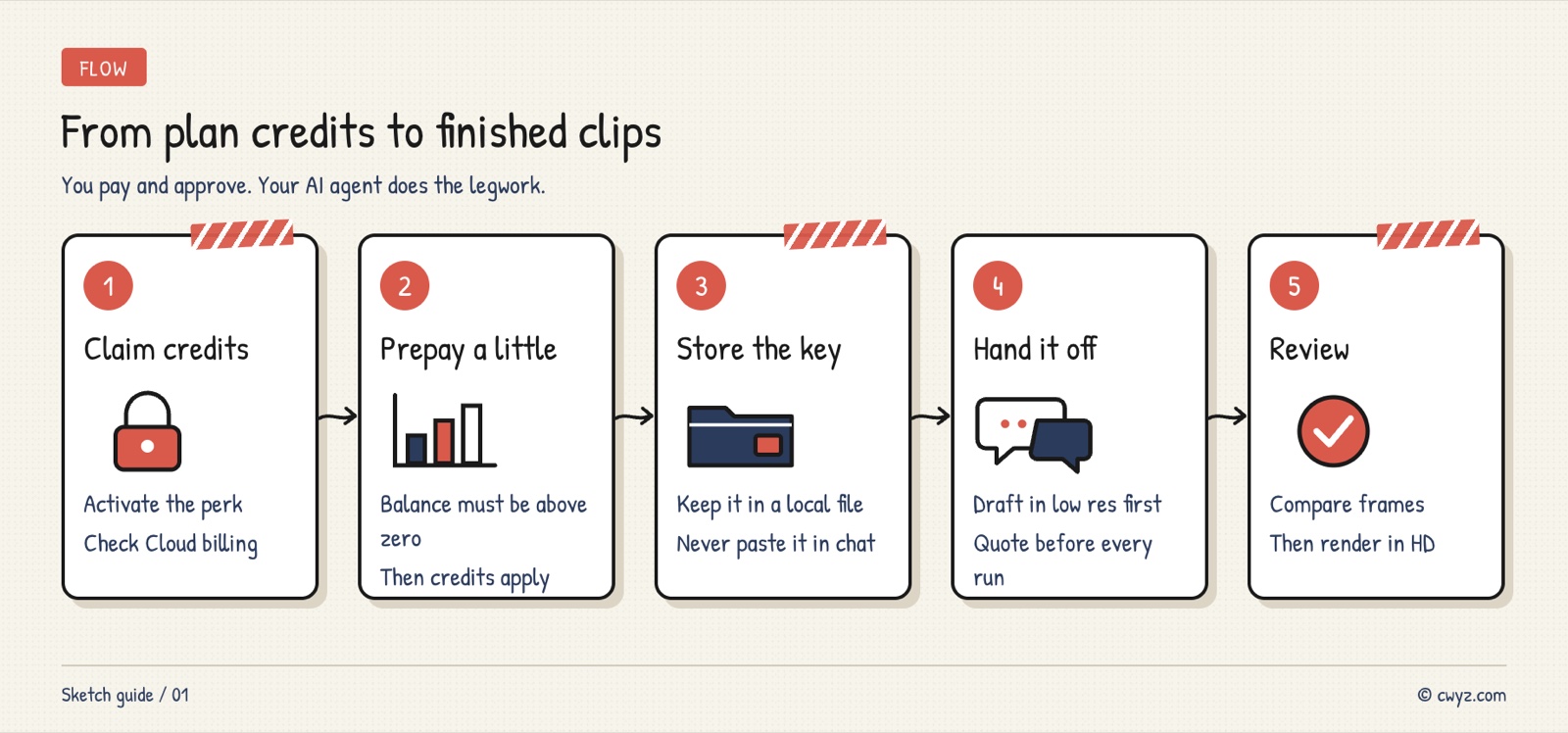
There are five steps in total: claim the credit from your membership benefits, prepay a minimum amount so the credit actually applies, create an API key and store it on your own computer, hand the rendering to your AI agent (test at low resolution first, then render in high definition once you're happy), and finally check the result yourself against the frame grid.
Where the credits come from, and how far they go
Starting this year, Google folded the premium perks of the Google Developer Program into Google AI memberships. Each month, your membership adds a Google Cloud credit that you can use on the Gemini API and AI Studio:
| Membership plan | Monthly credit |
|---|---|
| Google AI Pro | $10 |
| Google AI Ultra 5x | $40 |
| Google AI Ultra 20x | $100 |
The image comes from Google's official blog announcement. The credit only shows up after you claim it. Each grant lasts one year, and unused credit does not roll over.
Video is billed by the second, and higher resolution costs more. Here is what one 15-second clip costs at the standard list price:
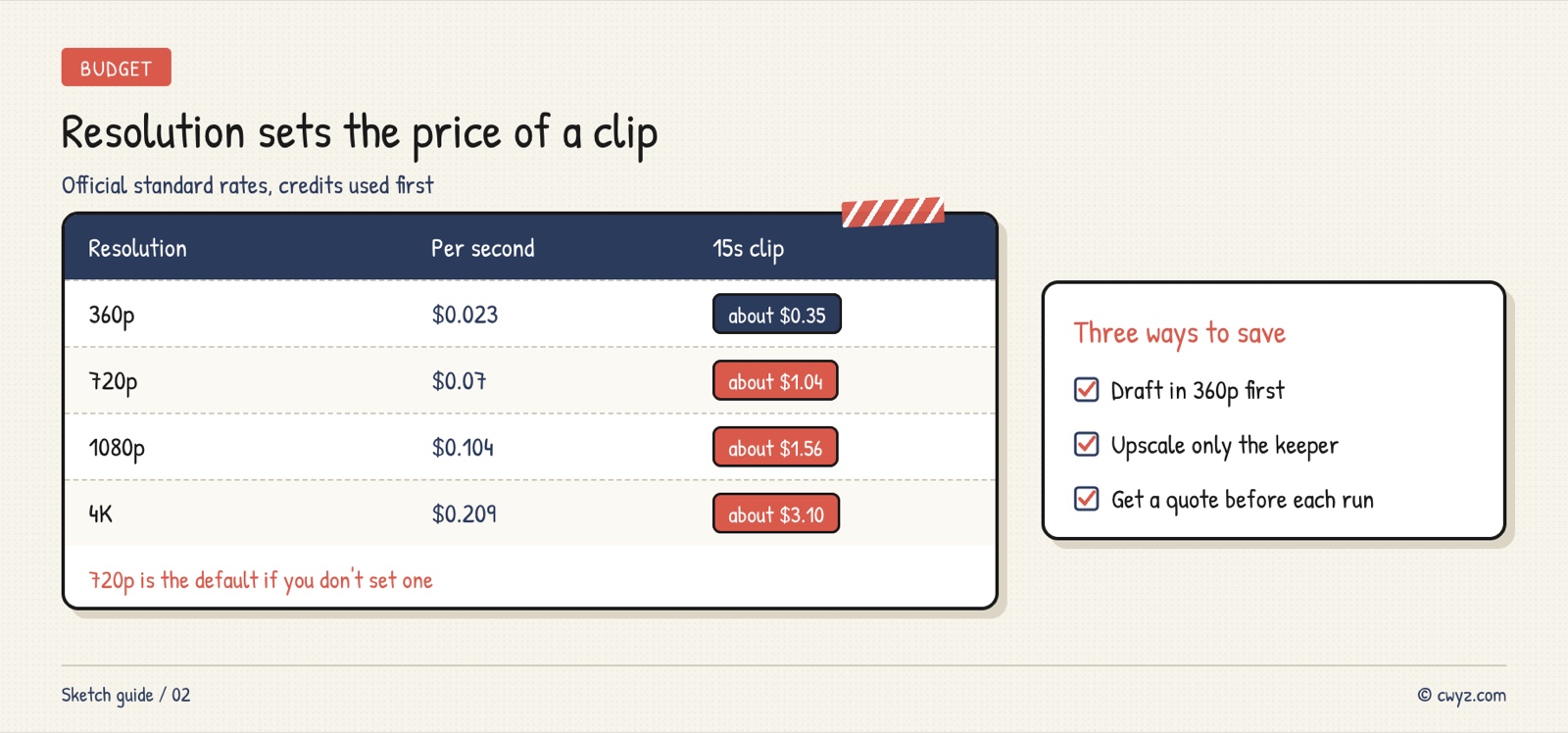
The easiest way to waste money is the default resolution. If you don't specify one, the model renders at 720p. With the $10 Pro credit, you get roughly nine 15-second clips at 720p, or about 28 at 360p. So test the motion and framing at 360p, then render the clip you pick in high definition.
Step 1: Claim the membership credit
Sign in to Google Developer Program with the Google account that holds your membership. In your profile, activate the premium benefits that come with the membership, then follow the prompts to attach the credit to a billing account. When you're done, open the Google Cloud Console and go to Billing → Credits. If you see a Developer Program credit with the status "Available," you've claimed it.
You do this step yourself. It involves your Google account and your billing account, so your AI agent doesn't touch it.
Step 2: Prepay the minimum amount
Many people get stuck here. The credit is claimed, but calls to the video model still fail. The reason is that a new Gemini API billing account is usually placed on prepay billing. Under prepay, the credit is only spent while your prepaid balance is above zero. Once the balance drops to zero, the credit is switched off too.
Open AI Studio → Billing → Buy credits and add the $5 minimum that Google requires. After that, calls spend the credit first, and only touch those $5 once the credit runs out.
Step 3: Create an API key and store it on your own computer
In AI Studio, open API keys in the left sidebar and create a new key. For the project, choose the one linked to the billing account you just set up.
Keep the key on your own computer, never in the chat. Save it in a file that only your user account can read, such as ~/.config/gemini/.env, and tell your AI agent only the file path. If the key leaks, anyone holding it can spend your credit and your prepaid money.
Step 4: Hand the video to your AI agent
Gather your materials: a text description, a few character or product images (up to 6), and a short reference video if you want one. Use only footage and images you shot or drew yourself, or that you have the right to use. Then send the following to your AI agent:
Sign in to unlock this key section
New accounts get 10 free credits, plus 1 more each day you sign in (none on days you don't). Spend 1 credit to unlock and it stays open for you.
The price and resolution rules are there so you don't waste money. Requiring the reference images to lock in only appearance matters because character images are usually posed. If you don't say so, the person in the video will stand still in the same pose as the image. The frame grid lets you judge a version in about ten seconds without dragging the timeline yourself.
Step 5: Check the result, then render in high definition
Look at the frame grid your AI agent sends back. If something is off, say so directly, for example "the second shot is too dark" or "the cat's color doesn't match the reference image." Ask it to revise the prompt and render another 360p version.
Once you're happy with a version, send it this:
Use the version we just made. Keep the prompt and reference materials the same, and render one more clip at [720p or 1080p]. Quote me the price first and wait for my confirmation before you submit.
If you want a longer video, have the agent extend the finished clip. Each extension adds 3 to 10 seconds, up to 30 seconds per clip. Extensions can only be added to the end. You can't insert them into the middle.
Limits on materials and accounts
- Reference videos have a hard limit. Each clip can be up to 3 seconds long. For a video of 11 to 15 seconds, you can attach only one clip. For 10 seconds or less, you can attach up to three. Sound in reference videos is ignored, so if you want the original audio, add it back after rendering.
- Recognizable real people are not supported. Google states that uploading images with identifiable real people for generation and editing isn't supported. Don't use videos or photos of celebrities or influencers to swap people out, and don't look for ways around the moderation. It won't work, and it risks account bans and infringement.
- Don't use unofficial tools. Some open-source projects wrap the behind-the-scenes interface of the video web page into a command-line tool. They rely on private interfaces Google hasn't made public, they can break at any time, and the account risk is yours to bear. This guide only uses the official API.
- Antigravity, Google's official AI agent, can also do this, and the prompts above work as they are. The same goes for whichever AI agent you already use.
Things to watch for
- Having credit doesn't mean you can spend it. While the prepaid balance is zero, the credit won't be used, so don't skip the $5 in Step 2.
- Billing has a delay. The balance your AI agent reads may be higher than the real one. Check the billing page again the next day.
- Prices and models change. The prices here are converted from the official list prices, and the official docs define the model name. That's why the prompt tells your AI agent to read the docs first.
- Unused credit expires after one year. You don't need to spend it all at once, but don't stockpile it either.
Want to understand how a video was made before you decide how to make your own? Read have your AI agent break down how a viral video was made.
Comments (0)
No comments yet. Start the conversation.