

What You Get
Ever watch a viral video and wonder how it was made? Was that clip filmed on a camera or generated by AI? Is that transition edited by hand, or is it a code-made animation? Install rea-video, a free and open-source tool, on your AI agent and drop a video in. It tells you whether each shot is live footage, AI-generated, or code-rendered. Then it gives you a recreation plan for each shot: a shot list for what you should film, prompts for what should be generated, and an approach for what should be coded.
You get two outputs. A web report (which you can also export as a PDF) is for you to read. A layered VIDEO.md file is for your AI agent to read. The analysis runs on your own computer, your original video is never uploaded, and you don't need a paid model to use it. The article includes two prompts you can copy and paste.
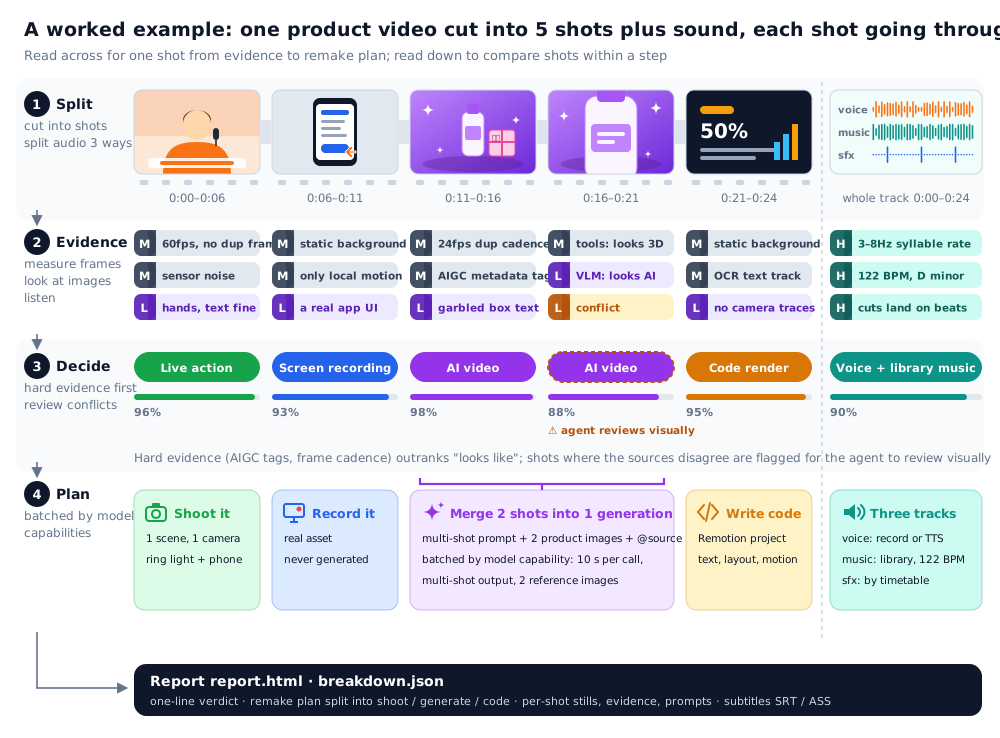
The image is from the project's GitHub repo. The video is first split into shots, and the audio is separated into vocals, music, and sound effects. Each shot goes through measurement, image checks, and audio checks before the tool decides how it was made. When the evidence conflicts, the case goes to your AI agent for a visual review. Finally, a recreation plan is built around what the target model can do.
Meet rea-video
rea-video is an open-source project by developer JuneYaooo, licensed under Apache-2.0. It has over 10,000 stars on GitHub and shipped its first stable release, v0.1.0, on November 11. It works the opposite way from tools that promise a "one-click copy" of a video. It doesn't generate videos. It takes them apart. It answers two questions: how was this shot made, and how can you make one just like it?
It can tell apart about a dozen kinds of footage, including live footage, AI video, digital humans, 3D animation, code-made motion graphics, and screen recordings. Beyond the visuals, it also breaks down when subtitles appear, where the cuts are, whether the voiceover is AI-generated, and which assets you'll need to prepare yourself.
Judgments are based on evidence, not on "looks right." Hard evidence comes first: frame rate patterns, camera sensor noise in the image, whether the whole frame looks like a flat picture being panned, and AI generation markers in the file. When the evidence for a shot conflicts, the tool flags it and hands it to your AI agent for a visual review.
Step 1: Have Your AI Agent Install It
rea-video needs Python 3.10 or newer and FFmpeg. Your AI agent can install both. Give it this prompt:
Please install the open-source tool rea-video (github.com/JuneYaooo/rea-video) for me. I want to use it to break down how a video was made.

1. Start with a read-only check: my operating system, my Python version (it needs 3.10 or newer), and whether FFmpeg is installed. If anything is missing, tell me how you plan to install it and wait for my approval before installing anything.
2. Install the command-line tool following the README in the repo, then run its help command to confirm it works.
3. If you support Skills, install the Skill that ships with it too, so that next time I say "break down this video," you know what to do.
4. Tell me which models the first video analysis will download, where they will be saved, and what it can do without any paid model.
5. Don't sign me up for any service, and don't fill in any API key.
The first time you analyze a video, it downloads the audio separation model automatically. After that, everything runs locally on your machine.
Step 2: Give It a Video
Prepare the video file you want to study. Ideally, use the original file, such as one you shot yourself or one a partner sent you directly. Videos downloaded from a platform have been re-compressed, which wipes out evidence like camera noise. Offline tools lose a lot of accuracy on those files, so having your AI agent review the frames matters.
Sign in to unlock this key section
New accounts get 10 free credits, plus 1 more each day you sign in (none on days you don't). Spend 1 credit to unlock and it stays open for you.
Item 2 is the most important one. If you analyze a video downloaded from a platform, the tool can easily mistake live footage for AI. Asking it to review the shots it isn't sure about makes the results much more accurate.
Step 3: Read the Report, Starting With the Verdict Strip
At the top of the report is a shot-by-shot verdict strip you can scan in seconds. Each shot gets a first-frame thumbnail, a label such as "Live footage" or "AI video," and a confidence level. Suspicious shots are highlighted in a different color. Below that you'll find each shot's evidence, shot size, camera position, camera movement, lighting, and color grading.
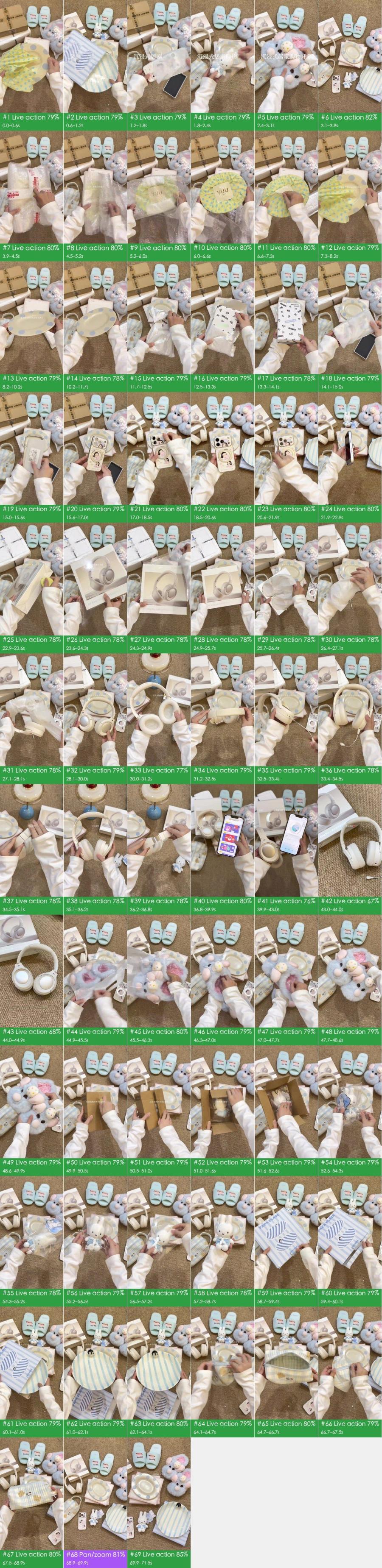
The image is from the unboxing case study in the project repo. When you read the report, focus on two things: shots with low confidence (take another look yourself), and the recreation plan (film it, generate it, or code it).
Step 4 (Optional): Make the Judgments More Accurate
You can use rea-video without any model. For original files, the offline tools are already quite accurate on their own. If you want more accuracy, you have two options:
- Use an AI agent that can view images: It reviews screenshots of the suspicious shots itself, at no extra cost.
- Connect a model that can watch video: The project docs say Gemini or Doubao both work. Give your AI agent the API endpoint and key so it can configure the connection. This makes the live, AI, and 3D judgments more accurate, and each AI-generated shot also gets a reverse-engineered prompt. Costs depend on that service's pricing.
Step 5: Recreate It From the Report
The recreation plan is split by shot type. For live-footage shots, follow the shot list and film them yourself. Record any screen-recording parts yourself too. For AI shots, it groups them into batches based on what the target video model can handle, such as whether several shots can be combined into one generation. For code-made shots, it gives you the text, layout, and animation timing, and your AI agent can turn that into a Remotion project.
If you want the AI shots generated automatically, the author's other open-source project, capsule-cinema, can pick up from there. It does a free dry run first and only calls a paid model after you confirm. Keep in mind that, according to the author, automatic recreation only covers part of the work today. Think of it as "shot breakdown plus a recreation plan," not as "one click for an exact copy."
If you want to take a viral video and make one like it for your own product, read Let Your AI Agent Remake Viral Promo Videos for Your Product. If you want to take a reference video and remake it for your own brand, read Remake Any Brand Film With Your Own Brand Using an AI Agent.
Notes
- Learn the method, don't copy the footage: The project itself says it's meant for learning structure, pacing, and techniques. When you recreate a video, use footage, music, and people you have the right to use. Don't reuse someone else's clips directly, and label AI-generated content according to each platform's rules when you publish.
- Review platform downloads: Re-compression wipes out evidence, and offline tools can easily mistake live footage for AI. Always have your AI agent review the shots it isn't sure about.
- One video at a time: It handles one video per run. For short dramas with multiple connected episodes, use the author's other project, rea-toon.
- Ask about pricing before connecting a paid model: Video-watching models and automatic video generation are both billed at the provider's rates. Have your AI agent estimate the cost before you turn them on.
Comments (0)
No comments yet. Start the conversation.