


What You Get
A weekly report, a budget sheet or a slide deck for a meeting used to mean asking AI for help and getting back a wall of text. Then you had to paste it into Office and fix the layout cell by cell. With OfficeCLI, a free and open-source tool, your AI agent can hand you Word, Excel and PowerPoint files that open right away. You don't need to install Office on your computer. This article includes three prompts you can copy and paste as they are.
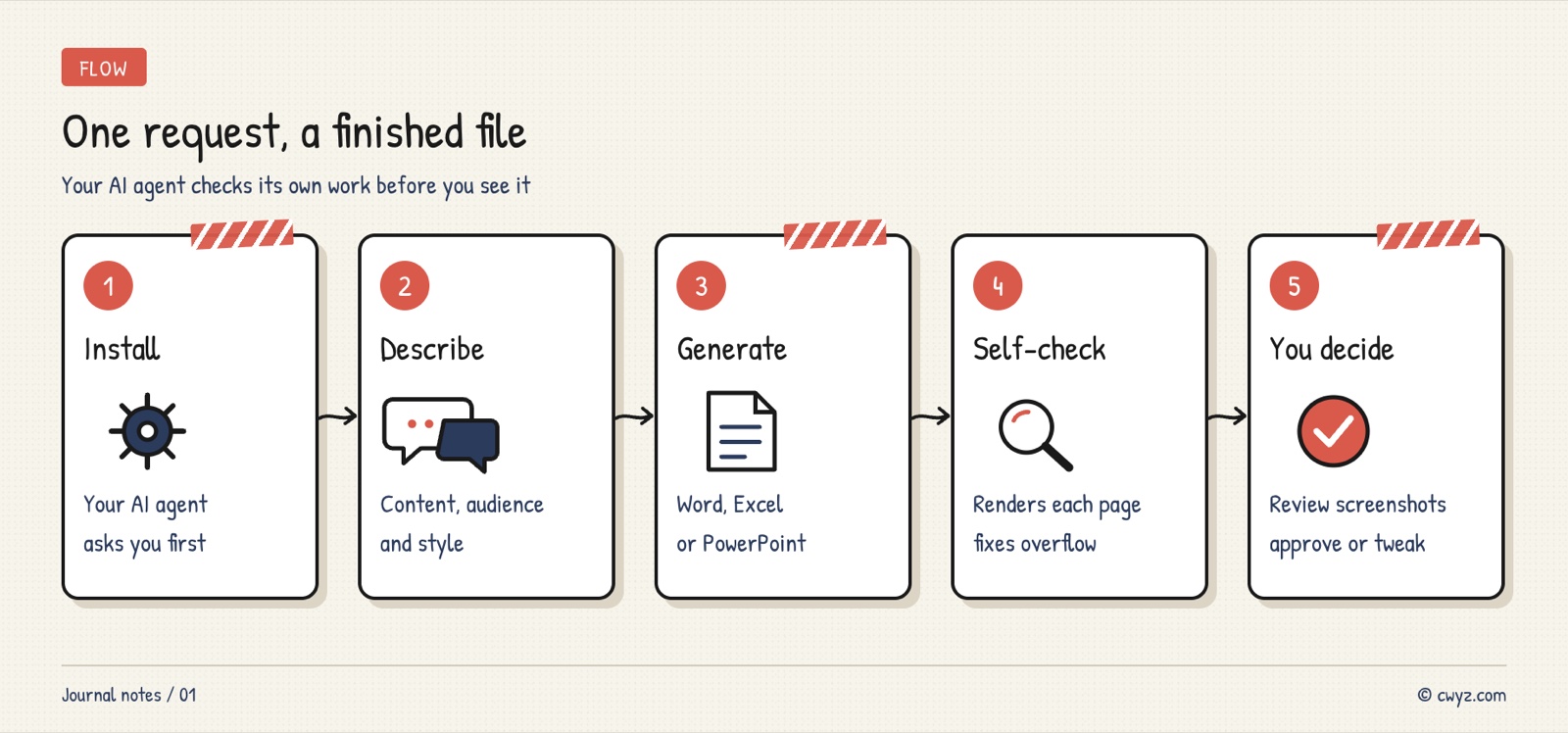
What sets this apart from a regular "AI writes documents" tool is that your AI agent can see what the file it made looks like. After each page is done, it renders the page as an image and checks it. If a title sits outside its box, images pile on top of each other, or a table gets cut off, it fixes that first and then sends you the screenshots. Your job is three things: describe what you need, look at the screenshots, and make the final call.
Why the Layout Holds Up This Time
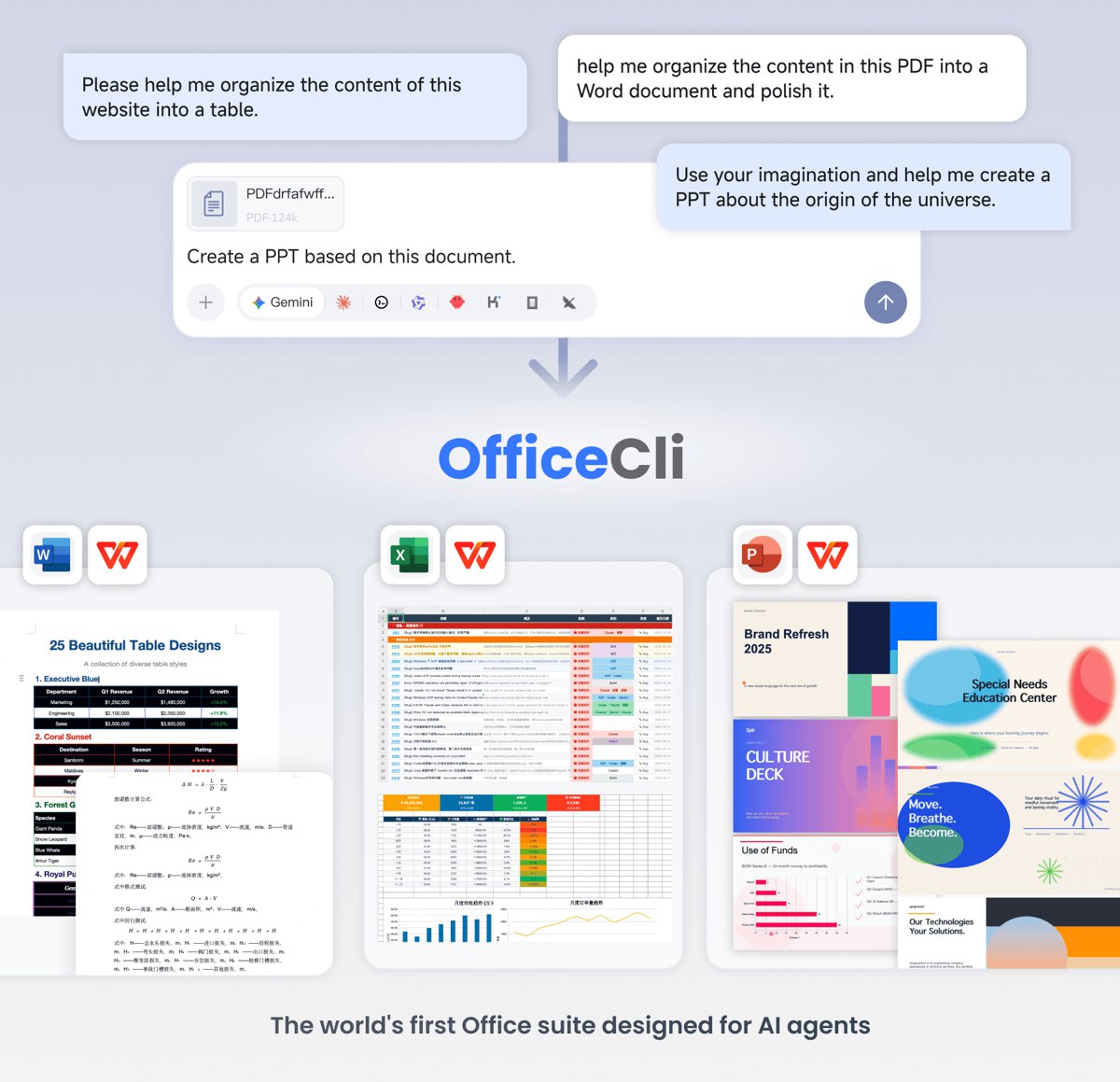
Image from the OfficeCLI GitHub repository.
Before, AI-generated Office files were written blind. The AI changed the file's internal structure but never saw how the page actually looked, so the content was often right while the layout was a mess. OfficeCLI includes a renderer that turns a document into a web page or one screenshot per page. Your AI agent gets those images and can check its work the way a person would. A few things worth knowing:
- It's just a program: install one file and it runs. It doesn't need Microsoft Office, WPS or LibreOffice. It runs on Windows and Mac, and on Linux too. It's released under the Apache-2.0 open-source license.
- Spreadsheet formulas get calculated: sums, lookups and other formulas get their results as the file is built, so your AI agent can check the numbers directly.
- It can edit your existing files: it isn't limited to building files from scratch. Give it an Office file you already have, and it can read the content, find formatting problems and make changes.
Step 1: Have Your AI Agent Install OfficeCLI
Please help me install OfficeCLI (an open-source Office file tool. Repository: https://github.com/iOfficeAI/OfficeCLI).
1. First read the official notes at https://officecli.ai/SKILL.md and the repository README. In plain language, tell me what it installs and where.
2. The official install script copies its usage notes into the AI tool folders already on this computer the first time it runs. Before installing, tell me which folders it will write to, and wait for my OK.
3. After installing, run officecli --version to confirm it works. Then tell me which folders were actually changed.
4. Stop when done and wait for me to tell you which file to make.
The second line of this prompt matters most. The official script automatically looks for the config folders of ten AI tools, including Claude Code, Cursor and Codex, and puts the instructions file in each one. That's convenient, but you should know exactly what it touches.
Step 2: Describe the File You Want
Sign in to unlock this key section
New accounts get 10 free credits, plus 1 more each day you sign in (none on days you don't). Spend 1 credit to unlock and it stays open for you.
The first requirement makes your AI agent settle the direction before it starts, so you don't have to throw away a full draft later. The third requirement is the "render, check, fix" loop. Spelling it out makes sure it checks every page. Below are a few samples an AI agent made with OfficeCLI, from the official repository:

Image from the OfficeCLI GitHub repository.
Step 3: Look at the Screenshots and Say What to Change
When you get the screenshots, just tell it what to fix, the same way you would mark up a colleague's draft. Ask it to edit the original file instead of rebuilding the whole thing:
This file needs a few changes:
1. [Page 3 title is too long, use a shorter wording]
2. [Bold the total row in the budget table, and show negative numbers in red]
3. [Change the overall color scheme to blue-grey]
Edit the original file directly. Before you change anything, save a backup copy. After the changes, render the screenshots again and send me only the pages you changed.
When the changes are small, it only touches those spots. That's faster than regenerating the file, and it won't mess up the parts you already like.
Things to Know
- Open it in your usual software before you send it: OfficeCLI's screenshots are close to the real thing, but before you hand a file over, open it in Microsoft Office, WPS or LibreOffice to check. This matters most for animations and special fonts.
- Check the numbers yourself: your AI agent can keep the formatting tidy, but it can't guarantee that the data you gave it is correct. Look at the formula results too.
- The file content goes through an AI model: OfficeCLI runs on your computer, but when your AI agent reads and writes files, the content is sent to the model it uses. Think twice before you use confidential files.
- If you don't want to use the command line, the official team also offers a desktop app called AionUi. It runs on OfficeCLI underneath and lets you make documents by chatting.
Comments (0)
No comments yet. Start the conversation.