

What you'll get
The ChatGPT desktop app includes Codex. It doesn't just chat: it can open a folder on your computer, read and write files, run commands, and get the job done for you. This guide starts with installing the ChatGPT desktop app, then shows you how to switch to Codex, pick a folder it can work in, set permissions to a safe level, and try a small task. No coding required. The guide includes 2 copy-ready prompts.
Keep one division of labor in mind: you describe what you want, you approve or reject any request to go outside the folder, and you check the result. Leave the hands-on work to Codex.
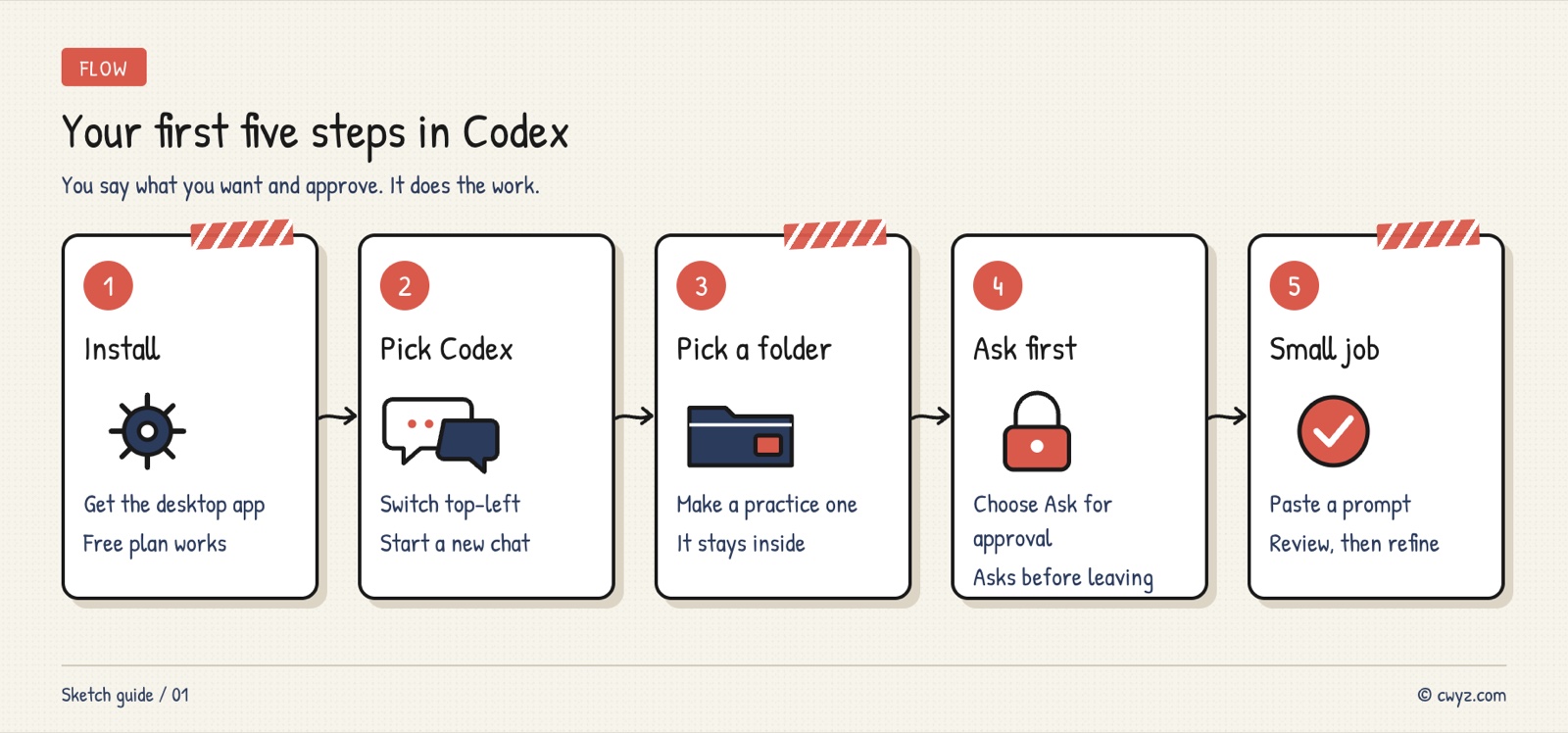
Five steps: install the app and sign in, switch to Codex from the top-left corner, pick a practice folder, set permissions to ask you first, then send a prompt and review the result before asking for changes.
Three modes in the ChatGPT desktop app
In the top-left corner of the ChatGPT desktop app, you can switch between ChatGPT and Codex. The ChatGPT side has two modes: Chat and Work.
| Pick | Best for | Examples |
|---|---|---|
| Chat | Back-and-forth questions | Asking a question, drafting a short piece of copy, comparing a few options |
| Work | A finished product you can check | Building a slide deck, analyzing a spreadsheet, writing a report |
| Codex | Having it act on files on your computer or dig into technical details | Tidying a folder, editing web page code, running a program to find a bug |
Codex keeps its own chat history, separate from your ChatGPT chats. It shares a usage allowance with Work.
Step 1: Install the app and sign in
Download the desktop app from the ChatGPT download page (available for macOS and Windows) and sign in with your ChatGPT account. If you already have it installed, open the menu, click Check for Updates, and restart the app.
According to OpenAI, Free and Go plans can also use Codex in the desktop app, but features are rolling out in batches, so your account may not have it yet. Plus and higher plans are more reliable and come with higher usage limits.
Step 2: Switch to Codex and pick a practice folder
Click the top-left corner of the window, switch from ChatGPT to Codex, then click New chat. Above the input box is a folder picker. Open it and choose a folder. From then on, Codex works inside that folder.
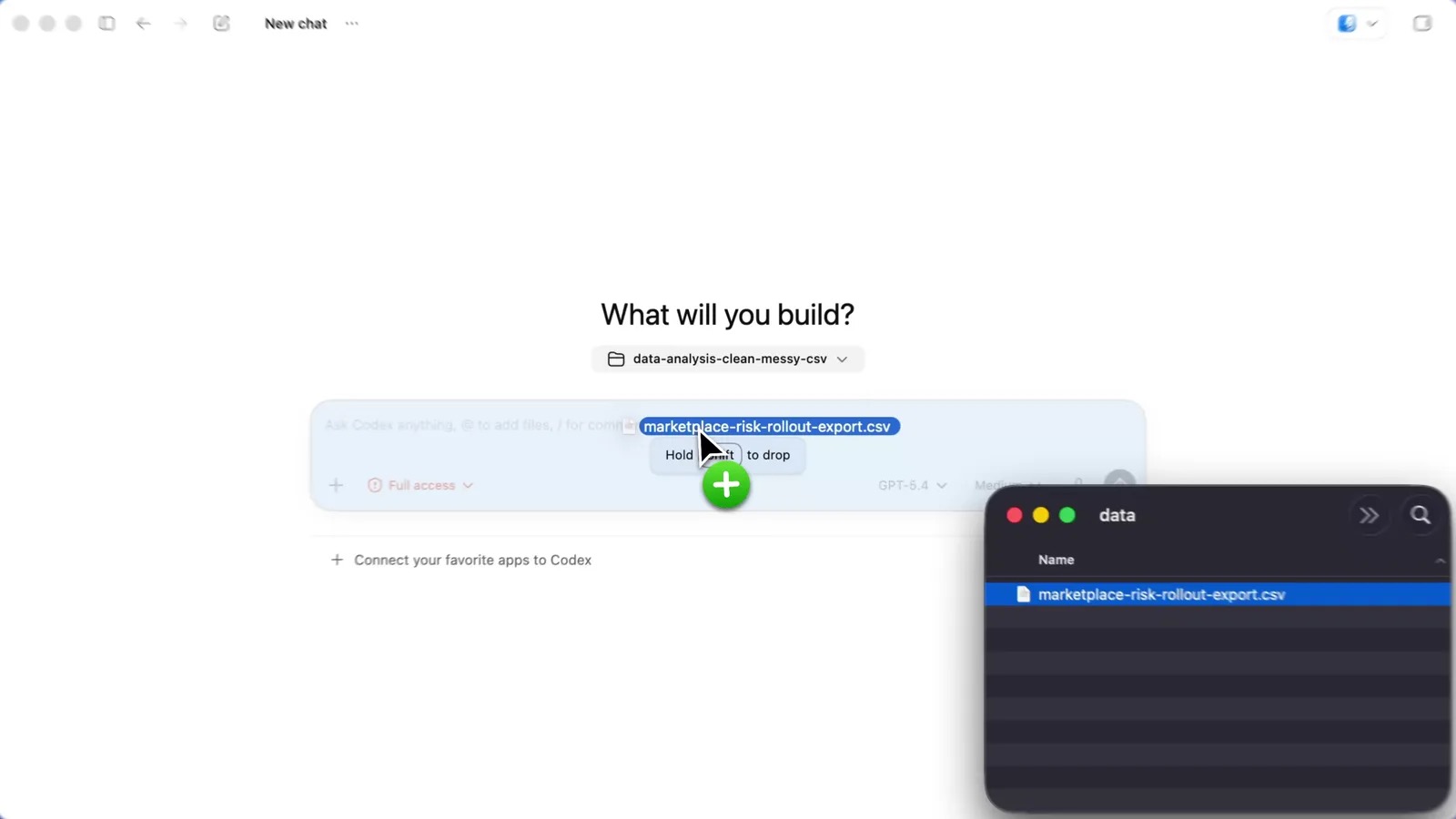
The image comes from OpenAI's official demo video. The folder button above the input box picks the working folder, and you can also drag files straight into the input box.
Don't pick an important folder the first time. Create a folder called "Codex practice" on your desktop and copy the files you want to work on into it. That way, if Codex gets something wrong, your originals are untouched.
Step 3: Set permissions to Ask for approval
Below the input box is a permission button. Click it to see the levels. The common ones are:
- Ask for approval: Inside the folder you picked, Codex can read files, edit files, and run commands on its own. If it needs to touch anything outside that folder or go online, it stops and asks you.
- Full access: It stops asking and can act anywhere on your computer.
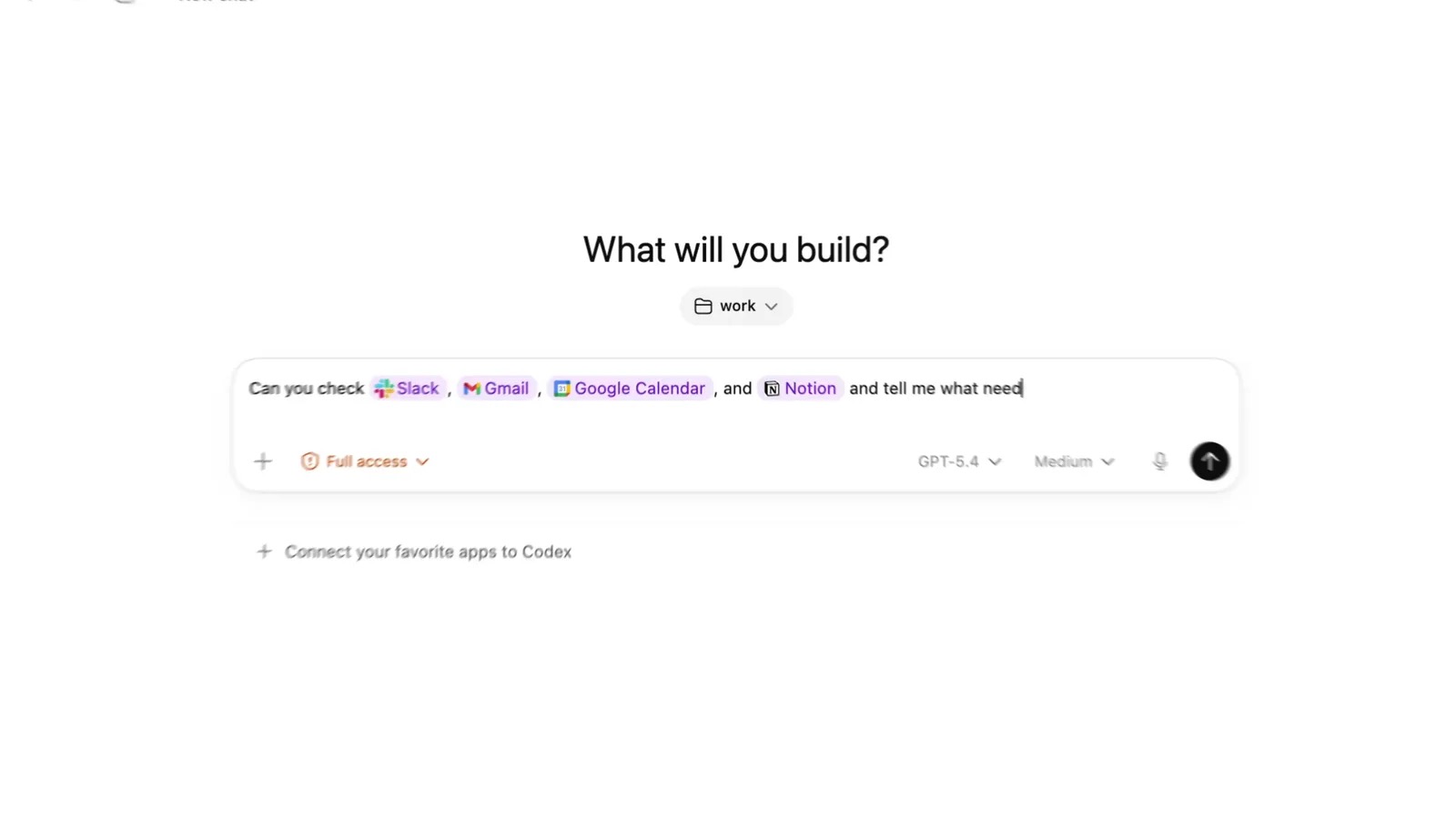
The image comes from OpenAI's official demo video. The demo uses Full access, but new users should switch to Ask for approval.
Why this level: According to the official docs, by default Codex can only change the folder you picked, and it can't go online. With Ask for approval, it works inside the folder without asking you to approve every step, and it pops up only when it needs to go outside. The pop-up says what it wants to do. If you don't understand it, click reject, then ask Codex: "What were you trying to do just now, and why?"
Step 4: Try a small task
Pick a task you find tedious but wouldn't mind if it went wrong. For example, if your practice folder has a messy spreadsheet (mixed date formats, duplicate rows, blank cells), send this to Codex:
Sign in to unlock this key section
New accounts get 10 free credits, plus 1 more each day you sign in (none on days you don't). Spend 1 credit to unlock and it stays open for you.
Item 1 makes it lay out a plan first, so you can catch a misunderstanding before it touches anything. Item 2 protects the original file. Item 3 makes it explain its changes, so checking them is quick.
Step 5: Check the result and ask for changes
When it's done, open the new file and take a look. If something is off, just say so in the same chat, for example: "format every phone number the same way, without dashes." Codex remembers what it did earlier and only changes what you ask about.
Once you're comfortable, every tutorial on this site has a "Copy prompt" button at the top. Copy it and send it to Codex. It will read the tutorial, follow the steps, and ask you when it reaches a decision only you can make:
Read this tutorial and follow its steps for me: [tutorial URL]
Work inside this folder. Before each step, tell me in one sentence what you are about to do. Ask me first before installing software, going online, or spending money.
Still deciding which AI agent to use? Read Getting started with an AI agent from zero first.
Things to know
- Usage is capped. Codex and Work share the allowance in your plan. When it runs out, you have to wait for it to reset or buy more. Split big jobs into small tasks: they use less of the allowance and are easier to check.
- Don't switch to Full access lightly. It can act on your whole computer, and a vague sentence can lead it to change things it shouldn't.
- Back up important files first. Even with Ask for approval, Codex edits files inside the folder you chose without asking, so always practice on copies the first time.
- The interface changes. Button names and positions may shift between versions. If you can't find something, follow the official docs.
Comments (0)
No comments yet. Start the conversation.