

What You'll Get
Make talking digital avatar videos on your own computer with three open-weight models. MiniMax H3 animates a single photo so it speaks. LatentSync only swaps the mouth in a video you already have. Meituan's LongCat-Video-Avatar produces long, single-take narration. Your AI agent handles everything from setting up the environment to debugging, and the guide includes 3 copy-ready prompts.
Running locally doesn't charge per clip. You pay with electricity and waiting time. It suits people who already own a strong GPU and need to make videos often. If you only make a few clips a month, an online service or a cloud GPU rented by the minute is usually cheaper and less hassle.
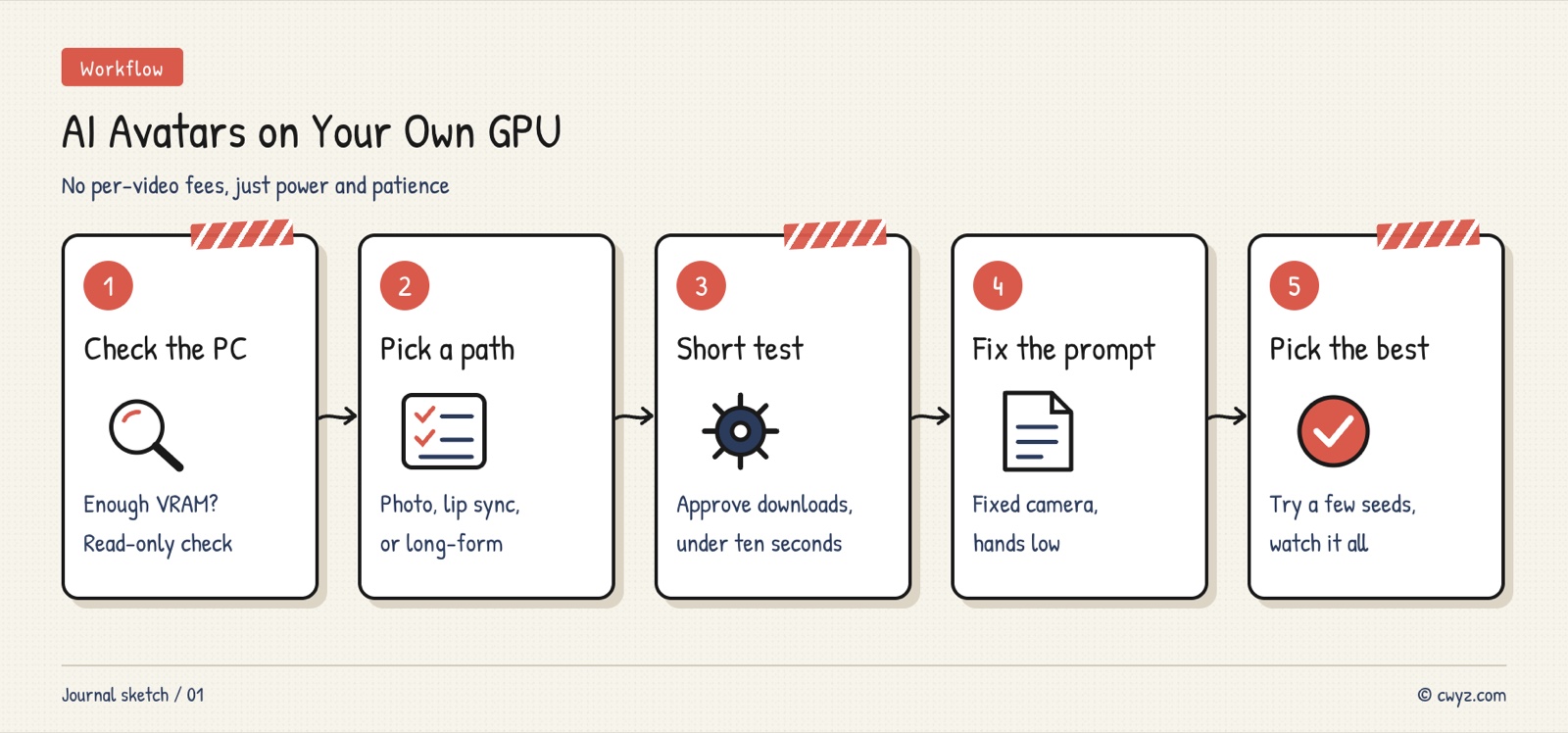
Check which tier your computer can handle first, then pick a path based on your footage. After installation, run a short test, tune the prompt, and run a few more takes to pick the best one.
Pick Your Path First
The right path depends on what footage you have. The timings and quality below come from one creator's tests on an NVIDIA DGX Spark (121 GB unified memory). We didn't reproduce them. A different machine will give different numbers, so use the table to compare speed, not as a benchmark.
| What you have | Path to take | Quality | Time for 10 seconds |
|---|---|---|---|
| Only a photo and a voice recording | H3 photo talking: generates the whole clip from scratch, with blinking, nodding, and gestures | Richest motion, but it occasionally goes wrong | 8.5 minutes |
| A photo plus a video of you speaking for a dozen or so seconds | H3 with reference video: helps the model recognize you better | Looks more like you, and the head angles are right too | 23 minutes |
| Your own talking-head video | LatentSync lip-sync: keeps the original video and only repaints the mouth | Most realistic, but all motion comes from the original video | 3.5 minutes |
| A photo and a long voice recording | LongCat long narration: generates one segment after another | Looks like you, as H3 does, with more restrained motion and natural blinking | 26 to 71 minutes, depending on resolution |
Beginners should start with lip-sync. If you have a front-facing talking-head video where the mouth isn't blocked and the head doesn't turn much, it's the easiest path to a good result on the first try, and the fastest. A single H3 run tops out at around a dozen seconds, so longer videos have to be stitched together from segments. For narration several minutes long, consider LongCat instead (see the LongCat-Video-Avatar 1.6 introduction).
Step 1: Have Your AI Agent Check What Your Computer Can Run
A model must fit entirely in VRAM (the memory on a graphics card) or in unified memory (memory shared by the CPU and GPU, as on the DGX Spark or Apple silicon Macs). If it doesn't fit, the program fails and exits. People call this running out of memory, or "blowing up the VRAM." A digital avatar setup often needs several models at once. The main image model is the biggest, and there's also a text encoder that reads your prompt and a VAE that compresses the picture and sound.
Based on that creator's tests and each project's official notes, the hardware falls into roughly three tiers:
- 16 GB VRAM gaming cards (for example, the RTX 5070 Ti): H3 handles clips up to 6 seconds without trouble, but it runs out of memory at 12 seconds. LatentSync 1.5's official minimum for inference is 8 GB. Version 1.6 needs 18 GB.
- High-end cards with 24 to 32 GB (for example, the RTX 4090 or 5090): The main H3 model file alone is larger than the VRAM. Whether it runs depends on whether the software can split the model and load the pieces onto the card in turns. No test report for this has been published yet, so ask someone with the same card before you buy.
- 100 GB or more of VRAM or unified memory: All three paths work. H3 can reach 15 seconds, and LongCat can output 720p.
These models all rely on NVIDIA's CUDA, and nobody has tested them on other brands of GPU. Give the prompt below to your AI agent. It only checks and doesn't install anything.
I want to make talking digital avatar videos locally on this computer. The candidates are three options: MiniMax H3 (generates a talking video from a photo plus audio), LatentSync (lip-syncs an existing video), and LongCat-Video-Avatar (long-form narration).
Please do a read-only check first and don't install anything:

1. What the system is, whether there's an NVIDIA GPU, and its model and VRAM. If it's an all-in-one machine or a Mac, how much unified memory it has, and whether the CPU is x86 or ARM
2. How much free space is left on each disk (these models add up to well over 100 GB)
3. Whether ComfyUI, Python, or CUDA are installed, and their versions

After the check, tell me in plain language:
- Which of the three options can run on this computer, and how long a video each can make
- For any that won't run, the closest alternative (for example, a compressed model, a shorter duration, or renting a cloud GPU)
If anything is unclear, ask me with multiple-choice questions. Stop and wait for my confirmation when you're done.
Checking read-only first confirms you have enough VRAM and disk space before you download anything. Pulling over 100 GB only to find it won't run is a waste. If the check reports an ARM CPU (as the DGX Spark has), expect extra trouble. Many AI tools are written for x86, and the creator ran into a dozen or so issues while installing lip-sync.
Step 2: Have Your AI Agent Install and Run the First Clip
Once you've picked a path, prepare your materials before handing the job to your agent:
- Photo: A half-body shot with a clear face and even lighting. Ideally, use the framing distance you want in the final video.
- Voice recording: Start with one under 10 seconds. Make it longer after the first run works.
- Talking-head video (for lip-sync or reference): It should face front, with the mouth unblocked by hands or a microphone. The head shouldn't turn much. Make it a bit longer than the voice recording.
Sign in to unlock this key section
New accounts get 10 free credits, plus 1 more each day you sign in (none on days you don't). Spend 1 credit to unlock and it stays open for you.
Including "list first, then wait for my confirmation" in the prompt matters. Each of these models runs to tens of gigabytes, and downloading the wrong version wastes a lot of time. Keeping the first clip under 10 seconds also makes failures faster to spot and debug.
Step 3: Tune the Prompt So Hands Don't Block the Camera
With the photo-talking path, the motion comes entirely from the prompt you write. The AI follows instructions closely, and whatever you write, it will amplify:
- Ask for a selfie-style close-up with rich gestures, and the person will raise both hands toward the lens and block half the frame.
- Describe a tutorial-style presenter, and the person will keep wagging one index finger.
- Change it to "fixed camera, keep the same distance as the photo, talk like you're chatting with a friend, palms open naturally, and occasionally lower your hands after a sentence," and the motion looks natural.
Write down what you don't want too, for example "subtitles, blur, extra fingers, camera shake." If you want your AI agent to rewrite the prompts, give it this:
I'm making a talking digital avatar with [H3 / LongCat]. The latest video has this problem: [for example, hands keep covering the face / motion is too stiff / mouth movements are exaggerated / the scene changes].
Here's my current prompt: [paste the original prompt]

Please rewrite the prompt and the negative prompt:
1. State the constraints clearly, such as a fixed camera, keeping the same distance as the photo, and hands kept low. Don't use words that get amplified into exaggerated motion.
2. Change only one thing at a time, and tell me what you changed and why.
3. Re-run with the same seed so I can compare it with the previous clip.
Step 4: Run Several Takes and Pick the Best
Even with the same settings, a rerun can look different. The seed decides this. A seed is the starting number for each generation. Keep the seed and every setting the same, and you get the same result. Change the seed and it's like rolling the dice again. The creator tried 3 seeds, and in one take even the sky changed. A night scene turned into daytime.
So for the final render, have your agent run about 3 seeds, then watch all of them before choosing. Some flaws don't go away with a new seed. For example, the mouth sometimes puckers into an "O" shape. If that happens, change the sentence or the description. If that still doesn't help, switch paths.
Settings Cheat Sheet
ComfyUI-style tools have a lot of settings. Beginners can usually keep the template defaults. Knowing what these mean will make it easier to talk to your agent:
| Setting | What it is | How to adjust it |
|---|---|---|
Steps (steps) |
The number of passes the model makes, starting from a screen of noise and refining it into a picture | Time scales almost linearly with steps. Speed-up models need only a few. |
| LoRA | A small add-on file, a few GB in size, that gives the main model a new ability. Removing it leaves the main model untouched | Adjust its strength. 1.0 means fully on. Stacking many doesn't necessarily help. |
| turbo / distilled version | A version trained to finish in just a few steps, often released as a LoRA | Look for it first when your GPU is slow |
| Sampler | The algorithm that decides how each step does the refining | Use the template default |
| Precision: BF16 / INT8 | How precisely the model stores its numbers. INT8 is about half the size, and the quality difference is usually hard to see | If VRAM is short, look for quantized versions like INT8 |
| Resolution, frame rate, frame count | Picture size, frames per second, and total frames | Higher resolution is slower. Some models require specific frame counts, so have your agent calculate them from the template. |
Notes
- Only use faces and voices you're authorized to use: Use your own, or get the person's consent. Turning someone else's photo or voice into a digital avatar may violate their portrait and voice rights. When you publish, label the content as AI-generated, as the platform requires.
- The H3 license has regional restrictions: Its open-weight license currently doesn't cover the United States, the EU, the UK, or South Korea. Users in those places must first apply to MiniMax for authorization. LatentSync is Apache-2.0, and LongCat-Video-Avatar is MIT.
- Electricity is cheap, time is not: The creator estimated 100 watts for the whole machine, which puts the electricity for a 10-second clip at about a cent. That's an estimate, not a reading from a wall meter. The main cost is the machine itself, plus each clip takes several minutes to over an hour to render.
- Real footage is still the safest choice: Digital avatars suit batch production, filling gaps in your shots, and situations where you can't appear on camera. For important videos, still film yourself.
To upscale the low-resolution video from H3 to HD, see Upscale Your AI Video to HD With an AI Agent.
Comments (0)
No comments yet. Start the conversation.