

Pick the Right AI Model for Each Job
What you'll get
Most AI apps let you switch between several models. Some are fast and cheap on your quota. Others are slower but smarter. Beginners often stick with the default. Easy tasks get the most expensive model, and your quota runs out fast. Hard tasks get the fastest model, and the answers fall a little short. This tutorial shows you the switch and how to match the model to the job.
Easy jobs get the fast model. Hard jobs get the strong one. That's the whole rule.
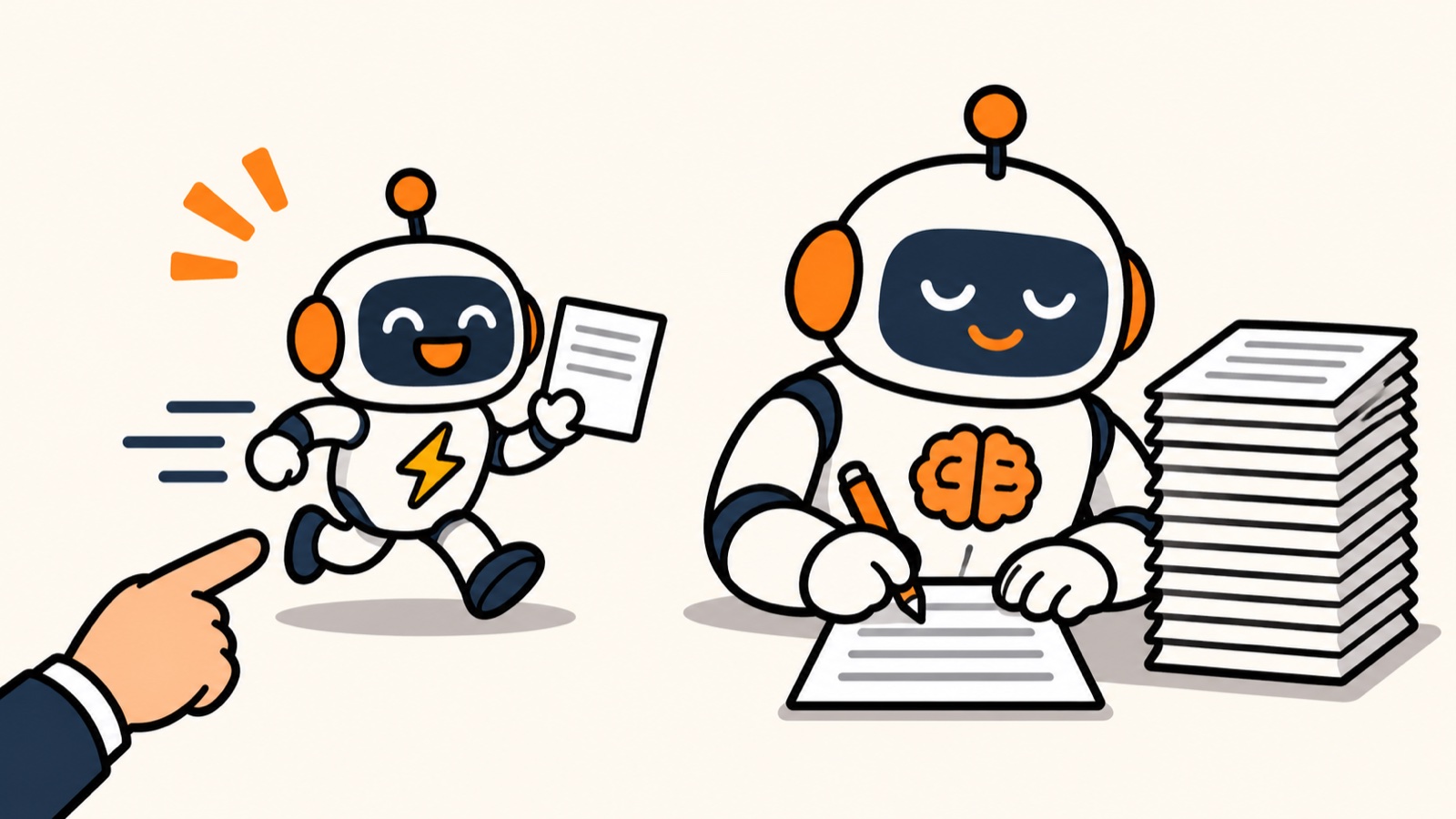
This picture is an illustration made with AI. It is not a real screenshot from any app.
What a model is
A model is the AI's "brain." ChatGPT, Claude and Codex are the restaurants. The model is the cook. One restaurant can have a fast line cook and a slow, careful head chef. Whoever you order from is the one who cooks.
Fast and strong models
Every company names its models differently, and the names change often. Don't try to memorize them. Read the description to see which kind it is:
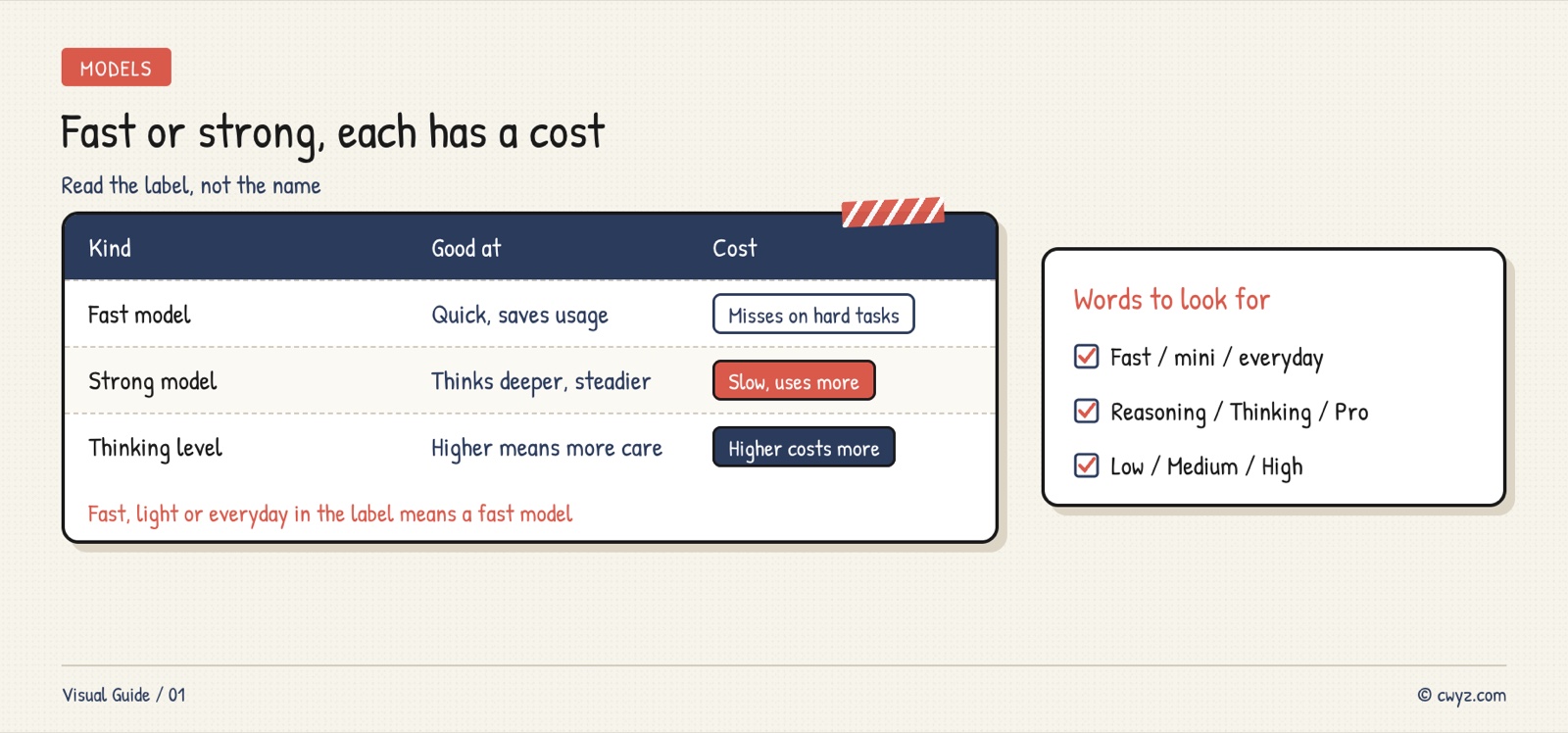
Besides the model, many apps let you set a "thinking level": low, medium or high. The higher the level, the longer it thinks. Its answers get more detailed, and it uses more of your quota.
Where to switch
The model switch is usually above or next to the input box. Click it to open a dropdown. Each model has a line that says what it's good at:
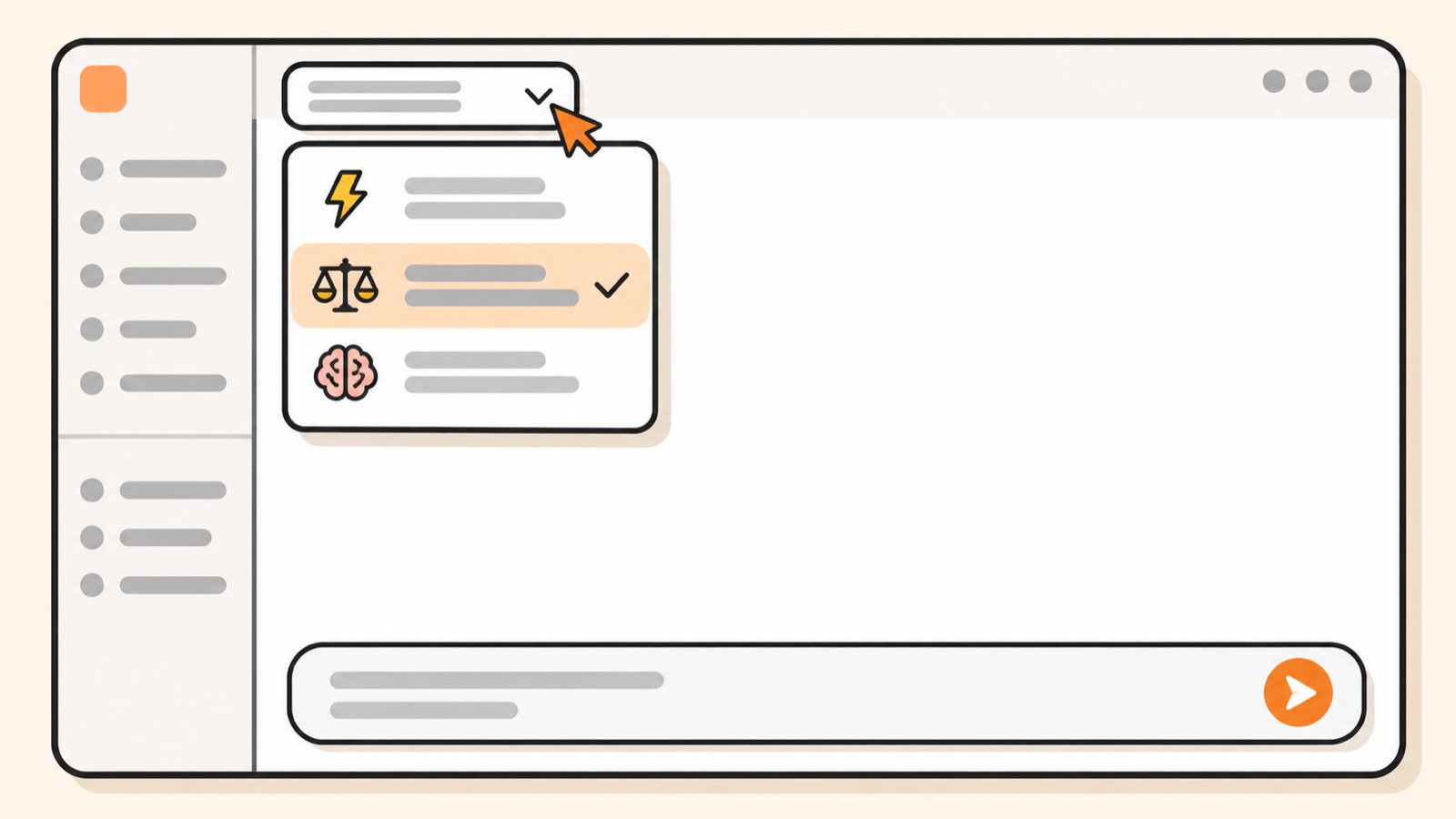
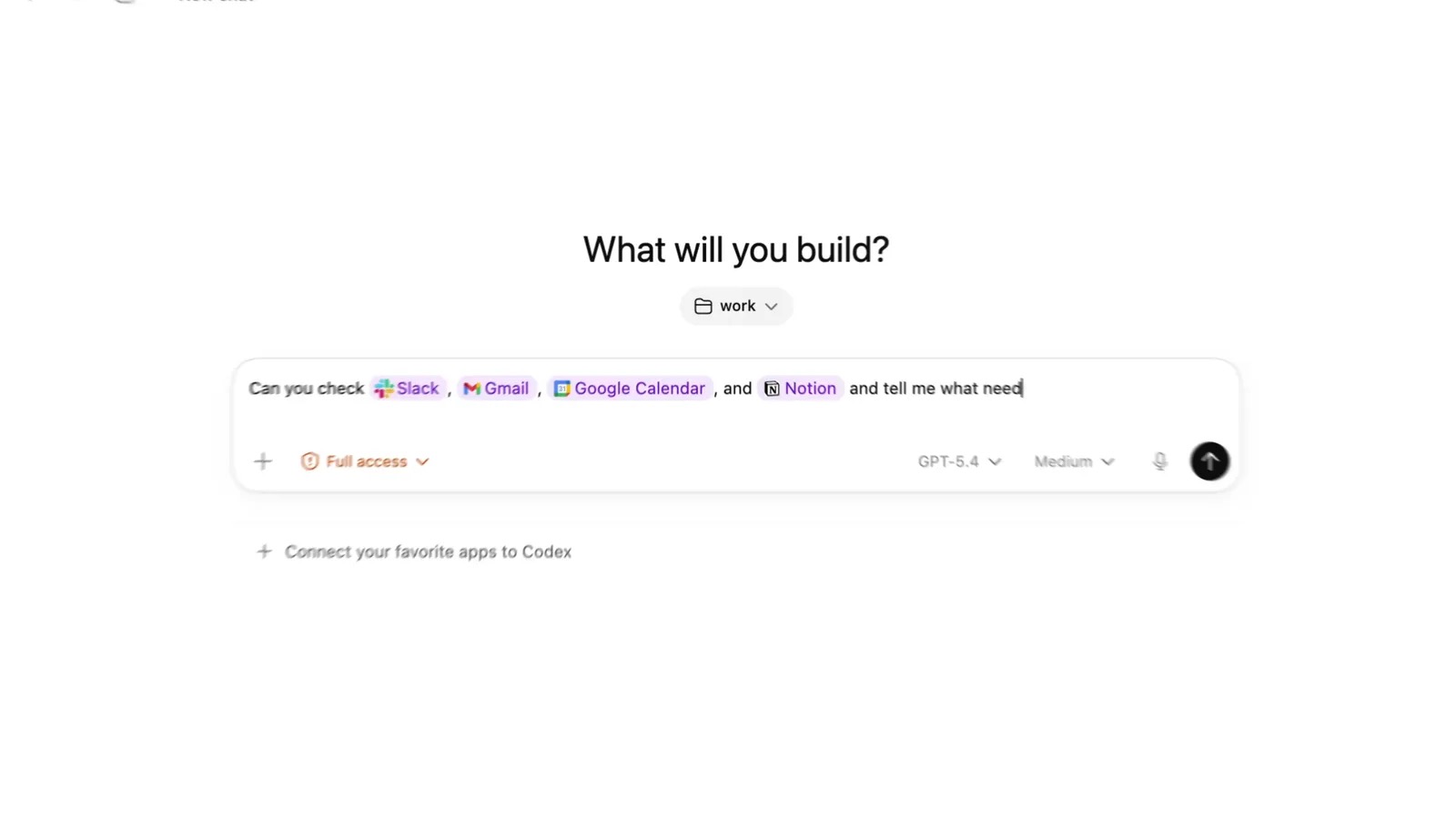
This picture is an illustration redrawn from a tutorial screenshot found online. The model names you see will be different.
In Codex, there are two buttons on the right, below the input box. The left one picks the model. The right one picks the thinking level. In the picture, it shows Medium.
Which model for which job
If you're not sure, use this chart:
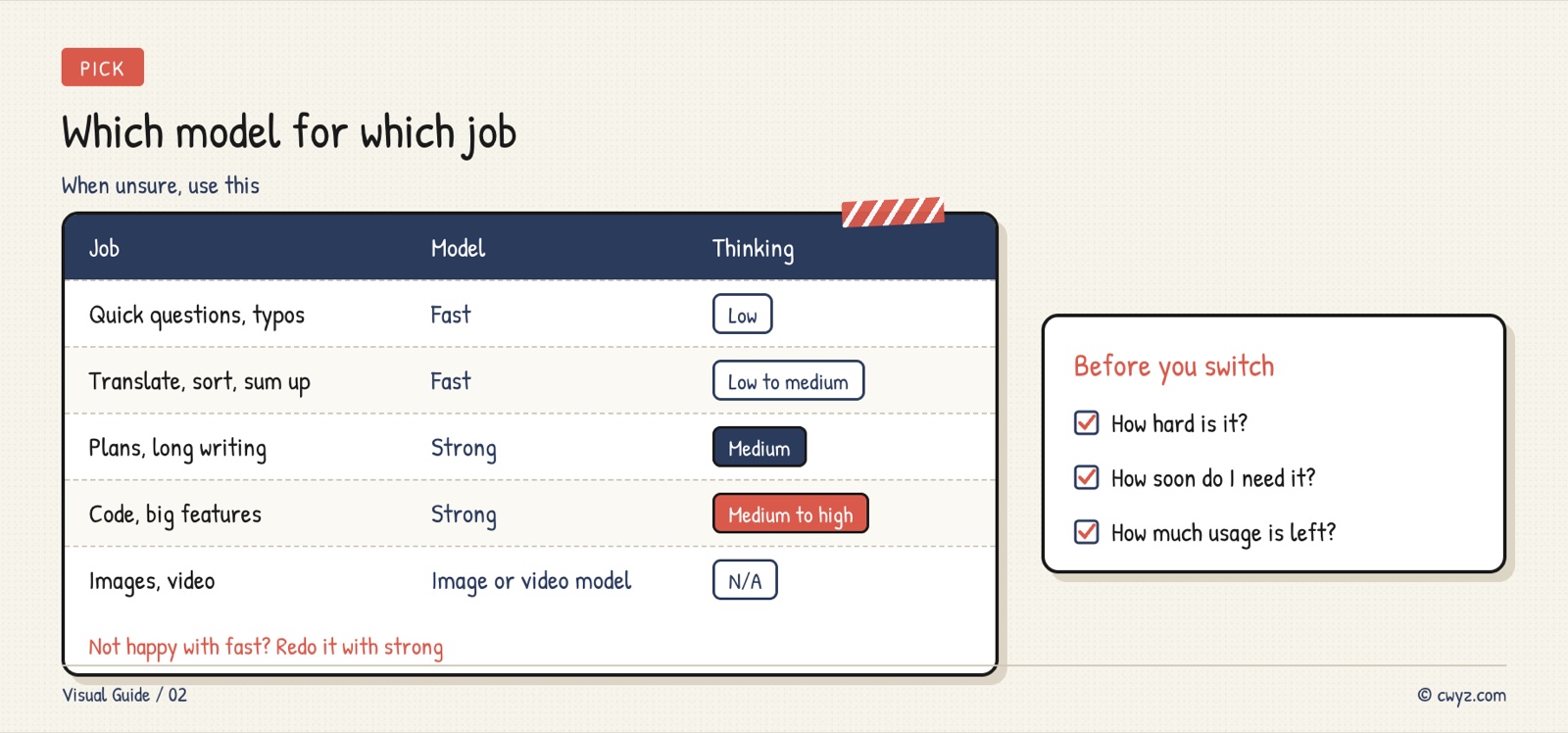
If the fast model's answer isn't good enough, switch to the strong model and redo the task. That's usually cheaper than using the strong model for everything from the start.
Let your AI agent pick
Each person can use different models, depending on your app and your plan. Copy the prompt below and give it to your AI agent. It will make a simple cheat sheet for your situation:
Sign in to unlock this key section
New accounts get 10 free credits, plus 1 more each day you sign in (none on days you don't). Spend 1 credit to unlock and it stays open for you.
That last test lets you see the difference between fast and strong with your own eyes. Many everyday tasks only need the fast model.
Things to watch
- Model names change quickly. A recommendation from today may be out of date in a few months. Check the description in your app.
- If you switch models in the middle of a long chat, your next message can cost much more quota. It's better to start a new chat when you switch. See Switch models mid-chat in Claude Code, and the next message costs far more.
- Don't keep the thinking level at the top. Your quota will drop fast. See Claude Code usage running out fast? Your effort level may be locked at the top.
- When someone says a model is the best, test it on your own task first. See Don't trust other people's model comparisons, run your own task and compare.
References
- Codex models (OpenAI official docs)
- Claude models overview (Anthropic official docs)
- Set up a place for it first: Give Your AI Agent Its Own Folder
- Find out what you're still missing: Check your AI beginner level
Comments (0)
No comments yet. Start the conversation.