

Give Your AI Agent Its Own Folder
What you will get
Your AI agent saves its work as files. Beginners often run into two problems. The agent says the job is done, but you cannot find the files. Or it changes a file you did not mean to touch. This guide shows you how to set aside one folder on your computer just for your AI agent. Put the files you give it in there. Its results go there too, and it does not touch anything else.
With this folder, you always know what it did, and you do not have to worry about it changing the wrong files.
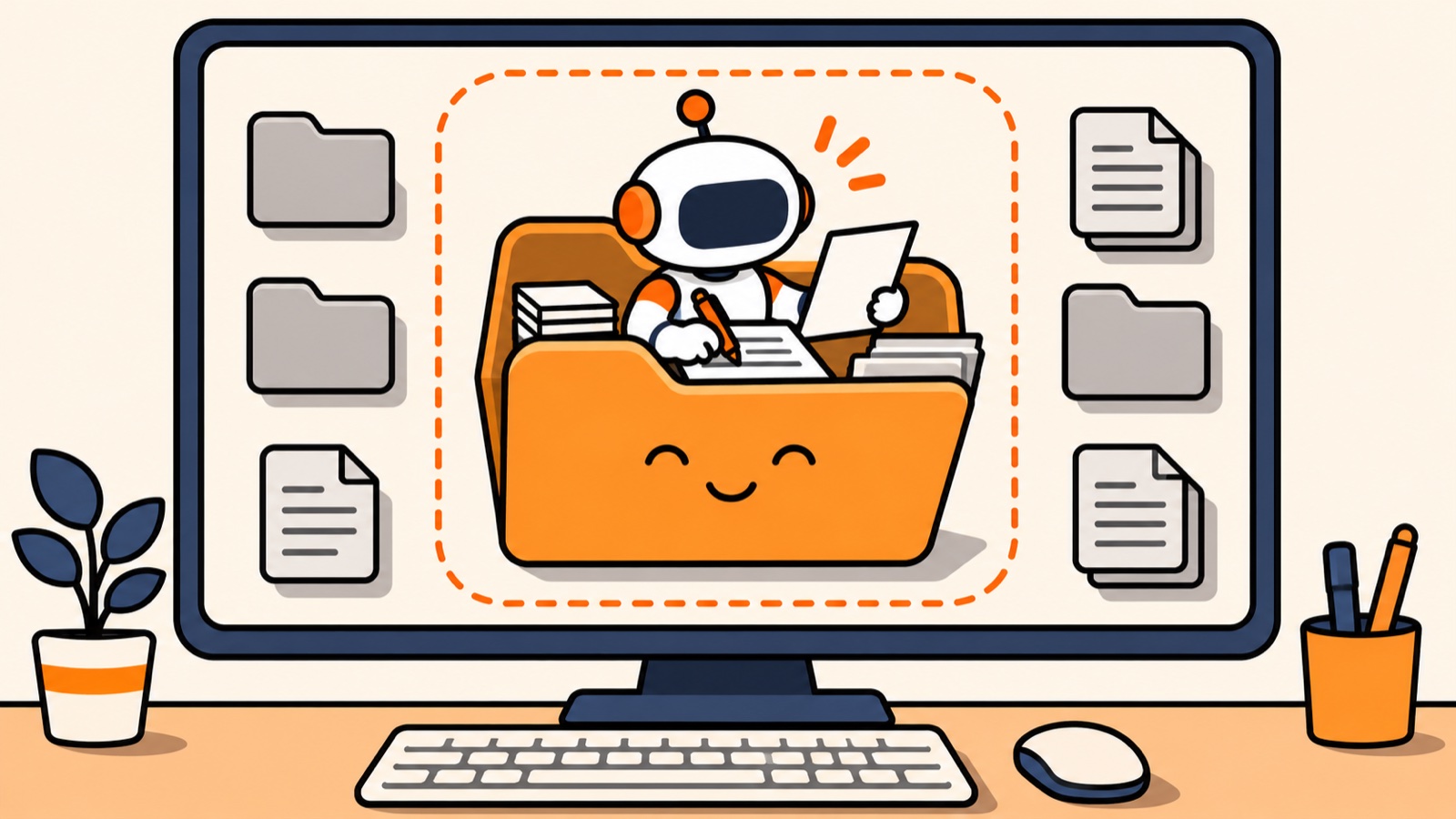
This picture was made by AI. It is not a real screenshot of any app.
Learn where files live
Every file on your computer has an address. It is called a path. A path works like a mailing address. It goes from big to small: which drive, which user, which folder, and then the file name. Your AI agent uses this address to find files.
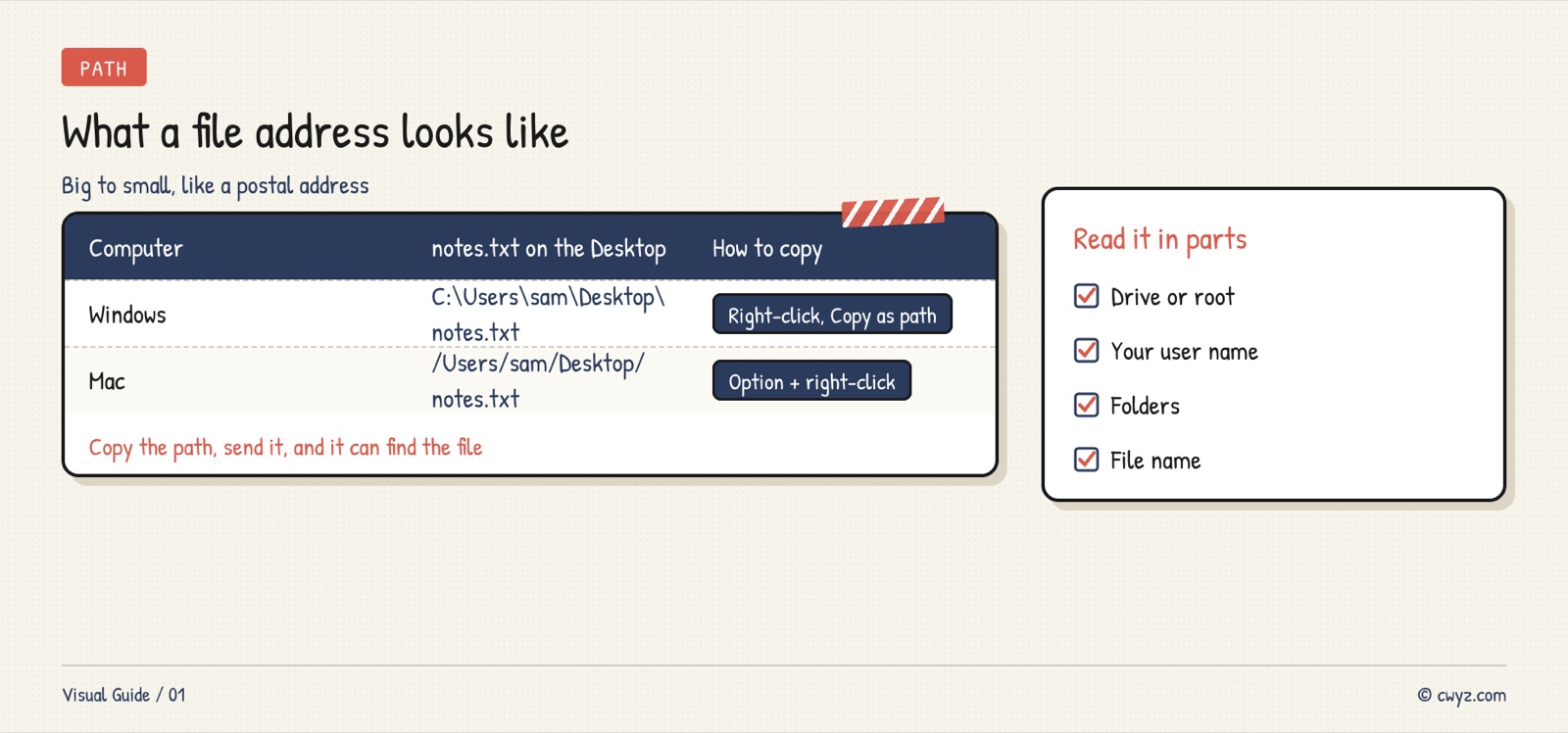
You do not need to memorize paths. You only need to know two things. You can copy a path. And if you send the path to your agent, it can find the file.
On Windows, right-click a file and choose Copy as path:
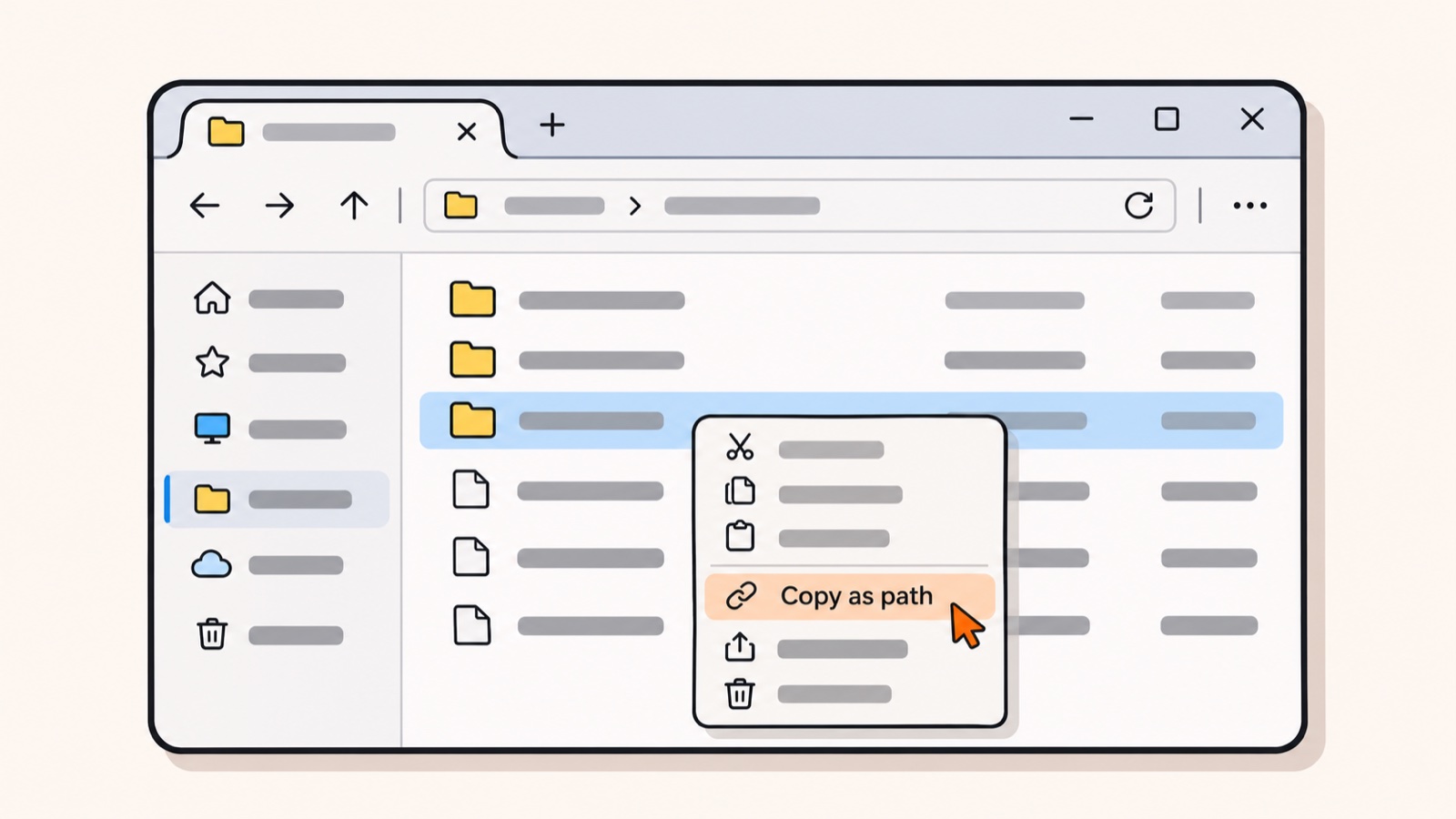
On Mac, hold the Option key and right-click a file. The menu shows Copy as Pathname:
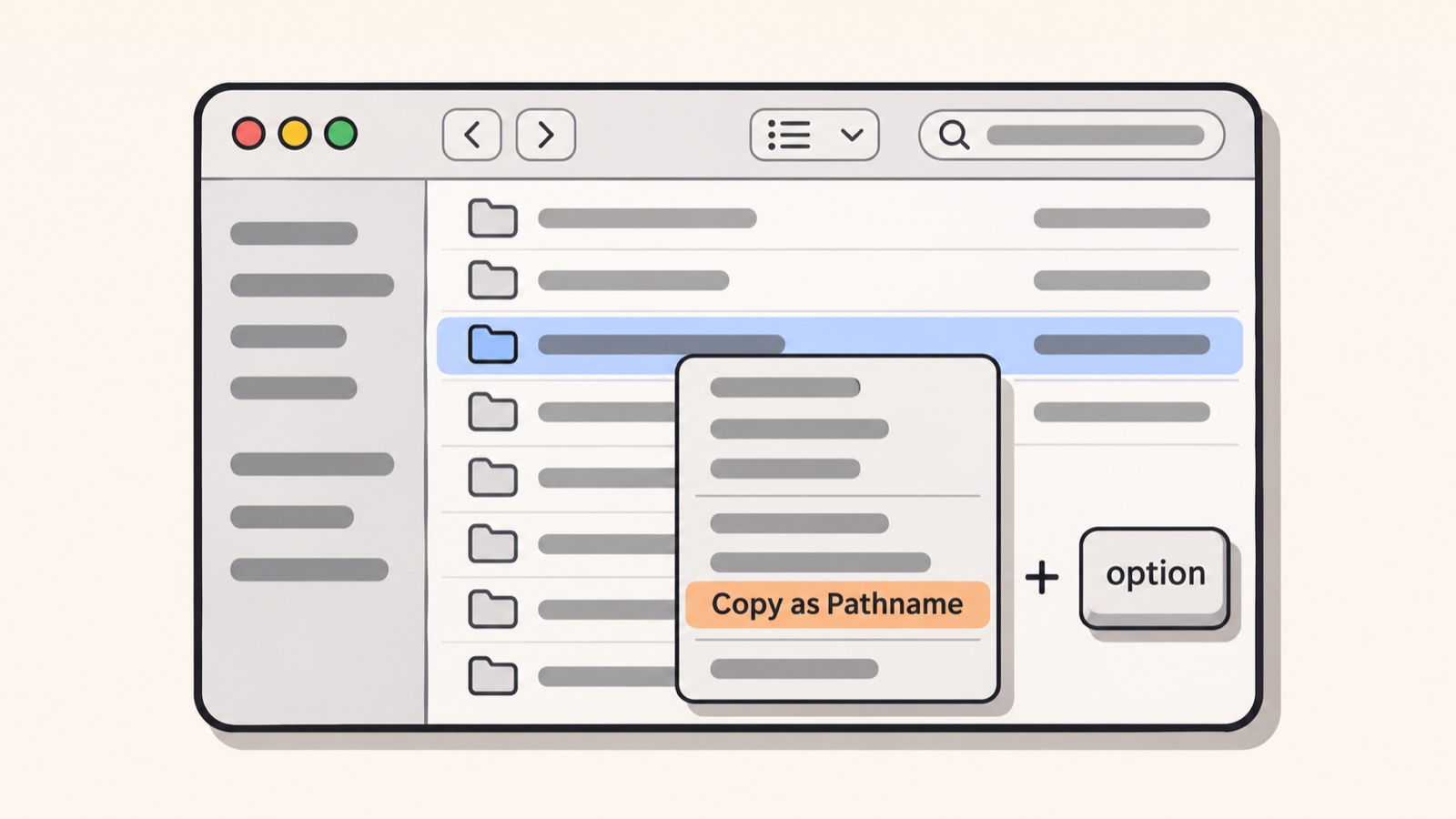
These two pictures are redrawn from screenshots in online tutorials. The menus may look slightly different on your computer.
Set up a place for it
On your desktop, make a folder called "AI workspace". Inside it, make two smaller folders. One is "For you", for the files you give your agent. The other is "Done by you", for the files your agent makes.
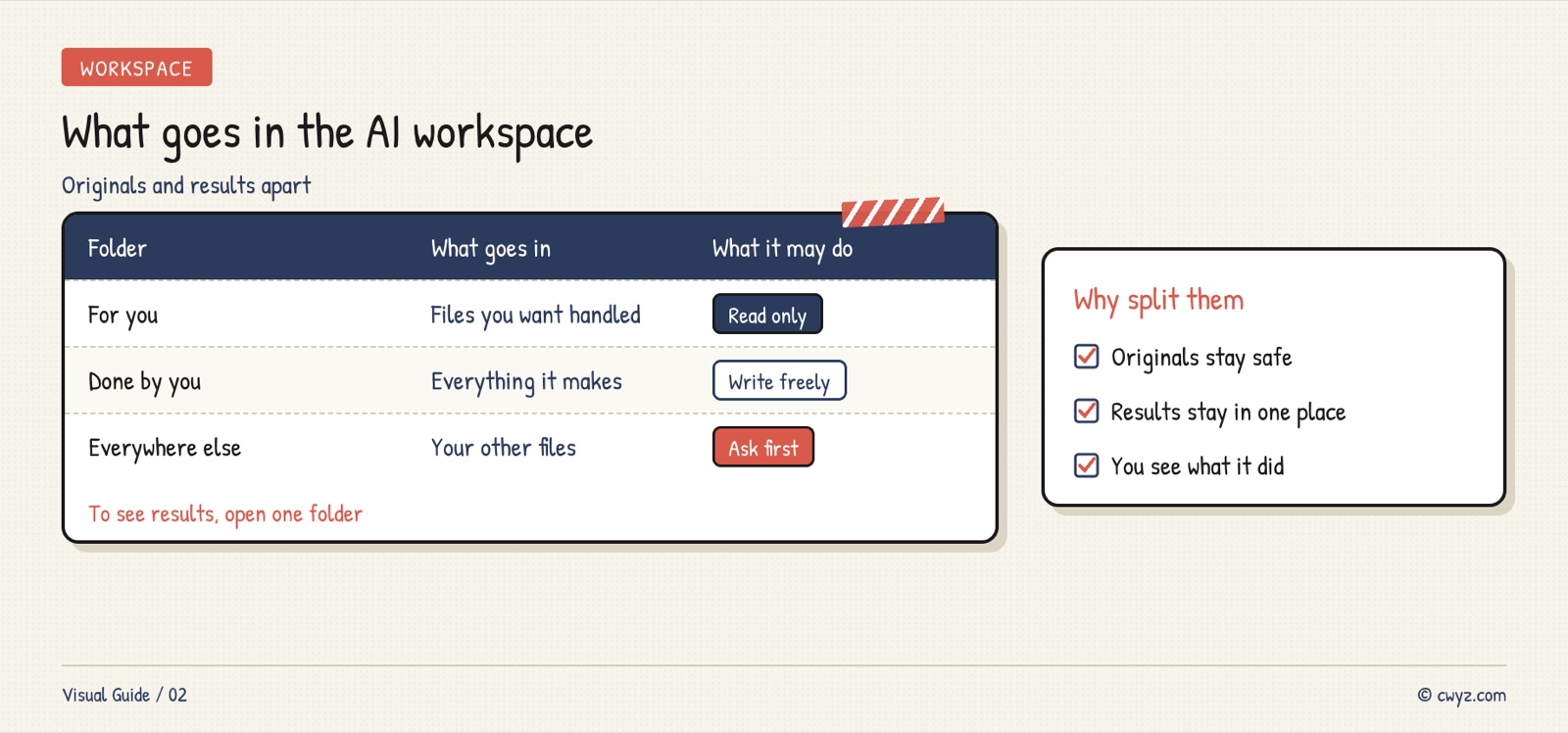
Why keep them apart? The agent's results stay separate from your original files, so your originals will not get damaged. If you want to see the results, you only need to open one folder.
Hand over your files
The easiest way is to drag the file into the chat box. In Codex, above the input box, you can also pick the folder your agent works in. Choose "AI workspace".
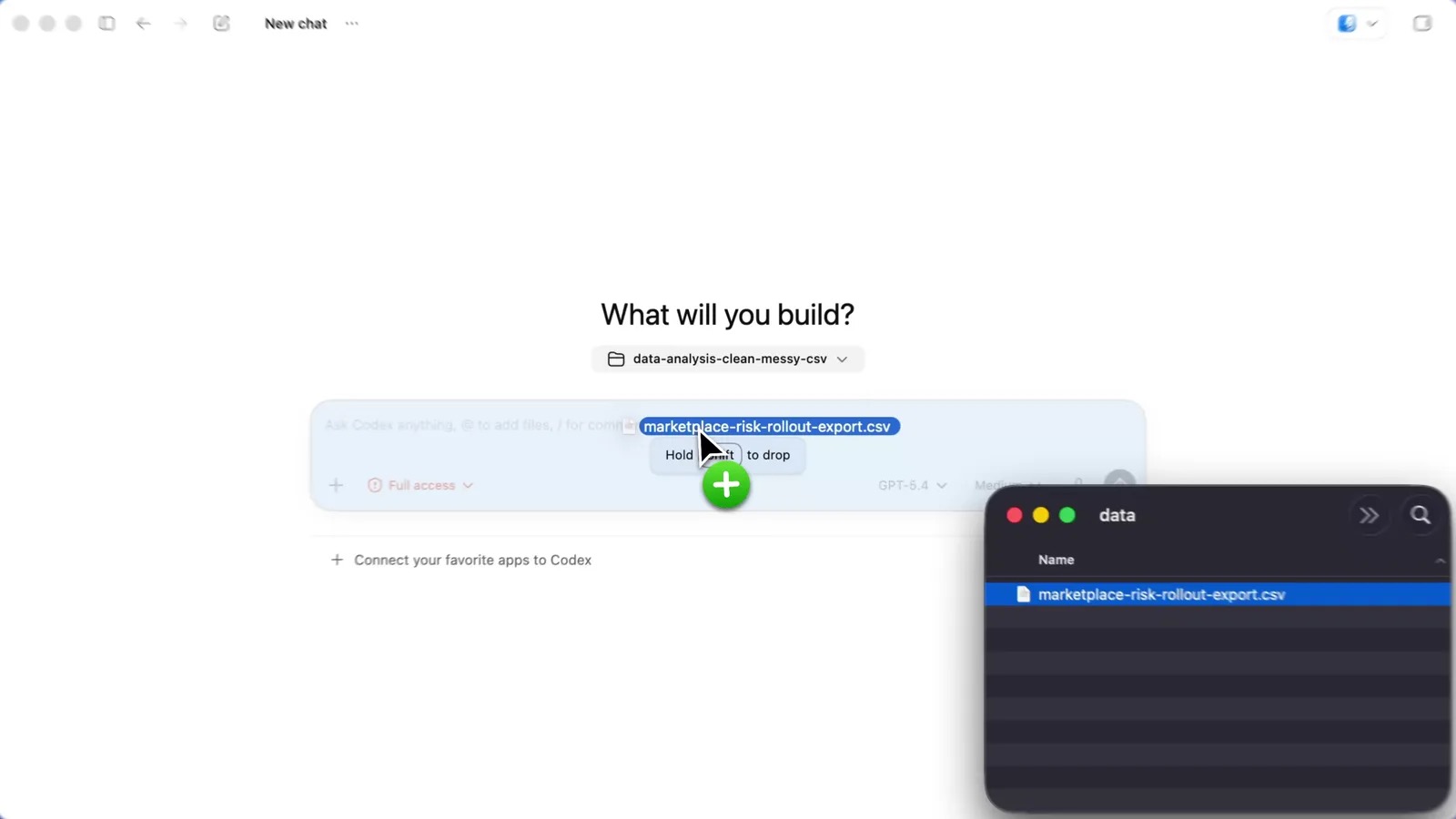
If dragging does not work, use one of the two ways below. You can send the path, or put the file in "For you".
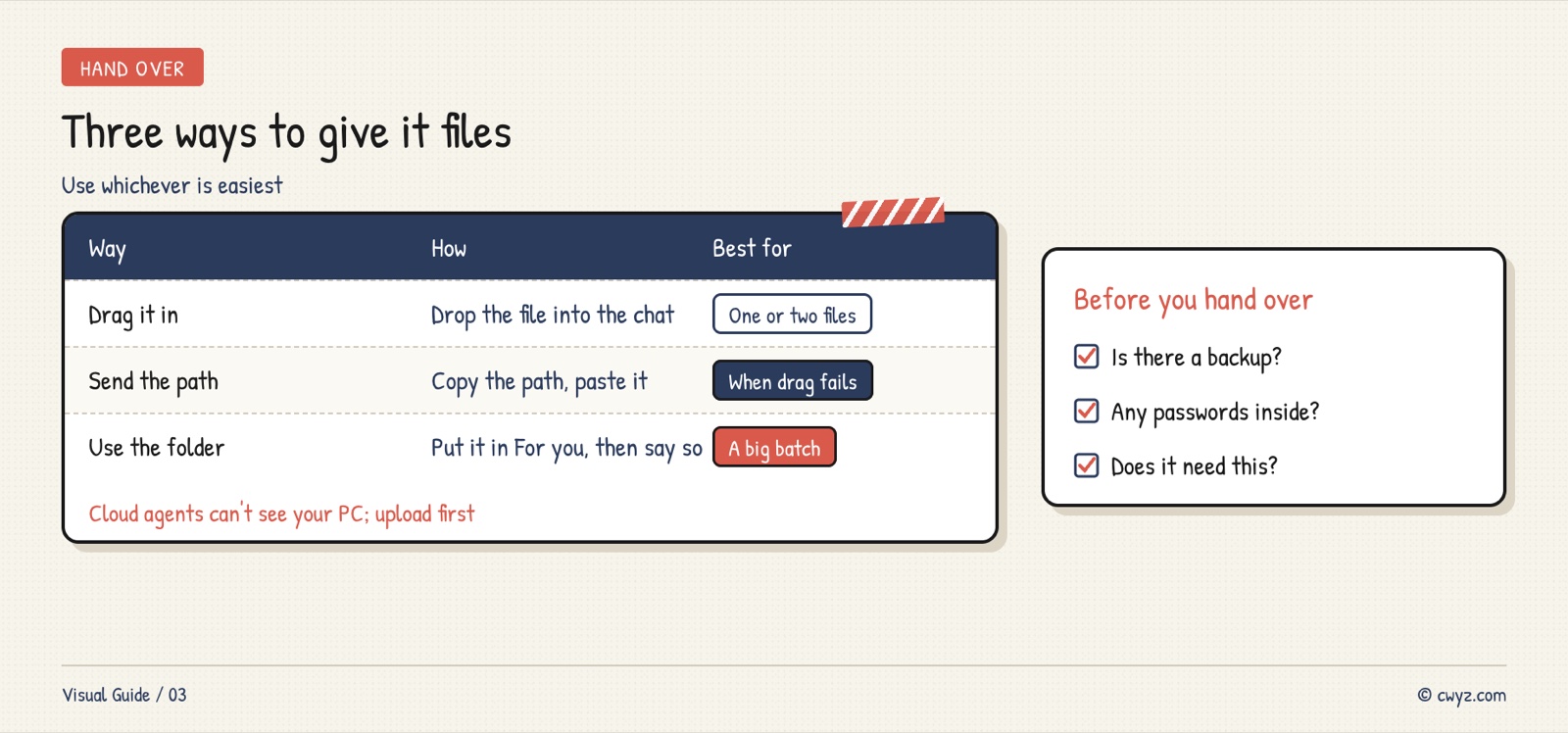
Set the rules in one message
Send the text below to your AI agent. It will create the folders, save the rules, and then run a quick test.
Sign in to unlock this key section
New accounts get 10 free credits, plus 1 more each day you sign in (none on days you don't). Spend 1 credit to unlock and it stays open for you.
The last test lets you see three things for yourself. Your agent can find the file. The new file goes in the right place. And the original file is not changed.
Where to find the results
After each job, your agent will tell you which files it changed and where they are. Look in "Done by you". If you cannot find a file, ask your agent: "Open the file you just made in its folder so I can see it."
Notes
- Keep folder and file names short and simple. Avoid special symbols other than spaces. Some agents misread them.
- Before you put an important file into "For you", make a copy first. Keep the original somewhere else.
- A new chat may make the agent forget the rules. Before you start, remind it: "Only work inside AI workspace."
- Cloud agents (such as Meta Muse) cannot reach files on your computer. Upload the files to them first.
References
- Codex official docs (OpenAI)
- Not set up an AI agent yet? Read the beginner setup guide: Let AI Do the Work for You, Starting With One Agent
- Set safety rules first: Stop Your AI Agent From Spending or Deleting Without Asking
- Want to know what you still need to learn? Check your AI beginner level
Comments (0)
No comments yet. Start the conversation.